Operation Manual - Barium Announcer
The Barium has been discontinued and is no longer sold for new projects. This documentation remains available to support existing installations. For new projects or replacements, contact the Iongrade sales team.
The Barium has an embedded HTTP server (webservice), through which all operational settings, network parameters, audio file management, and system adjustments are performed, accessible through a web browser. This manual describes each screen of the v1.13 configuration interface and the ways to trigger audio playback during operation.
To access the configuration you must place the device in Configuration mode (hold the front button pressed for 5 seconds, until the audio message confirms the Access Point activation), connect to the Wi-Fi network it creates (SSID barium followed by a device identification code, e.g., bariumA375F67A), and point the browser to 192.168.4.1. This network is open (no password). The step-by-step is in the Installation Manual.
The Barium is an audio message announcer: it stores MP3 files in its internal memory and plays them when it receives commands over the network. The commands can arrive over HTTP POST (webservice), over MQTT, or through the triggering of the command input (Input Cmd). Sound output is provided by an 8 Ohm speaker (pair of terminals) or by an external amplifier (P2 connector).
Login
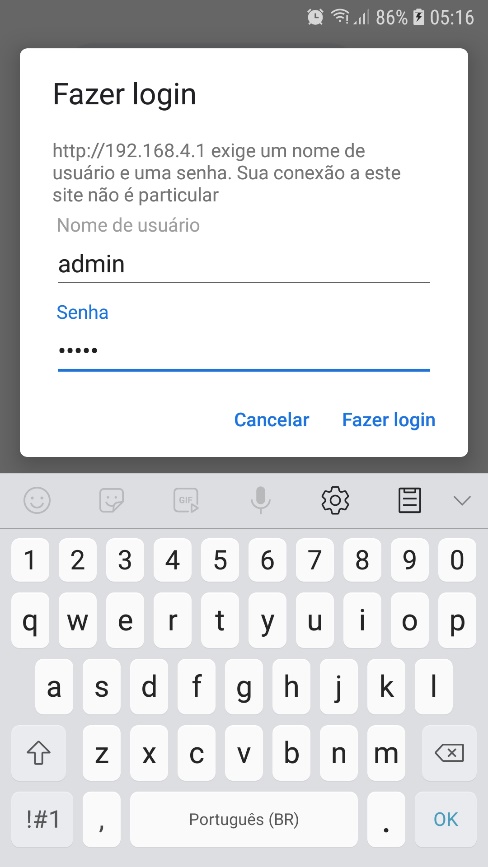
When you connect the browser to the device, you will be asked for a user name and password. The default values are:
- User:
admin - Password:
bariumpwd
After identification, the Barium page server presents the available functions.
Home page
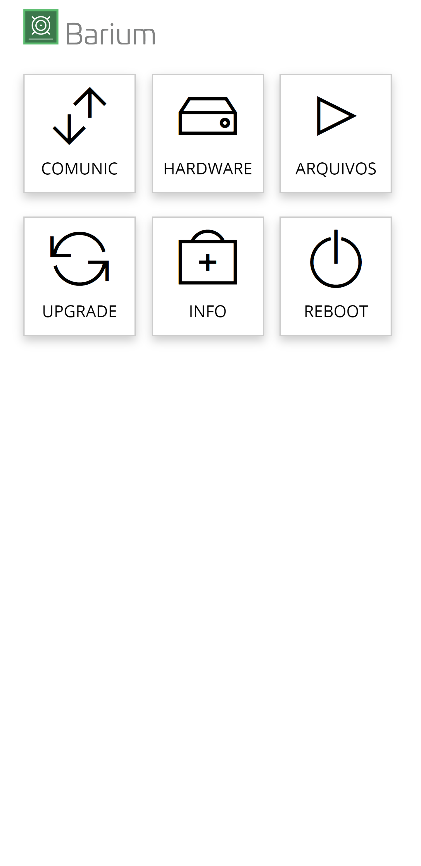
The configuration home screen presents the following options:
- Comunic (Communication) — configuration of the communication connections.
- Hardware — device configuration (clock, volume, command input).
- Arquivos (Files) — audio file management.
- Upgrade — firmware update.
- Info — general information about the Barium.
- Reboot — device restart.
Communication
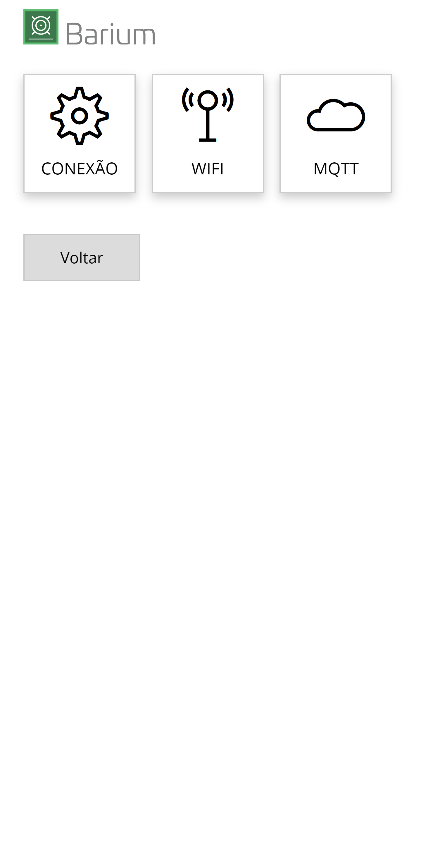
The Comunic (Communication) menu lets you choose the set of parameters you want to configure:
- Conexão (Connection) — configuration of the communication media type.
- WiFi — parameters of the Wi-Fi network the Barium must connect to.
Use the Voltar (Back) button to return to the previous menu.
In addition to the network connection above, the Barium can communicate with an MQTT broker (OpenBarium integration, including the option of automatic connection to the Accelero broker). The configuration and commands of this integration have separate documentation and are not detailed in this manual.
Connection
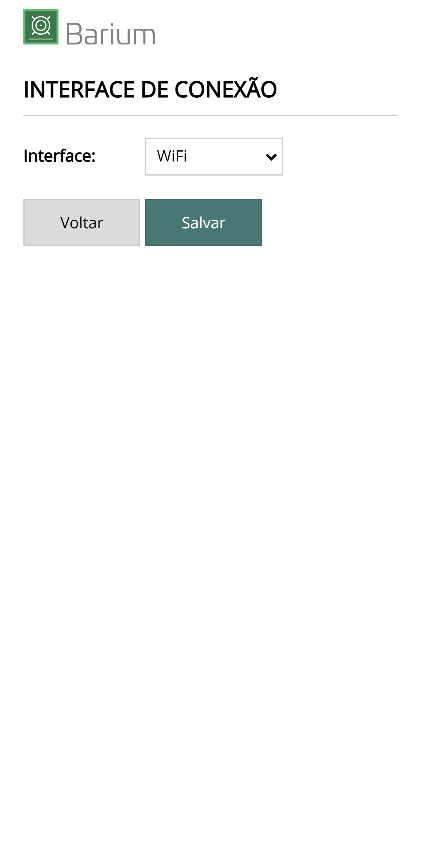
On this screen you choose the device connection mode.
| Field | Description |
|---|---|
| Interface | Selection of the connection type used by the Barium in operation. |
After entering the required data, use the Salvar (Save) button.
After changing these parameters you must restart the device. Use the Reboot function or turn off the power supply, wait five seconds, and turn it back on. If the device is configured to operate without a connection, communication with the MQTT broker will be disabled.
WiFi
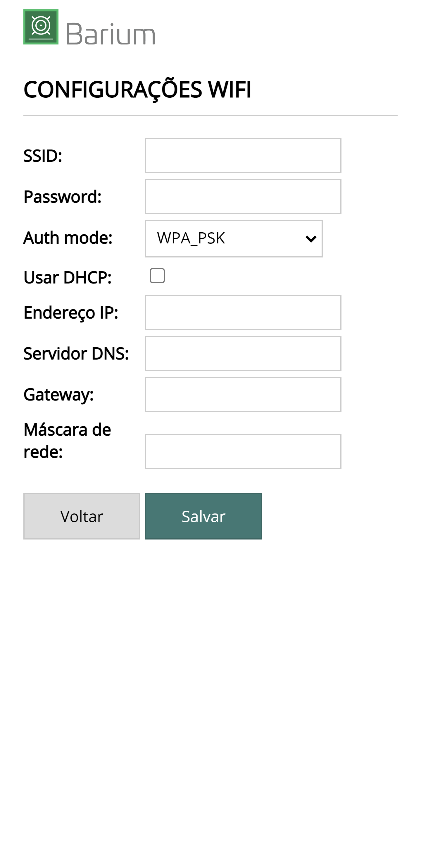
This screen lets you configure the parameters of the Wi-Fi network the Barium must connect to when in operation.
| Field | Description |
|---|---|
| SSID | Name of the network the device must connect to. |
| Password | Password for access to the WiFi network. |
| Auth Mode | Authentication mode for access to the WiFi network. |
| Usar DHCP (Use DHCP) | When checked, the device obtains the IP address automatically through a DHCP server (default). |
| Endereço IP / Servidor DNS / Gateway / Máscara de rede (IP Address / DNS Server / Gateway / Network mask) | If the Usar DHCP (Use DHCP) option is not enabled, enter the static IP address to be used, along with the DNS server, gateway, and network mask data. |
After entering the required data, use the Salvar (Save) button.
After changing these parameters you must restart the device. Use the Reboot function or turn the power supply off and on again. For the connection with the MQTT broker, the device must have access to a WiFi network with internet access.
Hardware
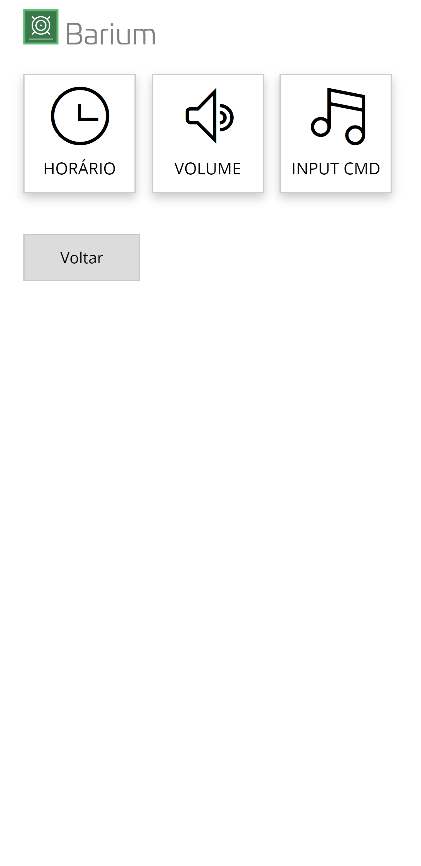
The Hardware menu lets you choose the set of device parameters you want to configure:
- Horário (Clock) — internal clock configuration.
- Volume — playback volume adjustment.
- Input Cmd — configuration of audio triggering through the signal input.
Use the Voltar (Back) button to return to the previous menu.
Clock
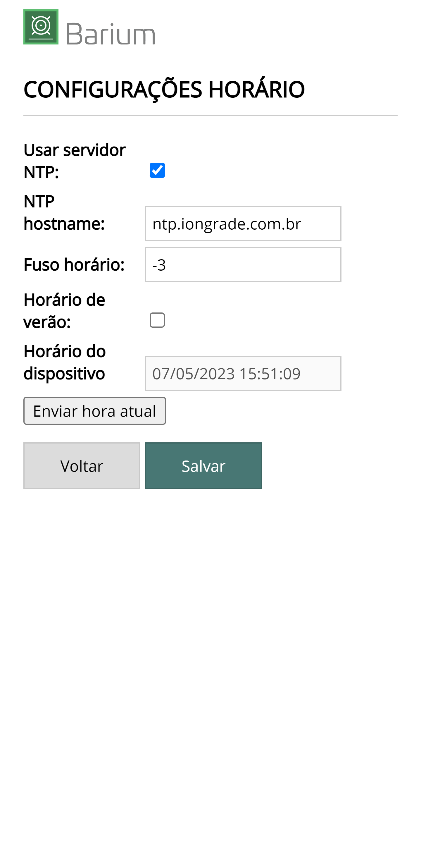
On this screen you can set the Barium to keep its internal clock synchronized with an external date/time server (NTP Server).
| Field | Description |
|---|---|
| Usar NTP (Use NTP) | When checked, the Barium queries an NTP server and adjusts its local clock automatically. |
| NTP Server | URL of the NTP server. |
| Fuso horário (Time zone) | Time zone of the location where the device is installed. |
| Horário de verão (Daylight saving time) | Automatically adjusts the clock for daylight saving time. |
| Horário do dispositivo (Device time) | Current date and time of the device. |
| Enviar hora local (Send local time) | Sends the date and time of your computer to the Barium. |
Make the necessary changes and click Salvar (Save) to confirm.
Volume
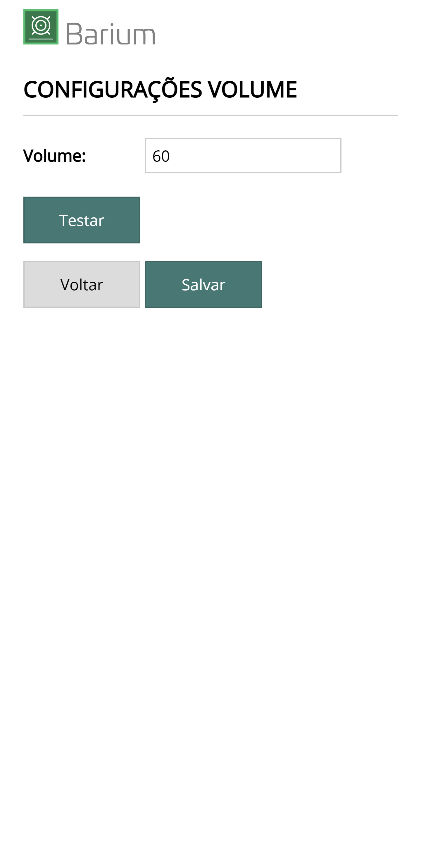
This screen lets you adjust the Barium audio volume.
| Field | Description |
|---|---|
| Volume | Desired volume level (0-100). |
Use the Salvar (Save) button to store the new volume value in the device. Use the Voltar (Back) button to return to the home menu.
Input Cmd
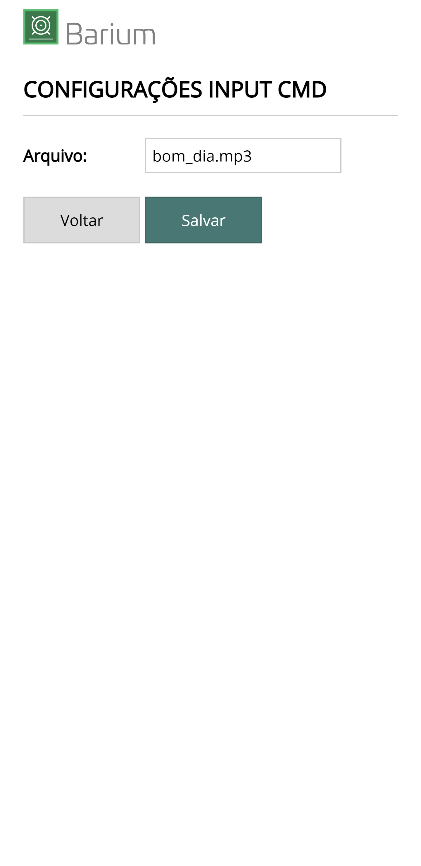
This screen lets you choose the name of the audio file that must be played when the Barium Input command input is triggered (for example, by a dry contact from a button or relay).
| Field | Description |
|---|---|
| Arquivo (File) | Name of the audio file to be played when the Input is triggered. |
Use the Salvar (Save) button to store the configuration in the device. Use the Voltar (Back) button to return to the home menu.
Files
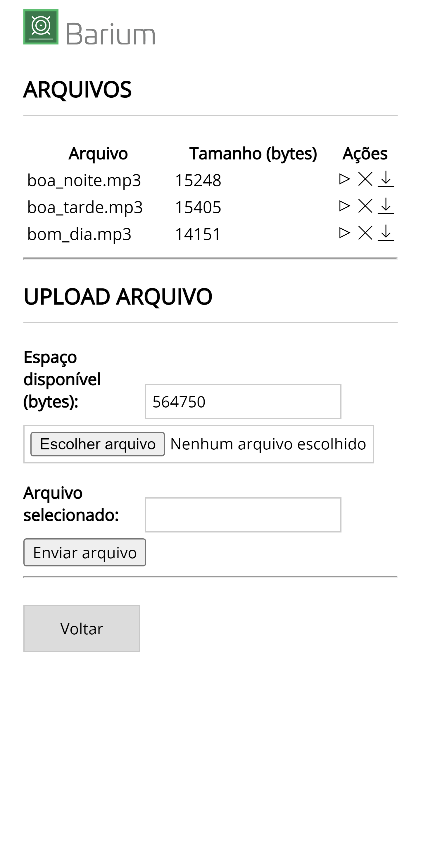
Through this screen you can manage the Barium audio files. The screen is divided into two sections: Arquivos (Files) and Upload de Arquivos (File Upload).
The Arquivos (Files) section shows the audio files present in the device. Next to each file name there are three icons that trigger the actions:
- Play — the Barium plays the audio file.
- Delete — the file is removed from the device.
- Download — the Barium sends the file to your computer or smartphone.
The Upload de Arquivos (File Upload) section shows the space available to receive new files. Use the Escolher arquivo (Choose file) button to select the MP3 to be sent and then the Upload button to transfer it to the Barium.
| Section | Description |
|---|---|
| Arquivos (Files) | Management of the audio files present in the device (Play, Delete, Download). |
| Upload de Arquivos (File Upload) | Upload of new audio files, showing the available space. |
The maximum size of each audio file is 80,000 bytes. Convert the file to a lower bit rate to reduce its size.
Use the Voltar (Back) button to return to the home menu.
Upgrade
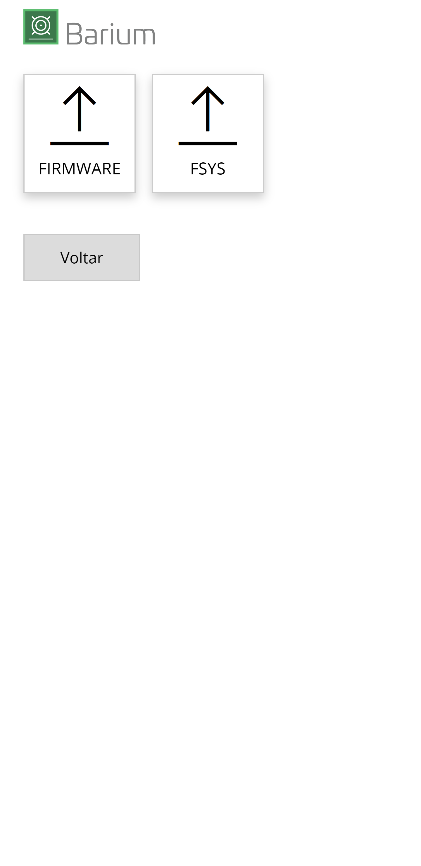
This function lets you send a new firmware version to the device when needed. There are two types of update:
- Firmware — update of the executable code.
- Fsys — update of the file system.
In some situations both updates are required. Choose the type by clicking the specific button or click Voltar (Back) to return to the home menu.
Firmware Upgrade
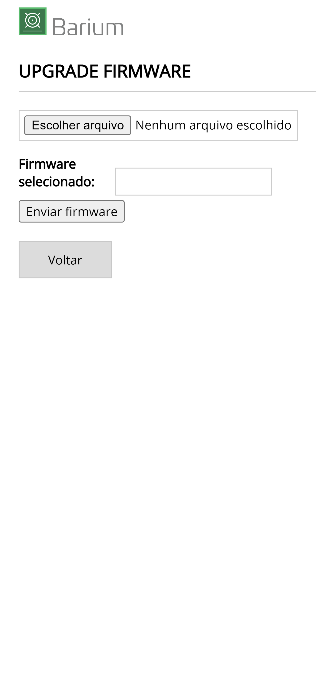
Through this screen you select a file with a new firmware version to update the Barium.
Click Escolher arquivo (Choose file) to select the file and then Enviar novo firmware (Send new firmware) to start the upload.
At the end of the update, the device restarts automatically. Since it returns to normal operating mode, the Access Point will be disabled. To go back to configuration mode, hold the front button pressed for 5 seconds again (see Installation Manual).
Fsys Upgrade
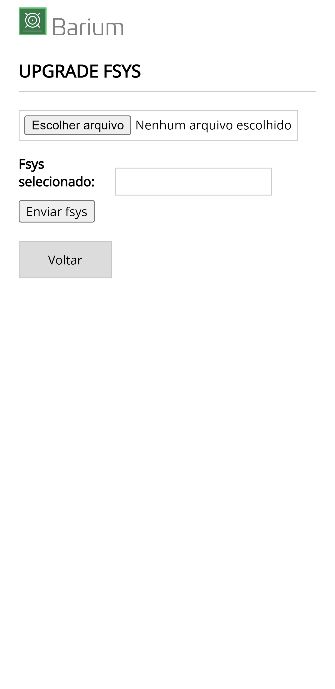
Through this screen you select a file with a new version of the file system (Fsys) to update the Barium.
Click Escolher arquivo (Choose file) to select the file and then Enviar novo fsys (Send new fsys) to start the upload.
At the end of the update, the device restarts automatically. Since it returns to normal operating mode, the Access Point will be disabled. To go back to configuration mode, hold the front button pressed for 5 seconds again (see Installation Manual).
Info
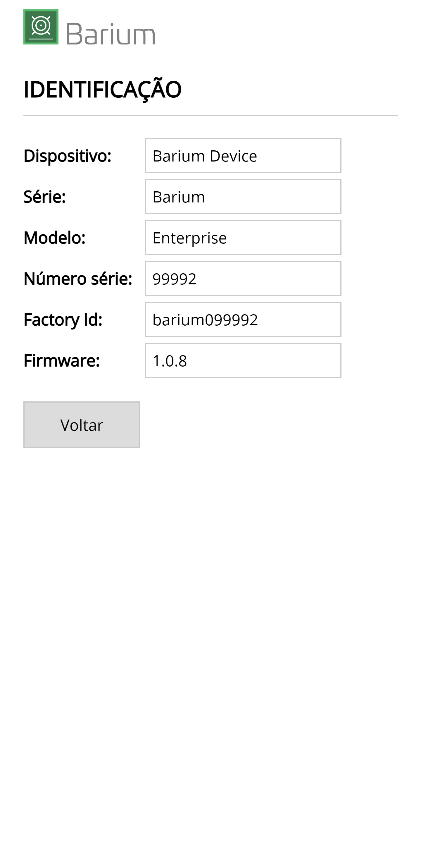
This page presents technical information about the device:
| Field | Description |
|---|---|
| Dispositivo (Device) | Device type. |
| Série (Series) | Device series identification. |
| Modelo (Model) | Device model. |
| Número de série (Serial number) | Device serial number. |
| Factory ID | Factory identification. |
| Firmware | Device firmware version. |
Use the Voltar (Back) button to return to the home menu.
Reboot
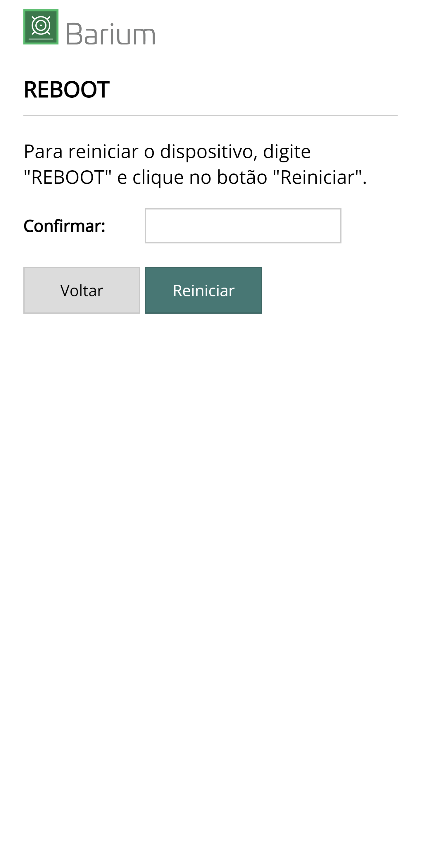
Use this function to restart the Barium remotely.
Type REBOOT in uppercase letters in the confirmation field and click the Reiniciar (Restart) button. Use the Voltar (Back) button to return to the home menu.
Operation through HTTP commands
After configuration, the Barium is available on the network to receive commands that trigger the playback of the audio files. The simplest way is to send commands to the webservice over HTTP POST, from an integrated system or from a browser. The general format is:
http://IP_DO_BARIUM/COMANDO?ARGUMENTOS
Where IP_DO_BARIUM is the IP address assigned to the device, COMANDO is the command identification, and ARGUMENTOS are the parameters that accompany it.
Play command
Plays an audio file previously stored in the Barium. The file is played at the configured volume level:
http://IP_DO_BARIUM/cgi-bin/playfilemp3?file=NOME_DO_ARQUIVO
To set the volume for this command only, add the volume argument (values from 0 to 100):
http://IP_DO_BARIUM/cgi-bin/playfilemp3?file=NOME_DO_ARQUIVO&volume=60
| Argument | Description |
|---|---|
file | Name of the audio file (MP3) to be played, as stored on the Arquivos (Files) screen. |
volume | (Optional) Volume level for this playback, from 0 to 100. If omitted, the volume configured in the device is used. |
Stop command
Stops the audio playback in progress:
http://IP_DO_BARIUM/cgi-bin/stopplay
The Barium also accepts commands through MQTT messages via a broker. These commands have separate documentation and are not detailed in this manual.
Next Steps
- Installation Manual — 5 VDC power supply, speaker connection (8 Ohm terminals) or amplifier (P2), command input, and configuration mode.