Installation Commissioning - Radium
What the integrator account adds to the operation of the RADIUM gateway: password changes, the power-saving profile and the registration of the installation's beacons.
This document covers only the delta relative to the common account. Physical installation is in the Installation Manual and the portal's common pages are in the Operation Manual.
The Integrator Account
An account aimed at the integrator/installer — the professional who commissions the equipment in the field. It sits one step above the common user: on top of everything the common account does, it can see and save the Power and Beacons pages and change the common user's password as well as its own.
The account already comes enabled from the factory; Iongrade can disable and re-enable it at any time. With the account disabled, login is refused until it is reactivated — the access history is preserved.
Portal access (magnet, gateway WiFi network and address) is the same for every account; what changes is the login:
| Account | User | Factory default password |
|---|---|---|
| Integrator | radium_integrador | Integradorpwd |
A default password known in the field is the same as having no password. Change it on the Integrator page itself, on the very first access.
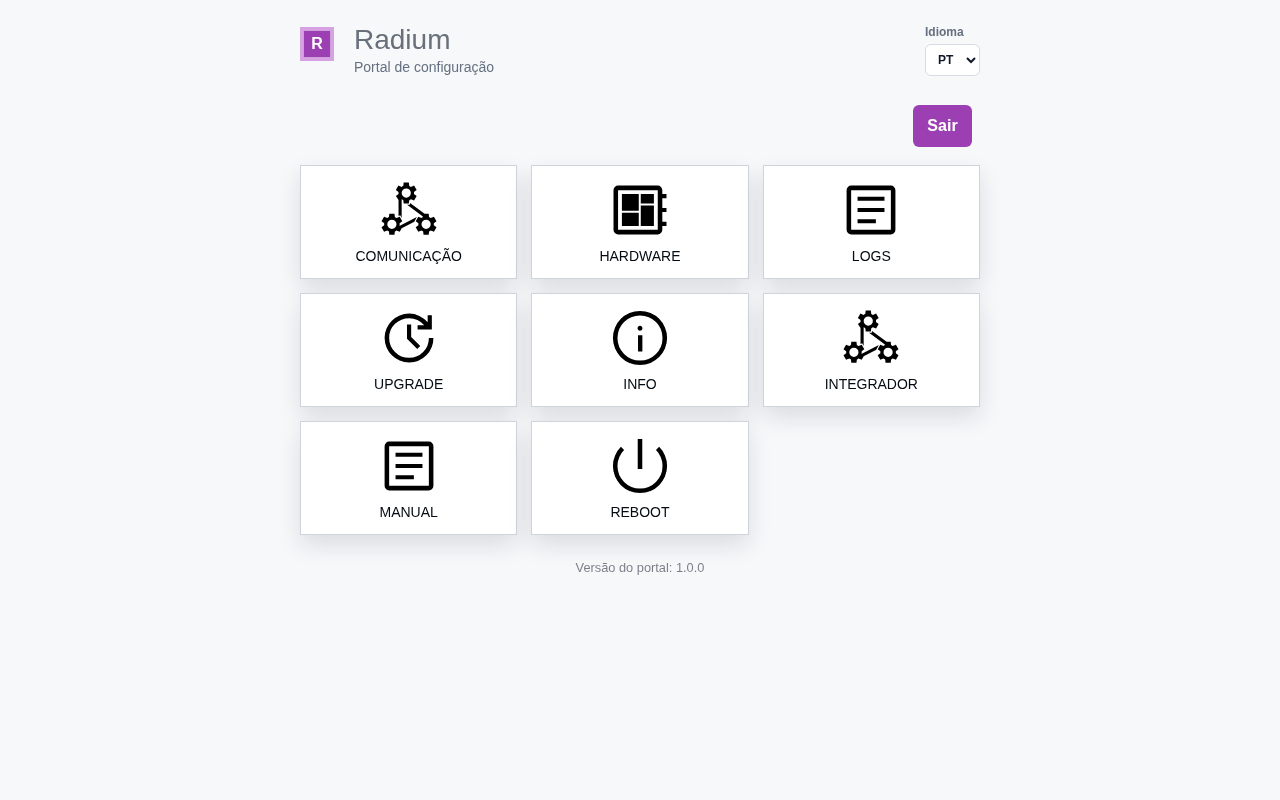
After logging in, the home screen shows one more group than the operation account — Integrator:
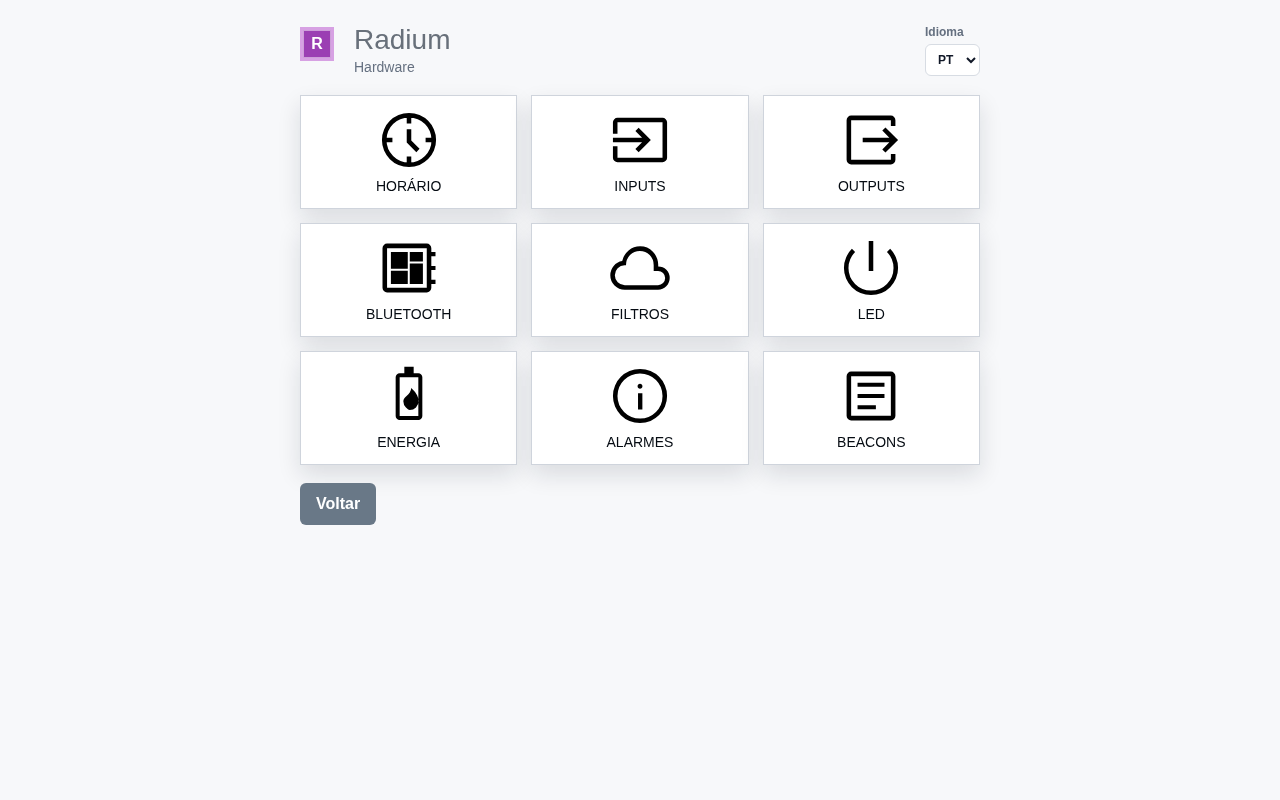
And within the Hardware group, the Power and Beacons pages become visible:
Integrator Page (change password)
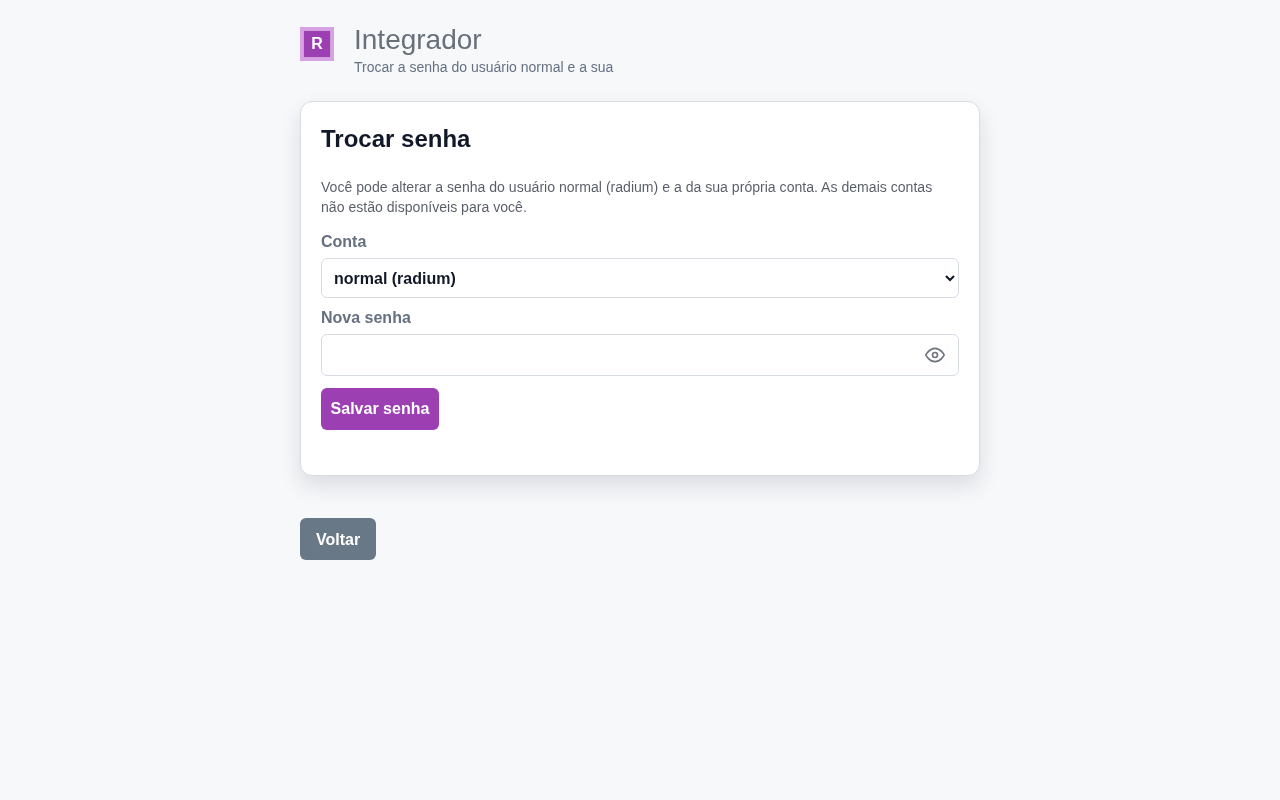
The page has a single card, Change password:
Account: a selector with two options — normal (radium) and my account (radium_integrador). No other account is offered.
New password: the new password to apply to the chosen account (minimum 4 characters).
The Save password button applies the change. The permission is re-checked by the gateway: even if someone tries to force another account, the request is refused — the integrator only changes the normal account and itself.
Power Profile
The Power page adjusts the power-saving profile applied when the gateway runs on battery, to extend runtime without losing its safety function.
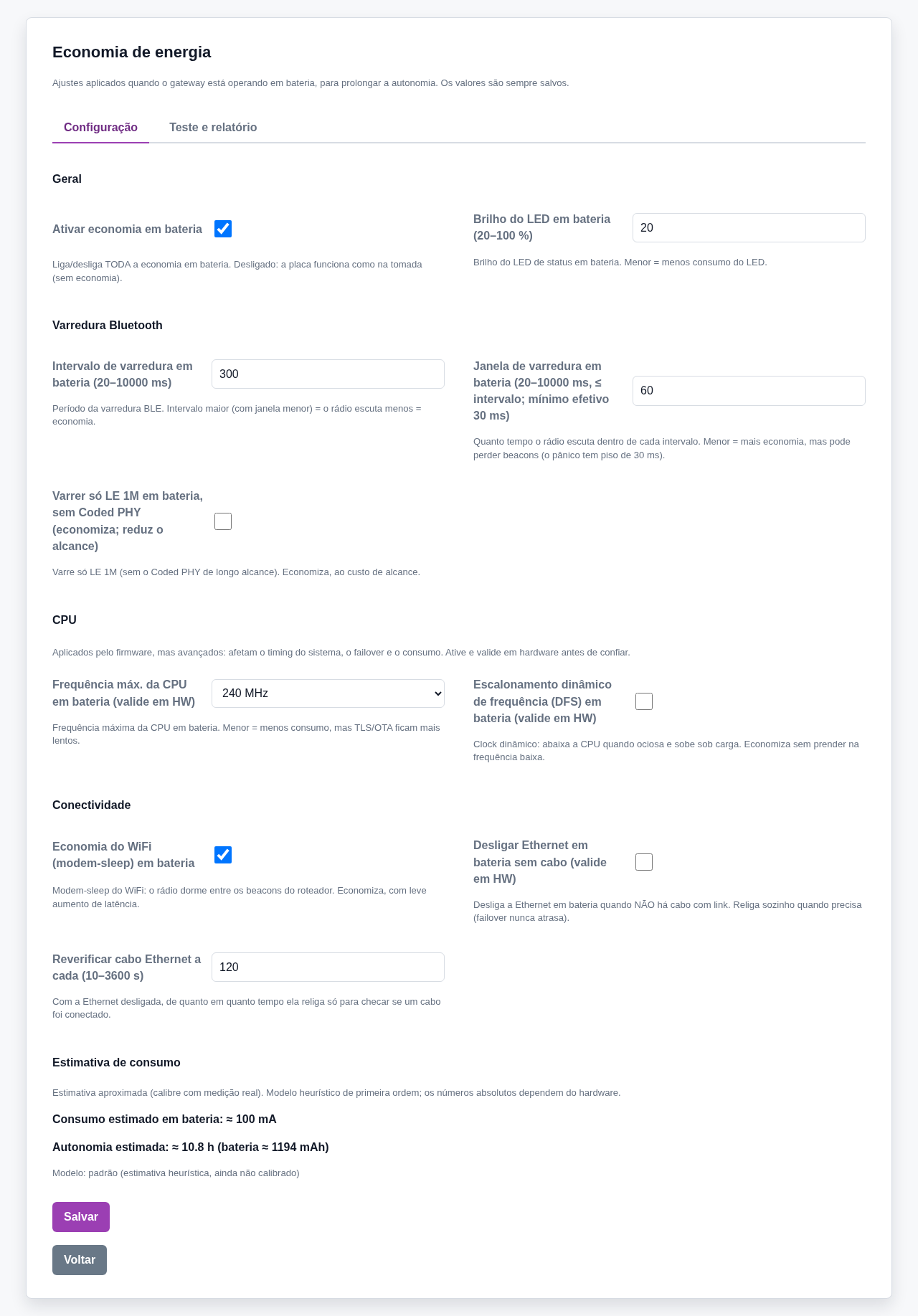
Enable battery power saving: master switch for all power saving.
General
- LED brightness — LED brightness on battery (20–100 %; default 20).
Bluetooth scanning
- Interval — scan interval on battery (20–10000 ms; default 300).
- Window — window on battery (≤ interval; effective minimum 30 ms; default 60).
- Scan LE 1M only — on battery, scans LE 1M only, without long-range Coded PHY.
CPU (advanced — validate on hardware)
- Max. CPU — maximum CPU frequency on battery (80/160/240 MHz; default 240).
- DFS — dynamic frequency scaling (lowers the processor speed when idle).
Connectivity
- WiFi modem-sleep — WiFi power saving on battery.
- Switch off Ethernet — switches Ethernet off on battery when no cable is connected, and switches it back on periodically to re-check the cable (10–3600 s; default 120).
The send, keep-alive and info intervals do not change on battery — the values from MQTT ▸ Telemetry apply.
The Consumption estimate panel shows the approximate current and runtime (runtime uses the real capacity read from the battery gauge). Before calibration, the model is a factory estimate (Model: default).
Reducing the scan window extends the battery, but reduces the chance of capturing each beacon. The 30 ms floor exists precisely so a panic is not missed. Adjust with care and validate the zone coverage after changing it.
Beacon Registration
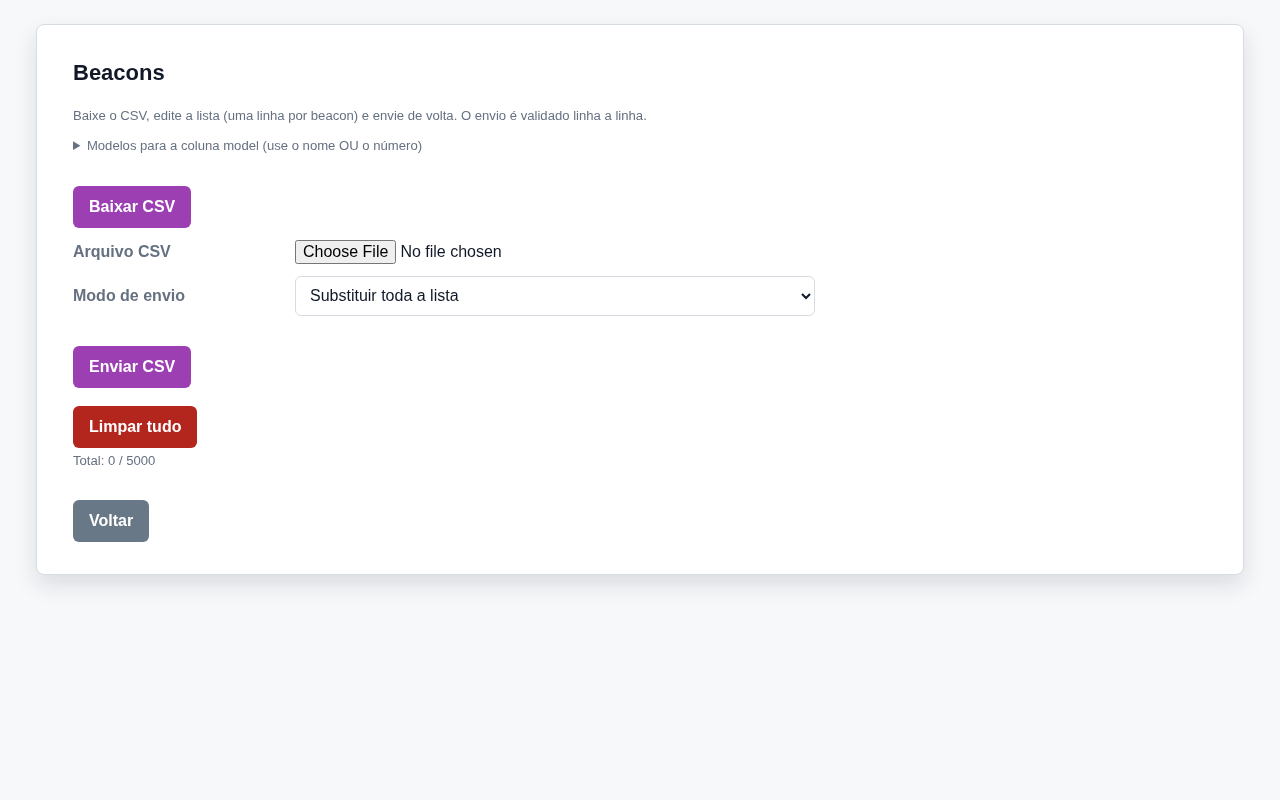
The gateway publishes signals from any beacon in range, registered or not. Registration serves to enrich each signal with a role and to enable the local rules (panic, beacon battery and lost beacon alarms) for that specific beacon.
The page allows you to:
| Action | What it does |
|---|---|
| Download CSV | Exports the current list for editing |
| Upload mode | Replace the whole list or Merge (add/update) |
| Upload CSV | Uploads the edited CSV; line-by-line validation |
| Clear all | Deletes the whole list (text confirmation) |
Below, a table shows the registered beacons (up to 200 on screen; the CSV carries the full list). Total capacity: 5000 beacons.
The gateway's registration exists for the local rules, which run even without internet. The beacon must also be registered in ION Guard — that is where it gets a name, a type and an assignee, and where it feeds the alerts and the location history. See ION Guard ▸ Beacons.
The upload is validated line by line before being applied: any invalid line rejects the entire file (nothing is applied) and the portal points out the line and the reason. Fix the line and upload again.
Recognized models
The model column accepts the model's name or number:
| Number | Name (model) | Description |
|---|---|---|
| 0 | minew-i6 | Minew I6 — disposable tag |
| 1 | minew-c10 | Minew C10 — card with SOS; panic via the Eddystone frame (AAFE1107) |
| 2 | minew-b10 | Minew B10 — emergency button; panic via the iBeacon frame |
CSV example
The first line is the header, exactly as the portal exports it; the rest, one beacon per line:
mac,active,role,batt_thr_pct,lost_timeout_s,uuid,major,minor,battery_type,batt_full_mv,batt_empty_mv,model
AC233FA10001,1,panic,25,0,,0,0,cr2032,0,0,minew-c10
AC233FB20002,1,panic,25,0,,0,0,cr2032,0,0,minew-b10
AC233F300003,1,asset,20,0,,0,0,cr2032,0,0,minew-i6
C300001A2B3C,1,person,20,600,74278BDAB64445208F0C720EAF059935,100,7,lipo,4200,3000,
Reading the example lines:
- the first three are beacons of a known model (C10 card, B10 button and I6 tag): with the
modelcolumn filled in, the battery type is resolved by the model itself, and unused fields stay at0or empty; - the last one is a person tag with no catalog model:
uuid/major/minoridentify the beacon,lost_timeout_s = 600triggers the lost beacon alarm after 10 minutes without a signal, and thelipobattery informs the voltage range (4200 to 3000 mV).
CSV columns
| Field | What it is | Accepted values |
|---|---|---|
mac | The beacon's unique identifier | Required: 12 characters, no separators (digits and letters A to F) |
active | The beacon takes part in the local rules (panic, battery and lost beacon alarms). Signal publishing happens either way | 0 = no · 1 = yes |
role | The beacon's role | normal, panic, asset or person (or the number 0 to 3, in that order) |
batt_thr_pct | Threshold of the beacon battery alarm, in % | 0 to 100 (0 = no alarm) |
lost_timeout_s | Seconds without a signal to trigger the lost beacon alarm | 0 to 65535 (0 = off) |
uuid | The beacon's iBeacon UUID, without separators | Empty, or exactly 32 characters (digits and letters A to F) |
major | iBeacon major | 0 to 65535 |
minor | iBeacon minor | 0 to 65535 |
battery_type | Battery chemistry (converts the voltage reported by the beacon into %) | cr2032, lipo, alkaline, lithium or custom (or the number 0 to 4, in that order). With the model column filled in, this field is replaced by the model's |
batt_full_mv | Full battery voltage, in mV | 0 to 6000. Used only with the custom type (requires 0 < empty < full); with the other types it can stay at 0 |
batt_empty_mv | Empty battery voltage, in mV | 0 to 6000 (same rule as above) |
model | Catalog model — defines how panic is signaled and the battery | Empty (no model), or minew-i6, minew-c10, minew-b10 (or the number 0 to 2, in that order) |
Can and Cannot
| Page / action | Integrator |
|---|---|
| Communication, Hardware (common pages), Info, Logs, Upgrade, Reboot | ✓ |
| Hardware ▸ Power (Configuration tab) | ✓ |
| Hardware ▸ Beacons | ✓ |
Integrator page — change the normal (radium) account's password and its own | ✓ |
| Higher-level administrative functions | — |
| Factory reset | — |
Permission checking is done on the server, inside the gateway itself, on every request: the menus merely hide the icons the account cannot use, but typing a page address by hand does not bypass the control.
Best Practices
- Change the default passwords of the integrator account and of the common user during commissioning; hand the common account's password to the operator through a secure channel, never written down next to the equipment.
- Use the integrator account only for commissioning and maintenance; day-to-day operation should use the common account (principle of least privilege).
- When registering beacons, prefer Merge to add without losing the existing list; use Replace only with the complete CSV at hand.
- Keep the uploaded CSV as installation documentation — it is the backup of the site's beacon list.
- If the integrator account will not be used in that installation, ask Iongrade to disable it.
Next Steps
- Operation Manual — the configuration portal, page by page
- Installation Manual — electrical connections, magnetic sensor and LED
- Overview — architecture and technical specifications