Selenium — Atlas Schindler Variant
The Selenium AS variant is the advance call gateway for Atlas Schindler elevators. It is the communication interface between the Accelero system and the Atlas Schindler elevator server, connecting to it via TCP/IP.
The hardware base, entering Configuration mode, the common web server screens (Comunicação (Communication), Horário/NTP (Time/NTP), Arquivos (Files) and Upgrade), the general LED behavior and the Testes (Tests) jumper are identical across all Selenium variants and are described in the Operation Manual. For the product presentation and the Titanium hardware base, see the Overview. Here we document only what differs in the Atlas Schindler variant.
Version of this manual: 1.4 (May/2023) · Firmware: 2.0.2
What the Atlas Schindler advance call is
In the advance call, the car is requested at the moment the user is identified at the access control — before the person reaches the elevator hall. Selenium AS receives the authorized destination floor from Accelero and forwards the call to the Atlas Schindler elevator server, which dispatches the car.
The gateway supports the use of two elevator servers. If a failure occurs in the connection with the main server, the gateway automatically tries to connect to the backup server.
Connections specific to the AS variant
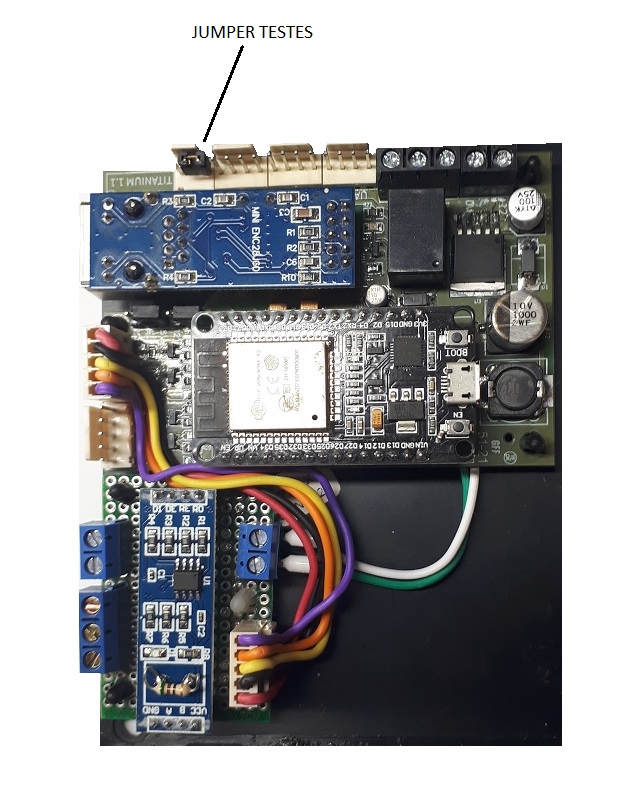
The electrical connections of Selenium AS are made on the module's terminal blocks:
- 12 VDC power supply;
- RJ45 Ethernet network cable;
- Status relay — reports the state of the communication with the Atlas server. With communication OK the relay stays off; in case of failure the relay turns on;
- Display (optional).
The status relay is exclusive to the AS variant and makes it possible to externally signal (to a panel or a beacon light) the loss of communication with the Atlas server, even without access to the web server.
Elevator Screen
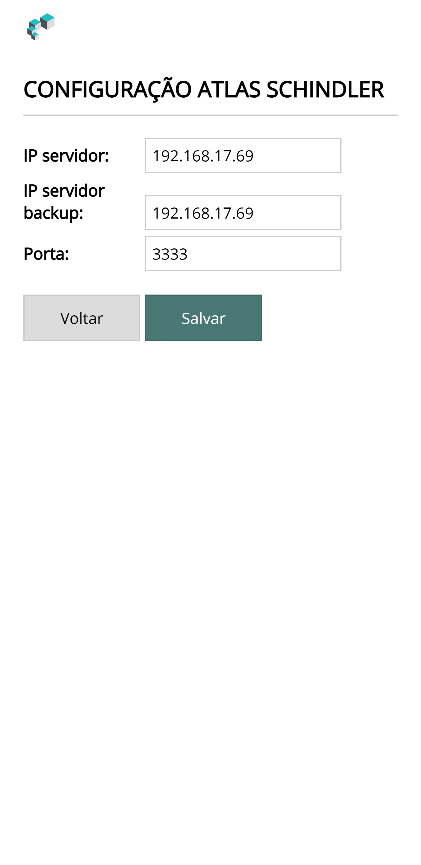
The Elevador (Elevator) screen, exclusive to the AS variant, brings together the configuration functions for the gateway's integration with the Atlas Schindler system. It is accessed from the initial menu of the configuration web server (described in the Operation Manual).
| Field | Description |
|---|---|
| Server IP | IP address of the main server of the Atlas Schindler system. |
| Backup server IP | IP address of the backup server of the Atlas Schindler system. Used automatically in case of a main server failure. |
| Port | TCP communication port number of the Atlas Schindler system. |
Enter the data and click Salvar (Save), or Voltar (Back) to return to the previous screen.
Selenium AS supports the use of two elevator system servers. Whenever possible, fill in both the Server IP and the Backup server IP to ensure service continuity in the event of a main server failure.
Tests Screen (Atlas)
The Testes screen allows you to send commands directly to the Atlas Schindler elevator system, useful during installation and maintenance.
The commands on this screen do not work with the gateway in Configuration mode. The gateway must be in operation mode with the HTTP server active (Testes jumper installed — see Operation Manual).
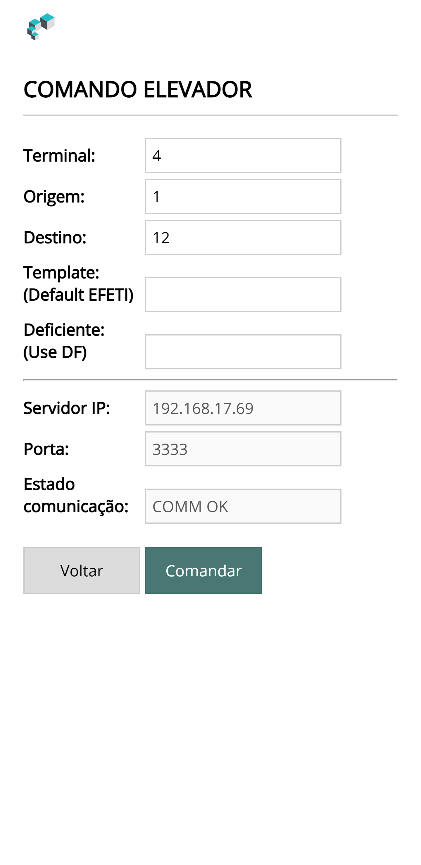
To send a command, fill in the fields:
| Field | Description |
|---|---|
| Terminal | Atlas Schindler terminal number. |
| Origin | Origin floor number. E.g.: S1, TT. |
| Destination | Destination floor number. E.g.: 1, 07. |
| Template | Name of the template for the call. If not provided, the default EFETI is used. |
| Deficiente (accessibility call) | For a call by a user with a disability, enter DF; otherwise, leave it blank. |
Then click Comandar (Command).
The remaining fields show the state of the gateway's communication with the Atlas Schindler system:
| Field | Description |
|---|---|
| Server IP | IP address the gateway is connected to. |
| Port | Server port the gateway is connected to. |
| Communication state | COMM OK or ERROR COMM. |
Status LED particularity
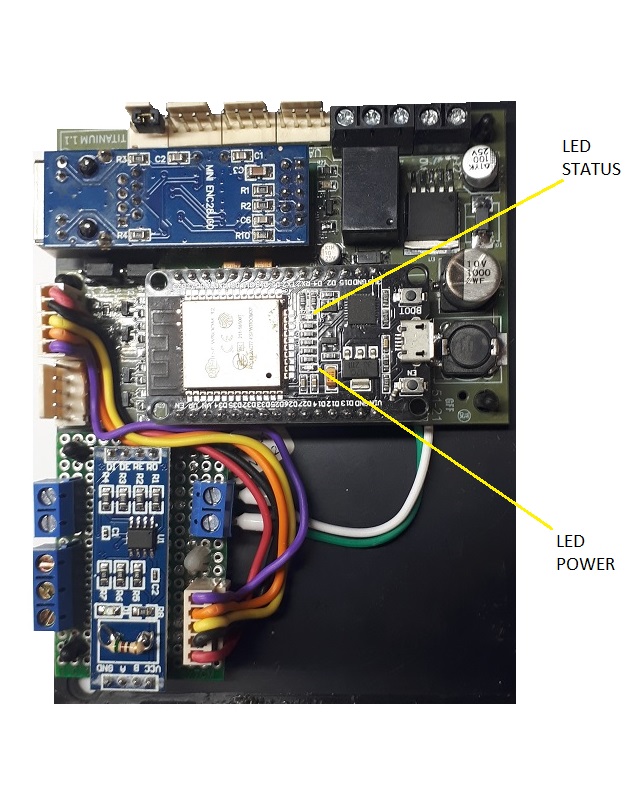
The behavior of the STATUS LED follows the common pattern described in the Operation Manual, but in the AS variant the normal cycle is four quick blinks every three seconds:
| Blink | Meaning |
|---|---|
| 1 | The gateway is in operation mode. |
| 2 | Connection to the network (Ethernet or WiFi) is OK. |
| 3 | Connection to the system broker is OK. |
| 4 | Communication with the system server is OK. |
When four blinks are counted in each cycle, the situation is normal.
Blinks 3 and 4 should only be considered when the gateway is operating connected to a broker.
Next steps
- Operation Manual — Configuration mode, common screens, LEDs and Testes jumper
- Overview — product presentation and Titanium base