Selenium — ThyssenKrupp Variant
The Selenium TK variant is the advance call gateway for ThyssenKrupp elevators. It is the communication interface between the Accelero system and the ThyssenKrupp elevator server, connecting to it via the MODBUS RS485 network.
The hardware base, entering Configuration mode, the common web server screens (Comunicação (Communication), Horário/NTP (Time/NTP), Arquivos (Files) and Upgrade), the general LED behavior and the Testes (Tests) jumper are identical across all Selenium variants and are described in the Operation Manual. For the product presentation and the Titanium hardware base, see the Overview. Here we document only what differs in the ThyssenKrupp variant.
Version of this manual: 1.7 (May/2023) · Firmware: 2.0.4
What the ThyssenKrupp advance call is
In the advance call, the car is requested at the moment the user is identified at the access control — before the person reaches the elevator hall. Selenium TK receives the authorized destination floor from Accelero and forwards the call to the ThyssenKrupp elevator system over the MODBUS network, which dispatches the car.
Unlike the Atlas Schindler variant (which uses TCP/IP), communication with the elevator system in the TK variant is done over MODBUS RS485, and the mapping between the Accelero floors and the TKE and MCO devices is configured locally on the gateway.
Connections specific to the TK variant
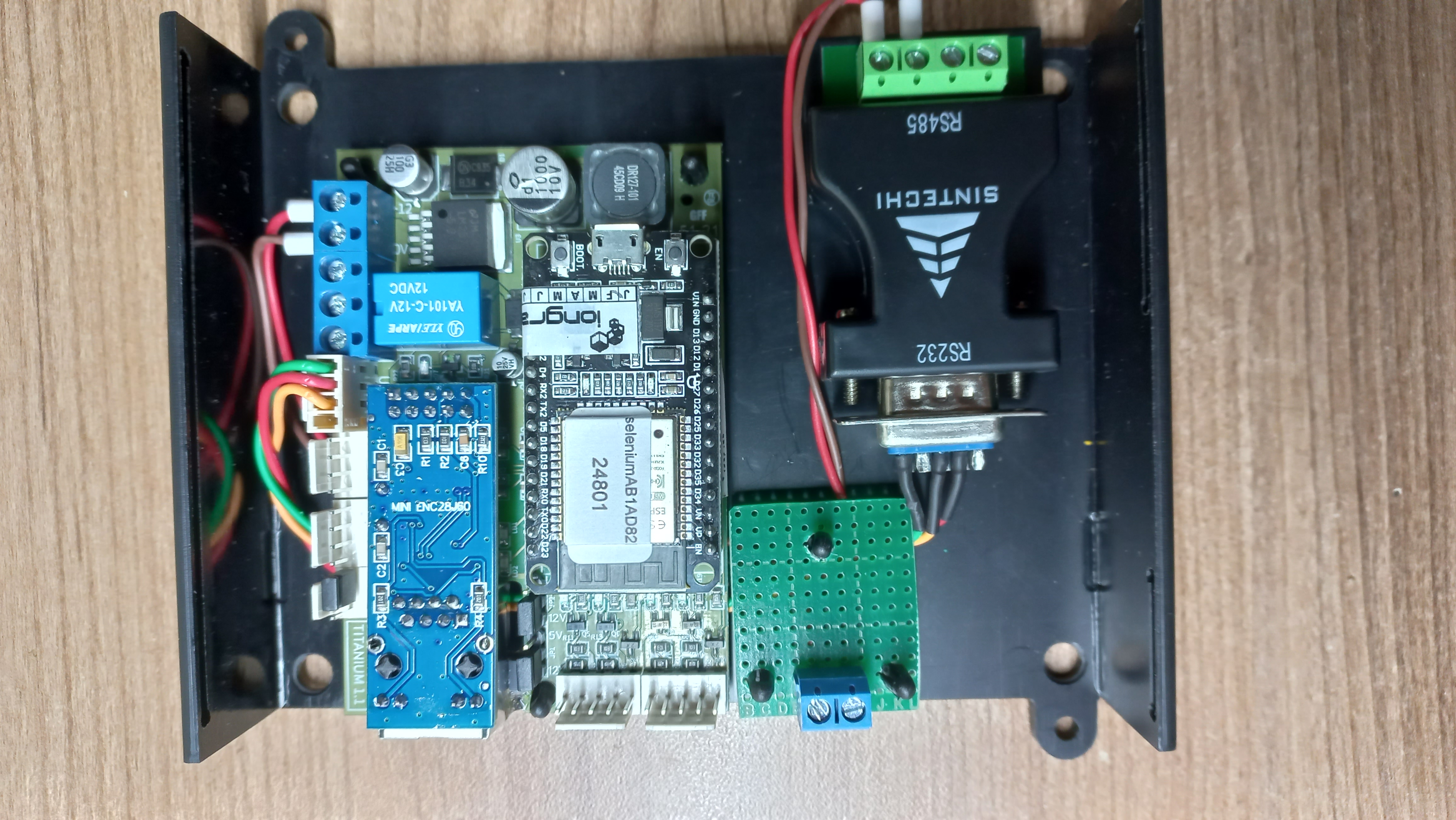
The Selenium TK connections are made on the module's terminal blocks:
- RJ45 Ethernet network cable;
- 12 VDC power supply;
- MODBUS communication cable (RS485) to the ThyssenKrupp elevator gateway.
The TK variant does not have a status relay (present only in the AS variant): the elevator link is signaled by the 5th blink of the STATUS LED (MODBUS OK), described below.
Modbus Screen
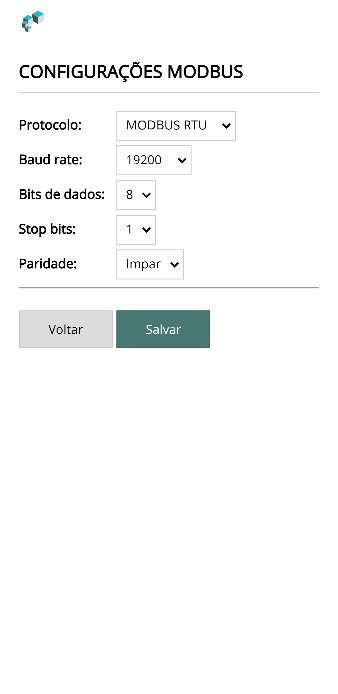
The Modbus screen, exclusive to the TK variant, adjusts the communication parameters on the MODBUS network. It is accessed from the initial menu of the configuration web server (described in the Operation Manual).
| Field | Description |
|---|---|
| Protocol | MODBUS protocol selection: RTU or ASCII. |
| Baud rate | Communication speed. |
| Data bits | Byte length. |
| Stop bits | Number of stop bits. |
| Parity | Type of parity control: None / Even / Odd. |
Make the necessary changes and click Salvar (Save) to confirm.
Changing these parameters only takes effect after the Selenium TK is reset.
Floors Screen
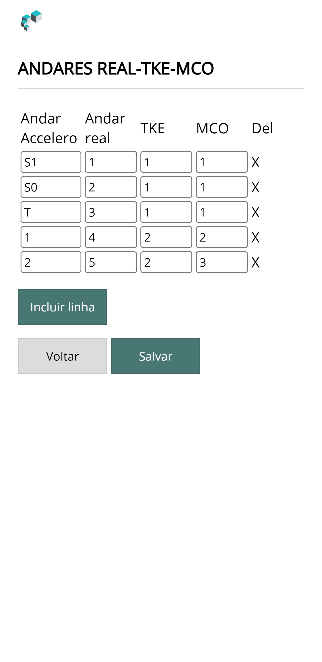
The Andares (Floors) screen, exclusive to the TK variant, configures the floor names and defines the actual floor number (ThyssenKrupp internal), as well as the TKE and MCO devices that serve each floor.
If a command is sent containing a floor (origin or destination) that is not configured on this screen, the message is not sent and the command produces an error event.
| Field | Description |
|---|---|
| Accelero floor | Floor description configured in Accelero. Maximum of 6 characters. |
| Actual floor | Actual floor number (ThyssenKrupp internal). |
| TKE | Number of the TKE gateway that handles the floor's calls. |
| MCO | Number of the MCO that handles the floor's calls. |
| Del | Click the X to delete the row. |
| Add row | Click the button to add a row. |
In the MODBUS elevator call messages, the TKE and MCO identifications of the destination floor are always used.
Tests Screen (TK)
The Testes screen allows you to send commands directly to the ThyssenKrupp elevator system, useful during installation and maintenance.
The commands on this screen do not work with the gateway in Configuration mode. The gateway must be in operation mode with the HTTP server active (Testes jumper installed — see Operation Manual).
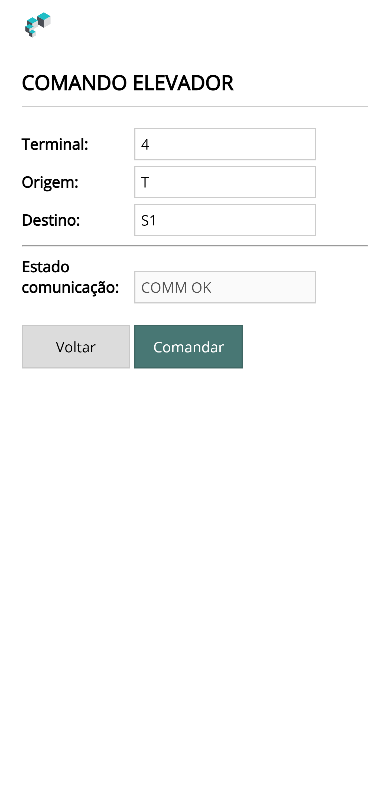
To send a command, fill in the fields:
| Field | Description |
|---|---|
| Terminal | ThyssenKrupp device (column) number. |
| Origin | Origin floor number. |
| Destination | Destination floor number. |
Then click Comandar (Command).
The remaining field shows the state of the gateway's communication with the ThyssenKrupp system:
| Field | Description |
|---|---|
| Communication state | COMM OK or ERROR COMM. |
Status LED particularity
The behavior of the STATUS LED follows the common pattern described in the Operation Manual, but in the TK variant the normal cycle is five quick blinks every three seconds — the 5th blink is exclusive to this variant and indicates the MODBUS link:
| Blink | Meaning |
|---|---|
| 1 | The gateway is in operation mode. |
| 2 | Connection to the network (Ethernet or WiFi) is OK. |
| 3 | Connection to the system broker is OK. |
| 4 | Communication with the system server is OK. |
| 5 | MODBUS connection to the elevator gateway is OK. |
When five blinks are counted in each cycle, the situation is normal.
Blinks 3 and 4 should only be considered when the gateway is operating connected to a broker.
Next steps
- Operation Manual — Configuration mode, common screens, LEDs and Testes jumper
- Overview — product presentation and Titanium base