Cameras
ACCELERO supports the use of webcams and IP cameras to capture photos during person registration.
Navigation path: Settings > Cameras
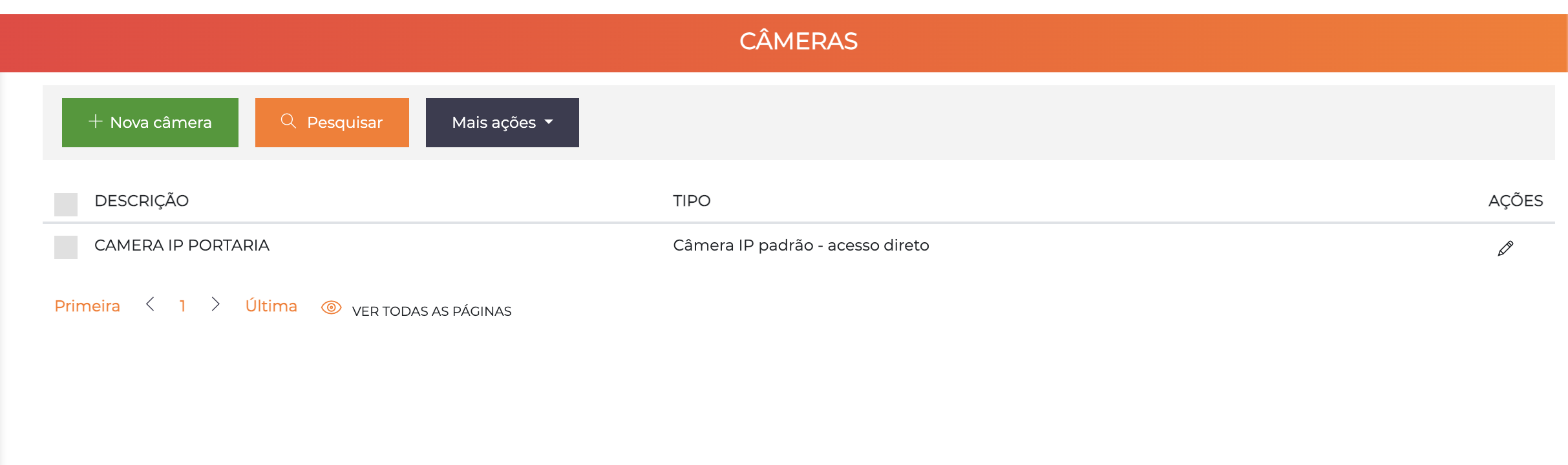
The list displays all registered cameras with the columns Description, Type, and Actions.
Supported Camera Types
Webcams
Webcams connected directly to the registration workstation computer are automatically detected by the browser and can be used without additional configuration.
IP Cameras
Network cameras can be configured for remote photo capture.
Requirements for IP Cameras
For an IP camera to be used in ACCELERO, it must meet the following requirements:
| Requirement | Description |
|---|---|
| HTTP Streams | Must support video streams via HTTP |
| HTTP Snapshots | Must support snapshots (still photos) via HTTP |
| Authentication | Must support Basic authentication or unauthenticated access |
| Local network | Must be on the same logical network as the registration workstation |
Communication with IP cameras is performed directly from the browser to the camera, without going through the ACCELERO server. For this reason, the camera must be reachable on the workstation's local network.
It is possible to use RTSP/HTTP gateways to adapt cameras that do not meet the requirements, but this is outside the scope of this manual.
Configuring IP Cameras
When you click "+ New camera" or the pencil icon of an existing camera, the edit screen is displayed:
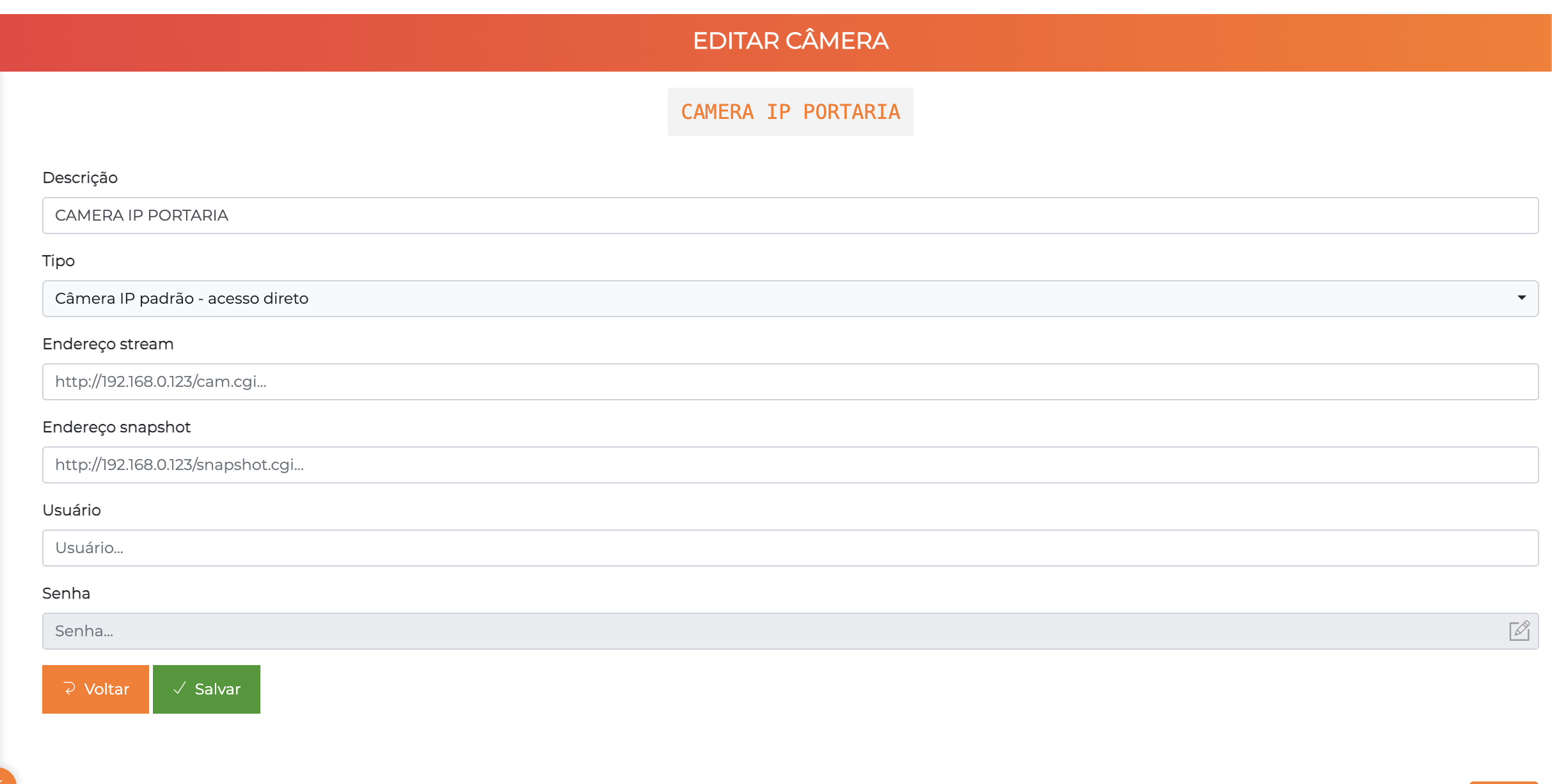
Configuration Fields
| Field | Description |
|---|---|
| Description | Camera name that will be shown on capture screens |
| Type | Type of camera to be used |
| Stream address | Full URL for retrieving the HTTP video stream |
| Snapshot address | Full URL for retrieving the HTTP snapshot (photo) |
| Username | (Optional) Username for camera authentication |
| Password | (Optional) Password for camera authentication |
The type available for IP cameras is Standard IP Camera - direct access. Other types may be available depending on the system version and configuration — consult technical support.
How to Get Camera URLs
The stream and snapshot addresses vary depending on the camera manufacturer.
Common Examples
Hikvision:
Stream: http://CAMERA_IP/ISAPI/Streaming/channels/101
Snapshot: http://CAMERA_IP/ISAPI/Streaming/channels/1/picture
Dahua:
Stream: http://CAMERA_IP/cam/realmonitor?channel=1&subtype=0
Snapshot: http://CAMERA_IP/cgi-bin/snapshot.cgi
Intelbras (Mibo Model):
Stream: http://CAMERA_IP/cgi-bin/mjpeg
Snapshot: http://CAMERA_IP/cgi-bin/snapshot.cgi
The exact URLs must be obtained from the camera manufacturer or in the equipment's technical documentation.
Use in Registration
After configuring IP cameras:
- Go to the registration of a Person
- Open the Photos tab
- Select the desired camera in the selector
- View the live preview
- Click the capture button to take the photo
See People - Photos for more details.
Troubleshooting
Camera does not appear in the list
Cause: Camera was not configured
Solution: Verify that the camera was registered in Settings > Cameras
Preview does not load
Possible causes:
- Incorrect stream address
- Camera outside the local network
- Incorrect authentication credentials
- Firewall blocking access
Solution:
- Test the stream URL directly in the browser
- Check network connectivity
- Confirm username and password
Snapshot does not work
Cause: Incorrect snapshot address
Solution: Consult the manufacturer's documentation for the correct snapshot URL
Best Practices
-
Use compatible cameras: Check compatibility before purchase
-
Configure authentication: Always use username and password for security
-
Test before production: Validate stream and snapshot before using in operation
-
Document the URLs: Keep a record of the URLs of each camera model
-
Dedicated network: Consider using a separate VLAN for IP cameras
-
Image quality: Configure adequate resolution (not too high to avoid lag)
-
Lighting: Ensure adequate lighting at the capture location
Next Steps
- People - Learn how to capture photos during registration
- Controllers - Configure controllers for camera integration
- Integrations - See advanced camera integrations