Categories
Categories are groups to which people and vehicles are associated. Categories are an important part of defining access permissions, and their correct configuration is one of the most important conditions for the full operation of the system.
You can create several categories, according to your needs, and each one will have its own access rules and prerogatives.
Navigation path: Settings > Categories
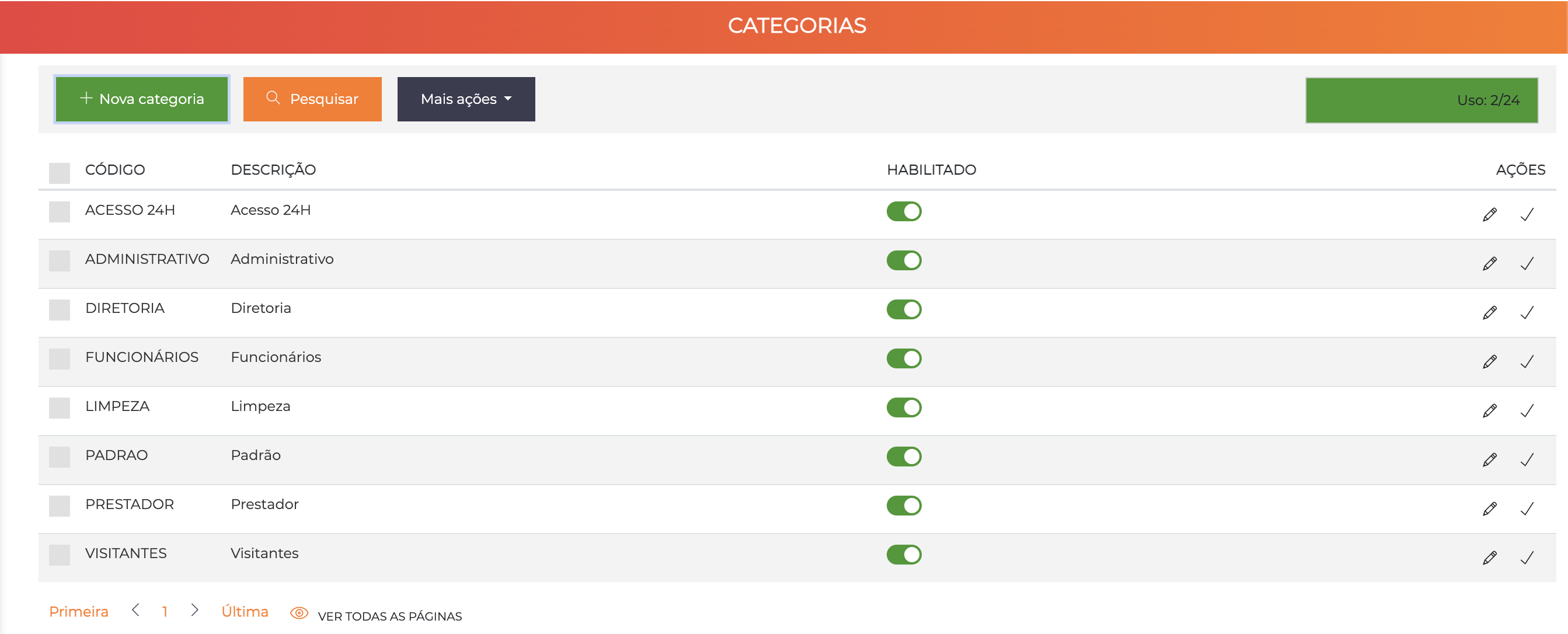
The list displays all registered categories with the columns Code, Description and Enabled. The badge in the upper right corner indicates the current usage relative to the license limit.
Concept
Categories work as groups that define access permissions:
- Grouping: People and vehicles are associated with categories; they do not have permissions on their own
- Multiple categories: A person/vehicle can belong to several categories simultaneously
- Additive permissions: The access prerogatives will be the sum of the prerogatives of all valid associated categories
- Temporal validity: Each association of a category to a person/vehicle has a start and end date
Create categories that reflect the function or role of people in the system (e.g. "Residents", "Employees", "Visitors", "Contractors"). Avoid creating too many unnecessary categories that make administration difficult.
Category Creation
When you click "New category", the system displays an inline form with the basic fields for quick creation:
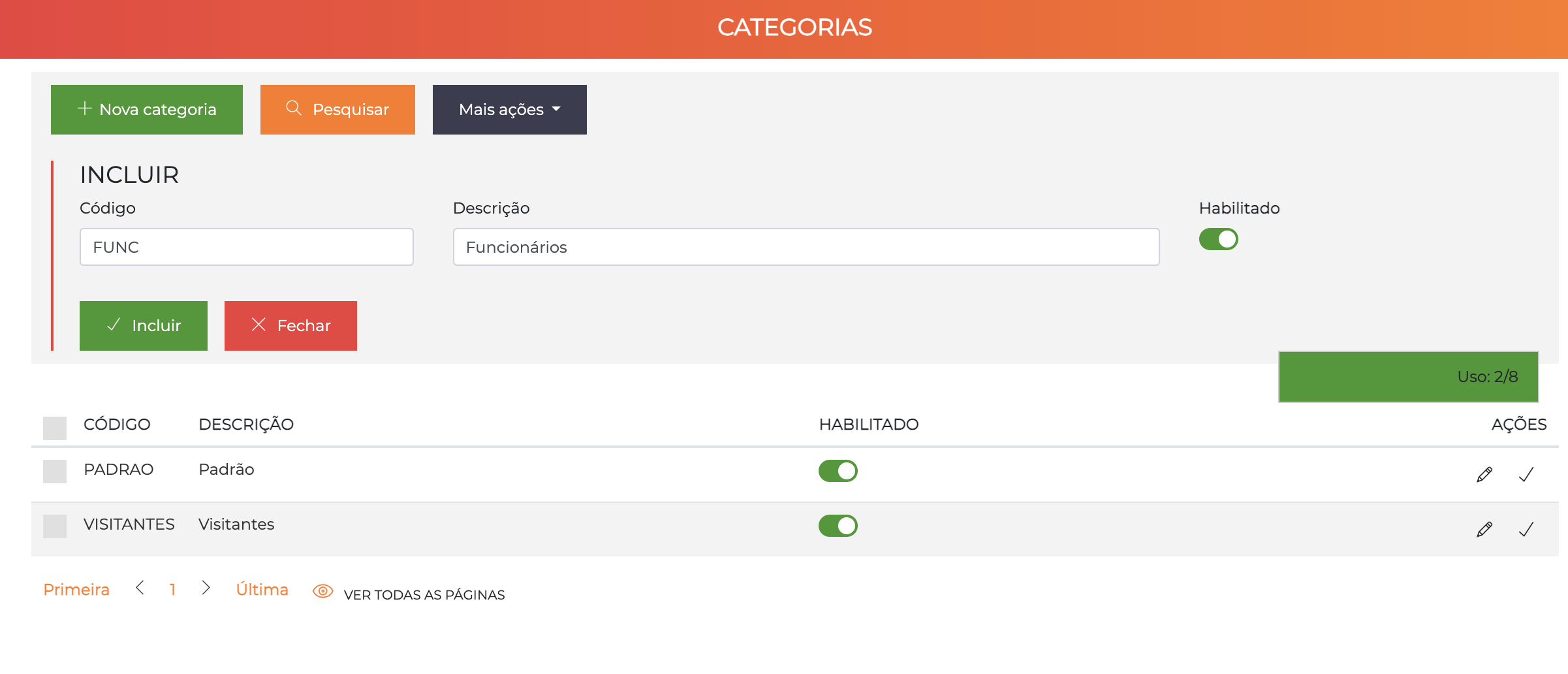
- Code: Unique identifier (e.g.
EMP,VISIT,MANAGER) - Description: Name of the category (e.g. "Employees", "Visitors")
- Enabled: Switch to enable/disable
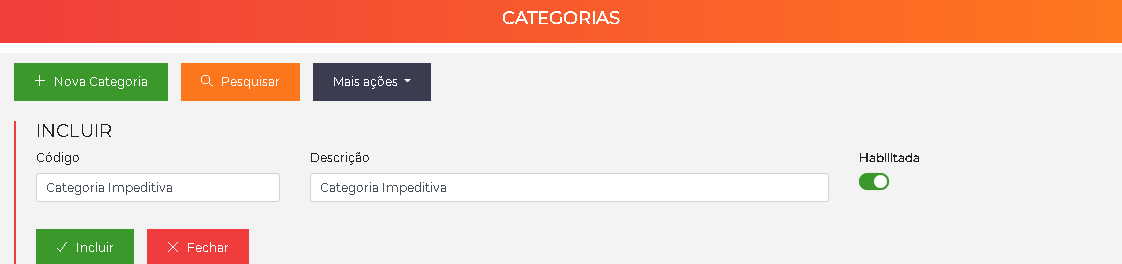
Enter the Code and the Description, check the Enabled flag and click Save.
After creating the category, click the pencil (✏️) icon in the list to access the full edit screen with all tabs and settings.
Edit Screen
The category edit screen is organized into 4 tabs: General data, Access area, Associated people and Associated vehicles.
Tab: General Data
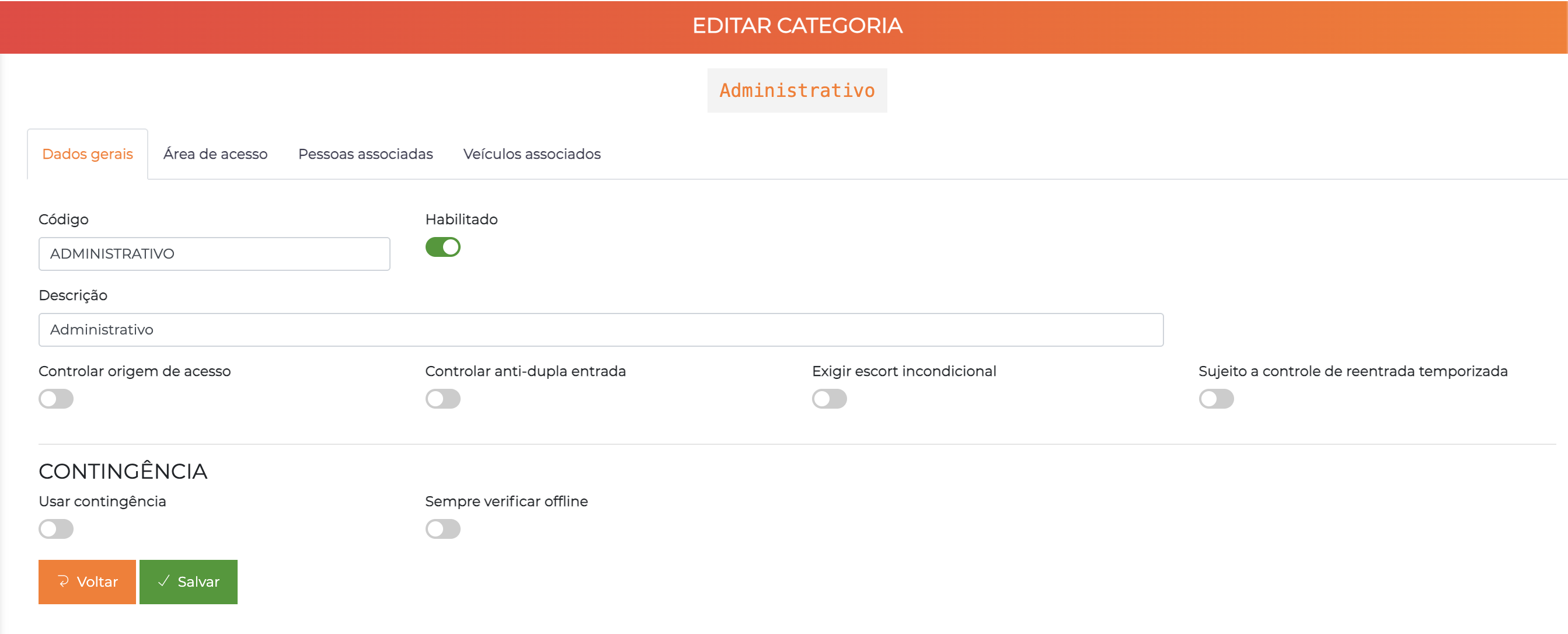
The General Data tab contains the basic fields and the category's access policy controls:
| Field | Description |
|---|---|
| Code | Identification code of the category (unique) |
| Enabled | If disabled, the access prerogatives of this category will be suspended |
| Description | Name of the category that will be shown on screen |
| Control access source | If enabled, checks whether access is coming from the correct source relative to the controller channel |
| Control anti-passback | If enabled, allows anti-passback control for people/vehicles of this category |
| Require unconditional escort | Enables escort control for all people belonging to this category at the blocking points where escort control is enabled |
| Subject to timed re-entry control | Determines whether this category will be subject to timed re-entry control. If disabled, no re-entry control will be performed |
Contingency Section:
| Field | Description |
|---|---|
| Use contingency | If enabled, allows people/vehicles belonging to this category to be in the contingency lists sent to the controllers |
| Always verify offline | Makes the access verification of people of this category always be performed by the controller, even when they are online. Recommended for "trusted" categories (residents) in systems with connection stability problems |
Additional fields (visible according to licensing and configuration):
| Field | Description |
|---|---|
| Control credits | Determines whether people belonging to this category will be subject to credit control |
| Impeding category | Makes the category operate as "impeding": access always blocked, event registration prevented and person registration editing restricted. See Impeding Categories |
| Journey control | Enables journey control for people of this category |
| Journey control – minutes | Minimum number of minutes between "last exit and next entry" |
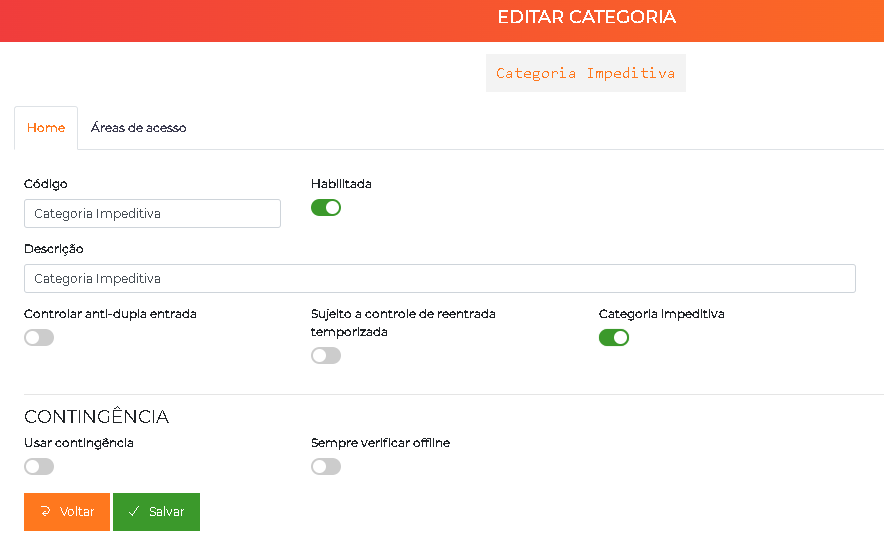
The flags Control anti-passback, Subject to timed re-entry control, Impeding category and the Contingency fields define the access policies applied to all people and vehicles of the category. The following sections detail how to enable each control.
Anti-passback Control
Anti-passback control blocks the re-entry of a user who is already inside a controlled area. This prevents security breaches — for example, a user who lends their card to another person to enter as a "tailgater" at the turnstile.
Enabling it involves two fronts:
- On the area — enable anti-passback control on the desired areas. See Areas for the step-by-step.
- On the category — in the category's General data tab, enable the Control anti-passback flag and click Save.
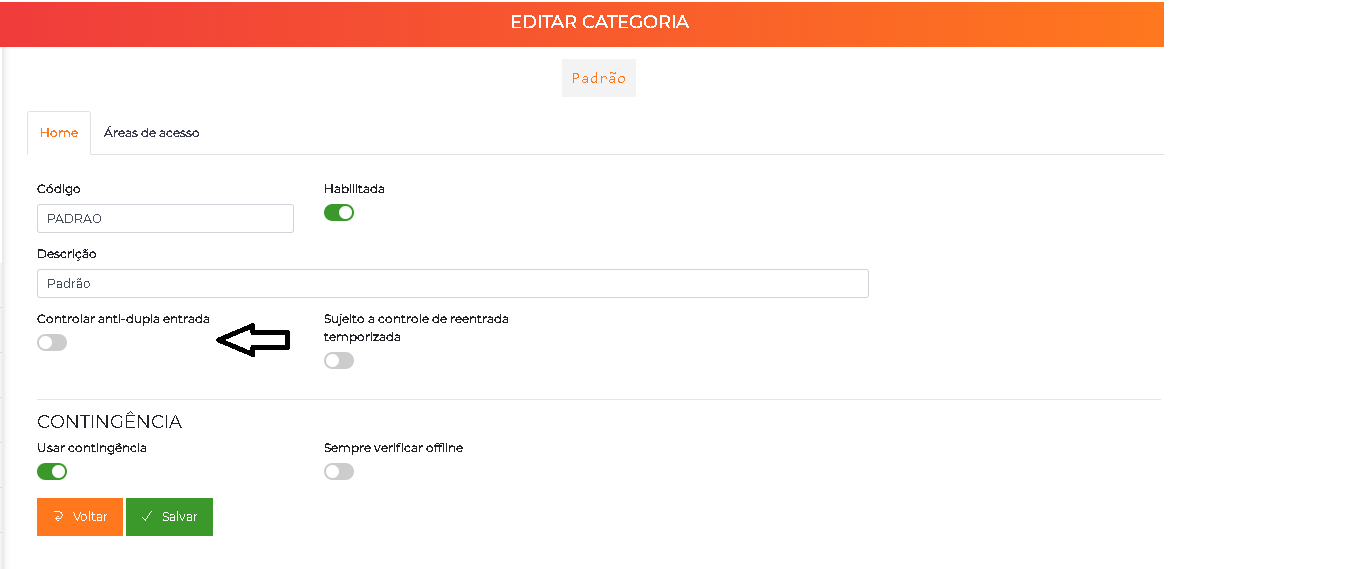
Defining the control per category allows, for example, requiring anti-passback for the Visitors category and waiving it for Employees.
Places with button-based exit, or that allow more than one person to pass without access registration, are not compatible with anti-passback control.
Timed Re-entry Control
Timed re-entry blocks the user's re-entry into configured areas during a defined time interval, reinforcing security at sensitive points.
Enabling it involves three fronts:
-
On the area — define, in seconds, the re-entry blocking time on the desired areas. See Areas. To disable the time on an area, enter
0in the field. -
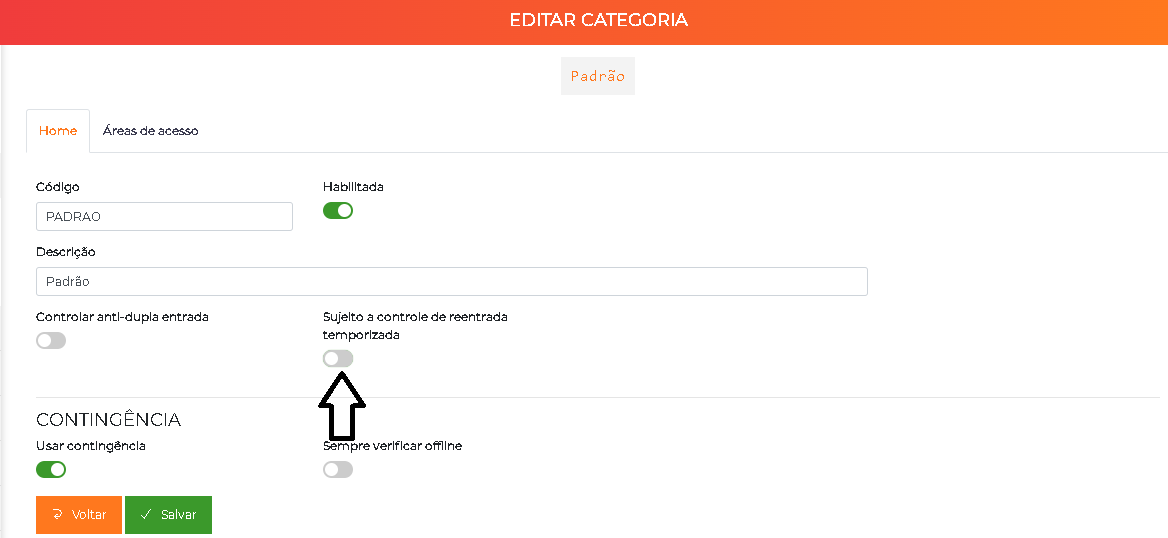
On the category — in the category's General data tab, enable the Subject to timed re-entry control flag and click Save.
-
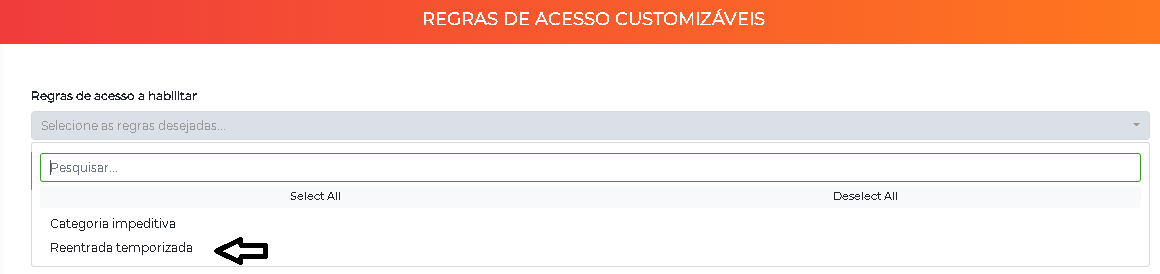
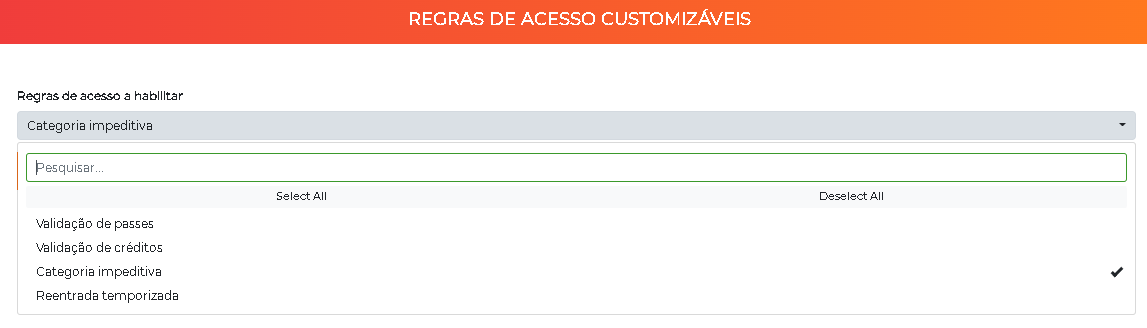
On the customizable access rules — enable the Timed re-entry rule so that the control is effectively applied.
Path:
Advanced > Systems > Customization - Customizable access rulesClick Edit, check the Timed re-entry option and click Save.
As with anti-passback, places with button-based exit or that allow more than one person to pass without access registration do not work correctly with timed re-entry.
Contingency
The Contingency section controls the inclusion of the category's people/vehicles in the lists sent to the controllers for offline operation. The details of enabling and operating the contingency mode are in Contingency.
Tab: Access Area
The Access area tab allows the configuration of the triple relationship "category × area × time range".
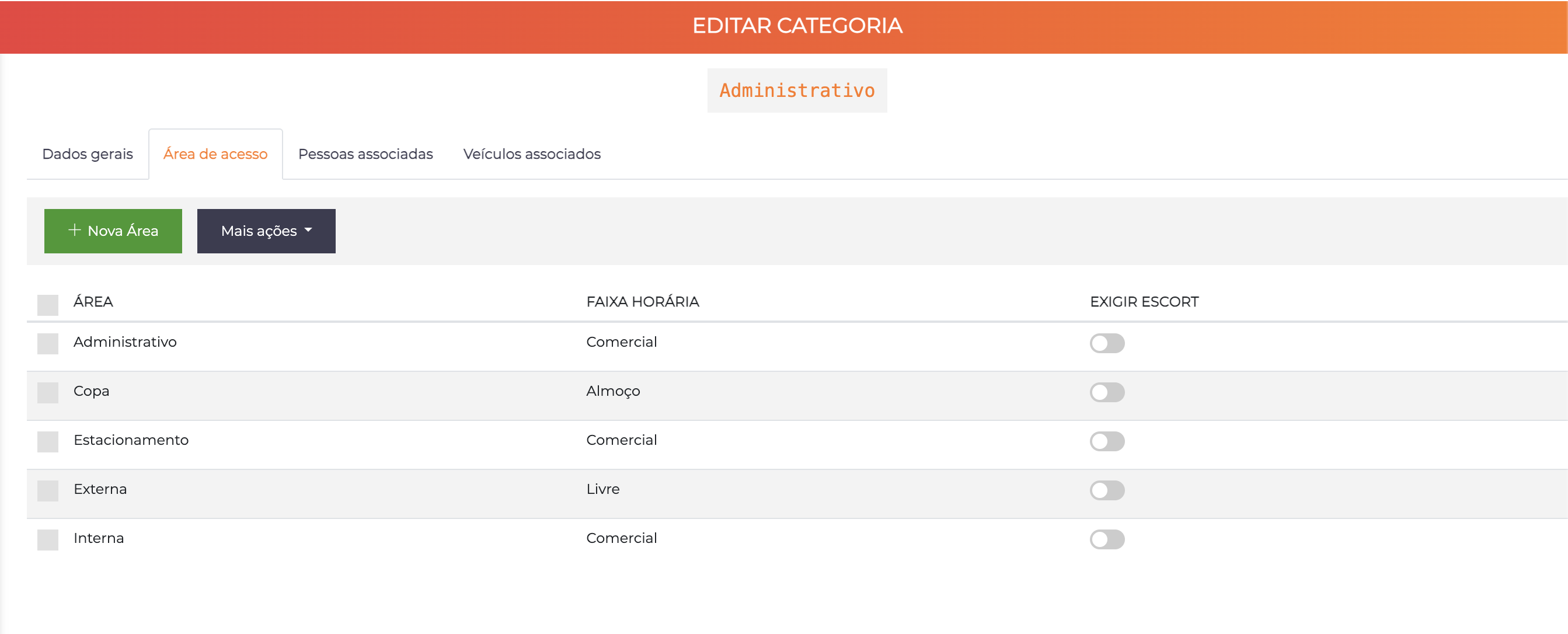
Click "New Area" to add a permission. Each row represents an access rule with the columns:
| Column | Description |
|---|---|
| Area | Physical area that the category can access |
| Time Range | Period during which access is allowed |
| Require Escort | Individual toggle to condition access on the presence of escort in that area/range |
How to Interpret
Always read each row as:
"This category can access the [AREA] during the time range [SCHEDULE]"
Example:
Category: ADMINISTRATIVE
Can access: Administrative → during Business hours
Can access: Kitchen → during Lunch
Can access: Parking → during Business hours
Can access: Outdoor → during Free
Can access: Indoor → during Business hours
- People and vehicles can be associated with several categories at the same time
- The access prerogatives will be the sum of the prerogatives of each of the associated categories
- In addition to the permissions inherited from their categories, people can have individual access permissions that will be added to the category permissions
Example of Summed Permissions
| Person | Categories | Result |
|---|---|---|
| João | EMPLOYEES | Access to ROOM 03 during BUSINESS HOURS |
| João | EMPLOYEES + CLEANING | Access to ROOM 03 during BUSINESS HOURS + Access to SERVICE AREA 24h |
| João | EMPLOYEES + CLEANING + MANAGER | All previous permissions + Access to BOARD ROOM |
Escort Control by Area
You can determine, for each category × area × time range association, whether in that time range/area access will be conditioned on the presence of escorts (using the Require Escort toggle in the corresponding row).
Example rule:
- "Category ABC has access to ROOM 03 in the MORNING, without restrictions"
- "Category ABC has access to ROOM 03 in the AFTERNOON, but with the PRESENCE OF AN ESCORT"
Tab: Associated People
The Associated people tab displays all people who have this category assigned.
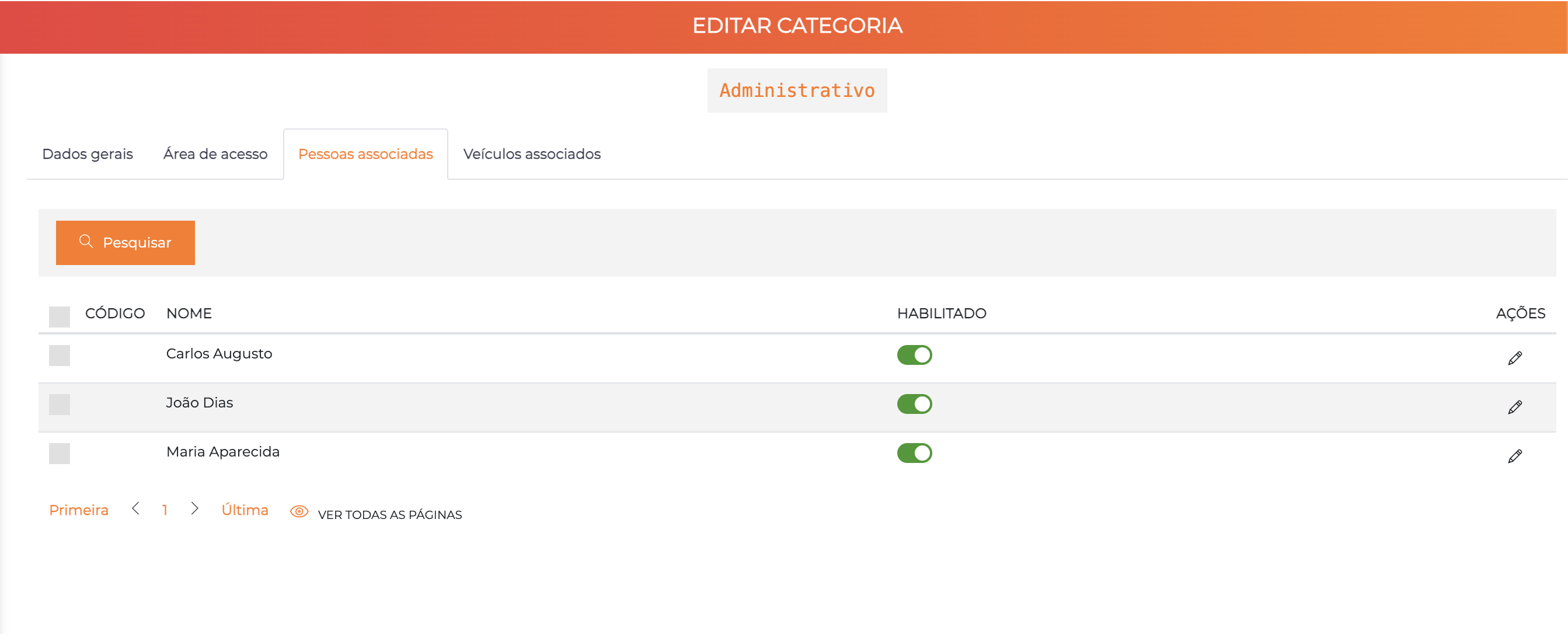
| Column | Description |
|---|---|
| Code | The person's code in the system |
| Name | The person's full name |
| Enabled | Whether the person is enabled in the system |
| Actions | Pencil icon to access the person's registration |
Use the "Search" button to filter specific people. This tab is for consultation only — associating categories to people is done on the People screen.
Tab: Associated Vehicles
The Associated vehicles tab displays all vehicles that have this category assigned.
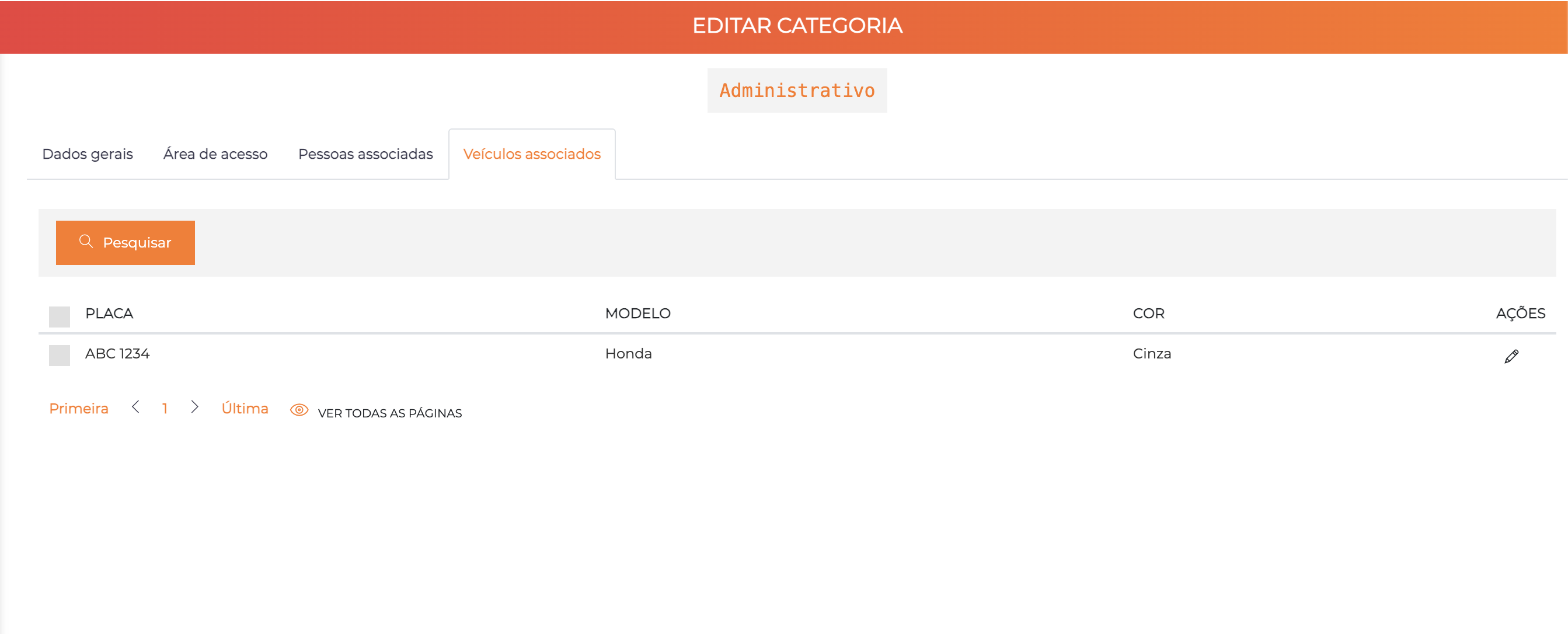
| Column | Description |
|---|---|
| Plate | The vehicle's plate |
| Model | The vehicle's model |
| Color | The vehicle's color |
| Actions | Pencil icon to access the vehicle's registration |
Use the "Search" button to filter specific vehicles. This tab is for consultation only — associating categories to vehicles is done on the Vehicles screen.
Impeding Categories
ACCELERO allows certain categories to be registered as impeding. This means that people with these categories will always have access blocked, and the following restrictions will be applied:
- Physical access: Always blocked at the controllers
- Event registration: It will not be possible to register new events for these people
- Registration editing: Changes on the People screen are also blocked for people with an impeding category, according to the operator's permissions — operators without specific permission will not be able to modify the registration of these people
To enable the impeding categories feature, you must perform three steps of configuration:
Enable the rule in the customizable access rules, activate the global feature, configure the message to the operator and, finally, check the Impeding category flag on the desired categories.
Step 1: Enable the Flag on the Category
Enable the Impeding category flag for the desired categories on the category edit screen.
Path: Settings > Categories
Click the pencil icon of the desired category, check the Impeding category flag on the General data tab and click Save.
Step 2: Enable the Global Feature
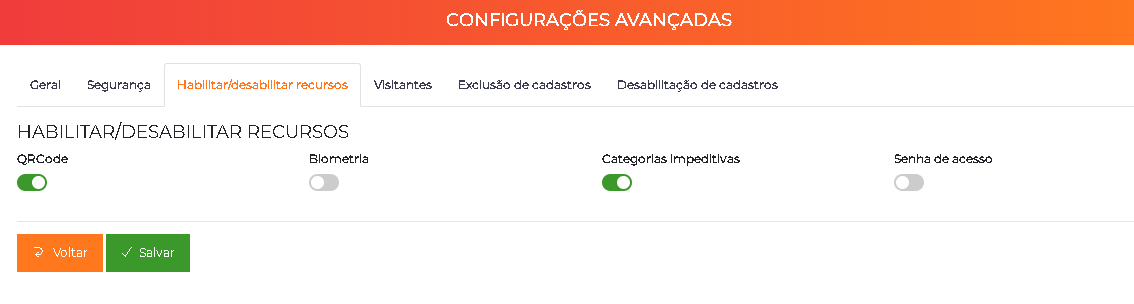
Enable the feature globally in the system, as it comes disabled by default.
Path: Advanced > System > System - Advanced > Enable/disable features
Activate the Impeding categories flag and click Save.
Step 3: Update Access Rules
Update the access rules so that the rule is effectively applied in access validation.
Path: Advanced > Systems > Customization - Customizable access rules
Click Edit, enable the Impeding category rule and click Save.
Alert Modal
When an operator tries to register an event or edit the registration of a person who has an impeding category, the system displays a highlighted modal with the information of the impediment, ensuring that the operator clearly notices the restriction. Permission to proceed with the change depends on the permissions configured in the operator's profile.
Customizable Error Message
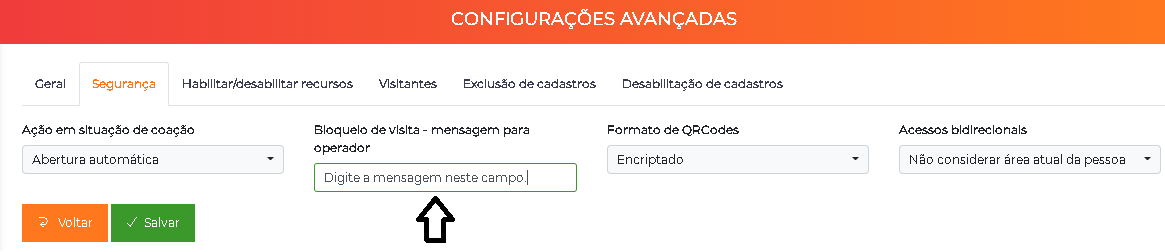
You can configure the error message that will be presented to the operator when they try to register an event or modify the registration of people who already have an impeding category.
Path: Advanced > System > System - Advanced > Security
Type the desired message in the Visit blocking - message to operator field and click Save. This will be the message shown to the operator whenever they try to register an event or edit the registration of a person with an impeding category.
Auto-Associated Categories in Event Types
Categories can be automatically associated with visitors when they are registered in events of a certain type.
This configuration is done in the Categories to be automatically associated with people on event creation section within the configuration of each Event Type.
Usage example:
- Event type: "Social Visit"
- Auto-associated category: "VISITORS"
- Result: When registering a social visit, the system automatically associates the "VISITORS" category with the visitor
Best Practices
-
Descriptive names: Use clear names that easily identify the purpose of the category (e.g. "Residents Tower A", "Administrative Employees", "Temporary Visitors")
-
Create by function: Organize categories by function or role, not by individual characteristics
-
Avoid excess: Too many categories make administration complex. Assess whether individual permissions would not be more appropriate
-
Review regularly: Perform periodic reviews of the active categories and their permissions
-
Use validity: Always configure start and end validity dates when associating temporary categories with people
-
Document rules: Keep external documentation about the purpose of each category and its usage rules