Companies
Companies are "wildcard" entities within ACCELERO. They can represent companies, lots, units, apartments, plots of land, condominiums, or any organizational structure needed.
People who pass through the blocking points can be associated with companies ("Joaquim from ABC Ltda."), as can operators ("operator Luiza from apartment 711"), and this will have several operational implications.
You can customize the name of this entity to fit your operation. The name "company" can be changed to "unit", "apartment", "lot", etc., across all screens and reports. See Name Customization.
Navigation path: Settings > Companies
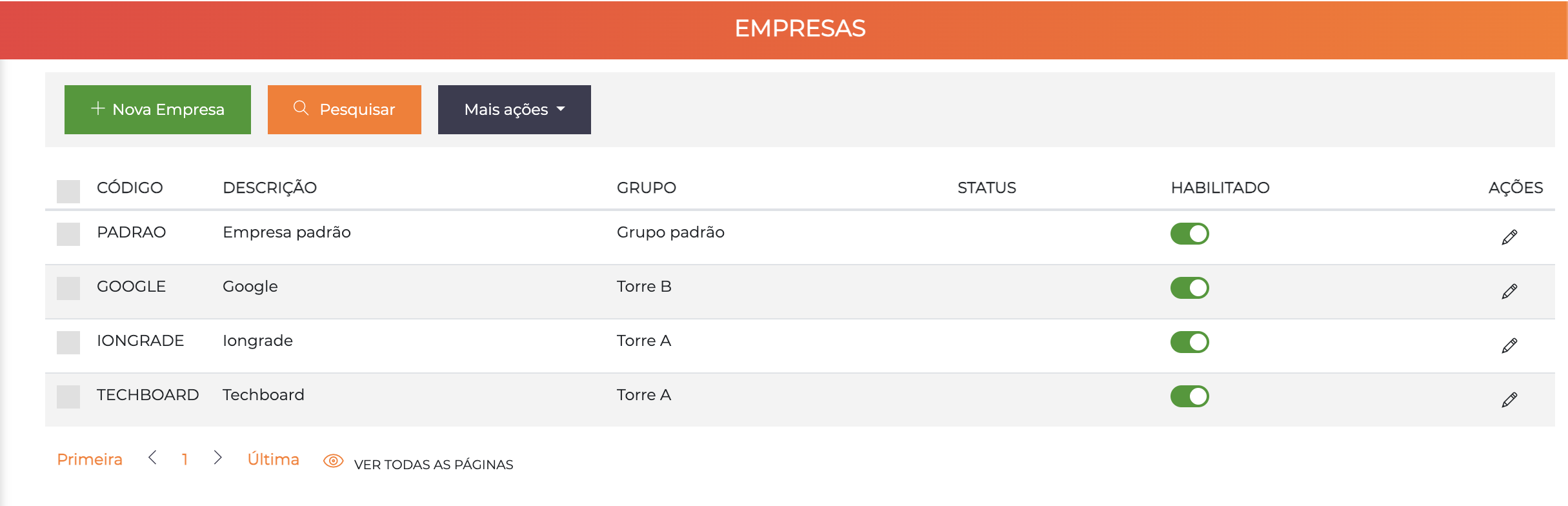
The list displays all registered companies with the columns Code, Description, Group, Status, Enabled and Actions.
List Filters
The companies list allows filtering by various criteria, including the possibility of listing the unit by a specific parking spot.
Company Groups
Companies always belong to a group. By default, the system has a group called "Default group".
Most commonly, the group represents, for example:
- Tower (in residential condominiums)
- Block (in commercial complexes)
- Business unit (in companies)
- Sector (in industries)
And the companies represent the units of each group:
- Apartments of each tower
- Rooms of each block
- Departments of each unit
Group Management
Navigation path: Settings > Company groups
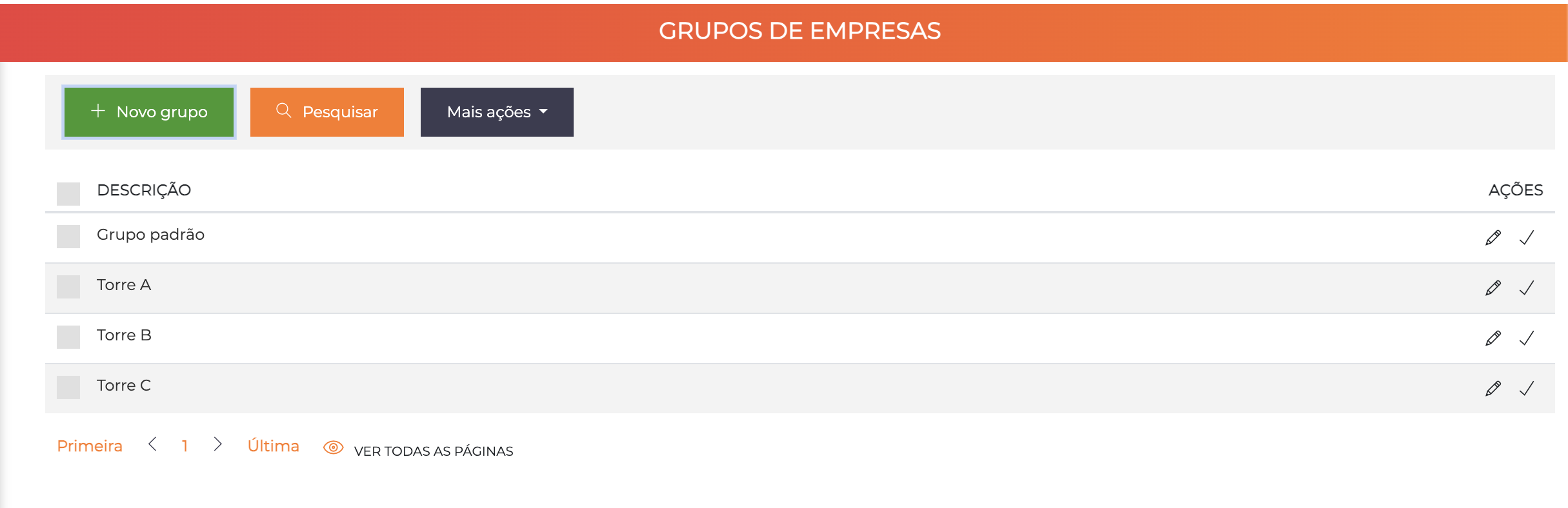
The list displays the registered groups with the columns Description and Actions.
When you click the pencil of a group, the edit screen is displayed with 2 tabs: General data and Companies.
Tab: General Data
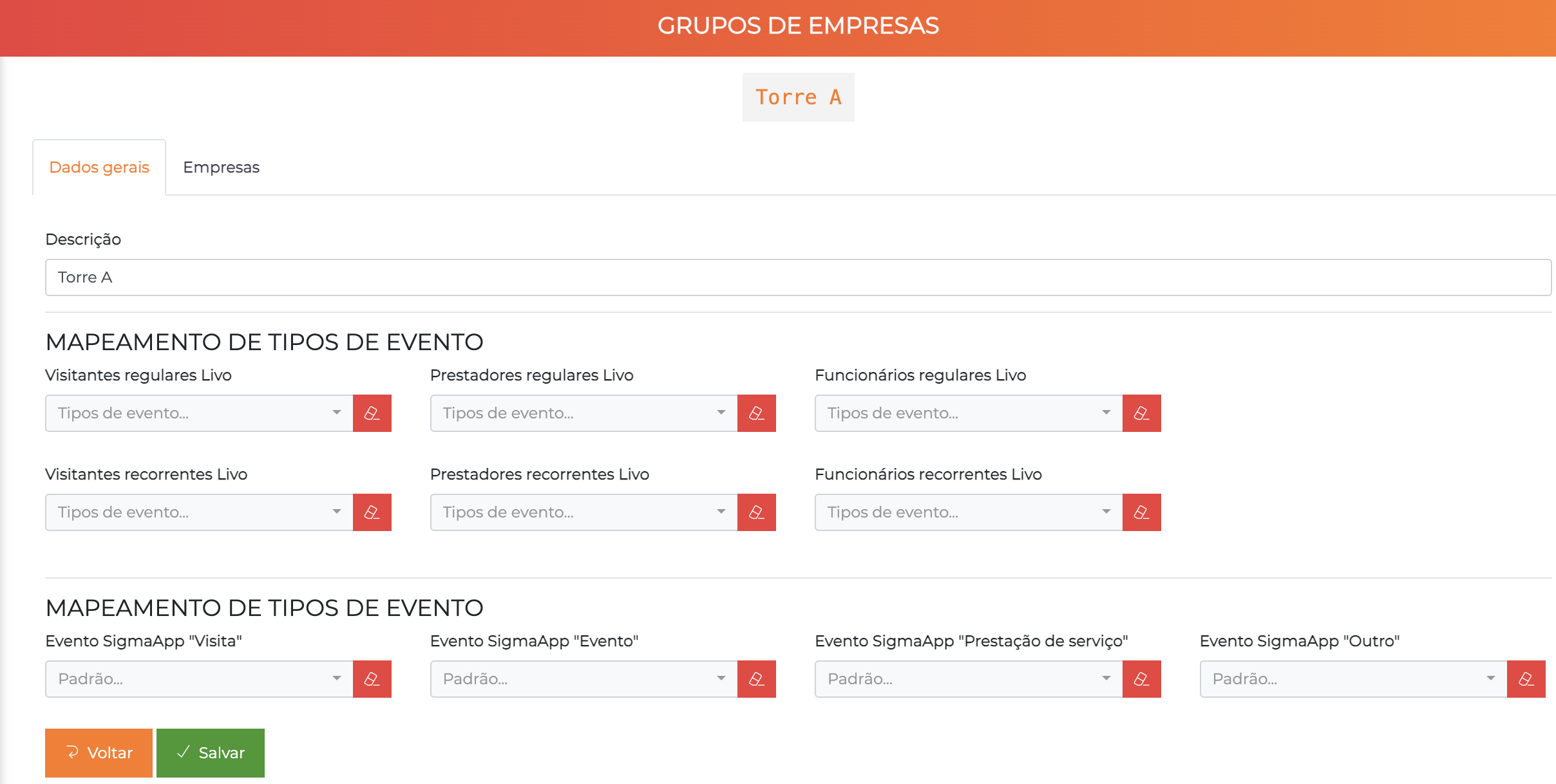
| Field | Description |
|---|---|
| Description | Name of the group |
Section: Event Type Mapping
Allows you to configure the mapping of event types for integrations with external applications (Livo, SigmaApp). Defines which event types will be used for regular visitors, regular contractors, regular employees and their recurring versions.
Tab: Companies
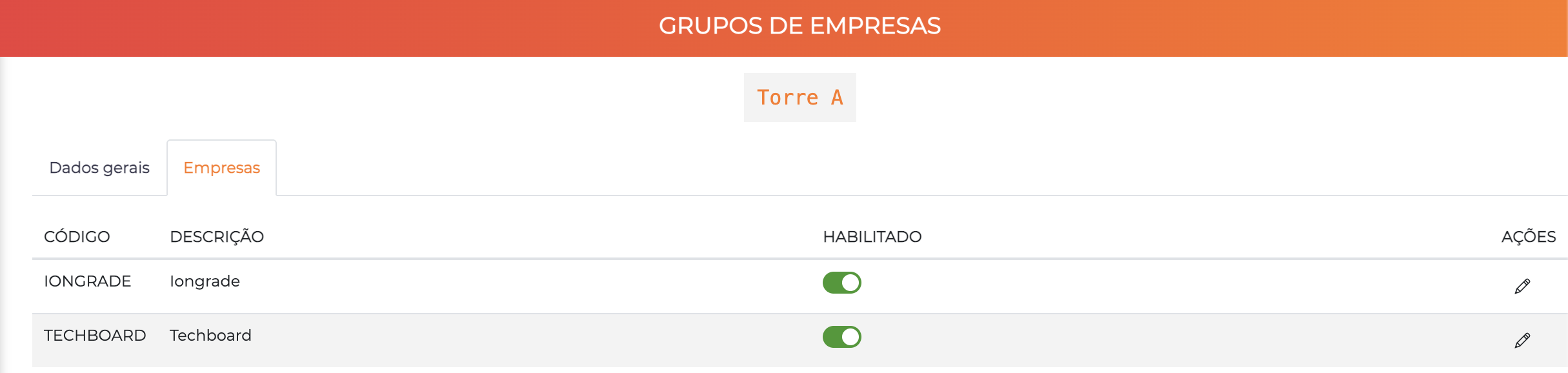
Displays all companies belonging to the group with the columns Code, Description, Enabled and Actions. This tab is for consultation only — associating a company with a group is done on the company edit screen.
Edit Screen
The company edit screen is organized into 6 tabs: Edit, Associated people, Vehicles, Visits, Parking spots and Occupancy in areas.
Tab: Edit
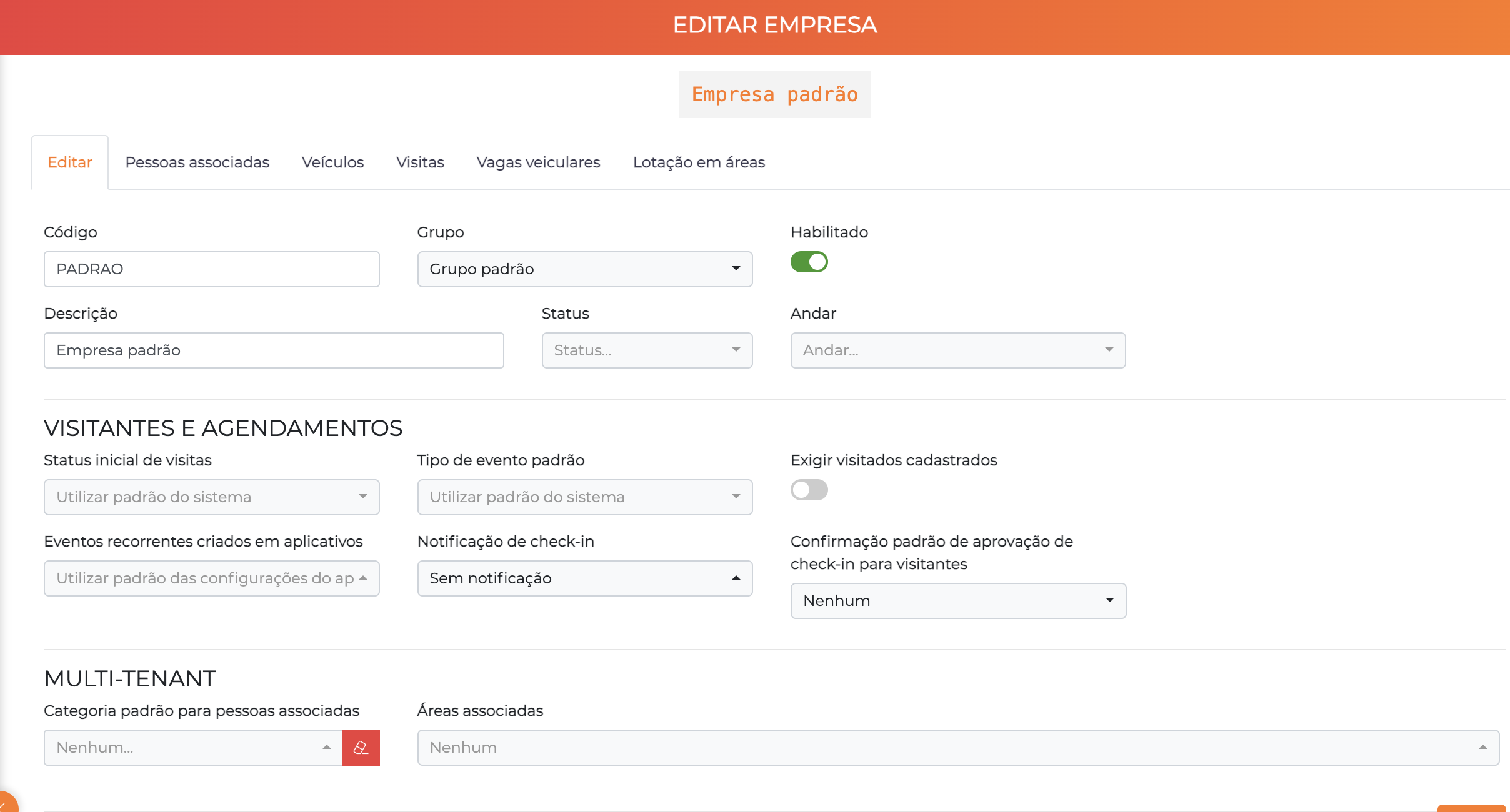
Basic Fields
| Field | Description |
|---|---|
| Code | Identification code of the company |
| Group | Group to which the company belongs |
| Enabled | Enables or disables the access of that company. People associated with companies will have access authorized only if at least one of their companies is enabled |
| Description | Name of the company that will be shown in all logs and reports |
| Status | Current situation of the unit (e.g. Construction, Resident Owner, Tenant, Empty lot/Plot of land) |
| Floor | Physical floor of the company for elevator integration purposes |
If a company is disabled, all people associated exclusively with it will have their accesses automatically denied.
Section: Visitors and Appointments
| Field | Description |
|---|---|
| Initial visit status | Defines whether visits scheduled by operators of this company will be Pre-registered (access will need to be validated) or Authorized (immediate access) |
| Default event type | Event type used when visits are created through third-party applications. In general, it is recommended to use the system's default configuration |
| Require registered visited people | If enabled, the operator must mandatorily select the visited person from a previously registered list |
| Recurring events created in applications | Initial status of recurring visits created by third-party applications. In general, it is recommended to use the default configuration |
| Check-in notification | How the check-in notification of visitors of that company should be performed |
| Default check-in approval confirmation for visitors | Default modality to notify visitors when their check-ins are approved |
Section: Multi-Tenant
| Field | Description |
|---|---|
| Default category for associated people | Category that will be automatically associated with new people linked to this company |
| Associated areas | Areas linked to this company |
Tab: Associated People
Allows you to view and manage the people associated with the company.
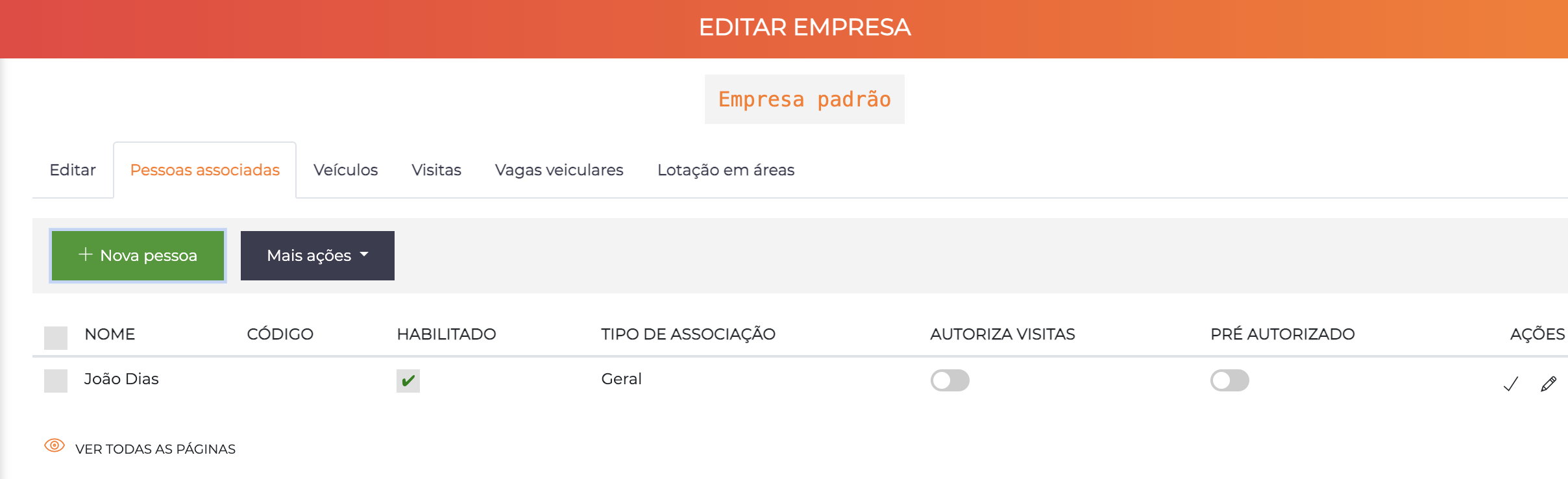
| Column | Description |
|---|---|
| Name | The person's name |
| Code | The person's code in the system |
| Enabled | Whether the person is enabled |
| Association type | Type of link with the company (e.g. General, Resident, Employee) |
| Authorizes visits | Indicates whether the person can authorize visits for the company |
| Pre-authorized | Customizable operational marker |
| Actions | Confirm changes and access the person's registration |
The "+ New person" button lets you add a new association of a person to the company.
The Authorizes visits and Pre-authorized fields are only operational markers and have no influence on access policies.
Tab: Vehicles
Allows you to view all vehicles linked to the company.
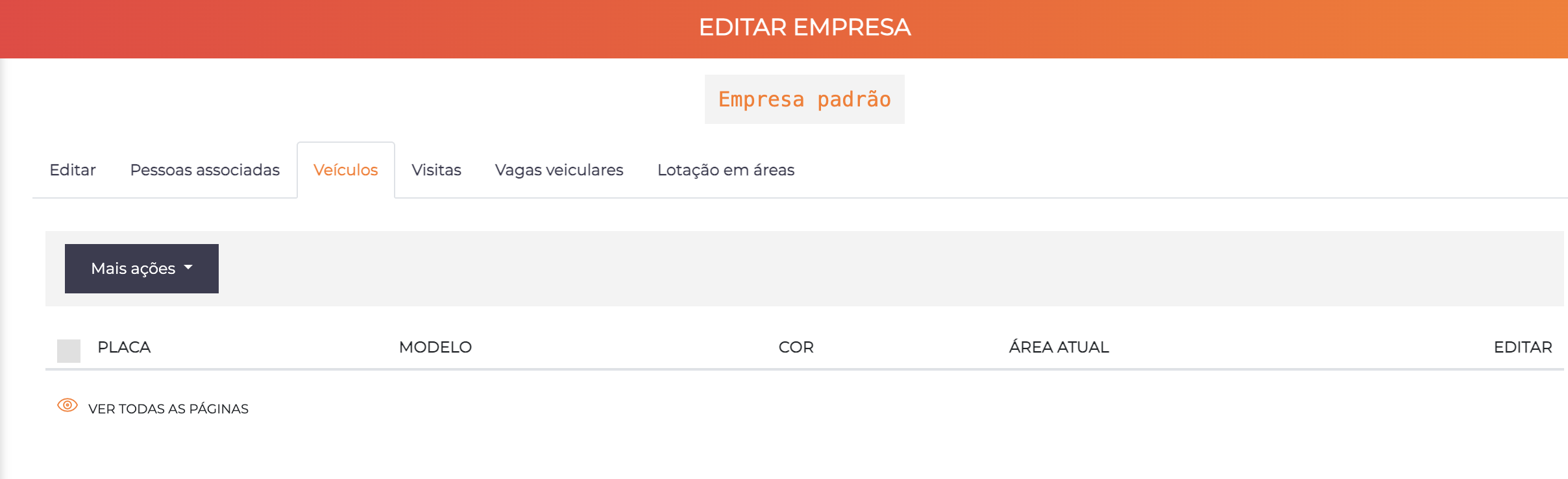
| Column | Description |
|---|---|
| Plate | The vehicle's plate |
| Model | The vehicle's model |
| Color | The vehicle's color |
| Current area | Area where the vehicle is currently located |
| Edit | Icon to access the vehicle's registration |
Tab: Visits
Allows you to view the data of the latest visits made to people associated with this company.
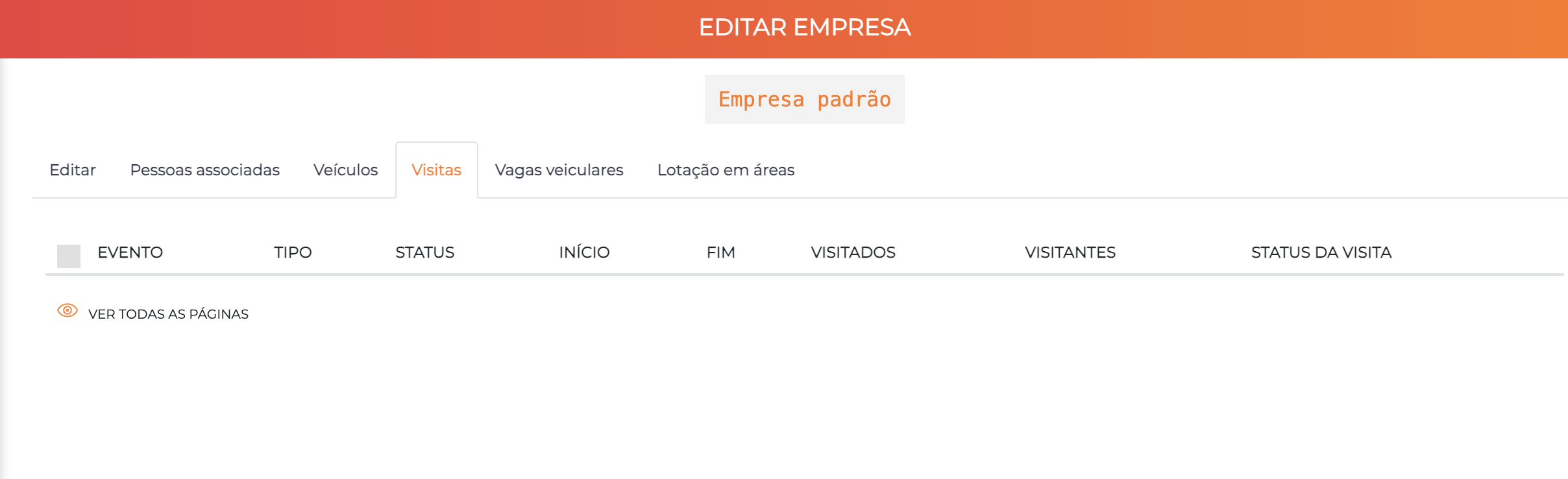
| Column | Description |
|---|---|
| Event | Event identification |
| Type | Event type |
| Status | Event status |
| Start | Start date/time |
| End | End date/time |
| Visited | Visited person(s) |
| Visitors | Visitor(s) |
| Visit status | Current visit status |
Tab: Parking Spots
This feature is available only if the Vehicles module is enabled in the license.
Allows you to define the vehicle parking spots that this company has per area.
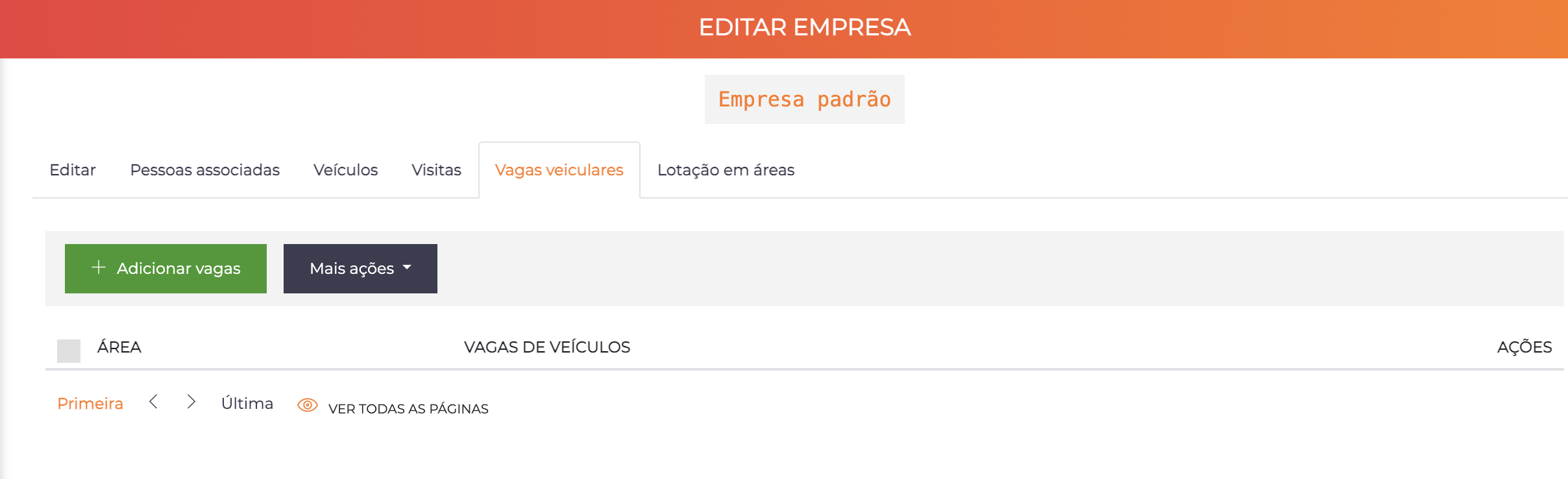
| Column | Description |
|---|---|
| Area | Area where the parking spots are located |
| Vehicle parking spots | Number of the company's parking spots in that area |
| Actions | Edit or remove the configuration |
The "+ Add spots" button lets you configure spots in new areas.
When all of the company's spots are occupied in an area, new vehicles associated with it will have access automatically denied in that area.
Tab: Occupancy in Areas
Allows you to determine the maximum occupancy of people from this company within certain areas.
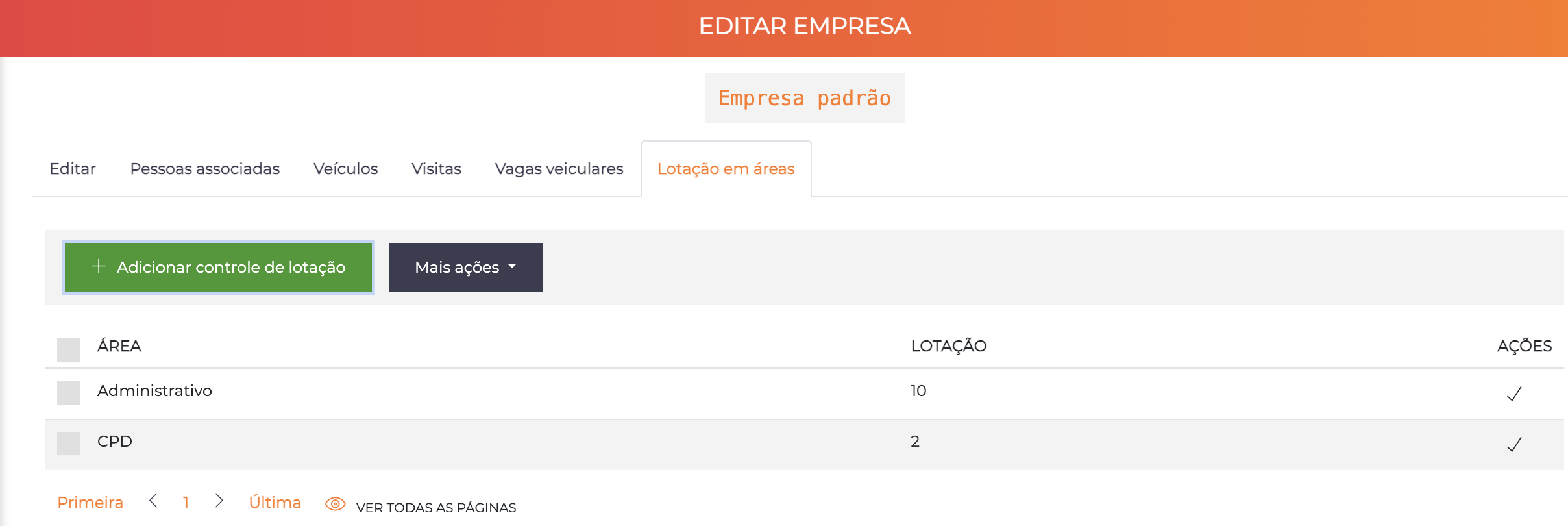
| Column | Description |
|---|---|
| Area | Controlled area |
| Occupancy | Maximum number of people from this company allowed simultaneously in the area |
| Actions | Edit or remove the configuration |
The "+ Add occupancy control" button lets you add new areas to the control.
This control is complementary to the global area occupancy control, and allows you to create rules such as:
"Area X has a global maximum occupancy of 20 people, but there can never be more than 5 people from company Y in that area at the same time."
Association Types
People registered in the system are associated with companies with a specific association type.
Examples:
- Pedro can be an employee of the company Frigorífico Super
- Maria is a service contractor of the same company
- João is a resident of Apartment 711
- Ana is a dependent of Apartment 711
These qualification differences allow you to filter reports, apply differentiated access rules, send specific notifications and organize information.
Type Configuration
Navigation path: Advanced > Association types
Simple list screen. Just create the types that make sense for your operation.
Examples of common types: Employee, Service contractor, Resident, Dependent, Tenant, Recurring visitor, Building manager, Caretaker.
Name Customization
You can customize the name of this entity so that it fits your operation. The name "company" will be changed across all screens and reports immediately.
Navigation path: Advanced > System > Customization - Entity naming > Companies tab
You need to configure the naming for the situations in which the name appears in the plural or singular and at the beginning or end of sentences.
Customization examples:
| Context | With "Company" | With "Apartment" | With "Lot" |
|---|---|---|---|
| Singular beginning | The company is... | The apartment is... | The lot is... |
| Singular end | ...of the company | ...of the apartment | ...of the lot |
| Plural beginning | The companies are... | The apartments are... | The lots are... |
| Plural end | ...of the companies | ...of the apartments | ...of the lots |
Configuration Examples
Residential Condominium
Group: Tower A

Company: Apartment 101
  Code: T-A-101
  Group: Tower A
  Enabled: ✅
  Floor: 1
  Initial visit status: Pre-registered
  Require registered visited people: ❌
  Parking spots:
    - Basement Parking: 2 spots
Characteristics: The resident can register visitors freely, who will need to be approved before entering.
Commercial Company
Group: Commercial Block

Company: ABC Consulting Ltd
  Code: BC-501
  Group: Commercial Block
  Enabled: ✅
  Floor: 5
  Initial visit status: Authorized
  Require registered visited people: ✅
  Parking spots:
    - Visitor Parking: 3 spots
  Occupancy in areas:
    - Meeting Room A: maximum 10 people from this company
Characteristics: Pre-authorized visits, visited person must be registered, parking spot control and meeting room occupancy.
Warehouse Condominium
Group: Industrial Condominium

Company: Warehouse 7 - XYZ Storage
  Code: G-07
  Group: Industrial Condominium
  Enabled: ✅
  Initial visit status: Pre-registered
  Require registered visited people: ❌
  Parking spots:
    - Loading/Unloading Yard: 5 spots
    - Employee Parking: 20 spots
Characteristics: Large number of spots for logistics operation.
Coworking
Group: Corporate Floor

Company: Startup Tech Solutions
  Code: CW-A3-12
  Group: Corporate Floor
  Enabled: ✅
  Floor: 3
  Initial visit status: Authorized
  Parking spots:
    - Parking: 2 spots
  Occupancy in areas:
    - Meeting Room 1: maximum 6 people from this company
    - Meeting Room 2: maximum 4 people from this company
    - Private Room 12: maximum 8 people from this company
Characteristics: Fine occupancy control per shared area, limited spots.
Best Practices
-
Consistent naming: Use standardized and descriptive codes. Keep a standard throughout the system (e.g. "Tower A - Apt 1101" instead of "TA1101")
-
Organization by groups: Create groups that make logical sense (towers, blocks, sectors). It facilitates reports and views
-
Parking spot control: Configure realistic spots and periodically review the need
-
Visit status: "Pre-registered" offers more security (the visitor waits for approval), "Authorized" offers more agility (immediate entry)
-
Occupancy per company: Use only when necessary for shared resources
-
Periodic maintenance: Review disabled companies periodically and update spots according to changes