Time Range
Time ranges define time periods during which the access of people and vehicles will be allowed in certain areas.
Navigation path: Settings > Time ranges
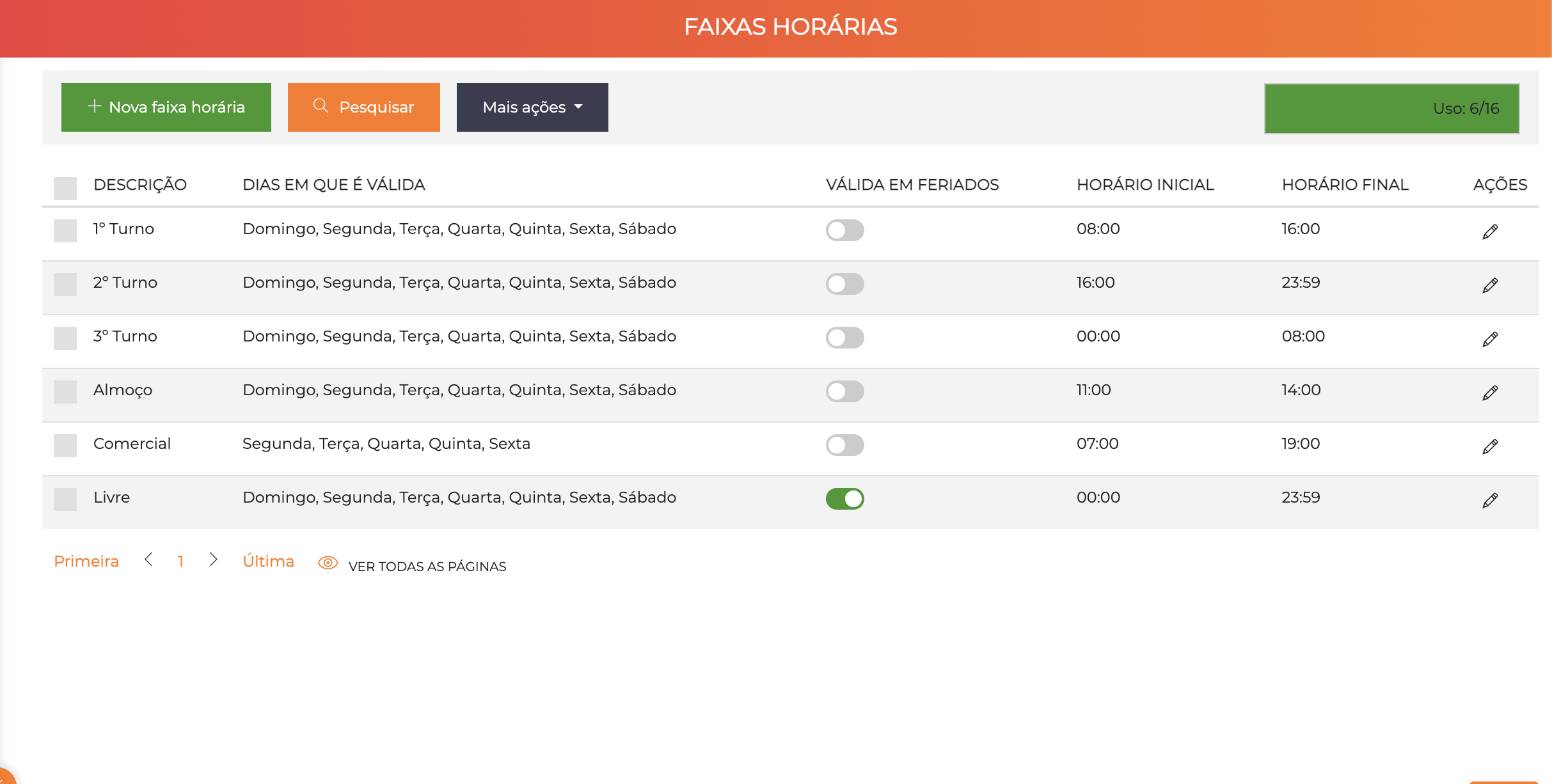
The list displays all registered time ranges with the columns Description, Days on which it is valid, Valid on holidays, Start time, End time and Actions. The badge in the upper right corner indicates the current usage relative to the license limit.
Concept
Within ACCELERO, a Time Range is the definition of a specific period.
Time Range Examples
"Mondays and Wednesdays, from 06:00 to 16:00, except holidays"

"Weekdays, from 08:00 to 18:00, including holidays"

"Weekends, any time"

"24 hours, 7 days a week"
Use of Time Ranges
Time ranges are used to define when access is allowed in the configurations of:
- Categories: Defines access hours per category
- Individual permissions: Defines specific hours for a person
- Areas: Combines with categories to create rules such as "Category X can access Area Y during Time Range Z"
See Access Policy to understand the complete model.
How to Create a Time Range
The time range defines the rules of days and hours that grant a user access to certain areas. It is always linked to an area associated with a category.
- Go to
Settings > Time ranges. - Click Add.
- Fill in the Description with a name that identifies the range.
- Define the Start time and the End time (HH:MM format).
- Select the Days on which it is valid.
- Enable Valid on holidays if the range should also apply on days registered as holidays.
- Click Save.
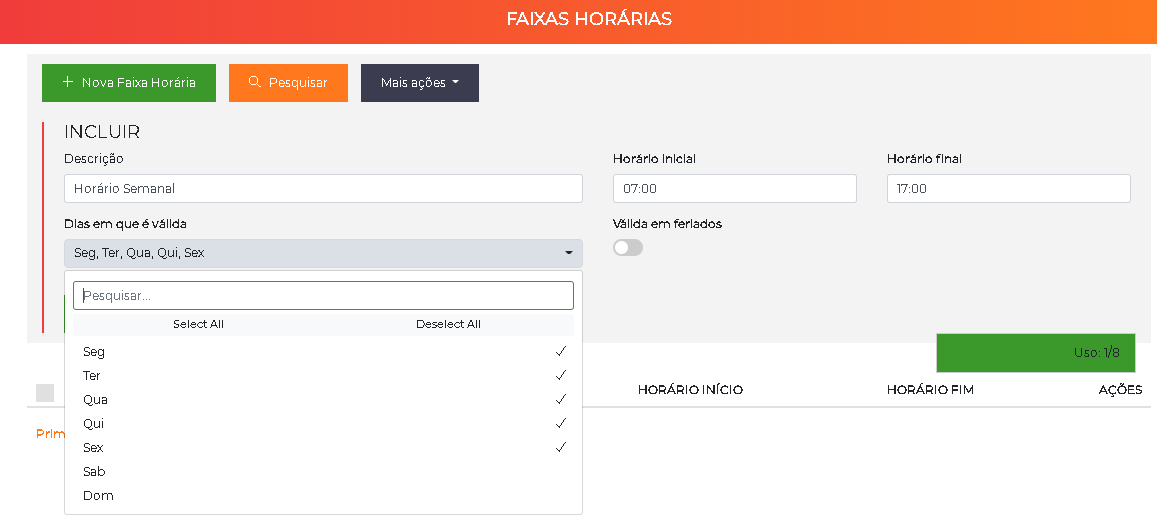
After saving, the time range becomes available for use in the access configurations.
Where the Range Is Used
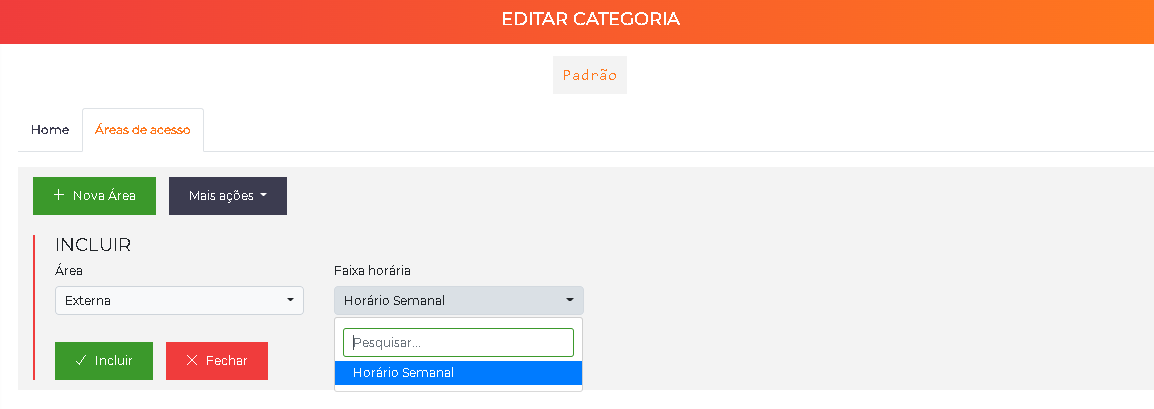
The newly created time range is applied in Settings > Categories, in the Access areas tab: you select the desired area and then the time range that will apply to that combination.
Edit Screen
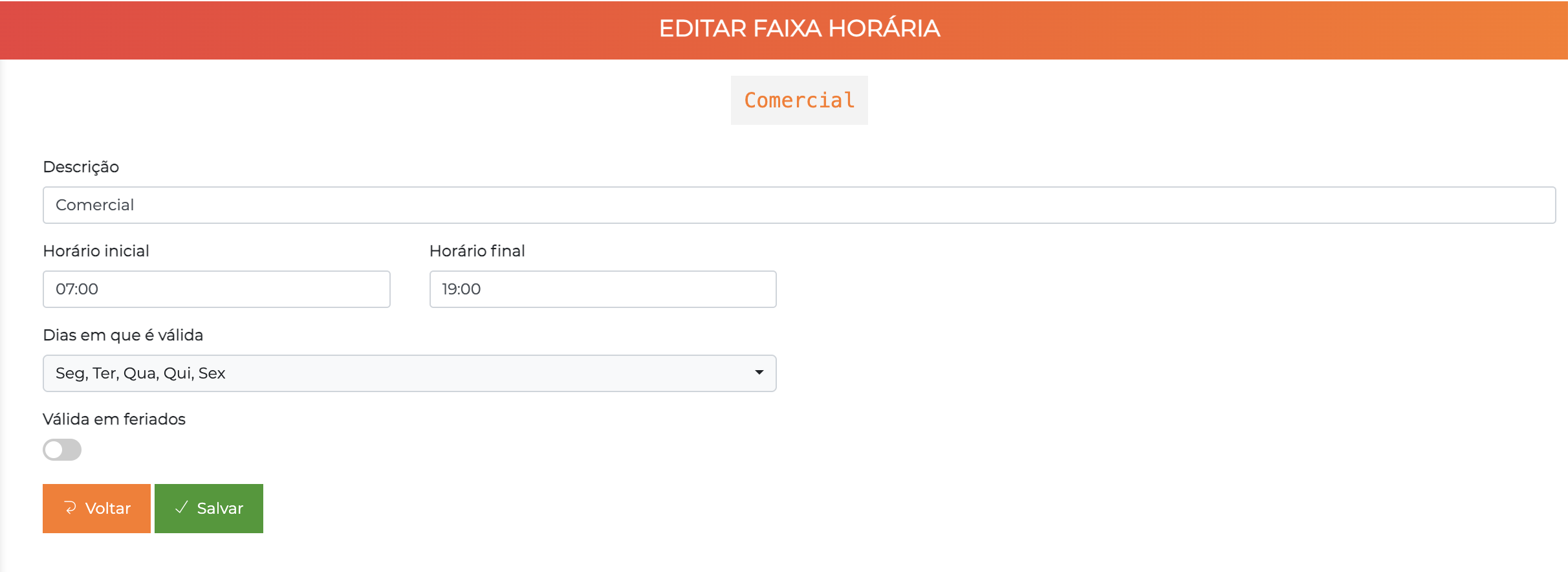
When you click the pencil (✏️) of a time range in the list, or when you create a new one, the edit screen is displayed:
Configuration Fields
| Field | Description |
|---|---|
| Description | Name of the time range that will be shown on screen |
| Start time | Start time of the range (HH:MM format) |
| End time | End time of the range (HH:MM format) |
| Days on which it is valid | Days of the week on which the time range applies (multiple selection) |
| Valid on holidays | Toggle that defines whether the range also applies on days registered as holidays |
Configuration Examples
Business Hours
Description: Business
Start time: 07:00
End time: 19:00
Days on which it is valid: Mon, Tue, Wed, Thu, Fri
Valid on holidays: No
Work Shifts
A common scenario is to configure shifts that cover the 24 hours of the day:
Description: 1st Shift
Start time: 08:00
End time: 16:00
Days on which it is valid: All days
Valid on holidays: No
Description: 2nd Shift
Start time: 16:00
End time: 23:59
Days on which it is valid: All days
Valid on holidays: No
Description: 3rd Shift
Start time: 00:00
End time: 08:00
Days on which it is valid: All days
Valid on holidays: No
Lunch Time
Description: Lunch
Start time: 11:00
End time: 14:00
Days on which it is valid: All days
Valid on holidays: No
Free Access (24/7)
Description: Free
Start time: 00:00
End time: 23:59
Days on which it is valid: All days
Valid on holidays: Yes
Night Shift
The system does not support time ranges that cross midnight in a single configuration. To cover a period such as from 18:00 to 08:00, create two separate ranges and associate both where needed:
Description: NIGHT SHIFT (1st PART)
Start time: 18:00
End time: 23:59
Days on which it is valid: All days
Valid on holidays: Yes
Description: NIGHT SHIFT (2nd PART)
Start time: 00:00
End time: 08:00
Days on which it is valid: All days
Valid on holidays: Yes
The system interprets the start and end time within the same day. Configuring Start: 18:00 and End: 08:00 in a single range will not work correctly.
Always split into two ranges and apply both to the desired category or permission.
How to Use Time Ranges
1. In Categories
When configuring a category, you associate access areas with time ranges:
Category: EMPLOYEES
Area: ROOM 03
Time Range: Business

Result: Employees can access ROOM 03 only during business hours
See Categories - Access Areas.
2. In Individual Permissions
You can grant specific permissions to a person:
Person: João Silva
Area: MEETING ROOM
Time Range: NIGHT SHIFT

Result: João can access the MEETING ROOM during the night shift,
regardless of the permissions of his category
See People - Individual Permissions.
Holidays
The configuration of holidays is done separately and affects the behavior of time ranges. When the Valid on holidays toggle is turned off, the time range will not be applied on days registered as holidays — even if the day of the week is selected.
Configure holidays through the Settings > Holidays menu so that the time ranges that consider holidays work correctly.
See Holidays for the complete configuration.
Best Practices
-
Use descriptive names: Facilitates quick identification of the purpose
-
Create reusable ranges: Avoid creating overly specific ranges
-
Standardize naming:
- "Business" instead of "8-18h"
- "1st Shift" instead of "Morning"
-
Recommended common ranges:
- Free (24/7)
- Business
- 1st Shift / 2nd Shift / 3rd Shift
- Lunch
- Weekends
-
Periods that cross midnight: Always split into two ranges (e.g. 18:00–23:59 and 00:00–08:00) and apply both in the same place
-
Configure holidays: Always register relevant holidays
-
Test the combinations: Verify that category + area + time range is working
Effective Permissions Report
To verify that the time ranges are configured correctly, use the Effective Access Permissions Report.
This report shows exactly which areas and hours a person has permission for.
See Reports - Effective Permissions.
Next Steps
- Holidays - Configure holidays that affect time ranges
- Categories - Associate time ranges with categories
- Areas - Configure areas that will be controlled
- Access Policy - Understand the complete permissions model