Identifiers
ACCELERO uses the term "Identifier" to represent any means of identifying people/vehicles.
Identifiers can be:
- RFID cards
- Biometrics (fingerprint, facial)
- Vehicle plates
- QR Codes
- Facial templates
- Vehicle TAGs
- Numeric passwords
Each person or vehicle can have multiple identifiers associated, allowing flexibility in using the system.
Navigation path: Settings > Identifiers
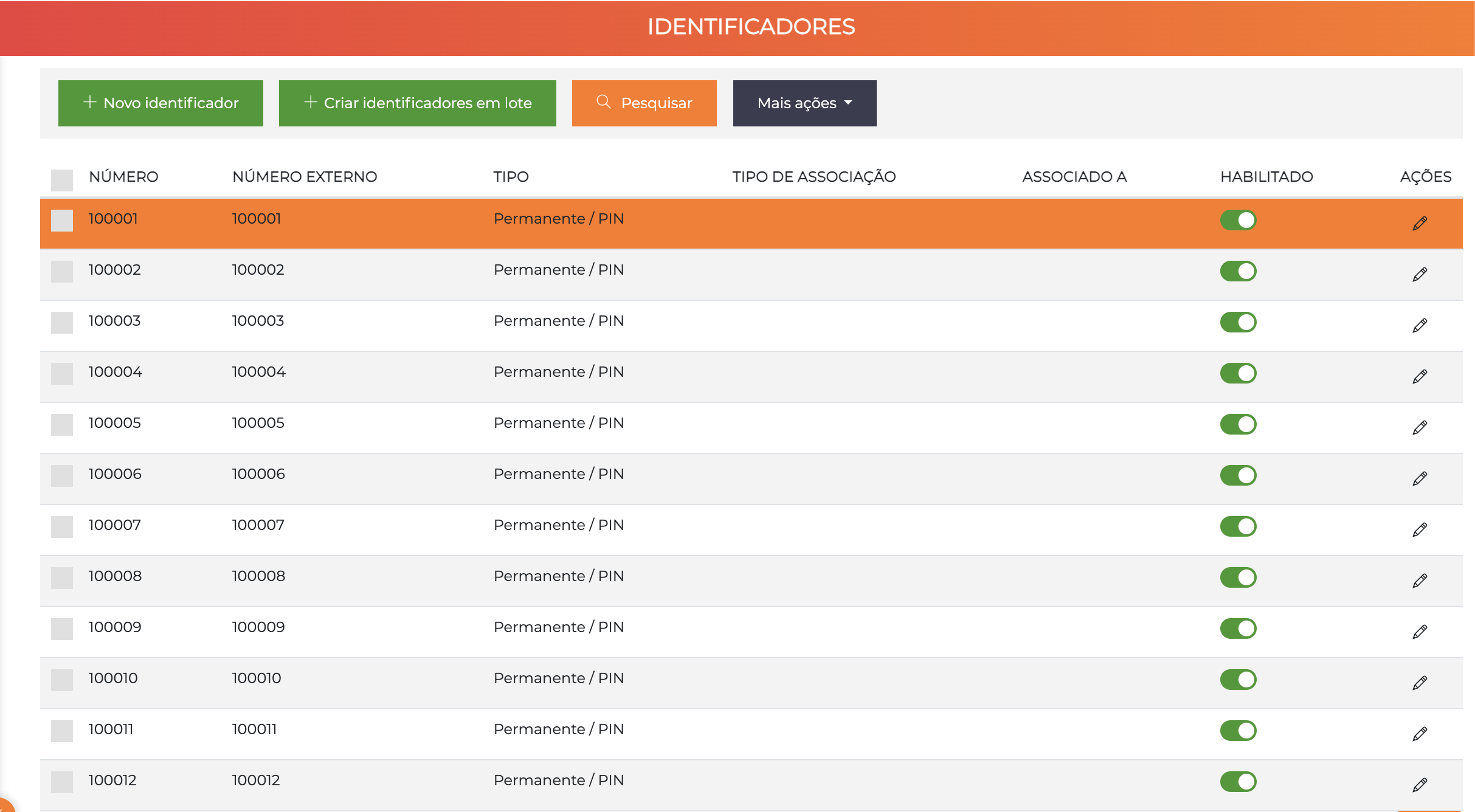
The list displays the identifiers with the columns Number, External Number, Type, Association Type, Associated With, Enabled and Actions.
Identifier Structure
Each identifier has:
| Field | Description |
|---|---|
| Internal number | Unique identification of the identifier (the "card number", for example). This is the number that the controller physically reads |
| External number | "Nickname" that will be shown on operators' search screens, such as visitor registration screens. If not filled in, the external number will be equal to the internal number |
| Type | Category of the identifier (Permanent Card, Visitor Card, Biometrics, etc.) |
| Enabled | If disabled, all access will be automatically denied |
| Start validity | Any access attempt on an earlier date will be automatically denied |
| End validity | Any access attempt on a later date will be automatically denied |
- Internal number: It is what the equipment reads (e.g. "1234567890")
- External number: It is what the operator sees (e.g. "CARD-0001")
- Use the external number to facilitate operation and organization
Identifier Types
ACCELERO has several types of identifier to represent the most common situations, such as "Visitor card" and "Permanent card".
However, you can create types freely to facilitate the organization of identifiers according to the needs of each project.
Type Configuration
Path in the system: Advanced > Identifier types
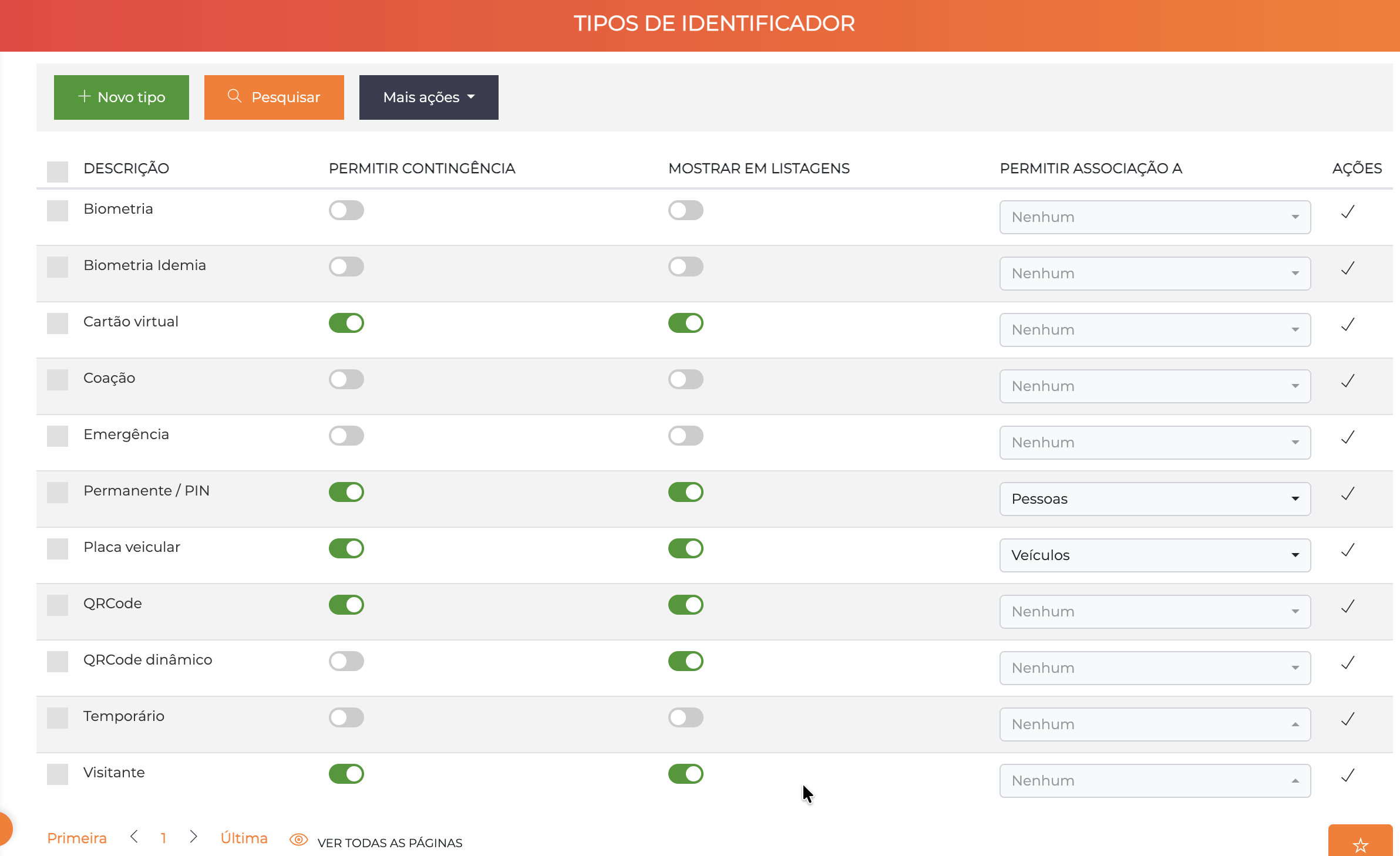
The list displays the configured types with the columns Description, Allow Contingency, Show in Lists, Allow Association With and Actions.
For each type you can define:
| Field | Description |
|---|---|
| Contingency | Whether identifiers of that type should be sent to the controllers' contingency list. If this option is disabled, the validation of these identifiers will happen only in online mode |
| Allow association with | You can define whether that type of identifier will be associable with People, Vehicles or both |
| Show in lists | Defines whether that type of identifier will appear on list screens and "picklists". It is convenient for "internal" system identifiers to have this flag disabled to avoid operation errors |
When identifiers are sent to contingency, the controllers keep a local copy. This allows them to continue authorizing accesses even if they lose communication with the server.
Common Types of Identifiers
Examples of types:
- Permanent Card: For employees and residents
- Visitor Card: For temporary visitors
- Fingerprint Biometrics: Fingerprint
- Facial Template: Facial recognition
- Temporary QR Code: For scheduled visits
- Vehicle Plate: For vehicle control
- Vehicle TAG: RFID for vehicles
- Numeric Password: Access PIN
- Temporary Card: For service contractors
Creation Methods
1. Manual Creation (Individual or Sequential)
To manually create identifiers, go to Identifiers > New identifier.
| Field | Description |
|---|---|
| Start number | Start number of the identifier to be created. The information can be alphanumeric, and "leading zeros" are relevant for the case of readers that use Wiegand communication |
| Quantity | Number of identifiers to create, sequentially from the start number. To create individual identifiers, keep the value "1" |
| Enabled | If the identifier is disabled, all access will be automatically denied, and the identifier will not be available on the selection screens for association with People/Vehicles |
| Type | Type of the identifier |
| Start validity | Any access attempt with this identifier on a date earlier than the start validity will be automatically denied |
| End validity | Any access attempt with this identifier on a date later than the end validity will be automatically denied |
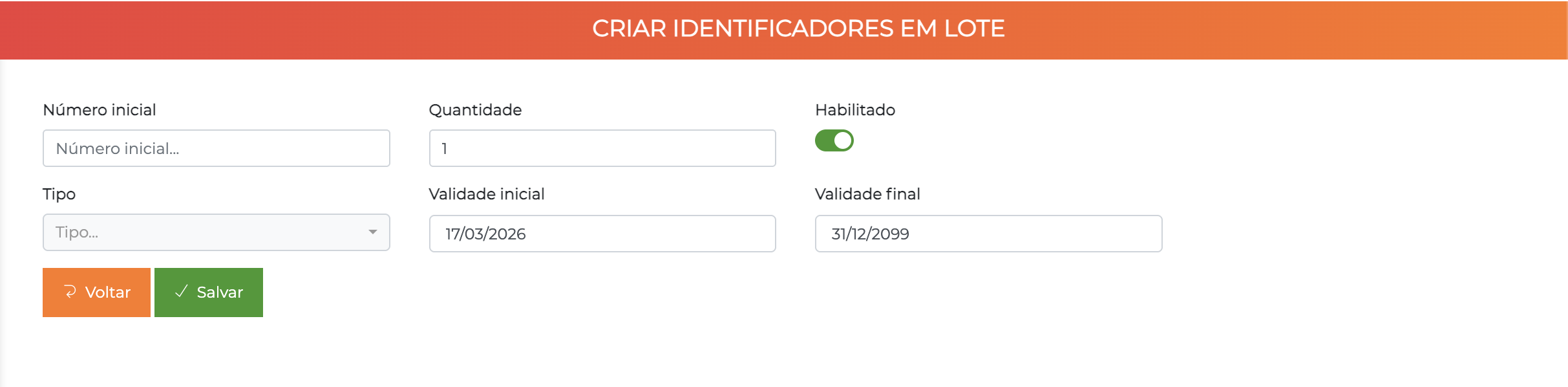
After clicking the Save button, the screen is automatically "reset" to allow quick creation of the next identifier.
Sequential creation example:
Start number: 00001
Quantity: 100
Type: Permanent Card
Result: Creates cards from 00001 to 00100
2. Batch Creation by Capture
In situations where the internal number is not known, you can capture the identifiers as they are presented at a controller and perform a batch creation.
Path: Identifiers > Create identifier batch
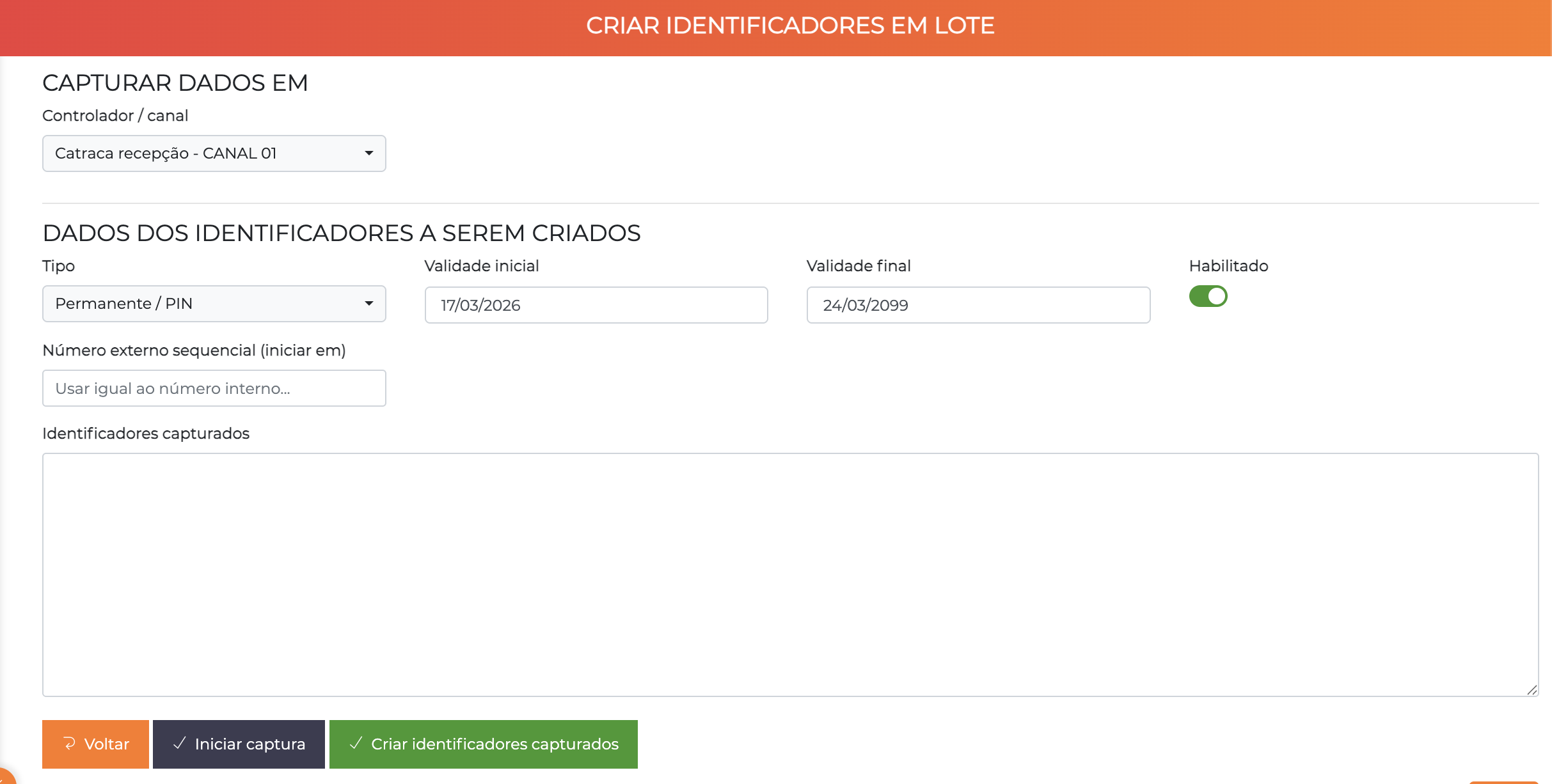
Procedure:
- Select the controller / channel where the identifiers will be presented
- Define the data to be used for the cards to be created
- (Optional) Create a sequential numbering for the external number of the identifiers
- Click the Start capture button
- Present the cards/identifiers at the chosen controller
- The numbering of each card is shown on the screen in list format
- Click Stop capture
- Make any necessary adjustments (if any)
- Click Create captured identifiers
This method is ideal when you have a batch of physical cards and do not know the numbers printed on them. Just swipe them all at the reader and the system captures them automatically.
Duress Feature
Each identifier, individually, can be marked as a "duress identifier".
Whenever this identifier is presented at any blocking point of the system:
- Access will be authorized normally (so as not to alert the aggressor)
- Entries with the status "Access requested under duress" and "Access performed under duress" will be generated in the Access Log, highlighted in red
- New entries will be generated in the Incident Panel
- Notifications will be sent to the configured operators
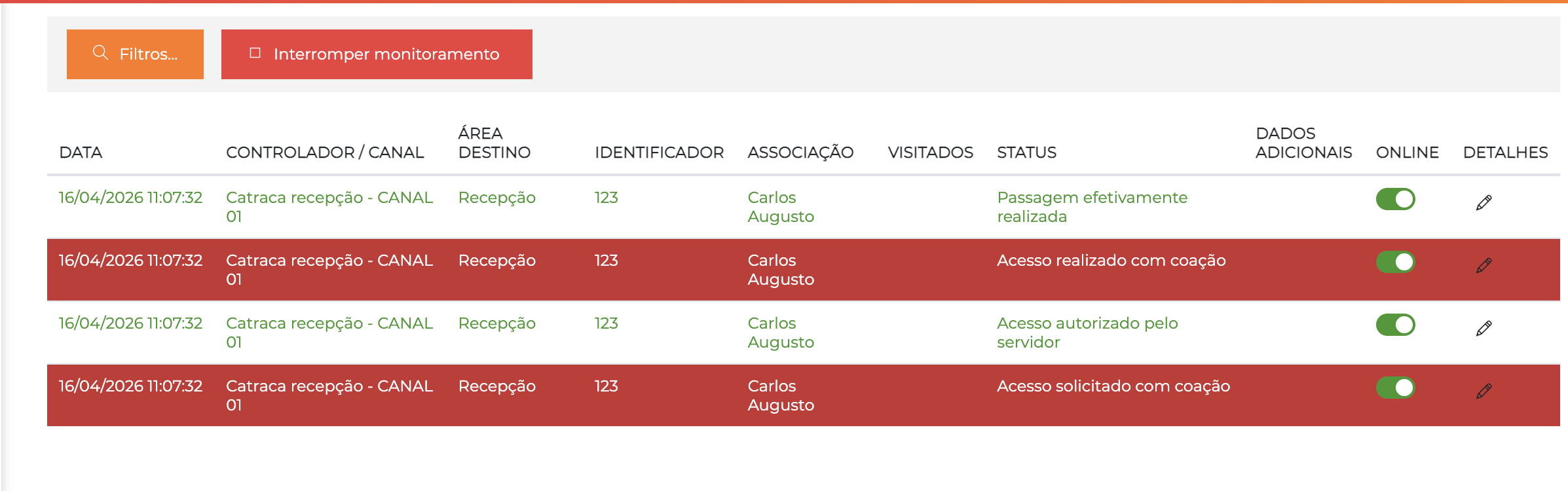
In the access log, duress events appear highlighted in red. The system records two specific events: "Access requested under duress" and "Access performed under duress", in addition to the normal authorization events — confirming that access was released without alerting the aggressor.
The duress identifier allows the person to signal a risk situation without the aggressor noticing. Use with caution and train users properly.
Typical use: A bank employee has two cards - a normal one and a duress one. If forced to open the safe, they use the duress card, which authorizes access but triggers a silent alarm.
Association with People/Vehicles
Identifiers are associated with people or vehicles through the respective registration screens.
Association with People
- Go to
People > All - Edit the desired person
- In the Identifiers tab, add the identifiers
- A person can have multiple identifiers
See more in People - Identifiers.
Association with Vehicles
- Go to
Settings > Vehicles - Edit the desired vehicle
- In the Identifiers tab, add the identifiers
- A vehicle can have multiple identifiers (plate + RFID TAG, for example)
See more in Vehicles.
Validity Control
Validity by Dates
Identifiers can have a start date and an end date of validity:
Example 1 - Temporary intern:
Number: 12345
Type: Temporary Card
Start validity: 01/03/2026
End validity: 31/08/2026
This card will only work between March and August 2026.
Example 2 - Special event:
Number: EVT-001
Type: Temporary QR Code
Start validity: 15/06/2026 08:00
End validity: 15/06/2026 23:59
This QR Code works only on the day of the event.
Manual Disabling
Identifiers can be disabled at any time:
- Lost/stolen card
- End of contract
- Temporary suspension
- Maintenance/correction
Disabling an identifier denies access immediately, without the need for synchronization if it is in online mode. In contingency mode, there may be a delay.
Wiegand and Leading Zeros
For readers that use Wiegand communication, leading zeros are relevant.
Examples:
00123is different from123001234is different from1234
Best practices:
- Keep a standard for leading zeros
- Configure identifiers with the same number of digits
- Test the read at the controller to confirm the format
- Document the standard used
Configuration Examples
Permanent Cards - Employees
Sequential creation:
  Start number: 10001
  Quantity: 500
  Type: Permanent Card
  Enabled: ✅
  Start validity: (empty)
  End validity: (empty)
  External number: EMP-{seq}

Result: 500 cards numbered from 10001 to 10500
External number: EMP-001, EMP-002, ..., EMP-500
Temporary Cards - Visitors
Sequential creation:
  Start number: 90001
  Quantity: 50
  Type: Visitor Card
  Enabled: ✅
  Start validity: (empty)
  End validity: (empty)
  External number: VISIT-{seq}

Result: 50 cards for visitors
Used on demand, returned after the visit
Temporary QR Codes
Individual creation:
  Number: QR-15062026-001
  Type: Temporary QR Code
  Enabled: ✅
  Start validity: 15/06/2026 00:00
  End validity: 15/06/2026 23:59

Result: QR Code valid only on the specific day
Vehicle TAGs
Creation by capture:
  Controller: Parking Gate
  Type: Vehicle TAG
  Start external number: TAG-001

Procedure:
1. Start capture
2. Swipe 20 TAGs at the reader
3. System captures the numbers automatically
4. Creates identifiers TAG-001 to TAG-020
Biometrics
Automatic creation by the system:
  Type: Fingerprint Biometrics
  Internal number: (generated automatically)
  Created when the biometrics is registered on the person

Note: Biometrics are usually created automatically
during the registration of the person at the biometric reader
Best Practices
1. Numbering Standardization
Use consistent standards:
- ✅ Employees: 10000-19999
- ✅ Visitors: 90000-99999
- ✅ Vehicles: 50000-59999
- ❌ Random numbers without a standard
2. Descriptive External Number
- ✅ "EMP-0123", "VISIT-045", "VIP-007"
- ❌ Leaving it equal to the internal number
- Facilitates operation and identification
3. Stock Control
- Keep a record of available physical cards
- Mark unused cards as disabled
- Record lost/damaged cards
4. Appropriate Validity
- Employees: no validity (or annual renewal)
- Visitors: short validity (day/week)
- Temporary: exact validity of the contract
- Events: validity of the specific day/time
5. Organized Types
- Create types that make sense for your operation
- Do not create too many types (confusion)
- Do not create too few types (lack of control)
- Document the purpose of each type
6. Security
- Immediately disable lost/stolen identifiers
- Periodically review active identifiers
- Configure duress identifiers with discretion
- Train users on correct use
7. Contingency
- Identify which types should go to contingency
- Biometrics usually do not go to contingency
- Permanent cards usually do
- Temporary QR Codes usually do not
Integration with Other Entities
With Controllers
- Each controller channel defines accepted types
- Validation happens at the moment of presentation
- Logs record which identifier was used
See more in Controllers - Accepted Types.
With People
- People have multiple associated identifiers
- Card + biometrics + facial, for example
- Management in the person's Identifiers tab
See more in People.
With Vehicles
- Vehicles have specific identifiers
- Plate + RFID TAG is common
- Automatic plate reading (LPR)
See more in Vehicles.
Troubleshooting
Identifier does not work
- Check whether it is enabled
- Confirm the validity (start/end)
- Validate the association with the person/vehicle
- Check the accepted type on the channel
- Consult the controller logs
Card read with the wrong number
- Confirm the reader's Wiegand standard
- Check the leading zeros
- Test the read and compare with the registration
- Re-register with the correct number if necessary
- Standardize the format for new cards
Batch creation does not work
- Check the controller connection
- Confirm that the controller is online
- Validate the operator's permissions
- Test the manual presentation of a card
- Consult the communication logs
Duress identifier does not trigger the alarm
- Confirm that the "duress" flag is checked
- Check the notifications configuration
- Validate the operators configured to receive the alert
- Test at a controlled time
- Consult the incident panel
Contingency does not work offline
- Confirm that the type has contingency enabled
- Check the last synchronization with the controller
- Validate that the identifier was created before the connection loss
- Confirm the controller's memory capacity
- Test reconnection and new synchronization
Available Reports
- Identifier list: By type, status, validity
- Identifiers per person: Which IDs each person has
- Unused identifiers: Cards never used
- Expired identifiers: Out of validity
- Usage history: Latest accesses per identifier
Next Steps
- People - Associate identifiers with people
- Vehicles - Configure vehicle identifiers
- Controllers - Configure accepted types per channel