Operators
All people who perform operations on Accelero pages — registering people, issuing reports, settings, etc. — are called operators.
Navigation path: Advanced > Operators
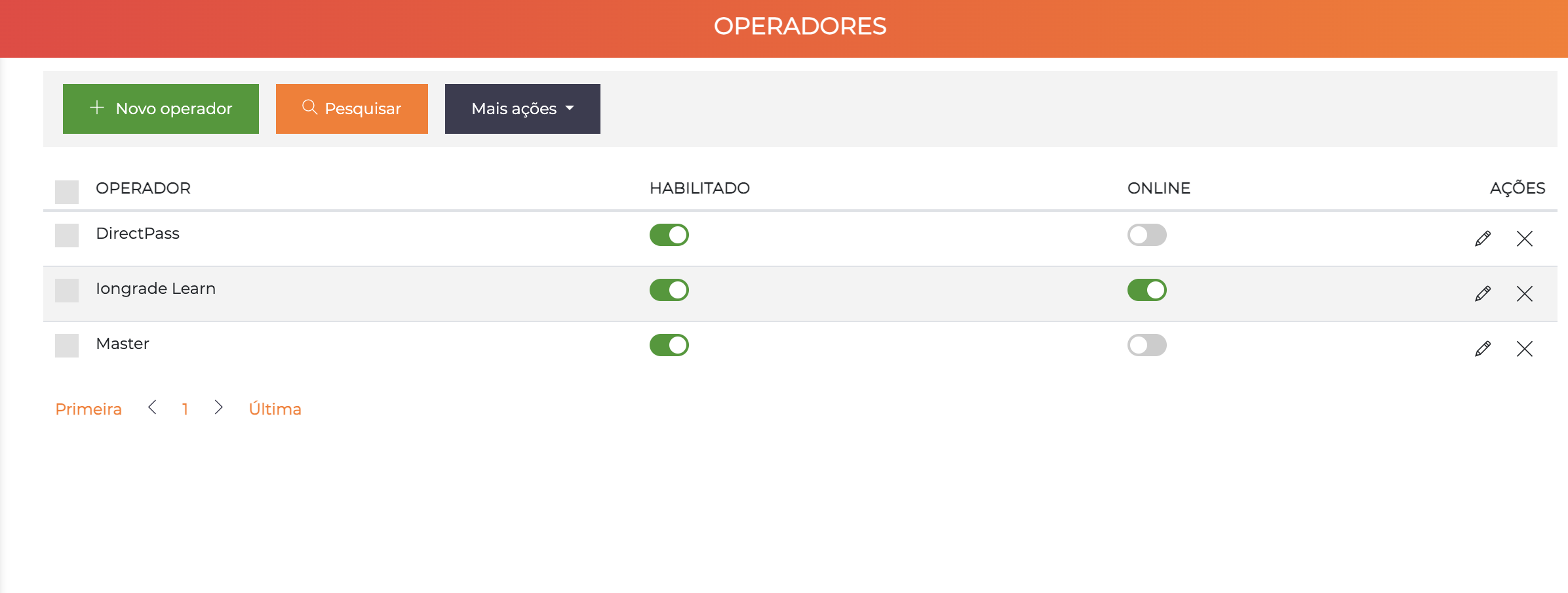
The list displays all registered operators with the columns Operator (name), Enabled (toggle), Online (indicates whether the operator has an active session at the moment) and Actions (pencil to edit, X to delete).
Master Operator
Every Accelero system is delivered with a pre-registered master operator, with access to all system functions. They are responsible for the creation and configuration of the other operators.
After the first login with the master operator, go to "My data" in the upper right corner and update the email and password for security reasons.
How to Create an Operator
Each operator acts in the system according to their profile — some manage the registration of employees and residents, others handle the release of visitors, and so on.
- Go to
Advanced > Operators. - Click Add.
- In the General data tab, fill in the operator information (Name, Email, Document, Phone) and keep Enabled active.
- Click Save.
Once the operator is saved, you need to assign a profile, which defines what they can do in the system:
- Open the Profiles tab and click + New Profile.
- Select the desired profile (for example, Reception) and confirm.
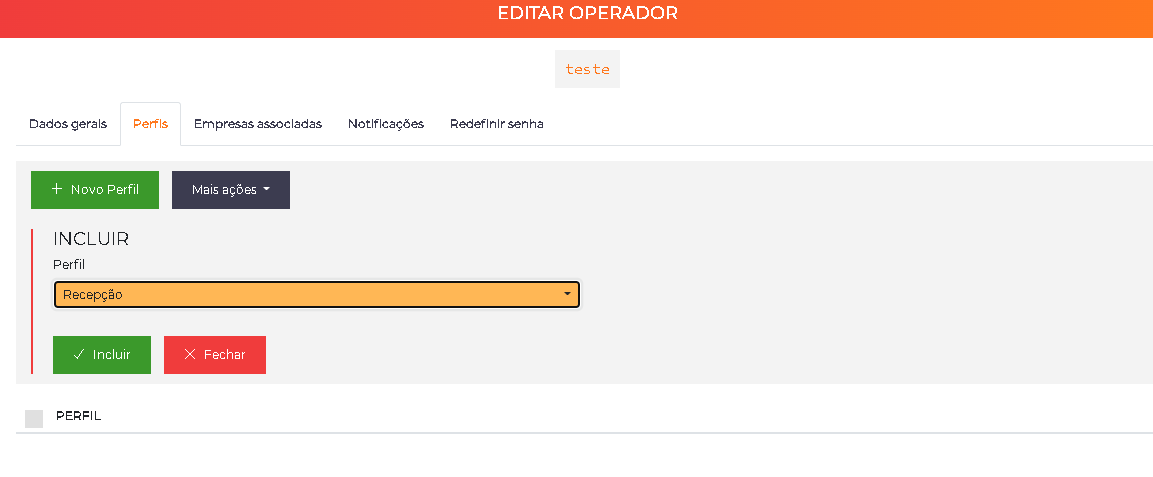
- Go back to the General data tab, check the fields and click Save.
An operator can have several associated profiles — the effective permissions are the sum of all of them. See Profiles.
Operator's First Access
After creation, the operator sets their own password through the first-access flow:
- On the Accelero portal, on the login screen, the operator enters the registered email.
- Clicks "Forgot my password / first access".
- The system sends an email with the password, which can be changed later.
Another operator's password can also be set manually by an operator with permission, through the Reset password tab (see below).
Sessions and Login
The Online indicator in the list shows in real time which operators have an active session at the moment.
Single session per operator (UniqLogin)
The single session is a licensed feature (UniqLogin module / uniquelogin), disabled by default and enabled by the license. Without it, the same operator can keep several simultaneous sessions.
With UniqLogin active, each operator can only have one active session at a time:
- When logging in on another browser or device, the new session becomes the valid one and the previous session is automatically terminated on the next action (the operator is treated as logged out and must log in again).
- This prevents the simultaneous use of the same account by two people.
These are different controls:
- UniqLogin (module, for all operators): keeps one session at a time — a new login drops the previous one.
- Limit login to a single device (field per operator, in the Security section of the General data tab): locks the account to a specific device and denies login on the others until manual release.
Edit Screen
The operator edit screen is organized into 7 tabs: General data, Profiles, Associated companies, Notifications, Reset password, API Keys and Security.
Tab: General Data
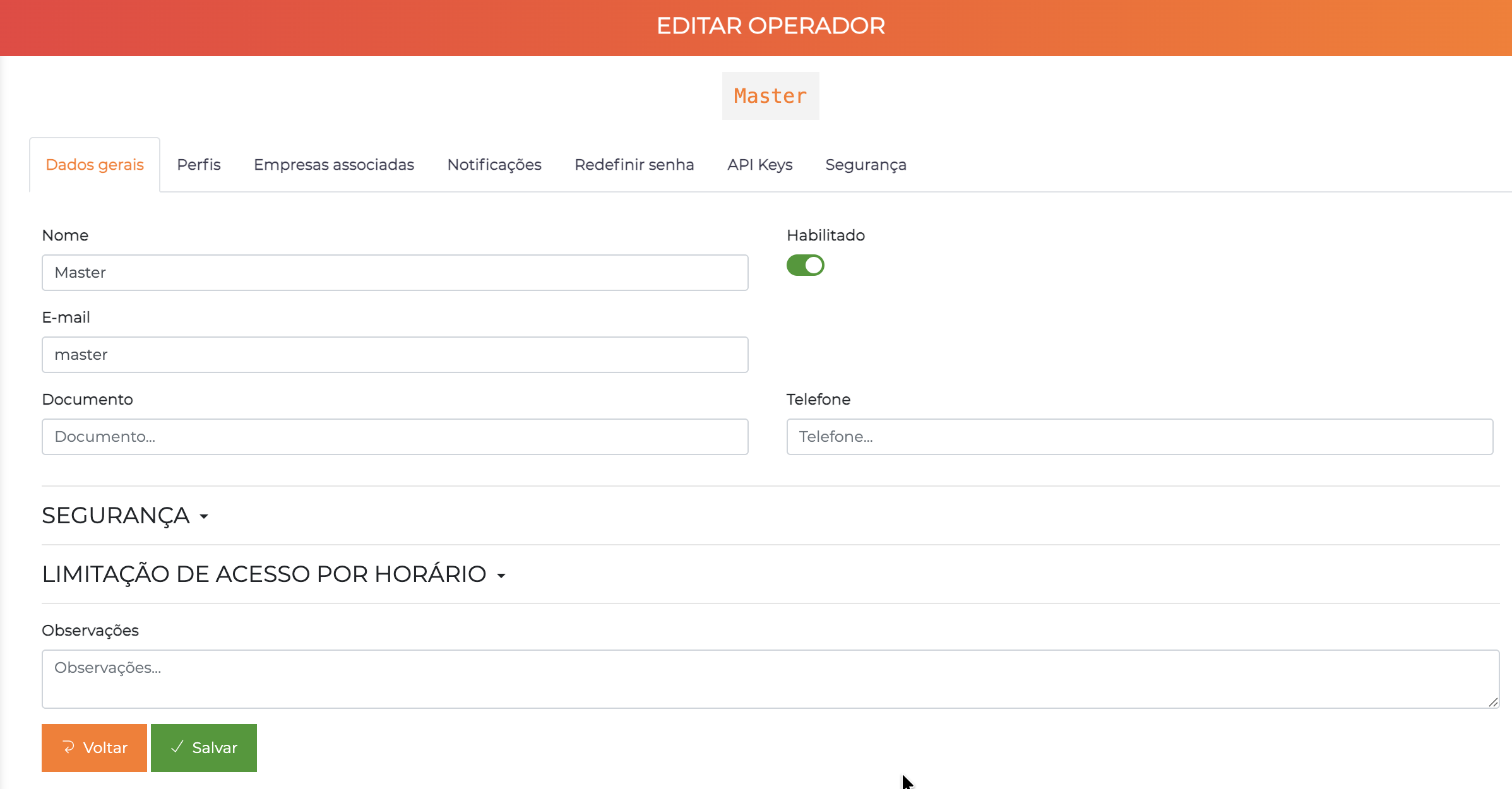
Operator identification fields:
| Field | Description |
|---|---|
| Name | Name of the operator displayed in the system |
| Operator's login — must be unique in the system | |
| Document | CPF or identification document |
| Phone | Contact phone |
| Enabled | Enables or disables the operator's access to the system |
| Notes | Free field for internal notes |
The tab also contains two collapsible sections: Security and Access Limitation by Schedule.
Section: Security
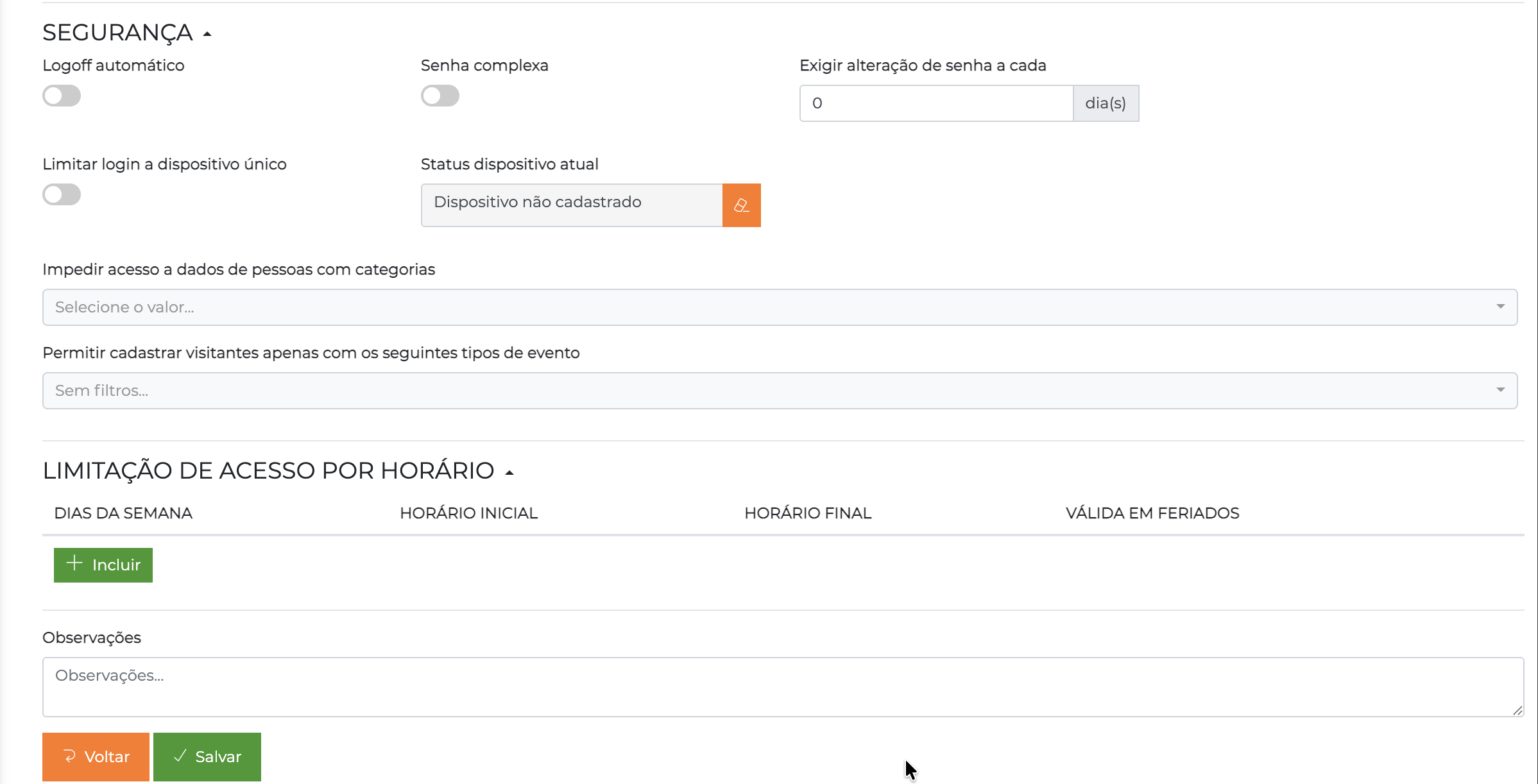
| Field | Description |
|---|---|
| Automatic logoff | Enables logoff due to inactivity. The operator will be logged out if they do not perform any action for a certain time |
| Complex password | Requires a password with uppercase, lowercase, numbers and special characters (minimum 8 characters) |
| Require password change every | Frequency in days for mandatory password change. Use 0 or leave blank to disable |
| Limit login to a single device | When enabled, the next login "locks" access to that specific device. Login attempts on other devices will be denied |
| Current device status | Displays the registered device. The eraser icon next to it releases access for a new device |
| Prevent access to data of people with categories | Defines which categories of people the operator will not be able to view in lists and forms |
| Allow registering visitors only with the following event types | Restricts which event types the operator can use when registering visitors |
Because it is a web solution, the "device" is the browser instance. An incognito tab is considered a different device, as is a reinstalled browser.
Section: Access Limitation by Schedule
Regulates the hours during which the operator can log in to the system. The table accepts multiple time ranges, with the columns:
| Column | Description |
|---|---|
| Days of the week | Days on which the range is valid |
| Start time | Time from which login is allowed |
| End time | Time until which login is allowed |
| Valid on holidays | Whether the range also applies on holidays |
Click "+ Add" to add ranges. All configured ranges are summed — the operator will be able to log in at any time covered by any of the ranges.
The limitation applies only to the login process. Already-logged-in operators are not logged out when a non-permitted time is reached.
Tab: Profiles
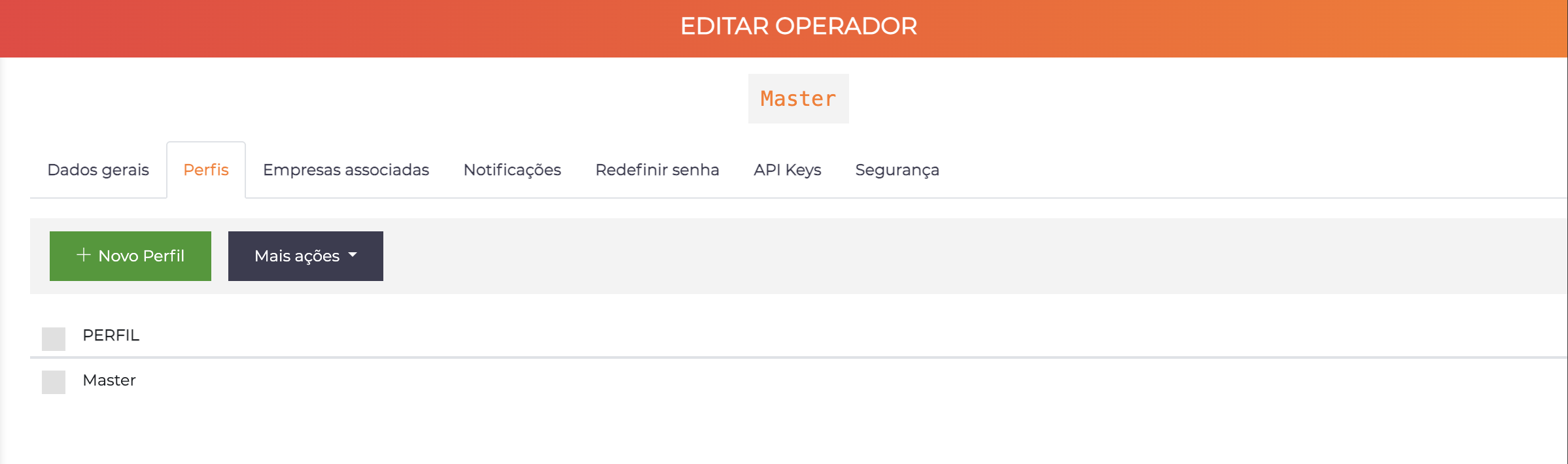
Lists the profiles associated with the operator. Click "+ New Profile" to add a profile.
- An operator can have multiple profiles associated
- The effective permissions are the sum of all profiles
- Profiles are configured in
Settings > Profiles
See Profiles for more details on how permissions work.
Tab: Associated Companies
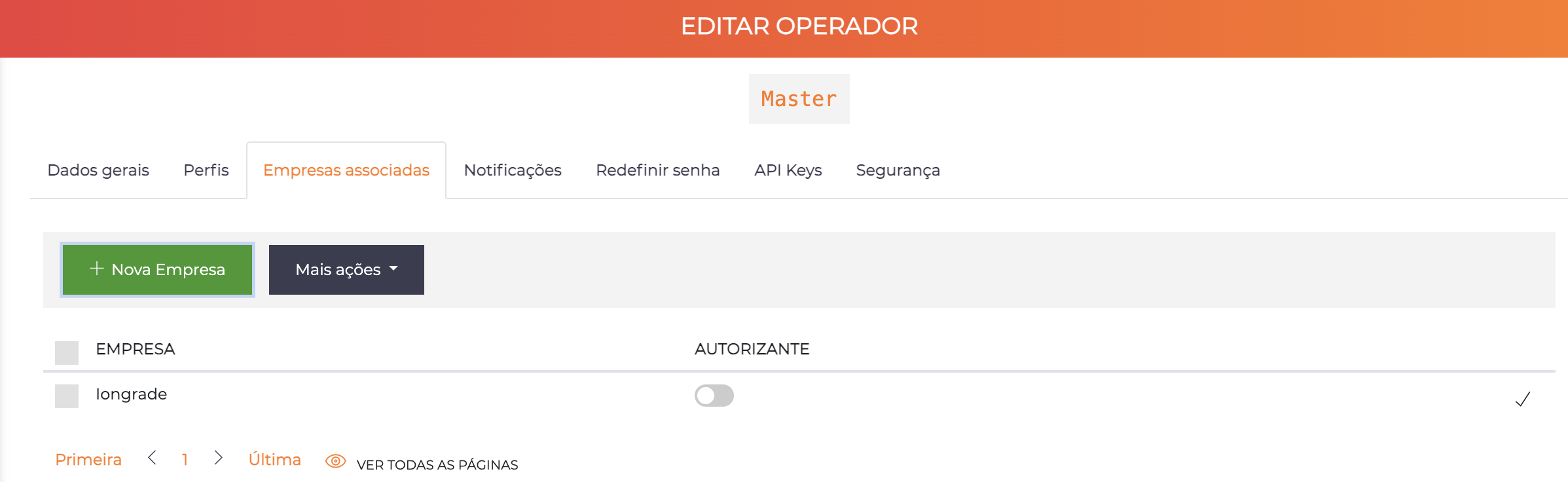
Allows you to create operators with a view limited to certain companies, ideal for company condominiums or multi-tenant environments.
| Column | Description |
|---|---|
| Company | Company linked to the operator |
| Authorizer | When enabled, the operator has permission to authorize visits for this company |
How it works:
- Without associated companies: The operator has a global view of the system
- With associated companies: All displayed data is implicitly filtered for the linked companies
Usage example: An operator of a company in a condominium can issue reports and register visitors only for their own company.
Tab: Notifications
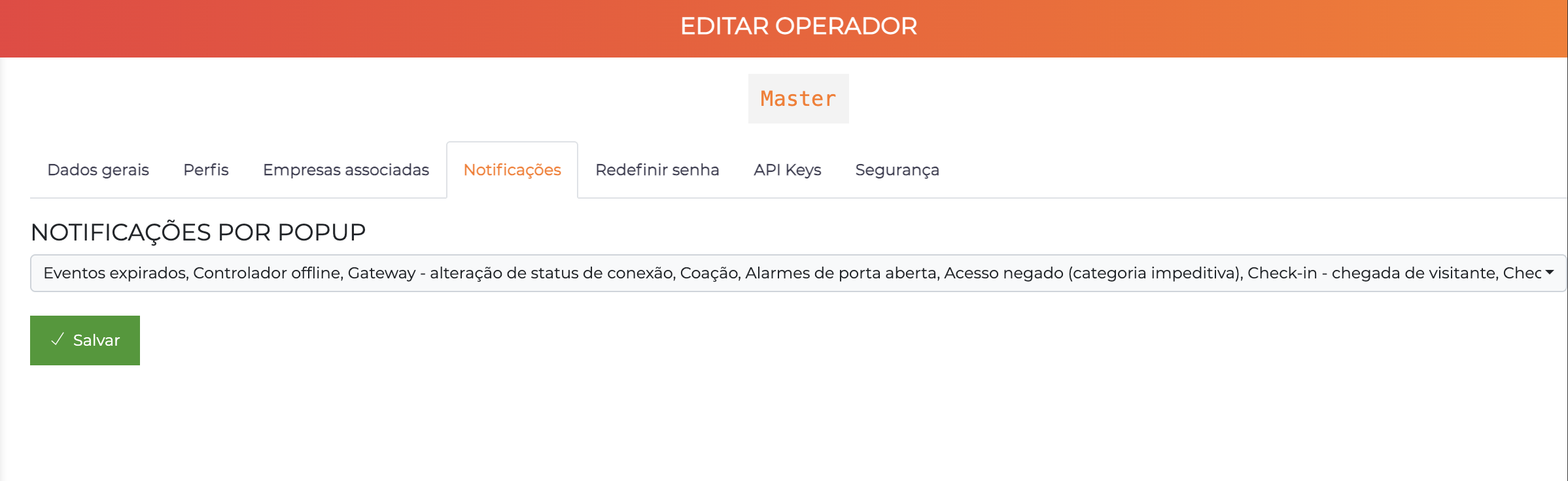
Configures which types of incident the operator will receive as popup notifications while logged in to the system.
Examples of available notifications:
| Notification | Description |
|---|---|
| Expired events | Visits not ended on time |
| Controller offline | Communication interrupted with a controller |
| Duress | Access performed under duress |
| Door held open alarms | Door open beyond the allowed time |
| Access denied (impeding category) | Blocking due to an impeding category |
| Check-in - visitor arrival | Visitor arrived awaiting authorization |
| Gateway - connection status change | Change in gateway status |
Tab: Reset Password
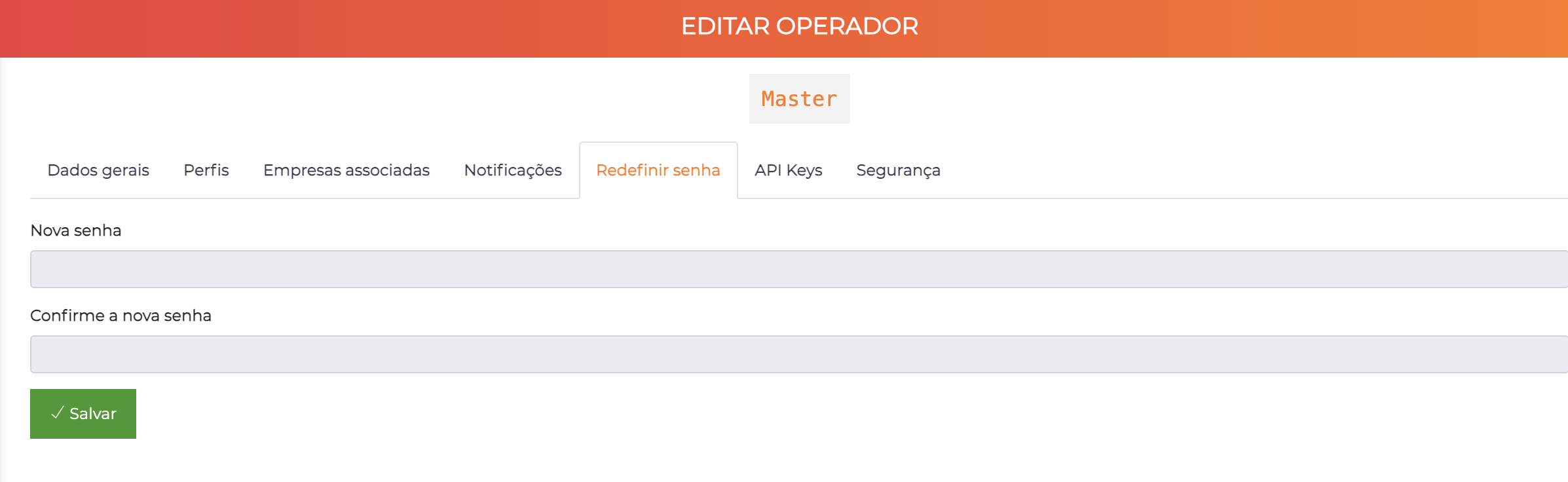
Allows an operator with adequate permission to reset another operator's password. Just enter the New password and Confirm the new password and save.
To change their own password, the operator goes to "My data" in the menu in the upper right corner.
Tab: API Keys
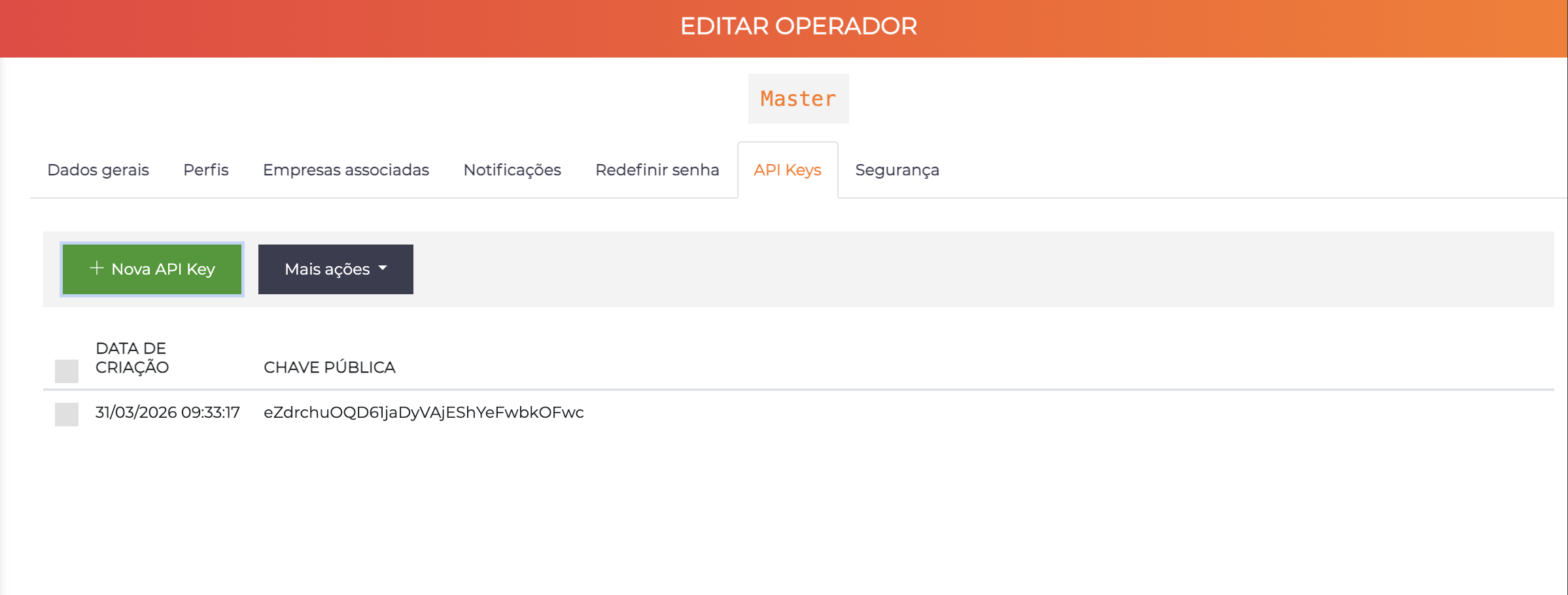
This feature is available only if the API module is enabled in the license.
Lists the API keys linked to the operator, with the columns Creation date and Public key. Click "+ New API Key" to generate a new key.
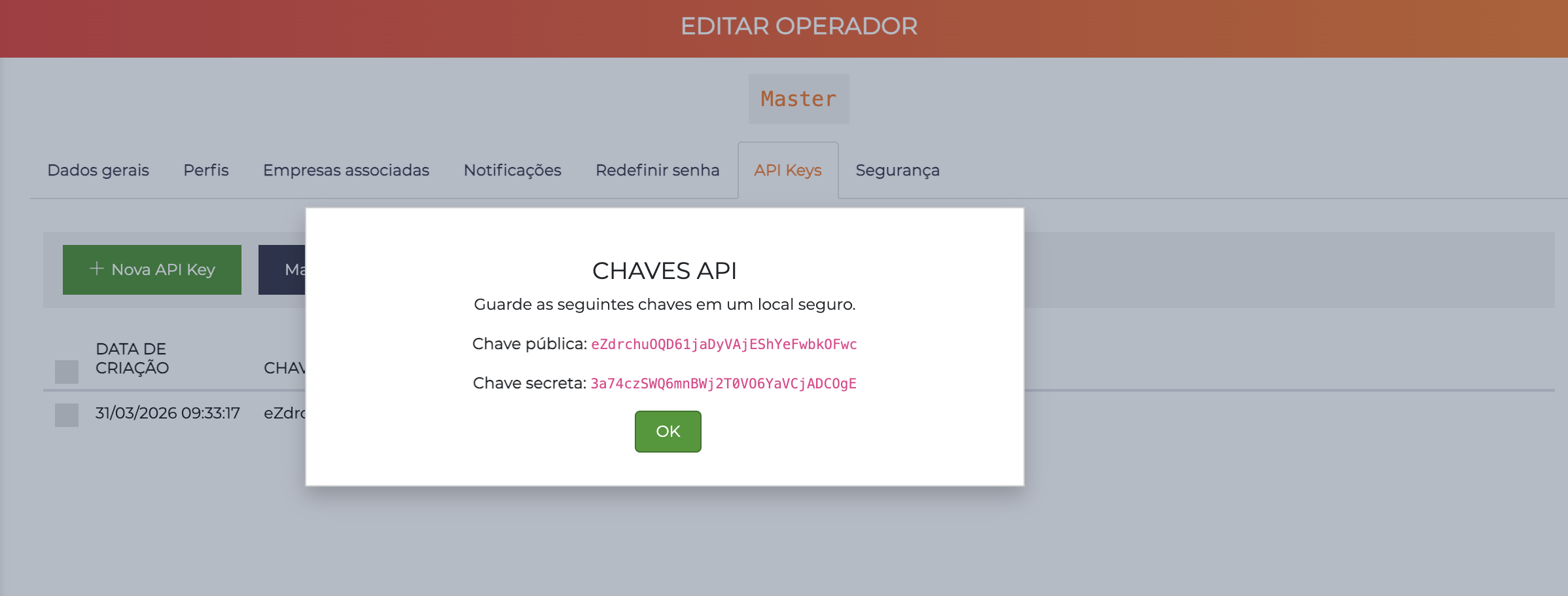
When creating, the system displays a modal with the public key and the secret key.
The secret key is displayed only once, at the moment of creation. Save it immediately in a safe place — it will not be possible to recover it later.
Tab: Security
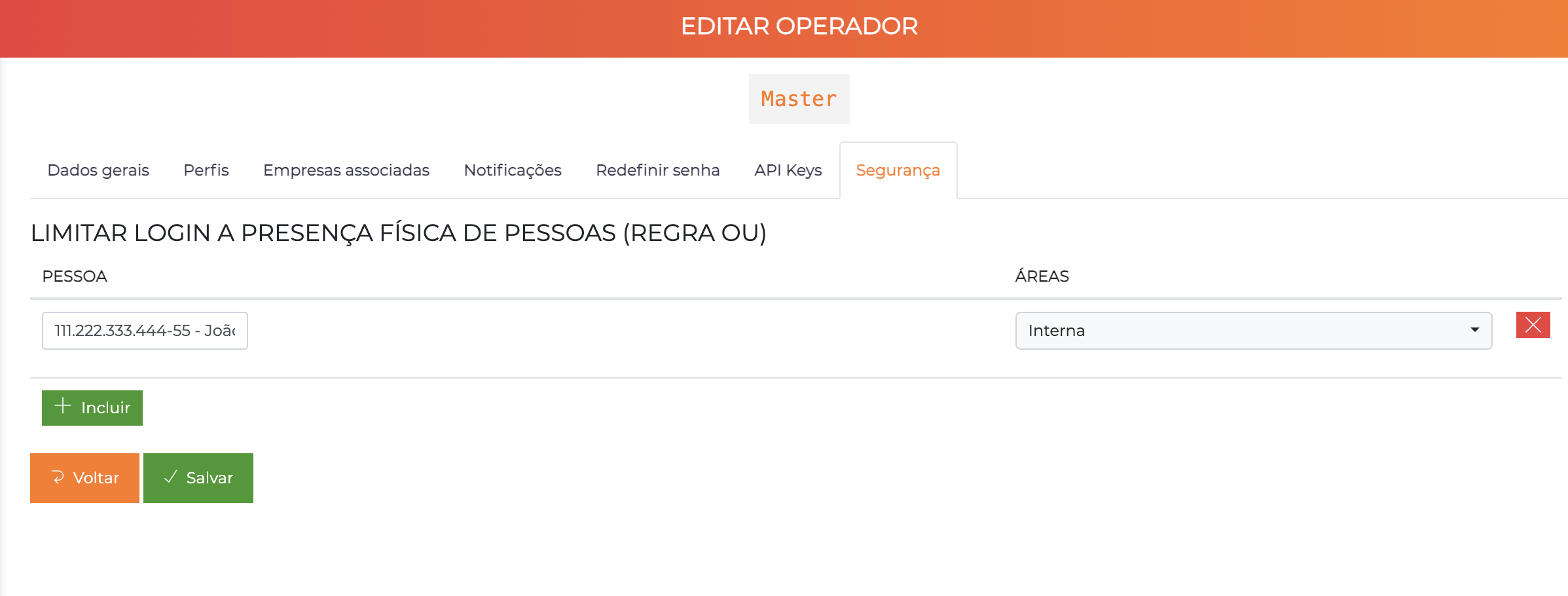
Configures the conditioning of login on physical presence: the operator can only access the system if certain people are registered as present in specific areas.
The rule works with OR logic — it is enough that any of the configured person/area combinations is satisfied for login to be released.
| Column | Description |
|---|---|
| Person | Person whose presence is required to release login |
| Areas | Area in which the person must be present |
Usage example: The gatehouse operator can only log in if the security supervisor is registered as present in the "Indoor" area.
Click "+ Add" to add conditions.
Best Practices
- Strong passwords: Enable Complex password for operators with access to sensitive data
- Automatic logoff: Configure on shared or public-use stations
- Profiles with minimum permissions: Grant only what is necessary for each function
- Schedule limitation: Configure for operators with fixed working hours
- Associated companies: Use in multi-company environments to segregate the data view
- Periodic review: Disable operators who left the organization and review associated profiles