Profiles
Profiles are sets of permissions assigned to the system operators. They work as templates that define which functions and features of Accelero an operator can access, facilitating permission management in an organized and secure way.
Each profile can be created, reused and combined according to the organization's needs.
Navigation path: Advanced > Profiles
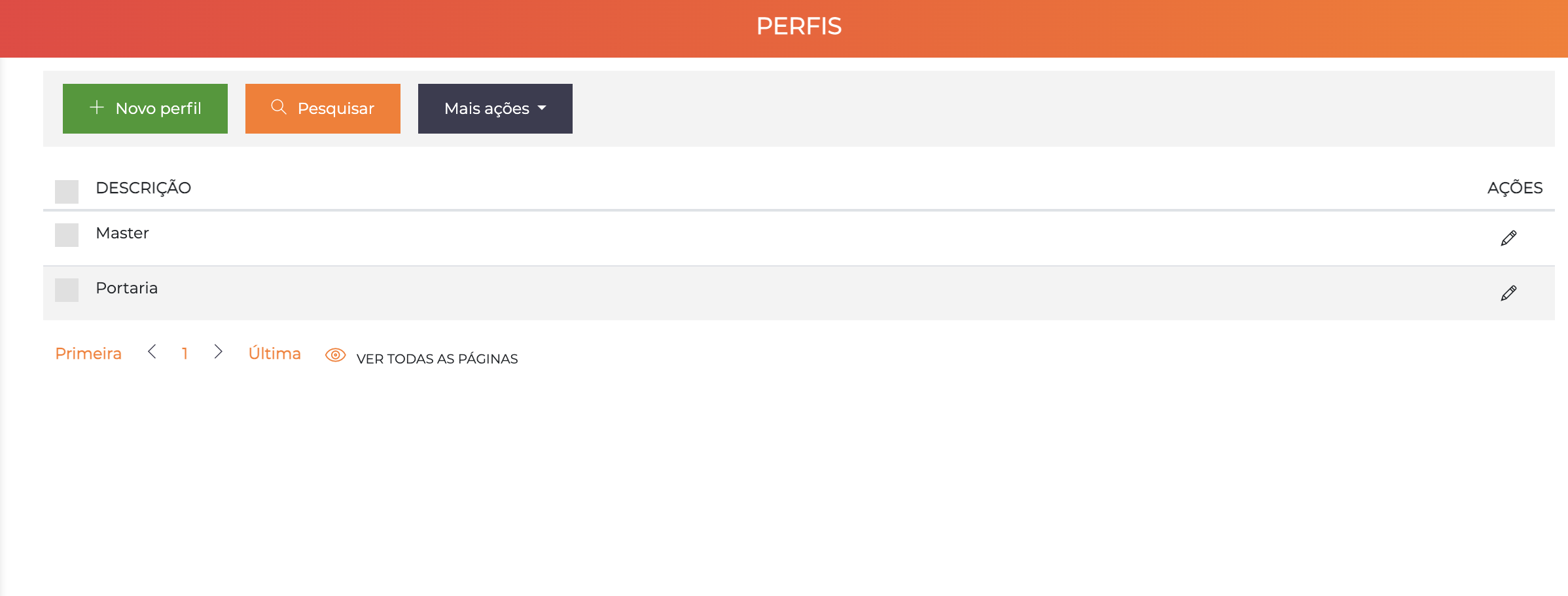
The list displays all registered profiles with the Description column and the pencil icon for editing.
Concept
Profiles work as reusable permission groups:
- Multiple profiles per operator: An operator can have several profiles associated simultaneously
- Additive permissions: The effective permissions of an operator are the sum of all their profiles — permissions never cancel out, they only add up
- Immediate effect: Changes to profiles are applied instantly, without the need to restart the system
If an operator has 2 associated profiles — for example, "Gatehouse" and "Reports" — they will have access to all the permissions defined in the two profiles combined.
Profile Creation
Click "New profile" to create a new profile. The only required field is:
- Description: Name of the profile (e.g.
Master,Gatehouse,Reception)
After creating, click the pencil (✏️) icon to access the full edit screen and configure the permissions.
Edit Screen
The profile edit screen is organized into 3 tabs: General data, Permissions and Categories.
Tab: General Data
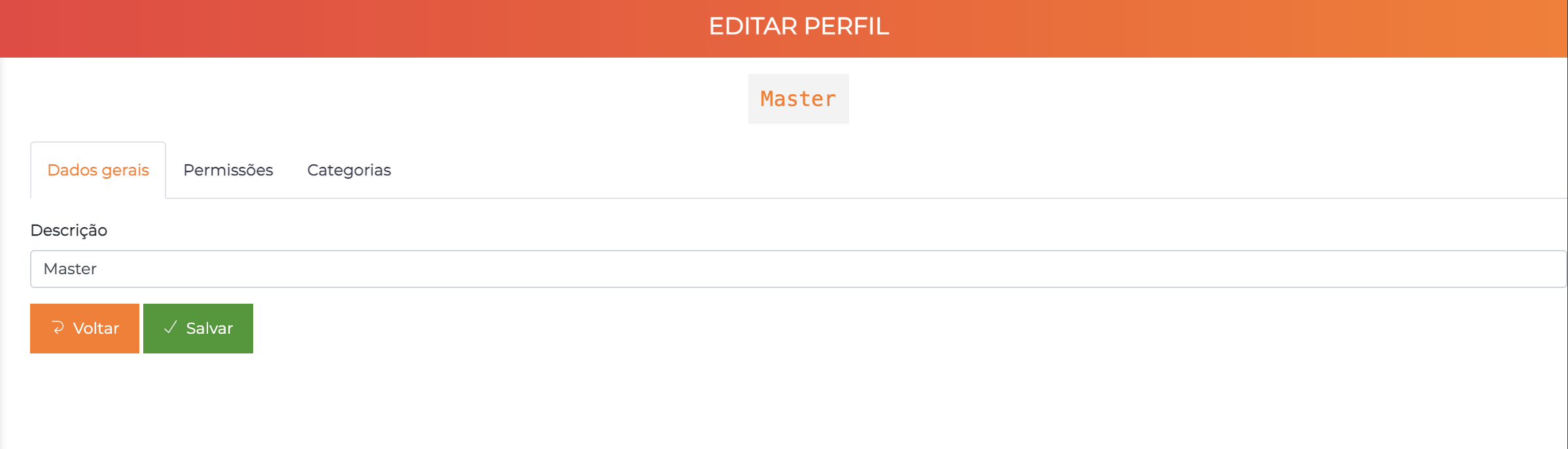
Contains the basic identification field of the profile:
| Field | Description |
|---|---|
| Description | Name of the profile displayed in the system (e.g. Master, Gatehouse) |
Tab: Permissions
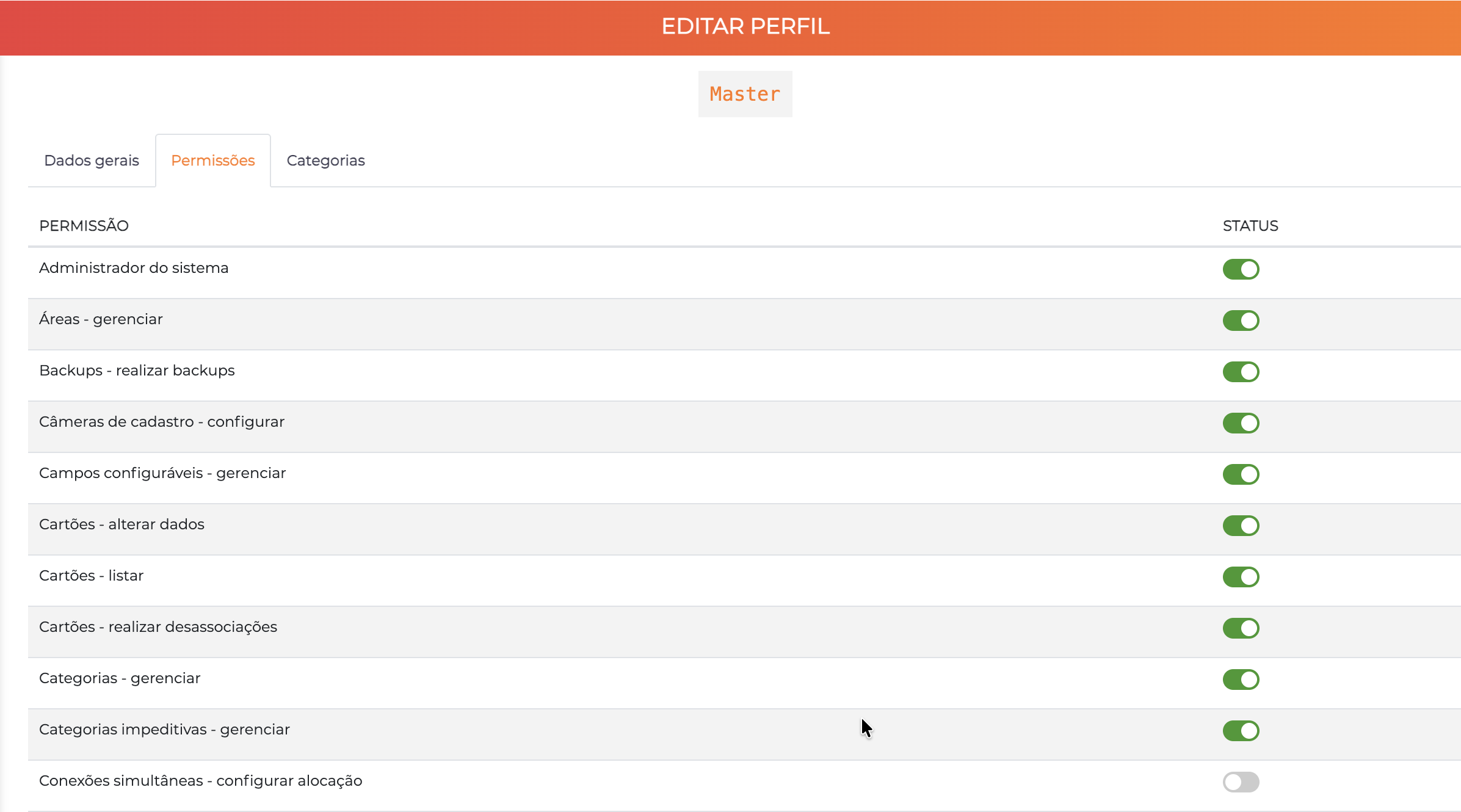
Lists all permissions available in the system, each with an enabled/disabled toggle. The permissions follow the format Entity - action, for example:
System administratorAreas - manageBackups - perform backupsRegistration cameras - configureCustom fields - manageCards - change dataCards - listCards - perform disassociationsCategories - manageImpeding categories - manageSimultaneous connections - configure allocation
Enable only the permissions strictly necessary for the purpose of the profile. The principle of least privilege reduces risks and facilitates auditing.
Permission Categories
The system offers granular permissions organized by functional area:
| Area | Examples |
|---|---|
| Registrations | Create/edit people, vehicles, companies |
| Settings | Manage areas, controllers, profiles |
| Operation | Dashboard, quick events, searches |
| Reports | View and generate various reports |
| Maintenance | Backup, log deletion, cleanups |
| Advanced | System settings, licenses |
Tab: Categories
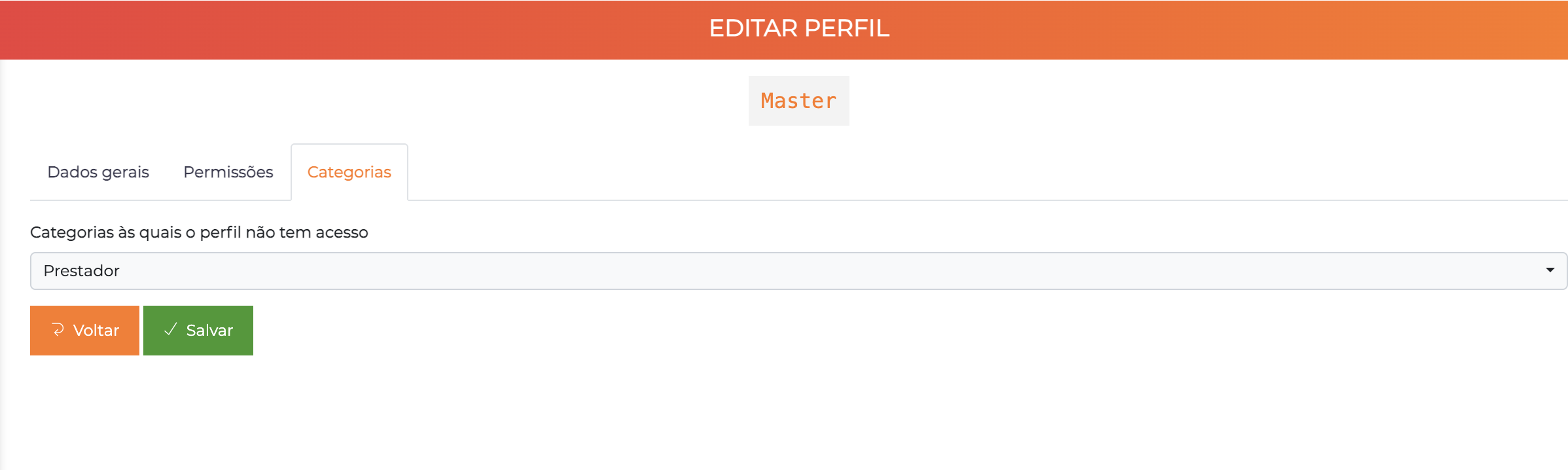
The "Categories to which the profile does not have access" field defines which categories of people/vehicles this profile will not be able to view or manage.
This tab works as a block list — the categories selected here become invisible to the operators with this profile. Categories not listed remain accessible normally.
Usage example: A "Gatehouse" profile can be configured to not have access to the "Board" category, preventing the gatehouse operator from viewing or managing the registrations of that group.
Impact on Operators
Operators will have different views of the system depending on their profiles:
- Menus: Unauthorized menu items are not displayed
- Action buttons: Restricted actions are hidden
- Pages: Direct access to protected pages returns a permission error
- Registrations: Categories blocked in the Categories tab become invisible to the operator
Profile Examples
Profile: Master
Use: Complete access to the system
- All permissions enabled
- No category restrictions
- Full management of registrations, settings and maintenance
Profile: Gatehouse
Use: Daily gatehouse operation
- ✅ Search people and vehicles
- ✅ View events in real time
- ✅ List and disassociate cards
- ❌ System settings
- ❌ Data deletion
- ❌ Management reports
Profile: Reception
Use: Registration and control of visitors
- ✅ Create and manage visitors and events
- ✅ Approve and end visits
- ✅ Events dashboard
- ❌ System settings
- ❌ Data deletion
- ❌ Access to advanced settings
Combination of Profiles
The sum of profiles allows creating complex permissions without duplicating configurations:
Operator João:
  Profile "Gatehouse" + Profile "Reports"
  → Can operate the gatehouse AND generate access reports
| Operator | Profiles | Result |
|---|---|---|
| Ana | Gatehouse | Access to gatehouse operation |
| João | Gatehouse + Reports | Gatehouse operation + access reports |
| Carlos | Master | Full access to the system |
Association of Profiles to Operators
The association is done in the registration of each operator, in the Profile tab. See Operators for more details.
Best Practices
1. Principle of Least Privilege
Grant only the permissions strictly necessary for each function. Avoid creating operators with administrator permissions without a real need, and periodically review the granted accesses.
2. Organization by Function
Create profiles based on real functions of the organization, with descriptive and clear names. One profile per position or role facilitates maintenance and auditing.
3. Combination of Profiles
Use the sum of profiles to build composite permissions without duplicating configurations. Modular profiles (e.g. "Reports", "Basic Registrations") can be combined as needed.
4. Periodic Review
Regularly review the registered profiles and their associations to operators. Identify and deactivate unused profiles.
Troubleshooting
Operator does not see the expected menu
- Check the profiles associated with the operator in
Settings > Operators - Confirm that the profile has the necessary permission enabled
- Check whether the profile's Categories tab is not blocking access
Operator does not see certain categories
- Check the Categories tab of the profile associated with the operator
- Confirm that the desired category is not in the "Categories to which the profile does not have access" list
How to create a custom profile
- Go to
Settings > Profiles - Click New profile and define the description
- Edit the profile and configure the permissions in the Permissions tab
- If necessary, restrict categories in the Categories tab
- Associate the profile with the desired operator in
Settings > Operators
Next Steps
- Operators - Associate profiles with the system operators
- Categories - Understand the categories used in the profiles' access control
- Areas - Configure access control areas