Parking Spots
Accelero provides a dedicated feature for parking spot management, allowing individual registration of spots and their association with companies/units by area. With this, the system can automatically control vehicle access based on parking spot availability.
Navigation path: Settings > Parking spots
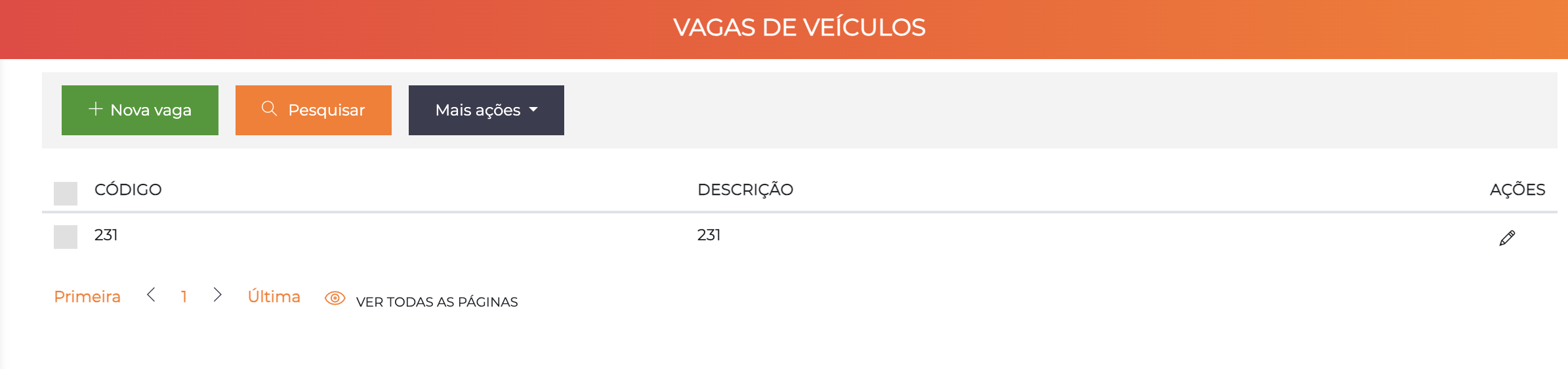
The list shows all registered parking spots with the Code and Description columns, plus a pencil icon to edit.
How It Works
The parking spots module operates on three relationships:
- Parking spot: registered individually with code and description (e.g., spot 231)
- Company: receives the association of the parking spots that belong to it, by area
- Vehicle: associated with the main company; upon access, the system checks the parking spot availability for that company
Complete flow:
Create parking spot (Code + Description)
    ↓
Associate the parking spot with the company (Parking spots tab of the company, by area)
    ↓
Create vehicle and associate it with the main company
    ↓
On vehicle access, the system checks:
    are there parking spots available for this company in this area?
    → Yes: access granted and parking spot occupied
    → No: access denied automatically
Registering Parking Spots
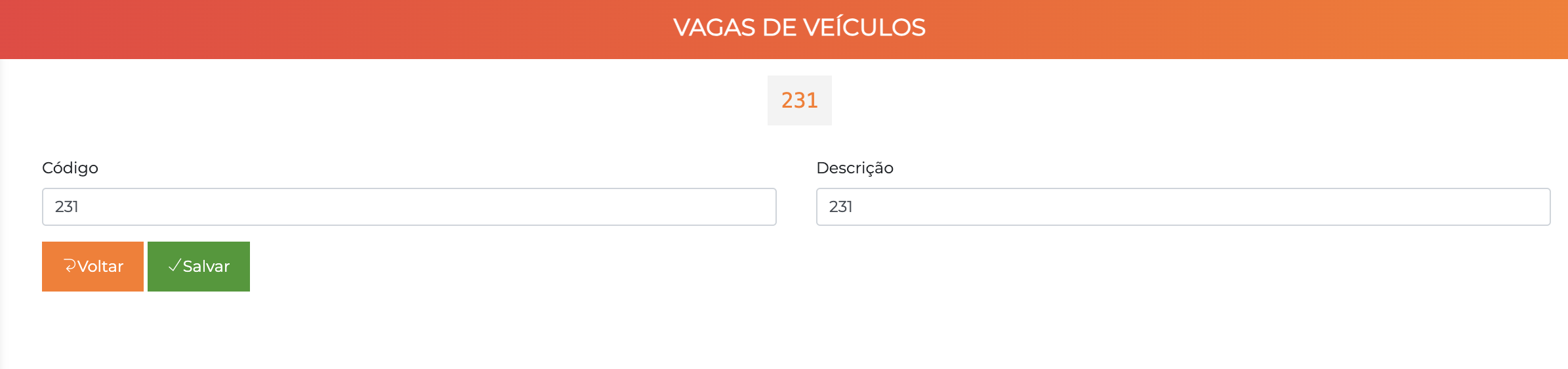
Click "+ New parking spot" to create a spot. The form is simple, with only two fields:
| Field | Description |
|---|---|
| Code | Unique identifier of the parking spot (e.g., 231, A-15, COB-03) |
| Description | Description of the parking spot, shown in lists and reports |
Each parking spot represents a physical parking space. Create one parking spot per parking unit.
Associating Parking Spots with the Company
The main configuration of the module is done in each company's registration, under the Parking spots tab.
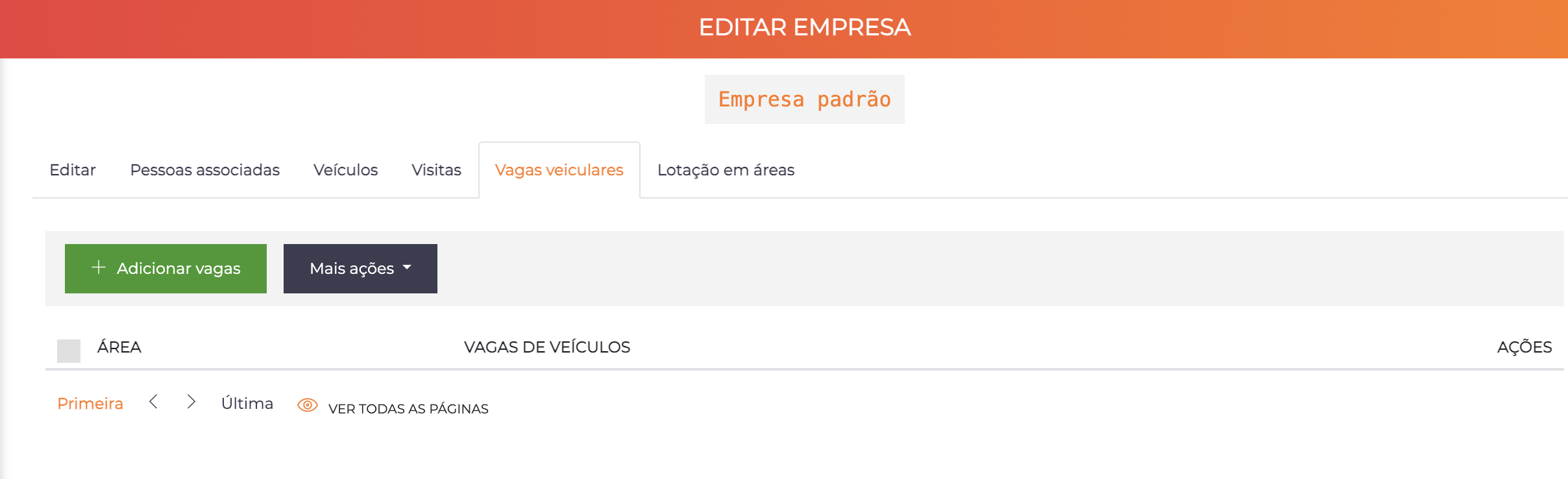
Click "+ Add parking spots" to associate parking spots with the company. The list shows:
| Column | Description |
|---|---|
| Area | Physical area where the parking spots are located (e.g., Parking lot, Basement, Rooftop) |
| Parking spots | Parking spots associated with the company in that area |
This way, a company can have parking spots in different areas — for example, 2 spots in the Basement and 1 spot on the Rooftop.
Access Control by Availability
When a vehicle associated with a company tries to access a parking area, the system checks in real time the occupancy of that company's parking spots in that area:
- Available parking spots: access granted and the spot is marked as occupied
- No parking spots available: access denied automatically
This ensures that only the number of vehicles corresponding to the company's parking spot quota is present in the parking lot at the same time.
The company "Iongrade" has 2 parking spots in the Basement. If 2 vehicles associated with it are already in the parking lot, a third vehicle trying to enter will have access denied — even if the parking lot still has physical space available.
Best Practices
- Descriptive code: Use codes that easily identify the physical location of the parking spot (e.g.,
SUB-01,COB-A3) - One spot per record: Each record represents an individual physical parking spot — do not group multiple spots into a single record
- Associate by area correctly: Make sure the area entered in the company-parking spot association corresponds to the area configured in the parking lot controller
- Periodic review: Review the associations whenever there are changes of owner, tenant, or reorganization of the parking lot