Vehicles
Within ACCELERO, vehicles can have their access controlled, but the rules and validations are slightly different from the rules and validations applicable to people.
The vehicle control module requires specific licensing. Check whether this feature is enabled in your installation through the Advanced > System > System - Usage license menu.
Navigation path: Settings > Vehicles
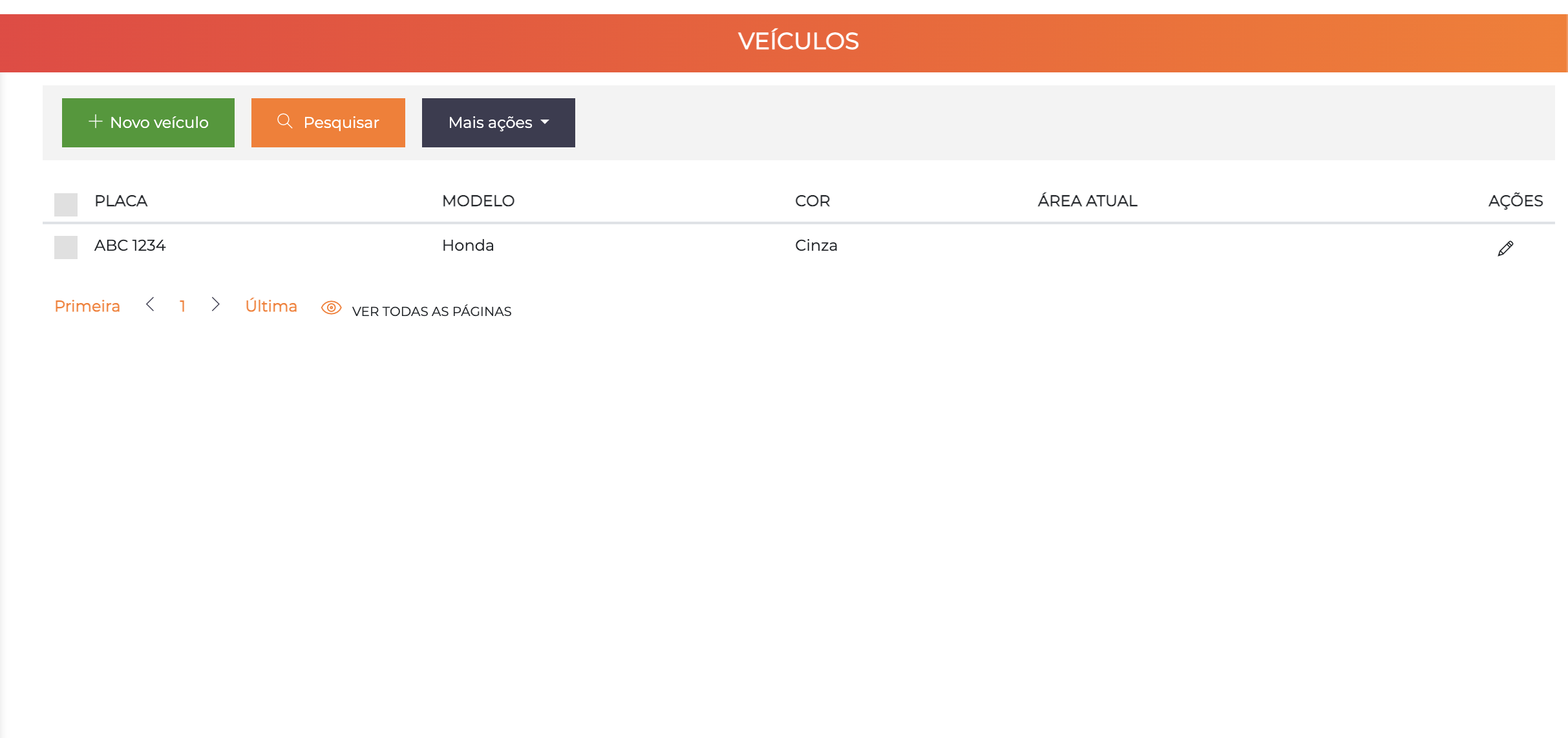
The list displays the vehicles with the columns Plate, Model, Color, Current Area and Actions.
Main Characteristics
Vehicles have differentiated controls in ACCELERO:
- Multiple drivers: A vehicle can have several drivers associated
- Parking spot control: Access can be conditioned on the existence of spots in a certain area
- Multiple identifiers of the same type: Unlike people, vehicles can have several identifiers of the same type simultaneously (e.g. multiple vehicle tags)
- Main company: Defines which company "controls" the vehicle for parking spot management purposes
Edit Screen
The vehicle edit screen is organized into 3 tabs: General data, Categories and Identifiers.
Tab: General Data
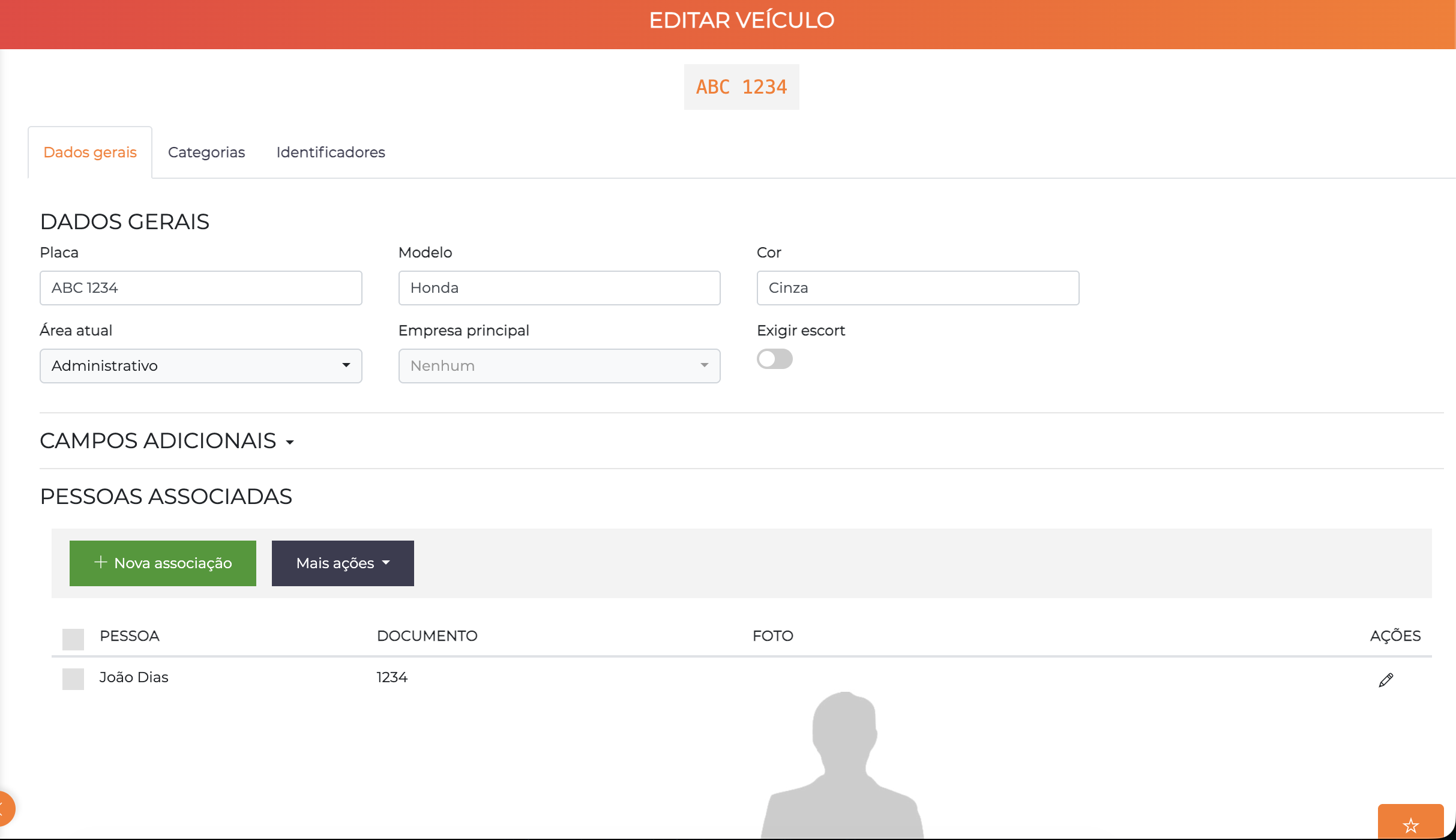
| Field | Description |
|---|---|
| Plate | The vehicle's plate. Adapt the spelling to the standard used by LPR cameras, if used (with hyphen/without hyphen). See LPR Integration |
| Model | The vehicle's model (e.g. "Civic", "Corolla", "HB20") |
| Color | The vehicle's color |
| Current area | Current area where the vehicle is located |
| Main company | Company to which the vehicle is associated. For parking spot control purposes, the system will check whether the main company has available spots in the area |
| Require escort | When enabled, the vehicle can only access areas if accompanied by an authorized escort |
The Additional Fields section (collapsible) lets you fill in custom fields configured for vehicles.
Associated People
Still in the General Data tab, the Associated People section lets you associate or disassociate drivers with the vehicle. The list displays the columns Person, Document, Photo and Actions.
- The person must be previously registered in ACCELERO to be associated
- Several people can be associated with the same vehicle simultaneously
- One person can be associated with several vehicles simultaneously
In residential condominiums, it is common for a family vehicle to have multiple drivers (parents, adult children). Associate all authorized drivers with the vehicle.
Tab: Categories
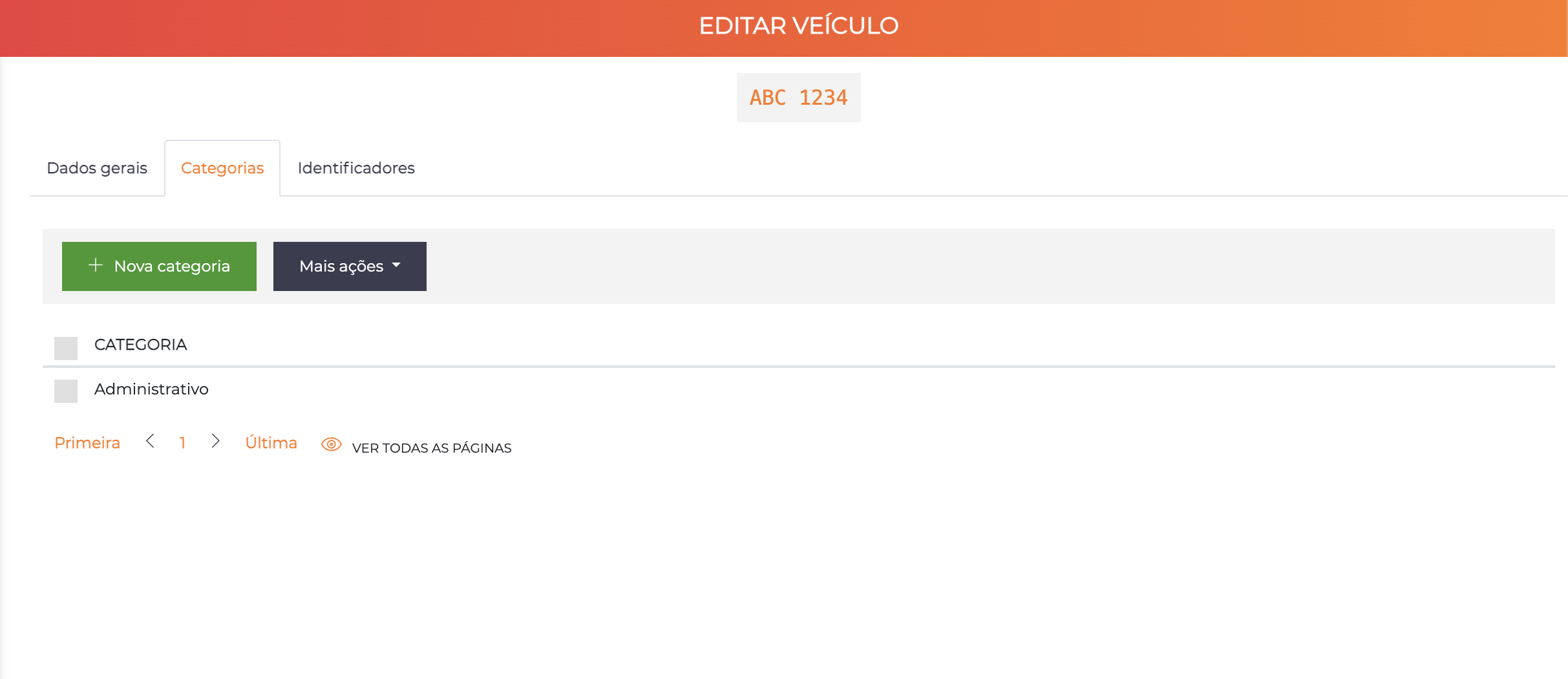
This is the main and most important configuration to define which areas of the system (and in which time ranges) the vehicle will have access to.
- Vehicles can have multiple categories simultaneously
- The access permissions are the sum of all valid categories
See Categories for details on how permissions by category work.
Tab: Identifiers
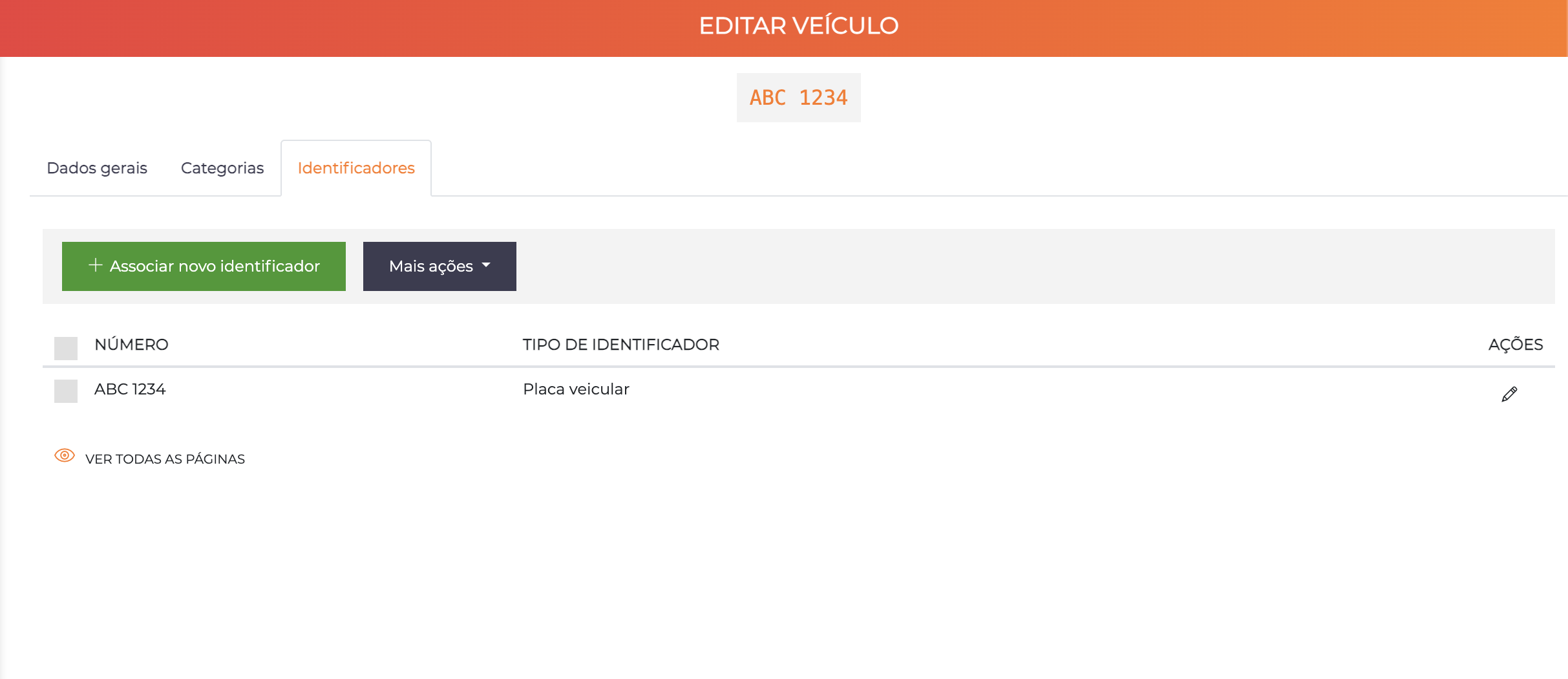
The list displays the associated identifiers with the columns Number, Identifier Type and Actions. The "+ Associate new identifier" button lets you link existing identifiers to the vehicle.
Unlike people, vehicles can have several identifiers of the same type simultaneously. Example: multiple vehicle tags associated with the same vehicle.
Example:
- Vehicle tag #001
- Vehicle tag #002
- LPR Plate: ABC-1234
Parking Spot Control
ACCELERO offers automatic control of vehicle parking spots.
How It Works
- Spot configuration: Each company can have a limited number of spots configured (see Companies)
- Main company: The vehicle must have a defined main company
- Verification: At the moment of access, the system checks whether the vehicle's main company has available spots in the area
- Blocking: If there are no available spots, access will be denied
Example:
Company: Apartment 301
Configured spots: 2
Vehicles with main company "Apt 301": ABC-1234, DEF-5678, GHI-9012

Scenario 1 - Two vehicles inside:
- ABC-1234 tries to leave → Allowed
- DEF-5678 is inside → Occupies 1 spot
- GHI-9012 tries to enter → Allowed (1 free spot)

Scenario 2 - Two vehicles inside:
- ABC-1234 is inside → Occupies 1 spot
- DEF-5678 is inside → Occupies 1 spot
- GHI-9012 tries to enter → DENIED (no spots)
The number of spots per company is configured on the company registration screen. See Companies for more details.
LPR Integration
ACCELERO has integration with LPR (License Plate Recognition) cameras for the automation of vehicle control.
Format Standard
It is important to adapt the spelling of the plate to the standard used by the LPR cameras:
Old plates (old Mercosur format):
- With hyphen:
ABC-1234 - Without hyphen:
ABC1234
Mercosur plates:
- With hyphen:
ABC1D23 - Without hyphen:
ABC1D23
Consult the documentation of your LPR camera to find out which format is returned. Register the plates in ACCELERO in exactly the same format that the camera sends.
Compatibility
Different LPR camera manufacturers are supported:
- Hikvision (requires licensing)
- Dahua (requires licensing)
- Other manufacturers via custom integration
Contact IONGRADE technical support for the complete list of compatible devices.
Vehicle Report
ACCELERO has a specific report for vehicles, containing:
- Plate, Model, Color
- Current area
- Associated companies
- Drivers
- Vehicle parking spots
See Reports for more details.
Vehicle Escort
People who have the same category as the vehicle are enabled to act as an escort for that vehicle. The escort access rule validates whether the escort's category is active.
Vehicle Parking Spot Management
ACCELERO has a feature dedicated to the management of parking spots of the condominium or company, allowing the registration, control and association of specific spots to companies/units.
See Vehicle Parking Spots for more details.
Troubleshooting
Vehicle cannot access
Check:
- Active registration: Is the vehicle with "Enabled" status?
- Valid categories: Does the vehicle have at least one valid category (start date ≤ today ≤ end date)?
- Category permissions: Does the vehicle's category have access to the desired area in the current time range?
- Available spots: Does the vehicle's main company have available spots? (if spot control is active)
- Valid identifier: Is the identifier used associated with the vehicle and not expired?
- Accepted identifier type: Does the controller/channel accept the type of identifier presented?
LPR does not recognize the plate
Check:
- Plate format: Is the plate registered in the same format that the camera sends (with/without hyphen)?
- Configured camera: Is the LPR camera correctly integrated with ACCELERO?
- Licensing: Is the LPR integration module active in the license?
- Image quality: Camera with a clear view of the plate, without obstructions?
- Adequate lighting: Sufficient lighting to read the plate?
Best Practices
-
Plate standardization: Define a standard (with or without hyphen) and follow it consistently
-
Main company: Always define the main company for vehicles where there is parking spot control
-
Multiple drivers: Associate all authorized drivers from the start to avoid access problems
-
Redundant identifiers: In critical areas, consider associating multiple tags with the same vehicle as a backup
-
Periodic review: Periodically review the list of active vehicles and remove outdated registrations
-
Categories with validity: For vehicles of visitors or temporary contractors, always configure an end validity date
Next Steps
- People - Associate people as drivers of the vehicles
- Categories - Configure access categories for vehicles
- Companies - Configure parking spot control per company
- Areas - Define vehicle circulation areas
- Identifiers - Manage vehicle tags and other identifiers