Cold Room
The Cold Room control is a native ACCELERO feature focused on the health and safety of those who work in refrigerated environments. It measures how much time each person accumulates inside cold areas and, when that time reaches the configured limit, blocks re-entry until the person completes the rest period — supporting compliance with the cold-exposure rules set by the CLT/NR.
The control works on the access control engine itself: each entry and exit recorded by a turnstile, door or reader between areas feeds a per-person timer. No additional device is needed to count the time.
Navigation path (global configuration): Advanced > System > Cold Room
Navigation path (per area): Settings > Areas > (edit area) > Cold Room
The Cold Room screens and rules are only available when the Synapsis module is licensed and enabled. The Synapsis module is the same one that provides the Dwell Time control; the Cold Room is the specialized application of that control for refrigerated environments. Without the module, the configuration menu, the area field and the report do not appear.
Do not confuse this native control with the external integration IonGuard - Cold Room, which queries a third-party API. Here, the entire control is done within ACCELERO itself, from the access events.
How the control works
At each granted access of a person, the system checks the source and destination areas:
- Entry into a cold area — when entering an area with the control enabled, the person's timer starts accumulating time inside the cold.
- Exit from a cold area — when leaving, the time of that stay is added to the accumulated total and the system starts counting the rest time (time out of the cold).
All of this state is kept per person: total time accumulated inside the cold, rest time, last entry time and last exit time. Entries and exits are recorded in a history, the basis for the report and for auditing.
Access decision (re-entry blocking)
When someone tries to enter a controlled cold area, the access engine evaluates the Cold Room - Timer check rule:
- If the person has already completed the required rest, access is granted (and the timer is reset, according to the reset policy).
- If the person has not yet reached the maximum accumulated time, access is granted normally.
- If the person has reached or exceeded the maximum time and has not rested enough, access is denied.
When access is denied by this rule, the system generates the "Access denied - Respect the rest time" event, which is available in monitoring and in the event reports.
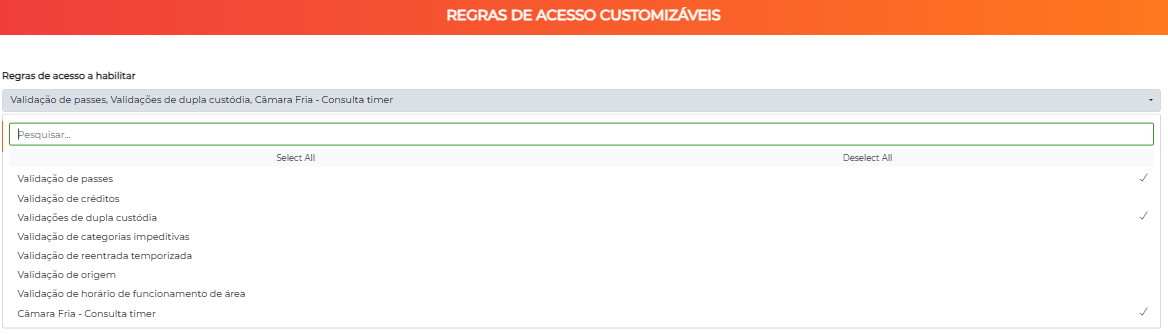
"Cold Room - Timer check" is an access verification rule that must be enabled, in addition to the area having the control turned on. Without the active rule, the system keeps recording entries and exits and generating overages, but does not block re-entry.
To enable it, go to Advanced > System > Customization - Customizable access rules and, in the Access rules to enable field, check Cold Room - Timer check.
Global configuration
The Advanced > System > Cold Room screen defines the parameters that apply to the whole system. All times are entered in seconds.

| Field | Description | Default |
|---|---|---|
| Maximum time in the cold zone (seconds) | Total time the person can accumulate inside the cold areas before being required to rest. Required. | 6000 (1 h 40 min) |
| Rest period (seconds) | Minimum rest time (out of the cold) the person must complete to be able to re-enter after reaching the limit. Required. | 1200 (20 min) |
| Reset on rest | When enabled, resets the accumulated time as soon as the rest is considered complete, even if the limit had not yet been reached. | Enabled |
| Rest counting rule | Defines how the rest is counted: continuous or accumulated (see below). | Continuous |
The fields use seconds. For 30 minutes, enter 1800; for 1 hour, 3600. Adjust the values to the standards applicable to your operation — the system controls the time you configure, it does not impose a fixed legal number.
Rest counting rule: Continuous vs. Accumulated
This is the most important decision in the configuration. It defines what counts as "enough rest":
- Continuous rest (single interval out) — the rest is only valid if the person stays a whole and uninterrupted period out of the cold, equal to or greater than the configured rest period. Any re-entry before that restarts the rest count from zero. It is the strictest rule.
- Accumulated rest (sum of intervals out) — the system adds up all the intervals the person spends out of the cold. When the sum reaches the rest period, the rest is considered complete. It allows resting in parts throughout the shift.
Effect of "Reset on rest"
When the rest is considered complete, the time accumulated inside the cold is handled as follows:
- With "Reset on rest" enabled — the accumulated time always returns to zero.
- With "Reset on rest" disabled — the time only returns to zero if the person had reached the maximum limit; otherwise, the accumulated time is preserved.
Per-area configuration
The cold room control is turned on individually in each area that should be treated as a refrigerated environment. While the global configuration defines the limits, the per-area configuration defines where they apply.
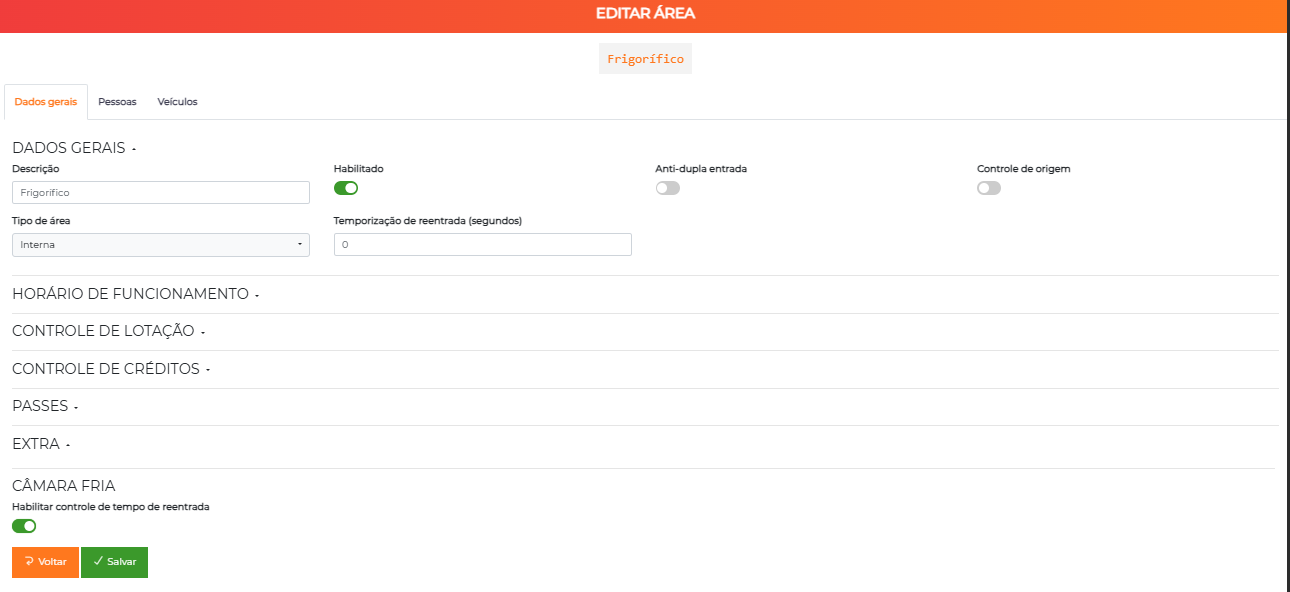
In the area editing, the Cold Room section:
| Field | Description |
|---|---|
| Enable re-entry time control | Switch that marks the area as a controlled cold zone. When entering this area, the person starts accumulating time; on entry, the re-entry rule is also evaluated. |
Enable this control in all the areas that make up the refrigerated environment. See Areas for the complete area registration.
Overage report
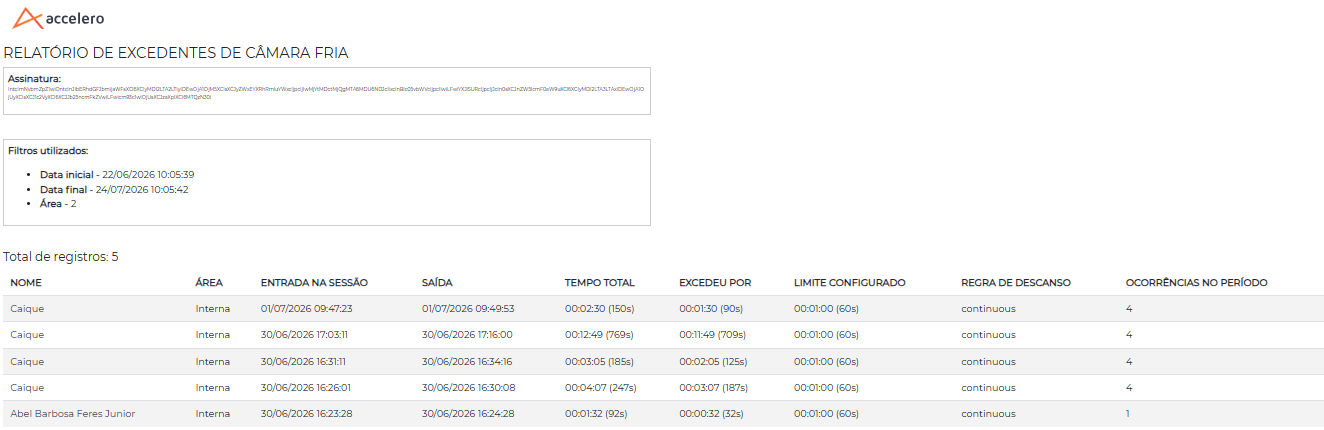
Whenever a person leaves a cold area with the accumulated time above the configured limit, the system automatically records an overage. These records feed the Cold room overage report, useful for compliance auditing and for identifying who exceeded the exposure limits.
Navigation path: Reports > Cold room overage report
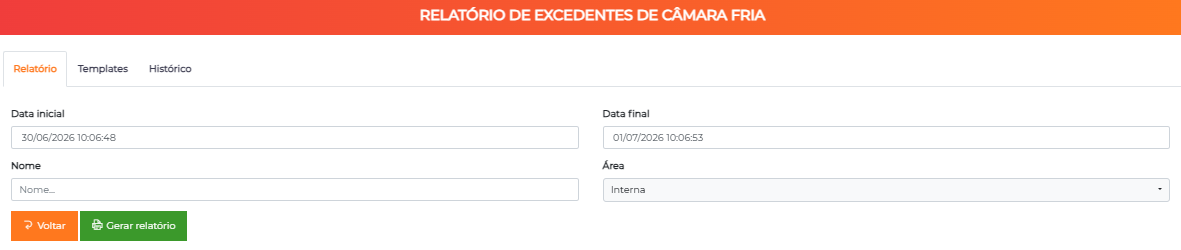
Available filters:
| Filter | Description |
|---|---|
| Start date / End date | Analysis period, applied to the exit time. Required. |
| Name | Filters by the person's name. |
| Area | Filters by one of the areas configured as a cold room. |
Report columns:
| Column | Description |
|---|---|
| Name | Person who exceeded the time. |
| Area | Cold area where the session started. |
| Session entry | Entry time of the stay that generated the overage. |
| Exit | Exit time at which the overage was measured. |
| Total time | Total time accumulated inside the cold, in seconds. |
| Exceeded by | How much the total time exceeded the limit, in seconds. |
| Configured limit | Maximum time configured at the time of the record. |
| Rest rule | Rest policy (continuous or accumulated) in effect at the record. |
| Occurrences in the period | Number of overages for that person within the filtered period. |
The report accepts templates and keeps a history of generations, like the other reports in the system. See Reports for the general operation.
Each overage record stores the limit and the rest rule that were in effect when it was generated. That way, changing the global configuration later does not alter the history already measured.
Permissions
- Global configuration — editing the
Advanced > System > Cold Roomscreen requires configuration editing permission. - Overage report — access to the report reuses the Dwell time report permission. Whoever can access that report can also access the cold room overage report.
Difference from Dwell Time and Synapsis
| Feature | What it does |
|---|---|
| Cold Room (this page) | Native control, based on access events (entry/exit between areas), specialized in limiting cold-exposure time and imposing rest, with re-entry blocking and an overage report. |
| Dwell Time | Generic control of the time people spend in certain places, the base provided by the Synapsis module. |
| Synapsis | Module that enables the dwell time control (and the Cold Room). |
| IonGuard - Cold Room | External integration, which consumes an IonGuard API — it is not the native control described here. |
Flow and usage suggestions
Freezer with exposure limit and rest in the anteroom
Configure Maximum time in the cold zone and Rest period according to the operation's standard, choose continuous rest and enable "Enable re-entry time control" in the cold room areas. Include the Cold Room - Timer check rule in the access control of the entry turnstile. Throughout the shift, the operator who reaches the limit has re-entry denied at the turnstile (event "Access denied - Respect the rest time") until the full period out of the cold has passed. Leadership monitors the overages through the report.
Operation with short, frequent breaks If the routine involves several short comings and goings to the cold environment, use accumulated rest: the system adds up the intervals out of the cold, allowing the person to complete the rest in parts throughout the shift, without needing a single long interval.
Monthly compliance auditing At the end of each month, generate the Cold room overage report filtering by the period. The Exceeded by and Occurrences in the period columns help identify operators and areas with recurrence, supporting adjustments to the schedule or to the configured limits.
Next Steps
- Dwell Time — generic dwell control (base of Synapsis)
- Synapsis — module that enables these controls
- Areas — enable the cold room control in the cold areas
- Reports — generation, templates and report history
- IonGuard - Cold Room — external integration (different feature)