Credit Validation
Credit validation turns access to an environment into a consumable balance: each person has a quantity of credits, certain areas debit credits at each access and, when the balance runs out, access to that area is blocked.
Credit validation is an additional module (credits). See Licensing.
What it is for
The feature allows you to limit the number of uses of an environment per person. It is not necessarily about money — the credit works as a usage counter that the customer can apply in whatever way makes sense for their control.
The behavior is defined by the combination of three settings:
- Who is subject to credits — defined by the person's category (only categories with Control credits consume balance).
- How many credits each person receives — manually or through an automatic daily rule.
- How many credits each area debits per access — defining the "cost" of each use.
How it works
Each person has a single balance of credits (the Current credits field). At each access to an area that requires credits, the system checks whether the balance is sufficient to cover the cost of that area:
- If the balance covers the cost, access is authorized and the amount is debited;
- If the balance is insufficient, access to that area is denied (for lack of credits), until new credits are assigned.
The validation only applies to people who belong to a category with the Control credits option enabled. Those not in any such category do not have their balance checked or debited — they access normally.
Credits can be assigned in two ways:
- Manual entry — the operator adds credits to a person on a one-off basis.
- Automatic daily management — a rule grants credits to a category at the start of the day (see Automatic management).
A company wants to limit the cafeteria to 2 uses per day per employee. To do this: it places the employees in a category with Control credits, creates a rule that assigns 2 credits to that category at the start of each day and defines that the Cafeteria area debits 1 credit per access. That way, each employee accesses the cafeteria at most twice a day; when the balance reaches zero, access is blocked until the next day's replenishment.
Although the classic example is the cafeteria, the same mechanism works for any environment where you want to limit the number of uses — such as a laundry, leisure areas or day-use. It is up to the customer to define what each credit represents.
Activation
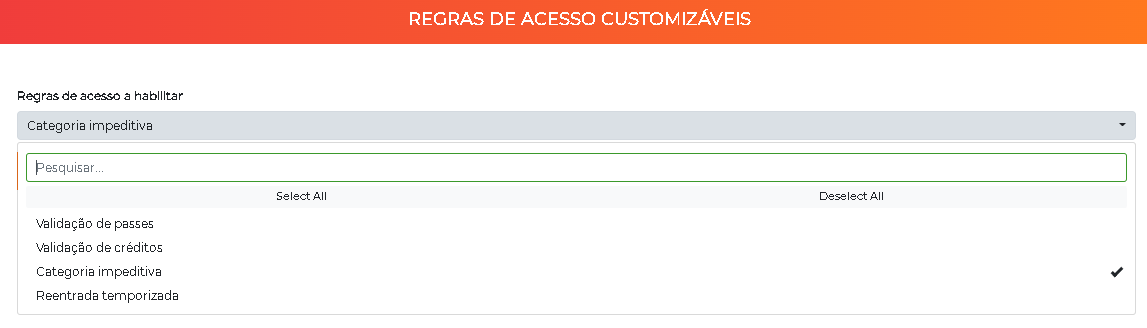
Step 1: Enable credit validation
Go to Advanced > Systems, select Customization - Customizable access rules and edit. Enable Credit validation and save.
Step 2: Mark the category to control credits
Go to Settings > Categories, edit the category of the people who will have credit control and enable Control credits. Without this, credits are not checked for those people.
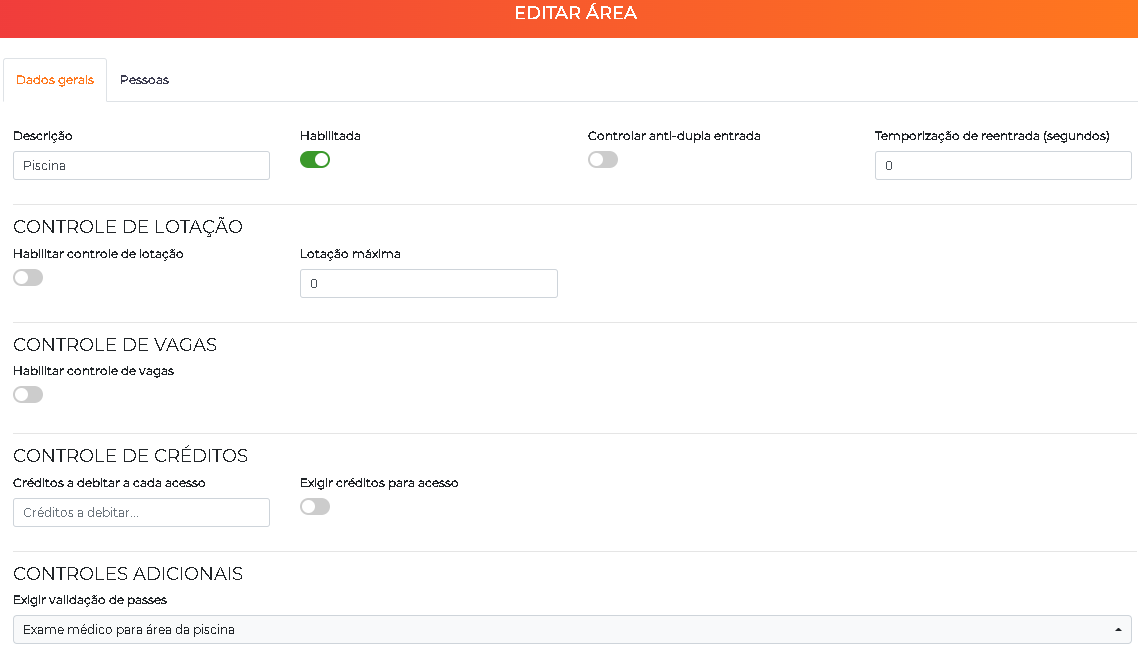
Step 3: Configure the debit in the area
Go to Settings > Areas and edit the desired area. In the Credit control section, set the value in Credits to debit at each access and enable the Require credits for access flag.
Step 4: Insert credits for the user
Go to Advanced > Credits and click Insert credit. Select the user, set the credit value and click Include.
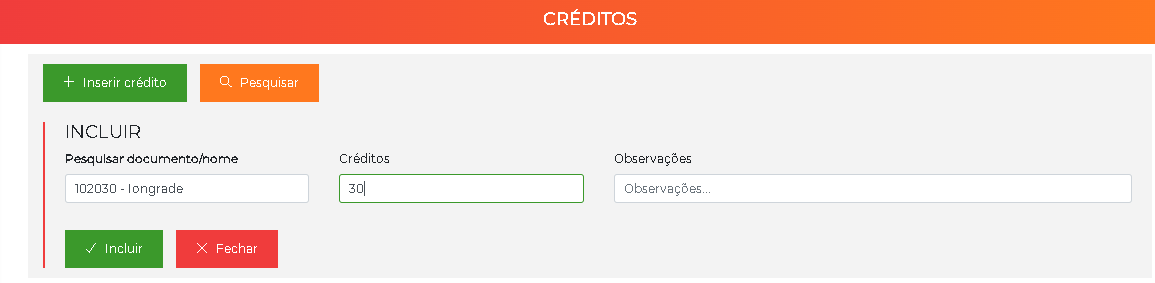
At each access to the area, the configured value is debited from the user's balance. When the balance runs out, access to the area is denied until new credits are inserted.
The balance and the credit history
The Credits screen (Advanced > Credits) works as a statement: each insertion and each debit is recorded as a transaction, with Person, Responsible (operator who entered it), quantity (positive for credit, negative for debit), date/time and notes. Each person's current balance is the sum of these transactions and appears as Current credits in their record.
Automatic management
Instead of inserting credits manually, you can configure an automatic credit management that runs daily over a category. The available operations are:
| Operation | Effect |
|---|---|
| Include | Adds a quantity of credits to the current balance |
| Remove | Subtracts a quantity from the current balance |
| Force value | Resets the balance to a fixed value (regardless of what was there before) |
Use Force value when the balance should be replenished every day to the same quota (e.g. 2 credits/day, without accumulation). Use Include when unused credits should accumulate from one day to the next.
Credit consolidation
Since the credit history grows with each access, Accelero offers Credit consolidation (under Maintenance), which compacts the statement — adding up each person's old transactions into a single entry — to preserve system performance, without changing the balance.
The screen allows you to test the consolidation beforehand (simulation mode, which only reports how many people would be affected) and then run it.
Make a backup before consolidating and avoid running it during high-traffic hours — the process can take a few minutes. It is recommended to run it periodically. See Maintenance.
Report
The Credit report allows you to audit the credit movements (insertions and debits) by period. See Reports.