Dual Custody
Dual Custody adds a second human authorization to the release of an access: the person identifies themselves at the access point, but the opening only happens when a system operator releases that request remotely. No access is granted by the person's identification alone, nor by the operator's action alone — it always requires both.
Navigation path: Dual custody (side menu — Monitoring - dual-custody screen)
This is an additional module (dualcustody) and must be acquired with the sales department. See Licensing.
Concept
In dual custody, user and operator act together. When identifying at a channel configured for dual custody, the person's access is held, awaiting the decision of an operator who evaluates the request remotely and decides to release or block it.
Difference from Escort
Both features require a second validation, but in opposite ways:
- Dual Custody — remote validation: the decision is made by a system operator, through the monitoring screen.
- Escort — in-person validation: the validation is done by a physical authorizer, who identifies at the access point itself.
How it works
1. The person identifies at a channel with Dual custody active
   ↓
2. Access is held and a REQUEST is created (person + channel)
   ↓
3. The request appears in real time in the monitoring panel
   ↓
4. An operator opens the details → the request becomes "In progress"
   and is recorded under their responsibility
   ↓
5. The operator decides: Release (opens the lock) or Block (denies)
   ↓
6. The response is sent to the controller and everything is recorded
The opening does not happen by the person's identification alone, nor by an isolated operator decision without a real request. Both ends are mandatory.
The monitoring panel
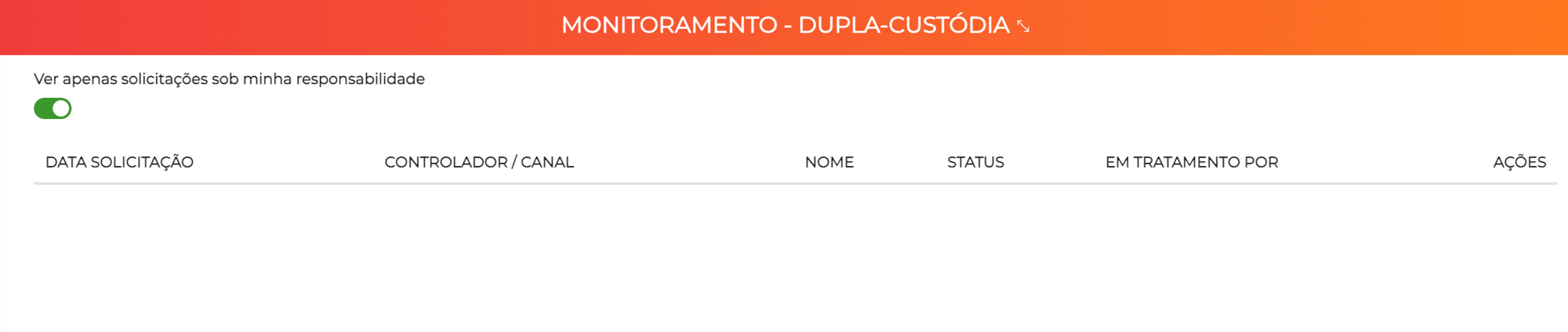
The Monitoring - dual-custody screen lists the open requests and updates in real time (as new requests arrive). For each request, the following are shown:
| Column | Description |
|---|---|
| Request date | When the person identified themselves |
| Controller / channel | Controller and channel where the request occurred |
| Name | Who is requesting access |
| Status | Current situation of the request |
| Handled by | Responsible operator (once assumed) |
There is also the filter Show only requests under my responsibility, useful when several operators work simultaneously.
Request states
| State | Meaning |
|---|---|
| Handling not started | Newly created request, still without an operator |
| In progress | An operator has assumed and is evaluating |
| Finished (access authorized) | The operator released the access |
| Finished (access denied) | The operator blocked the access |
| Aborted | The request was closed without a decision (e.g. expired) |
Handling a request
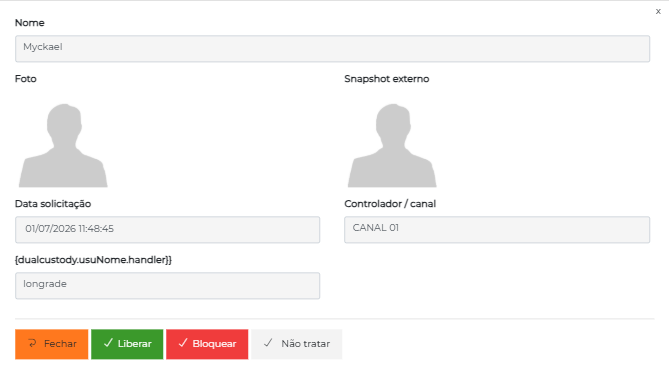
When opening the details of a request, it becomes "In progress" and the operator is recorded as responsible. Several operators can work at the same time, and each one sees who has already assumed each item. From the details, the operator has three actions:
| Action | Effect |
|---|---|
| Release | Authorizes the access — the opening command is sent to the controller |
| Block | Denies the access — the controller receives the denial and the lock remains closed |
| Do not handle | Returns the request to the panel (goes back to Handling not started) |
If the operator realizes that they are not the one who should handle it, Do not handle releases the request back, removing them as responsible.
External snapshot
In the details window, the system can display an external snapshot — a live-captured photo from an integrated device (for example, a facial device) at the moment of the request, helping the operator visually confirm who is at the access point. When no image is available, a default photo is shown.
Configuration
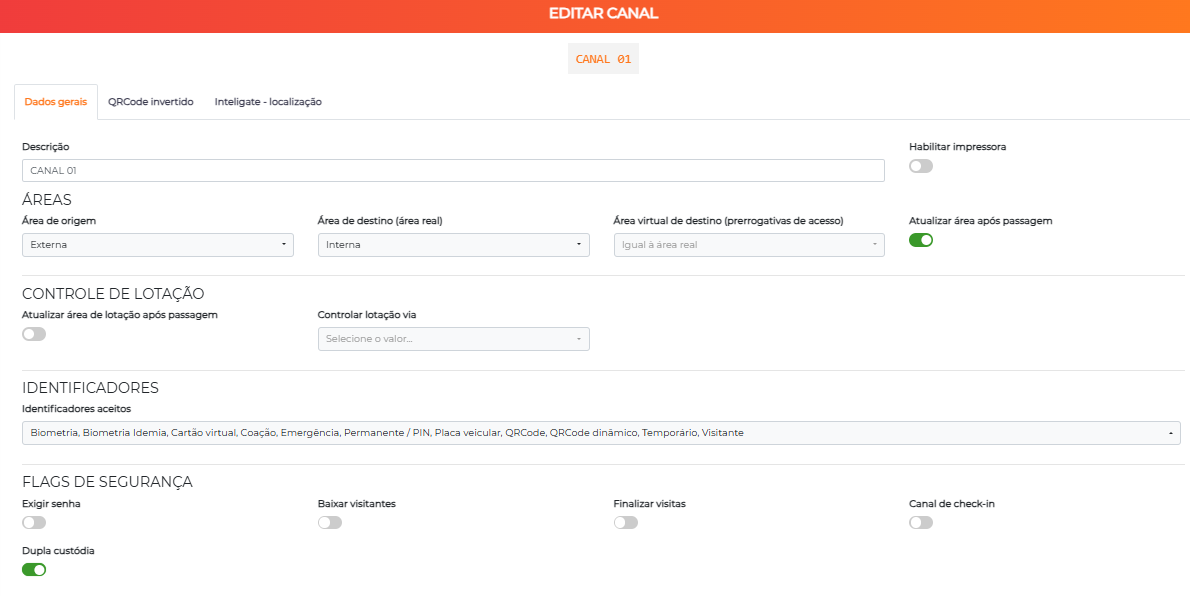
1. Enable dual custody on the channel
Go to Settings > Controllers, edit the controller, go to the Channels tab, edit the desired channel and enable the Dual custody field.
2. Grant the permission to operators
In Settings > Profiles, grant the Dual custody - operate permission to the profiles of the operators who will be able to handle the requests. See Profiles.
Reports
The system offers the Dual custody events report, allowing you to audit the requests and their decisions by period. See Reports.
Flow and usage suggestions
Vault room with visual validation
A vault room has the channel configured with Dual custody. When an employee identifies themselves, access is held and the request appears on the security center's panel. The operator opens the details, checks the person's live snapshot (and, if available, the local camera), confirms the identity and clicks Release. The door opens and the whole event is recorded, with the name of the responsible operator.
Remote gatehouse
In a condominium with a remote gatehouse, the visitor identifies themselves at the gate. The center receives the request, the virtual doorman validates the data (and can confirm with the resident) and then Releases or Blocks access remotely — without the need for physical presence at the location.
When to use Dual Custody (and not Escort)
Use Dual Custody when the second validation should be done by a remote operator (security center, remote gatehouse). If the second validation should be done by a person present at the access point — including validating the driver of a vehicle read by LPR —, the recommended feature is Escort.
Next Steps
- Escort — in-person validation (includes vehicle driver validation)
- Controllers — configure the channels with dual custody
- Profiles — grant the operation permission
- Logs and Monitoring — follow the system events