Incident Log
The Incident Log is the Accelero screen where operators manually record day-to-day operational occurrences — incidents, complaints, suggestions and general notes. It works like a logbook of the gatehouse/operation: each record keeps date, author, type, title and description.
Navigation path: Incident Log (side menu)
The Incident Log is a manual record, created by the operator. It is different from the Incident Panel, which is an alarm center fed automatically by system events (controller offline, duress, etc.). They are independent features.

Overview
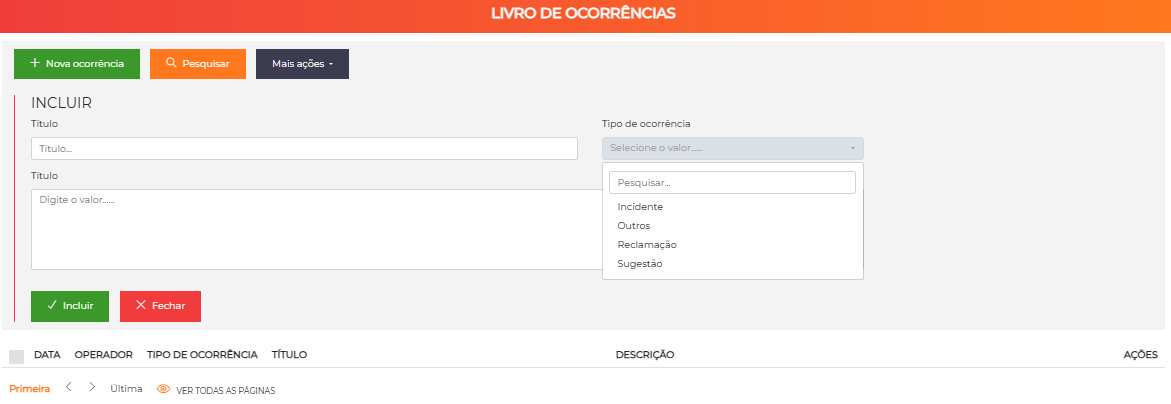
The screen is made up of an action bar at the top and the list of recorded occurrences:
- New occurrence — opens the entry form.
- Search — opens the advanced search filters.
- More actions — batch actions (e.g. deletion of selected items).
Each row in the list shows the following columns:
| Column | Description |
|---|---|
| Date | Date and time of the occurrence |
| Operator | Operator who recorded the occurrence |
| Occurrence type | Classification of the record (Incident, Complaint, Suggestion, Others) |
| Title | Short summary of the occurrence |
| Description | Details of what was recorded |
| Actions | Button to edit the occurrence |
The list is ordered by date (most recent first) and is paginated — you can navigate through the pages or use View all pages to display everything at once.
Record a new occurrence
Click New occurrence and fill in the entry form:
| Field | Required | Rules |
|---|---|---|
| Title | Yes | Between 3 and 100 characters |
| Occurrence type | Yes | Select one of the available types |
| Description | Yes | Free text with the details of the occurrence |
When you confirm with Include, the occurrence is saved already associated with the logged-in operator and with the current date/time, appearing immediately at the top of the list.
You do not need to enter who is recording it: the system automatically saves the logged-in operator as the author of the occurrence and stamps the date and time of the record.
Occurrence types
The types classify each record. The system already comes with four default types:
| Type | Typical use |
|---|---|
| Incident | Abnormal situations that require attention or action |
| Complaint | Complaints from residents, visitors or employees |
| Suggestion | Ideas and improvement suggestions |
| Others | General records that do not fit the categories above |
The list of occurrence types is fixed by default (Incident, Complaint, Suggestion and Others). Creating/editing types is a restricted technical operation.
Edit an occurrence
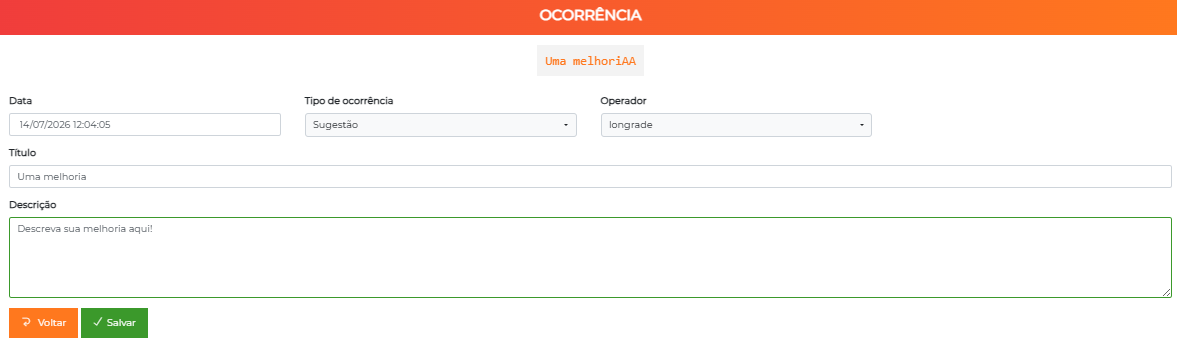
Use the edit button in the Actions column of a row to open the occurrence. In the editing, you can adjust the date, the type, the operator, the title and the description, and then Save.
Search occurrences
The Search button opens the advanced search filters, which can be combined:
- Period — start and end date of the occurrence;
- Operator — one or more authoring operators;
- Occurrence type — one or more types;
- Title — text search in the title;
- Description — text search in the description.
Batch deletion
To remove several records at once, check the selection boxes of the desired rows and use More actions > Delete.
Permissions
Access to the Incident Log is controlled by two permissions:
| Permission | What it enables |
|---|---|
| Incident log - Access | View the list and record new occurrences |
| Incident log - Manage | Edit and delete occurrences |
Regardless of the management permission, every operator can edit and delete the occurrences they recorded themselves. The Manage permission is required to change or delete records made by other operators.
See Profiles to configure these permissions.
Next Steps
- Incident Panel — alarm center fed automatically by the system
- Logs and Monitoring — real-time system monitoring
- Reports — available report options