Incident Panel
The Incident Panel is the ACCELERO screen that works as an alarm center: relevant events generated by the system (automatically or by I/O automations) are consolidated into a list that the operator monitors in real time and handles until resolution.
Navigation path: Incidents
The Incident Panel is an advanced module (ocorrencias). The screen and the automations that generate incidents are only available when the module is enabled in the license. See Licensing.
Concept
Unlike a manual note record, the panel is fed by the system itself. Whenever an event considered relevant happens — for example, a controller goes offline or a duress password is used — ACCELERO creates an incident that needs to be triaged by the operator.
The screen shows only the open incidents and updates itself every 15 seconds, ensuring the operator always sees the most recent situation without having to reload the page.
Each incident keeps who acknowledged it, who handled it (with the mandatory handling note) and who normalized it, in addition to the creation and completion dates — preserving the complete history of the event.
The listing
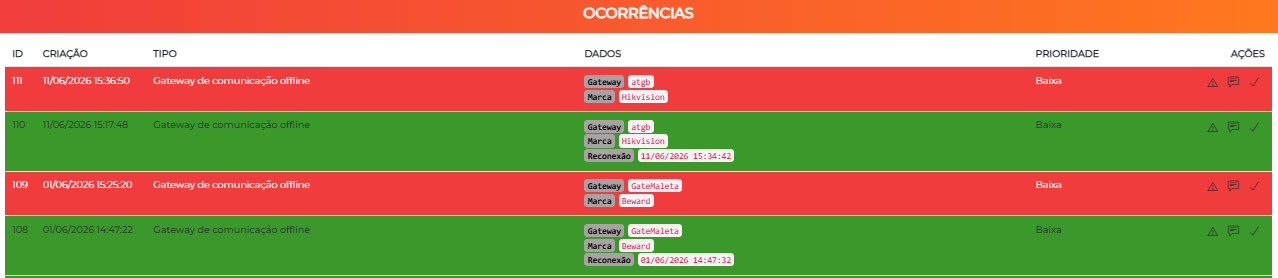
Each row represents an open incident. The columns shown are:
| Column | Description |
|---|---|
| ID | Unique identifier of the incident |
| Creation | Date and time the incident was generated |
| Type | Type of the incident (e.g. Controller offline, Duress) |
| Data | Specific details of the event that originated the incident |
| Priority | Criticality of the type: Low, Medium or High |
| Actions | Acknowledge, Handle and Normalize buttons |
The list is ordered by creation date (most recent first) and shows only incidents not yet fully closed — when an incident is normalized, it automatically leaves the screen on the next update.
Visual indication by state
The rows receive color highlighting according to the point in the life cycle they are at, allowing you to quickly identify what requires attention:
- New, not yet acknowledged incidents are in a stronger highlight (critical).
- Already acknowledged incidents change highlight as they advance to in progress.
The panel always brings the most relevant information directly in the row (type, priority and event data), precisely to allow a quick decision and action by the operator.
Incident life cycle
Every incident goes through up to three milestones, triggered by the buttons in the Actions column:
  Created  ──▶  Acknowledged  ──▶  Handled  ──▶  Normalized (closed)
              (acknowledge)      (handle)       (normalize)
1. Acknowledge
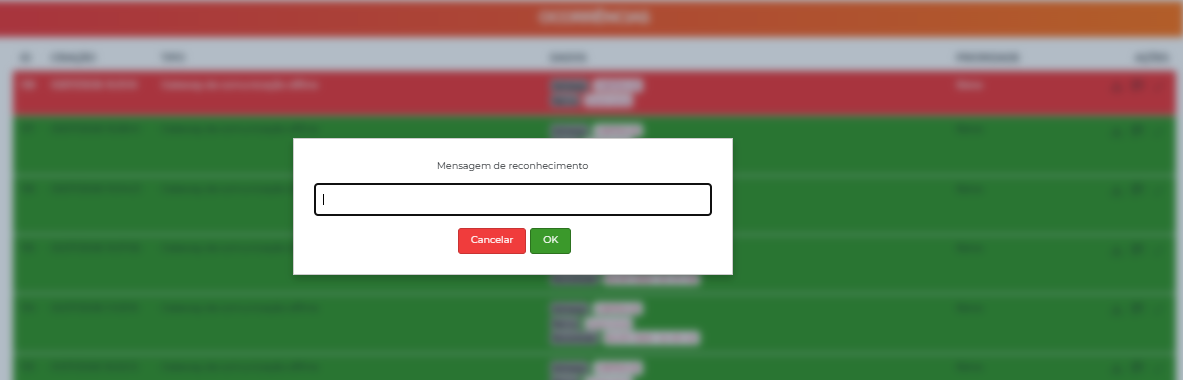
Signals that an operator became aware of the incident. The system opens the Acknowledgment message dialog, where the operator can record a note, and stores which operator did the acknowledgment.
2. Handle
Records the handling of the incident. When handling, the operator must enter a descriptive note of what was done — this field is mandatory; without it, the system does not complete the action.
It is not possible to handle an incident without filling in the handling history data. This note is recorded in the incident's history.
The act of handling also marks the incident as acknowledged (if it was not already) and records the operator responsible for the closure.
3. Normalize
Indicates that the situation was normalized/resolved. The system records the completion date and the operator who closed it, and the incident leaves the list of active ones.
Internally, each incident keeps three independent markers — acknowledged, handled and normalized. Some incident types advance part of these markers automatically; for example, a controller that comes back online can normalize the corresponding incident on its own.
Screenshot of the Handle dialog showing the mandatory handling note field (the screenshot available today only covers the Acknowledge dialog).
Incident types
Each incident belongs to an Incident type, which defines its description and its priority (a numeric value converted into Low, Medium or High). The types are reused both by the automatic generation and by the I/O automations.
The system reserves types for the events it generates automatically:
| Incident type | When it occurs | Note |
|---|---|---|
| Expired event | When a visit/event is not closed by the expected end date | — |
| Environment occupancy | When the occupancy configured for an environment is exceeded | — |
| Controller offline | When there is a communication failure with an access controller | — |
| Duress | When the system detects a duress event (duress password/finger) | Critical event |
| Synapsis — Redzone | When unauthorized presence is detected in a Redzone-type region | Requires Synapsis module |
| Synapsis — Alarm/panic | When the Synapsis module panic button is triggered | Requires Synapsis module |
| Synapsis — Dwell time | When the dwell time allowed in a region is exceeded | Requires Synapsis module |
| Elevator failure | When an early elevator call fails | Requires elevator module |
| Gateway offline | When there is a communication failure with a system gateway | — |
| Login with incorrect password | When an operator's login is rejected due to an incorrect password | — |
Some types are only generated when the corresponding module is licensed and configured (Synapsis, elevators, etc.).
How incidents are generated
Automatically, by system events
The types listed above are created by ACCELERO itself when the corresponding event happens. The creation is published in real time (via MQTT), and the screen reflects the new incident on the next update.
By I/O automations
The Generate Incident action of the I/O Automations module allows you to turn any I/O input into a manageable incident. In the action configuration you define:
- Incident type — which type will be assigned to the generated incident;
- Title — descriptive text that appears in the incident's Data.
The I/O action avoids duplicating incidents: while there is already an open incident of the same type for that I/O handler, a new trigger normalizes the existing incident instead of creating another. Thus, an input that oscillates generates an incident when activated and closes it when normalized.
Notifications
Operators can subscribe to incident types to be notified when they change state. The configuration is in the operator's record, in the Notifications tab:
- Subscribed types — which incident types the operator follows;
- Delivery method — None or Email.
When an incident of a subscribed type is acknowledged, handled or normalized, the subscribed operators receive an email notification containing the incident data and the action taken.
See Operators — Notifications for the configuration.
Permissions
The actions of acknowledging, handling and normalizing require edit permission over the incidents (ocoManage). Make sure the operators responsible for triage have this permission in their access profile.
Best practices
- Keep the panel open during operation — since it updates itself every 15 seconds, it works well as a continuous monitoring panel.
- Acknowledge quickly, handle with a record — acknowledging signals awareness; handling requires a clear note of what was done, which becomes history.
- Prioritize by criticality — start with High priority incidents and critical types (duress, alarm/panic).
- Only normalize after confirming the solution — normalization closes the incident and removes it from the list of active ones.
- Configure notifications for the right people — subscribe the relevant types so that managers and security teams are notified.
Next Steps
- I/O Automations — generate incidents from I/O inputs
- Operators — Notifications — configure who is notified
- Logs and Monitoring — understand the complete log system
- Synapsis — configure the Synapsis module for Redzone and panic