Multi-tenant
ACCELERO has specific resources and functions so it can be used as a multi-user/multi-company system.
This resource requires a specific license module. See Licensing.
Concept
The multi-tenant mode allows different companies to manage their own employees and access certain system functions securely.
Separation of Responsibilities
| Responsibility | System Administrator | Company Managers |
|---|---|---|
| General configuration | ✓ Yes | ✗ No |
| Security policies | ✓ Yes | ✗ No |
| Managing their own employees | ✓ Yes | ✓ Yes |
| Managing their own visitors | ✓ Yes | ✓ Yes |
| Viewing other data | ✓ Yes | ✗ No |
Company managers do not have access to data from other companies, ensuring information privacy.
How It Works
When the multi-tenant module is enabled and an operator is associated with a company with the proper permission, they have access to specific menus.
Conditions to Enable
For an operator to have access to multi-tenant resources:
- Module enabled in the license
- Operator associated with one or more companies
- Profile with the "Employees - manage" permission
See Operators - Associated Companies.
Available Menus
When the conditions are met, the operator has access to:
| Menu | Function |
|---|---|
| Employees | Management of the company's employees |
| My visitors | Management of the company's visitors |
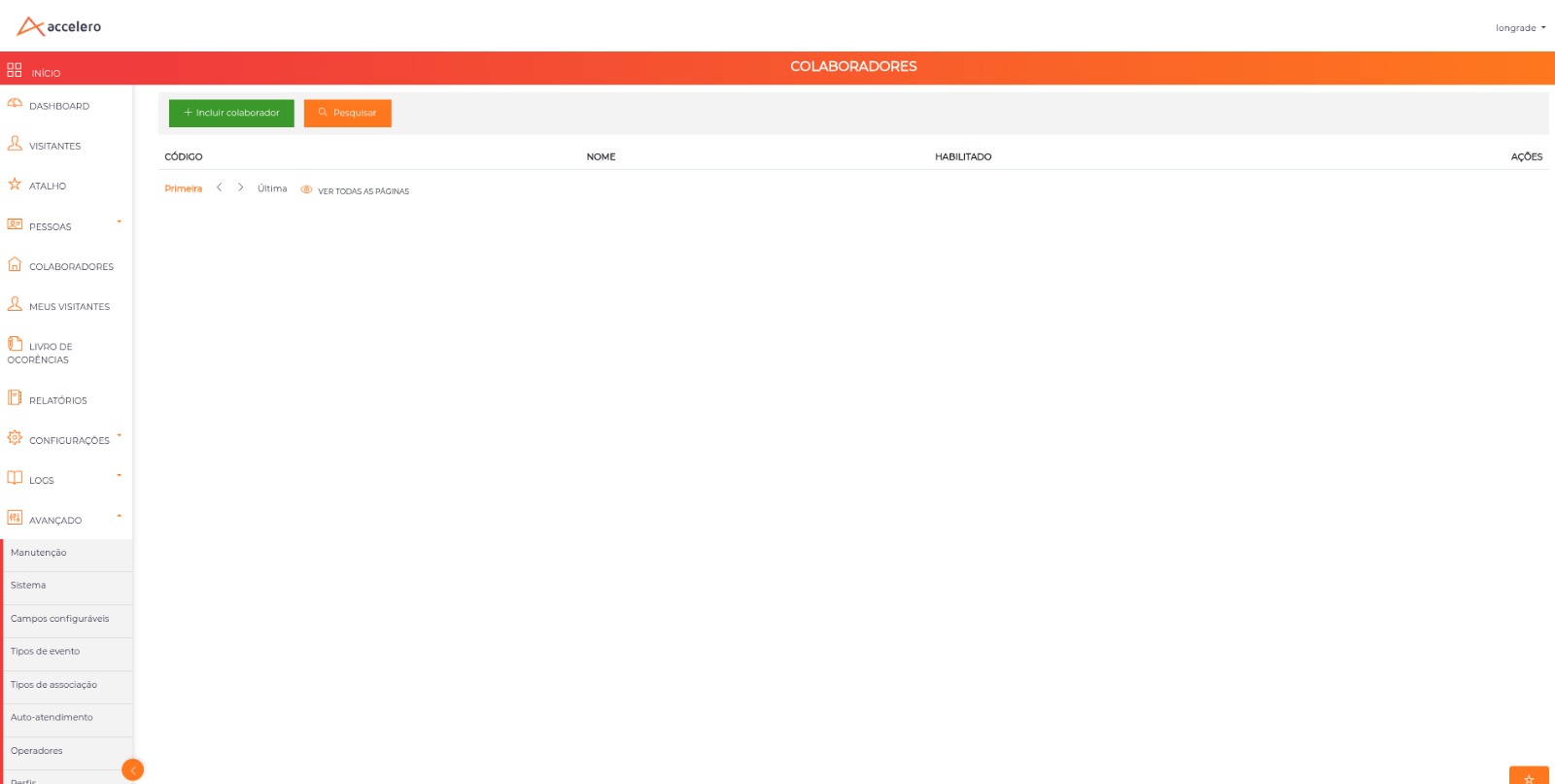
Employees Screen
Navigation path: Employees (side menu)
How It Works
The Employees screen is similar to the system's People screen, but:
- Summarized information: Only data relevant to employee management
- Automatic filter: Shows only people from the operator's company
- Privacy guaranteed: People from other companies do not appear
Available Fields
Information generally available:
- Full name
- Document
- Photo
- Categories
- Identifiers
- Status (enabled/disabled)
- Contact data
Technical or sensitive fields are hidden to simplify operation.
Permissions
The manager can:
- Create new employees
- Edit data of existing employees
- Disable employees (not delete)
- Associate identifiers
- Manage categories (within those allowed)
The manager cannot:
- Delete employees (administrator only)
- Change system settings
- View/edit people from other companies
- Modify global access policies
My Visitors Screen
Navigation path: My visitors (side menu)
How It Works
The My Visitors screen is similar to the People screen, but:
- Summarized information: Only data relevant to visitors
- Automatic filter: Shows only the company's visitors
- Criterion: People who have made or have future visits registered
Visibility
Visitors shown are those who:
- Have future visits scheduled for the company
- Made visits in the past to the company
- Never visited and have no future visits → do NOT appear
Visitors who never interacted with the company are not shown, ensuring privacy.
Visitor Management
The manager can:
- View data of the company's visitors
- Schedule new visits
- Authorize pending visits
- Close ongoing visits
- Consult the visit history
See Events for details on visitor management.
Configuration
1. Enable the Module
Check whether the multi-tenant module is enabled in the license.
Path: System > System usage
2. Associate Operators with Companies
Configure which operators are managers of which companies.
Path: Settings > Operators > [Select operator] > Associated companies
See Operators for details.
3. Configure Permissions
Create a specific profile for company managers with the proper permission.
Path: Settings > Profiles
Required permission: "Employees - manage"
See Profiles for details.
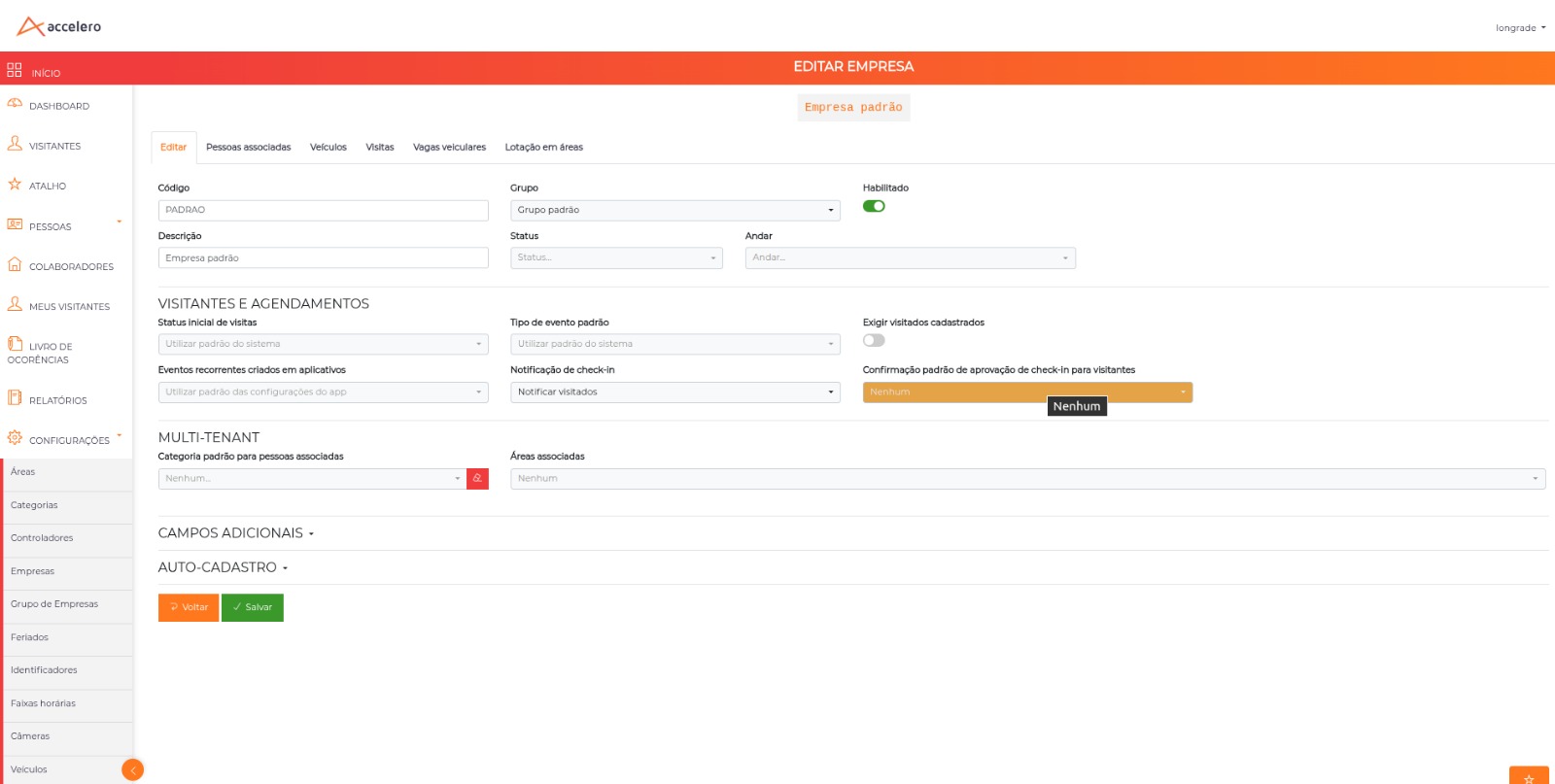
4. Configure the Company
Navigation path: Settings > Companies > [edit company] > Multi-tenant section
Configure each company with:
- Custom naming
- Default category for employees (Default category for associated people field)
- Associated areas
Naming
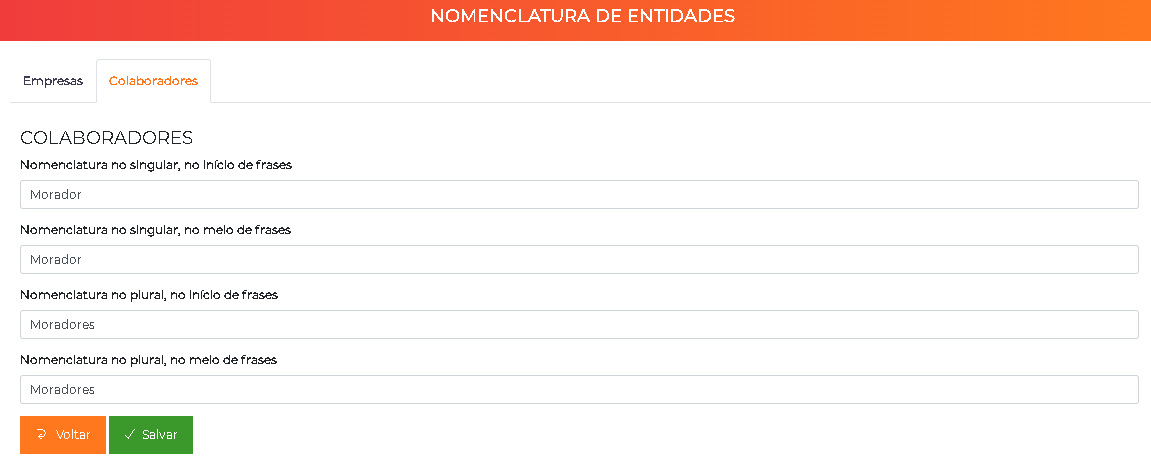
The "Employees" naming can be changed to a term more suitable to the installation.
Examples:
- Staff
- Residents
- Members
- Associates
- Unit owners
How to Configure
Path: Advanced > System > Customization - Entity naming > Employees tab
Required configuration:
| Field | Staff Example | Residents Example |
|---|---|---|
| Singular, sentence start | Staff member | Resident |
| Singular, sentence end | staff member | resident |
| Plural, sentence start | Staff members | Residents |
| Plural, sentence end | staff members | residents |
You need to configure the situations where the name appears in the plural/singular and at the start/end of sentences so that texts are grammatically correct.
Default Category
For each company, you can determine which category new employees should be automatically associated with.
How It Works
When a company manager creates a new employee:
- The system automatically associates them with the configured default category
- The manager can add additional categories (if allowed)
- Simplifies the registration process
Configuration
Path: Settings > Companies > [Select company] > Default category for associated people
Benefits:
- Speed: A new employee already has a basic category
- Standardization: Ensures everyone has a minimum category
- Flexibility: Each company can have a different category
Example:
Company: ACME Technology
Default category: ACME EMPLOYEES

Company: XYZ Residential Condominium
Default category: XYZ RESIDENTS
Each company can have a different configuration, allowing great flexibility.
Associated Areas
For each company, you can determine which areas it is physically associated with.
Concept
Associated areas represent the physical spaces that the company manages or has the right to manage accesses for.
How It Works
When areas are associated with a company:
- The manager can create individual permissions for employees
- Only within the areas associated with the company
- Ensures the company only manages its own areas
Configuration
Path: Settings > Companies > [Select company] > Associated areas
Multiple selection: A company can have several associated areas.
Practical Example
Scenario: Commercial Building
Company: Silva & Santos Law Office
Associated areas:
  - Room 1201
  - Room 1202
  - 12th floor pantry

The company manager can:
  ✓ Grant individual permission for Room 1201
  ✓ Grant individual permission for Room 1202
  ✓ Grant individual permission for the 12th floor pantry
  ✗ CANNOT grant permission for Room 1301 (another company)
This allows managing individual access permissions securely, without the risk of a company granting access to third-party areas.
Use Scenarios
Scenario 1: Commercial Building
Configuration:
Multi-tenant: ✓ Enabled
Naming: "Staff"

Company A (Consulting):
  - Default category: CONSULTING STAFF
  - Areas: Rooms 1001, 1002, 10th floor pantry
  - Manager: operator-consulting@company.com

Company B (Law):
  - Default category: LAW STAFF
  - Areas: Rooms 1101, 1102, 11th floor pantry
  - Manager: hr@law.com
Operation:
- Each company manages its own staff
- Each company schedules visitors for itself
- The general administrator manages common areas
- Privacy between companies guaranteed
Scenario 2: Residential Condominium
Configuration:
Multi-tenant: ✓ Enabled
Naming: "Residents"

Tower A:
  - Default category: TOWER A RESIDENTS
  - Areas: Tower A Apartments, Garage A
  - Manager: manager-tower-a@condo.com

Tower B:
  - Default category: TOWER B RESIDENTS
  - Areas: Tower B Apartments, Garage B
  - Manager: manager-tower-b@condo.com
Operation:
- The manager of each tower manages its residents
- Residents schedule visitors for their own unit
- General administration manages common areas
- Privacy between towers guaranteed
Scenario 3: University Campus
Configuration:
Multi-tenant: ✓ Enabled
Naming: "Members"

School of Engineering:
  - Default category: ENGINEERING STUDENTS
  - Areas: Engineering Building, Engineering Labs
  - Manager: eng-office@university.edu

School of Medicine:
  - Default category: MEDICINE STUDENTS
  - Areas: Medicine Building, Teaching Hospital
  - Manager: med-office@university.edu
Operation:
- Each school manages its own students
- Decentralized control
- Central administration keeps global policies
Reports
Company managers have access to filtered reports:
- Only data from their own company
- Access reports
- Visitor reports
- Operational statistics
See Reports for details.
Best Practices
-
Define clear naming: Use terms familiar to users
-
Configure a default category: Speeds up employee registration
-
Associate areas correctly: Ensure the company only manages its areas
-
Train managers: Teach the system's limitations and possibilities
-
Review permissions: Periodically audit who has access to what
-
Use specific profiles: Create a "Company Manager" profile with the proper permissions
-
Document responsibilities: Make clear what each party manages
-
Monitor usage: Track which managers are using the system
-
Centralized support: Keep a technical team for complex questions
-
Communicate limitations: Make clear what managers cannot do
Security
Data Isolation
- Automatic filters: The system ensures the manager only sees the company's data
- Backend validation: Even if they try to bypass it, the system blocks it
- Full audit: All actions are recorded
Permission Control
- Specific profiles: Use dedicated profiles for managers
- Least privilege: Grant only the necessary permissions
- Periodic review: Audit accesses regularly
Compliance
Multi-tenant facilitates compliance with:
- LGPD: Natural segregation of personal data
- ISO 27001: Granular access control
- Audits: Traceability of who did what
Troubleshooting
Menus do not appear
Cause: The operator does not have permission or is not associated with a company
Solution: Check the operator's association and permissions
Manager sees people from another company
Cause: Bug - it should not happen
Solution: Contact technical support immediately
Cannot grant individual permission
Cause: The area is not associated with the company
Solution: Associate the area with the company or ask the administrator