Simulator
The access simulator is an administrative tool that lets you simulate actions that usually depend on physical interaction with controllers.
Navigation path: Advanced > Simulator
This tool is intended for quick testing and should be used only by properly trained operators.
How It Works
The simulations are handled by ACCELERO as if the events were happening on real controllers.
Characteristics
- Logs generated normally: All simulations generate event logs
- Full validation: The system applies all access rules
- Real time: Simulations happen instantly
- Auditable: Everything is recorded in the operation log
Be careful when using the simulator in a production environment, as simulated events are indistinguishable from real events in the logs.
Actions That Can Be Simulated
1. Access Requests
Simulates that an identifier was presented at a given controller/channel.
Configuration:
| Field | Description |
|---|---|
| Identifier number | Internal number of the identifier to simulate |
| Controller | Controller where the access is being simulated |
| Channel | Specific channel of the controller |
| Access type | Unidirectional or Bidirectional |
Typical use:
- Test access permissions
- Validate category × area × time range settings
- Check anti-passback operation
- Test offline contingency
Example:
Identifier: 12345
Controller: MAIN GATE
Channel: Channel 1 (Entry)
Type: Unidirectional

Result: The system validates permissions and generates an event log
Use simulated access requests to test settings before putting them into production.
2. Controller Log
Simulates the sending of a log by a controller.
What can be simulated:
| Event Type | Requires Identifier |
|---|---|
| Passage confirmation | ✓ Yes |
| Access denied | ✓ Yes |
| Open door alarm | ✗ No |
| Opening by button | ✗ No |
| Sensor violation | ✗ No |
| System events | ✗ No |
Typical use:
- Test log processing
- Simulate alarm situations
- Validate the behavior of special events
- Train operators
Example 1 - Passage Confirmation:
Event type: Passage confirmation
Identifier: 67890
Controller: GARAGE ACCESS
Channel: Channel 2 (Exit)

Result: The system records that the person passed through the blocking point
Example 2 - Alarm:
Event type: Open door alarm
Controller: SERVER ROOM
(Does not require identifier)

Result: The system generates an alarm incident
3. Escort Simulation
Simulates the access confirmation by an escort.
When to use:
- Test the escort feature
- Validate the configuration of categories that require an escort
- Train operators on the escort flow
Difference from a normal request:
- Used specifically to simulate access authorization after an escort request
- Represents the "second step" of the dual verification process
Example:
Step 1: Person with a category that requires an escort requests access
→ The system waits for escort confirmation

Step 2: Use "Escort simulation" to confirm
Escort identifier: 55555
Controller: RESTRICTED AREA
Channel: Channel 1

Result: Access is granted after escort validation
See Categories - Escorts for configuration.
Simulator Interface
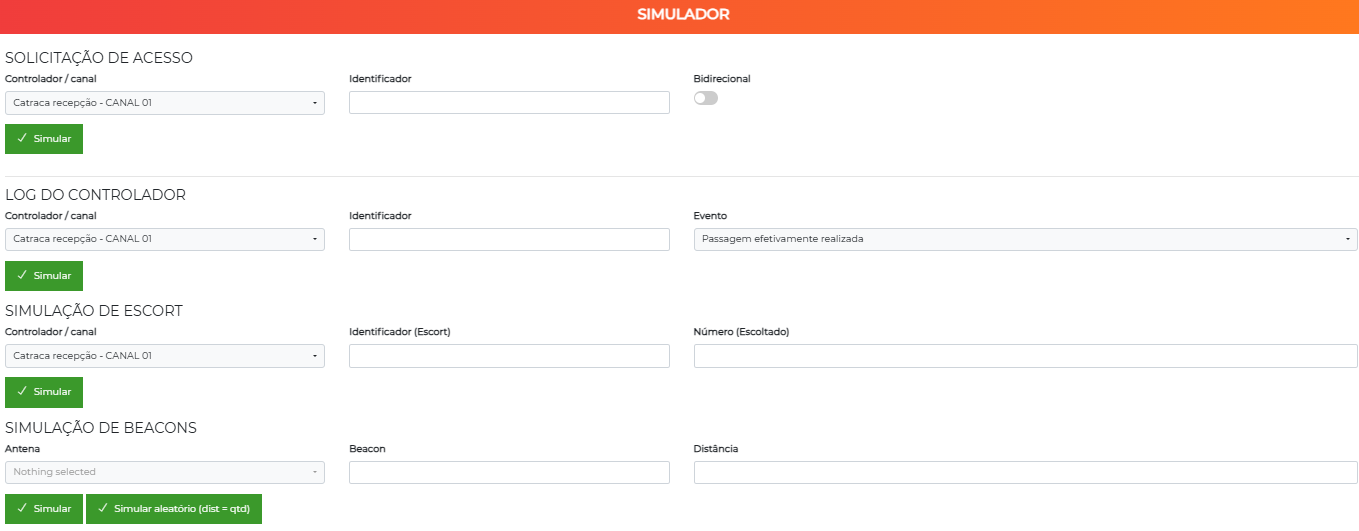
Common Fields
Most simulations require:
- Select the simulation type (dropdown)
- Enter specific data (identifier, controller, etc.)
- Click "Simulate"
- Check the result (an event log is generated)
Visual Feedback
After running a simulation:
- ✅ Success: Message confirming that the simulation was executed
- ℹ️ Information: Details of the generated event
- 🔗 Link to the log: Direct access to the created event log
Practical Use Cases
Case 1: Testing a New Configuration
Situation: You created a new category "TEMPORARY" with access to "ROOM 10" only during "BUSINESS HOURS"
How to test:
- Create a test identifier: 99999
- Associate the identifier with a test person
- Associate the test person with the "TEMPORARY" category
- Use the simulator:
- Identifier: 99999
- Controller: That controls ROOM 10
- Current time: Within business hours
- Check: Access should be authorized
- Change the system time or use another time
- Check: Access should be denied outside business hours
Case 2: Operator Training
Situation: Train new operators on the event flow
How to use:
- Simulate various event types
- Ask operators to observe the logs
- Teach how to interpret each type
- Simulate problem situations (denials, alarms)
- Train incident resolution
Case 3: Troubleshooting
Situation: A user complains that they cannot access an area
How to diagnose:
- Note the user's identifier number
- Use the simulator with that identifier
- Observe the simulation result
- The log will show exactly which validation failed
- Fix the configuration according to the diagnosis
See FAQ - Why was access denied? for more details.
Limitations
The simulator does not simulate:
- Physical commands to open blocking points
- Real communication with controllers
- Real offline/contingency situations
- Faulty hardware
- Network problems
Best Practices
-
Use in staging: Whenever possible, test in a separate environment
-
Document tests: Keep a record of the tests performed
-
Clean up test logs: Delete simulation logs after testing in production
-
Identify tests: Use specific identifiers for tests (e.g., 99900-99999)
-
Train before using: Make sure the operator understands what they are doing
-
Check results: Always confirm that the simulation had the expected effect
-
Do not overuse: Do not use the simulator excessively in production
-
Combine with other logs: Use it together with the event and operation logs
Security
Access to the simulator must be restricted to technical operators. Configure appropriate permissions in the profiles.
See Profiles for permission configuration.
Next Steps
- Logs and Monitoring - Understand the logs generated by simulations
- Access Policy - Understand the validated rules
- FAQ - Diagnose access problems
- Reports - Use reports to validate configurations