Person self-registration
Person self-registration provides a public form, accessible by link or QR Code, where the person fills in their own data. Each submission does not create the person directly — it enters a moderation queue inside ACCELERO, and only becomes a Person registration after an authorized operator approves the record.
It is suitable for scenarios where the initial registration can be delegated to the person themselves (e.g., residents, employees, contractors), keeping final control with the team that operates ACCELERO.
This feature is provided as a plugin (autoenrollhosts) and must be installed and enabled by the IONGRADE technical team. Contact support to check compatibility with your version of ACCELERO.
Current plugin version: 2.0.0 — compatible with ACCELERO 2.17.0 or higher.
This plugin is aimed at people (permanent registration, with approval in moderation). For the registration of visitors, see Visitor self-registration.
What the plugin does
| Feature | What happens in ACCELERO |
|---|---|
| Public registration form | The person accesses a link/QR Code and fills in their own data, including a photo |
| Moderation queue | Each submission stays pending in a moderation list, without automatically becoming a person |
| Approval | Upon approval, ACCELERO creates (or updates) the Person, links the company/unit and the configured initial category |
| Rejection | Upon rejection, the pending record is discarded, without generating a registration |
| Duplicate detection | The moderation list indicates whether the provided document already corresponds to an existing person |
| Operator notification | When someone self-registers, a notification is generated in the system |
Distributes the registration effort to the person themselves, while keeping the decision to include the person or not under the control of an authorized operator.
Configuration
Navigation path: Settings > Plugins - person self-registration
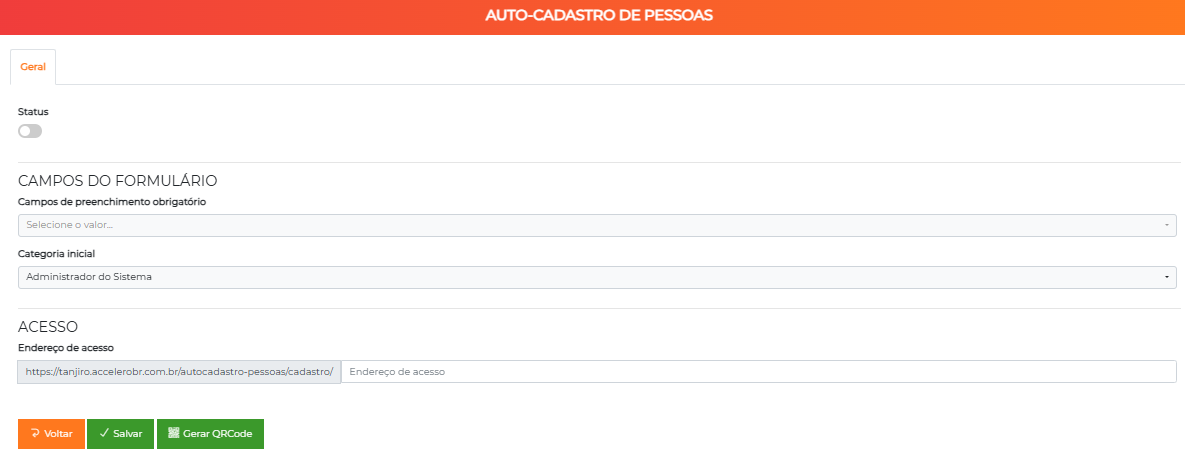
The screen has the General tab with the following items:
| Field | Description |
|---|---|
| Status | Turns the plugin on/off. With the status off, the public registration form is unavailable |
| Required fields | Multi-selection of the form fields that become mandatory for the person (e.g., email, document, phone) |
| Initial category | Category automatically assigned to the person when the registration is approved. Required field |
| Access address | Token (text) that makes up the public URL of the form. The final address is in the format <system-address>/autocadastro-pessoas/cadastro/<token> |
Screen buttons
| Button | Function |
|---|---|
| Back | Returns without saving |
| Save | Persists the configuration |
| Generate QR Code | Generates a QR Code pointing to the public registration URL (with the provided token), opening it in a new window for printing |
The token field is required. Set your own value (e.g., a short name, without spaces) to make up the public link — this text is part of the URL that will be shared.
Use the Generate QR Code button to print a code that leads directly to the registration form — useful at receptions, bulletin boards, or announcements.
Public registration form
Navigation path: public URL <system-address>/autocadastro-pessoas/cadastro/<token> (does not require login).
The person fills in the following fields:
| Field | Description |
|---|---|
| Name | Full name (3 to 50 characters) |
| Select your unit | Company / unit to which the person will be linked upon approval |
| The person's email (format validation) | |
| Phone | Contact phone |
| Code | The person's identification code (acmCodigo) |
| Document type | CPF, RG, CNH, or Other |
| Document | Document number. When the type is CPF, the system validates the provided CPF |
| Photo | Capture by camera or image upload. The image is compressed in the browser before sending |
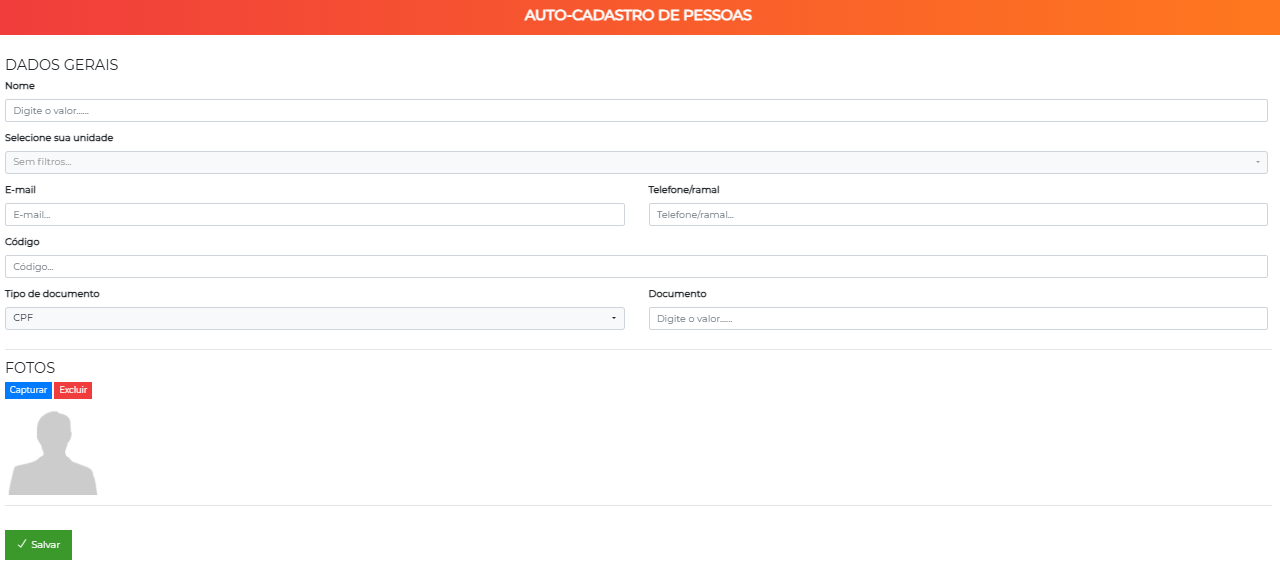
After a successful submission, the person is taken to a confirmation screen with the message "Thank you for registering, your data has been sent for moderation."

The submission is rejected when:
- Any configured required field is empty.
- The document already exists in another pending self-registration.
- The document already corresponds to a Person registered in the system.
Moderation
Navigation path: side menu > Moderation (menu item added by the plugin).
The menu item and the moderation screen only appear for operators who have the Resident self-registration - moderation (autoenrollmoderate) permission.
The screen lists the self-registrations with pending status. Operators linked to companies/units only see the records of their units.
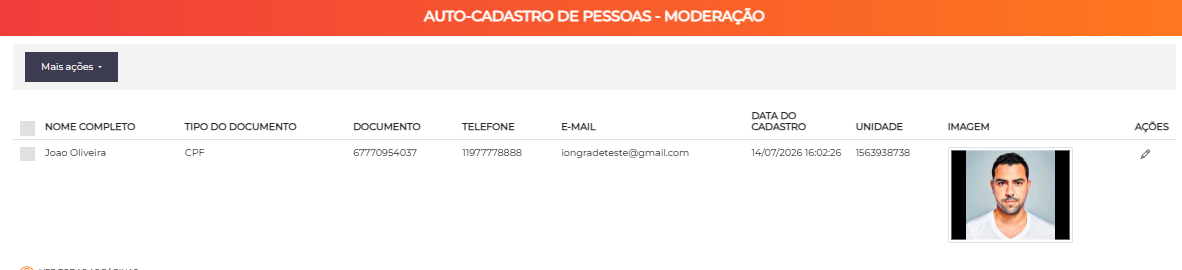
List columns
| Column | Content |
|---|---|
| Full name | Name provided in the form |
| Duplicate | Yes when the document already corresponds to an existing person; No otherwise |
| Document type | CPF / RG / CNH / Other |
| Document | Provided document number |
| Phone | Provided phone |
| Provided email | |
| Registration date | Date and time the self-registration was submitted |
| Unit | Company/unit selected by the person |
| Image | Thumbnail of the submitted photo |
| Actions | Button to open the record in Moderate |
Bulk actions
In the More actions menu of the list, you can select several records and:
| Action | Effect |
|---|---|
| Approve | Approves all selected (creates/updates the people) |
| Reject | Rejects (discards) all selected |
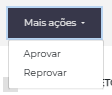
Bulk approve and reject require confirmation ("Do you want to approve all selected?" / "Do you want to reject all selected?").

Individual moderation screen
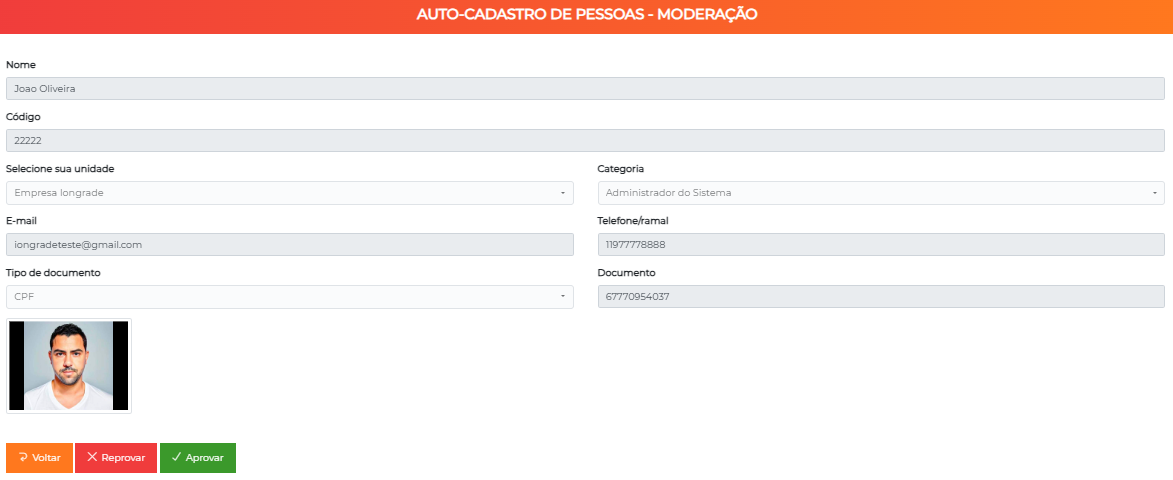
When you click Moderate, the self-registration record opens with the provided data (name, code, unit, category, email, phone, document type/number, and photo), in read-only mode. From it, the operator can:
| Button | Effect |
|---|---|
| Back | Returns to the list without deciding |
| Reject | Discards the self-registration (requires confirmation) |
| Approve | Creates/updates the person and removes the record from the queue |
What happens upon approval
When a self-registration is approved, ACCELERO:
- Creates or updates the person corresponding to the provided document — if a Person with that document already exists, it is updated with the form data; otherwise, a new one is created. Name, document (type and number), email, phone, and code are recorded.
- Links the unit/company selected in the form, with the person marked as pre-authorized and authorizing in that company.
- Assigns the Initial category defined in the plugin configuration.
- Imports the submitted photo, saving it as the person's photo.
- Removes the record from the moderation queue.
When a self-registration is rejected, the pending record is simply discarded and no person is created or changed.
Since approval uses the document as the key, approving a self-registration whose document already belongs to a registered person updates that person (and adds the company link and the category), instead of generating a duplicate registration. The Duplicate column of the moderation list helps identify these cases before deciding.
Notifications
When a person completes the self-registration, the plugin generates an internal notification ("A person self-registered") to signal that there is a new record awaiting moderation.
In the Operator editing screen, in the notifications section, you can enable the Person self-registration option so that the operator receives these alerts.
Notifications section in the operator editing screen, highlighting the Person self-registration option.
Use cases
Enable self-registration for a unit
- Request the installation of the
autoenrollhostsplugin from IONGRADE. - In
Settings > Plugins - person self-registration, turn on the Status. - Define the Required fields and the Initial category.
- Fill in the Access address (token) and click Save.
- Click Generate QR Code and share the link/QR Code with the desired audience.
Moderate the received registrations
- Access Moderation in the side menu.
- Check the Duplicate column and open the records in Moderate to review the data and the photo.
- Approve the valid registrations (the person is created/updated with unit and category) or Reject the improper ones.
- For large volumes, use the bulk actions in More actions.
Best practices
- Own access token: use a URL token that is easy to share and specific to the context, avoiding exposing generic links.
- Dedicated initial category: point the Initial category to a triage category (e.g., "Awaiting validation"), making it easier to handle the recently approved people later.
- Restricted permission: grant the moderation permission only to those who should approve registrations.
- Review duplicates: before approving, look at the Duplicate column to understand whether the approval will update an already existing person.
- Turn off when not in use: keep the Status off outside registration campaign periods, so that the public form is not accessible.
Troubleshooting
The public form does not open
Possible causes:
- Plugin with the Status off.
- The Access address token is different from the one in the shared URL.
Solution:
- In
Settings > Plugins - person self-registration, confirm that the Status is on. - Check that the configured token matches the final part of the shared URL.
The submission is rejected due to duplicate data
Possible causes:
- A pending self-registration with the same document already exists.
- The document already corresponds to a registered person.
Solution:
- Check the Moderation queue for a pending record with the same document.
- Check in People whether the person already exists.
The Moderation item does not appear in the menu
Possible cause:
- Operator without the Resident self-registration - moderation (
autoenrollmoderate) permission.
Solution:
- Grant the permission to the operator's Profile.
Integration with other modules
People
The approval of a self-registration creates or updates a Person, including name, document, contact, and photo.
Companies and Categories
Each registration is linked to the Company/unit chosen in the form and receives the initial Category defined in the plugin configuration.
Operators and Profiles
Moderation depends on the autoenrollmoderate permission, assigned through Profiles, and notifications of new registrations can be enabled in the Operator editing screen.
Next Steps
- Visitor self-registration — Public registration aimed at visitors
- People — Entity created/updated upon approval
- Categories — Define the plugin's initial category
- Companies — Units available in the form
- Profiles — Grant the moderation permission
- Plugins — Learn more about ACCELERO's plugin system