Visitor Check-in
ACCELERO allows the visit approval flow to be decentralized to provide greater security and better process traceability.
The Problem with the Traditional Model
In the traditional procedure, a visitor is approved by a system operator (usually a gatekeeper) who makes a phone call to the host being visited.
Limitations
This model brings at least two problems:
| Problem | Description |
|---|---|
| 1. Lack of traceability | There is no record of who "actually" authorized it. The gatehouse-host communication is not recorded. The process happens "by word of mouth" |
| 2. Gatehouse dependency | It requires the physical presence of an operator for release, which may not be desirable, practical, or economically reasonable |
In the traditional model, all logs point to the operator as the one responsible for the approval, when in fact it was the host who authorized it.
Solution: Visitor Check-in
ACCELERO introduces the concept of visitor check-in to solve both problems.
Benefits
- Traceability: The host (or a delegate) is effectively responsible for the authorization
- Decentralization: The host authorizes remotely, without the need for a physical gatehouse
- Auditing: The system records who actually authorized the visit
- Efficiency: A faster process with no intermediaries
The host (or delegate) is effectively responsible for releasing the visitor's access, with everything recorded in the logs.
Basic Flow
1. Visitor schedules the visit (app, web, gatehouse)
   ↓
2. Visit gets the status "Registered" or "Check-in"
   ↓
3. Visitor arrives and performs check-in
   ↓
4. Host receives a notification to authorize
   ↓
5. Host authorizes or declines remotely
   ↓
6. Visitor may (or may not) gain access
   ↓
7. Everything is recorded in the log
Check-in Methods
There are two distinct ways for the visitor to perform check-in. Each method solves a different type of problem.
There is no restriction on using one, the other, or both methods simultaneously.
1. Check-in Controllers
You can configure specific controller channels as "check-in channels".
Configuration
Path: Settings > Controllers > [Select controller] > Channels
Field: "Check-in channel"
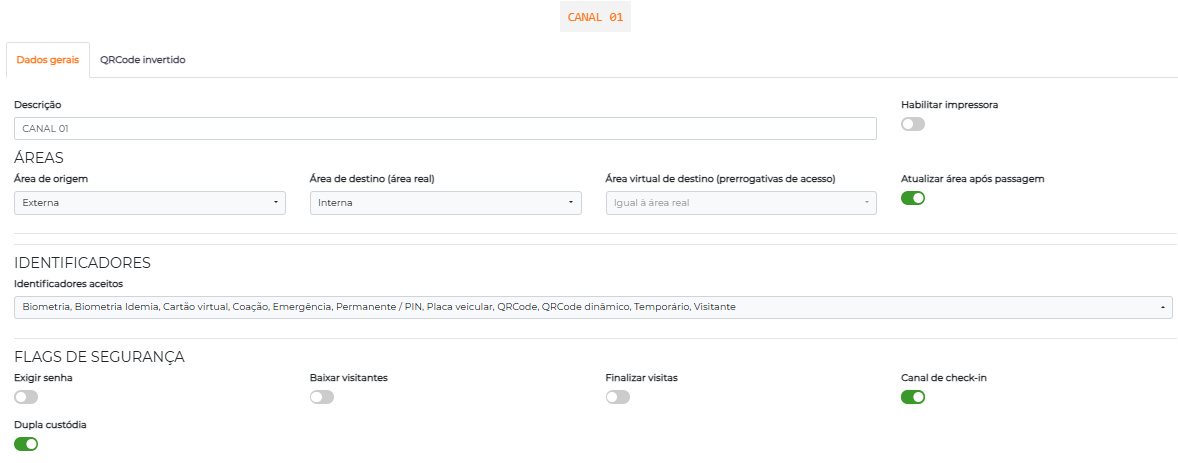
Behavior
When a visitor requests access at a check-in channel:
- Unauthorized visits are NOT blocked (at least not for that reason)
- After confirming passage, the event has its status automatically changed to "Check-in"
- Notifications are sent to the host (as configured)
Typical use:
- Self-service kiosk at the reception
- Main entrance turnstile
- Gatehouse without a physical gatekeeper
2. Manual Check-in
Check-in can be performed manually by an operator (usually the gatehouse).
How to Do It
Path: Visits > Schedules > [Select visit]
- Instead of clicking "Authorize"
- Click "Check-in"
- The status changes to "Check-in"
- Notifications are sent to the host
Typical use:
- Gatehouse with human attendance
- Visitor without a smartphone
- Special cases that need initial validation
The operator decides whether to check in or authorize directly, depending on the situation.
Notifications for the Host
When a visitor performs check-in, ACCELERO checks whether it is necessary to send approval notifications.
Verification Process
The system performs verification in two stages:
- Configuration of the visited company
- Configuration of the visited person (when applicable)
Stage 1: Company Configuration
Path: Settings > Companies > [Select company] > Check-in notification
Available Options
| Configuration | Description | When to Use |
|---|---|---|
| No notification | No notification is generated | The operator monitors the system constantly |
| Notify linked operators | Pop-up for logged-in operators linked to the company | There is a local front-desk/reception |
| Notify hosts | The host themselves is notified directly | There is no front-desk at the company |
No Notification
When to use:
- A 24h gatehouse monitors the screen constantly
- A fully manual process
How it works:
- No automatic notification
- The operator must check the schedules screen periodically
In this mode, it is critical that operators monitor the system, or visits may be left waiting indefinitely.
Notify Linked Operators
When to use:
- The company has its own reception/front-desk
- The company wants to control authorizations centrally
How it works:
- A pop-up type notification is generated
- Sent to operators who:
- Are linked to that company
- Are logged in to the system
- Have enabled this type of notification
- The operator clicks the notification
- They can approve or decline the visit
Operator configuration:
Path: Settings > Operators > [Select operator] > Notifications
Enable: "Receive check-in notifications"
See Operators - Notifications.
This is the recommended option when there is a front-desk at the visited company, such as a local reception.
Notify Hosts
When to use:
- There is no front-desk at the company
- Each person manages their own visitors
- Maximum decentralization is desired
How it works:
- The system moves to Stage 2 of verification
- It attempts to issue notifications directly to the visited people
- Each person has their own preferences
This is the recommended option when there is no front-desk at the visited company.
Stage 2: Host Configuration
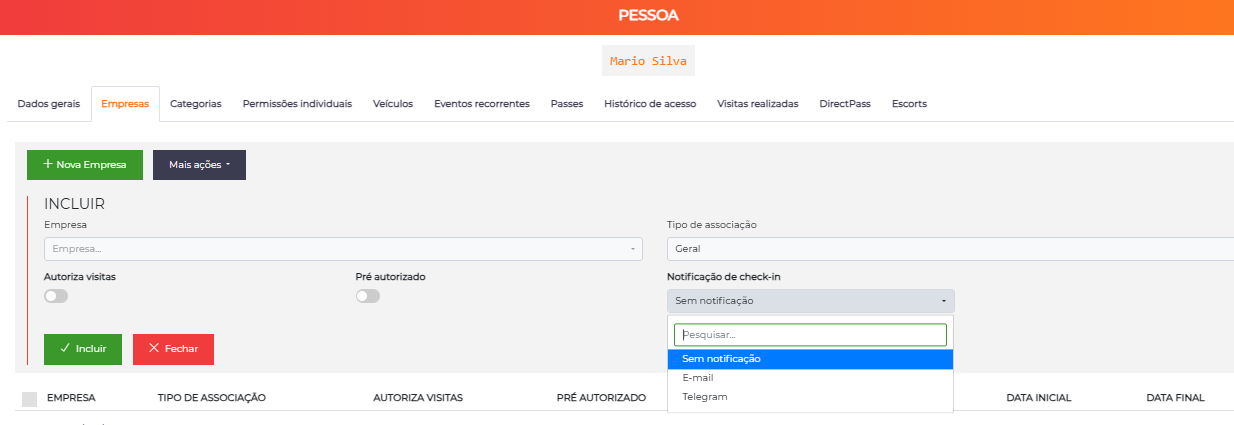
If the company is configured to "Notify hosts", the system checks the individual preferences of each person.
Path: People > All > [Select person] > Companies tab
Configuration per Company
A person can have different configurations for each company:
| Person | Company A | Company B |
|---|---|---|
| João Silva | Email + SMS | Email only |
| Maria Santos | Email + Telegram | No notification |
Available fields:
- Email: Send an email when the visitor checks in
- SMS: Send an SMS (requires a contract with a broker)
- Telegram: Send a Telegram message (requires that the person follows the bot)
- Push notification: Push notification in the app (requires the app)
If the person is associated with more than one company, you can define specific rules for each company.
Notifications for the Visitor
When a visit with the "check-in" status is authorized, notifications can be sent directly to the visitor.
Purpose
Improve the user experience:
- The visitor knows they have been authorized
- They don't have to keep asking at the gatehouse
- A transparent and agile process
Configuration
During the process of creating the visit with the "Check-in" status:
Path: Dashboard > Visitors > Quick registration
The operator sees the notification options available to the visitor.
Notification Methods
| Type | Description | Requirement |
|---|---|---|
| Configurable email for the visitor | Always available | |
| SMS | SMS to the visitor's phone | Contract with an SMS broker |
| Telegram | Telegram message to the visitor | Visitor must follow the bot |
Some notification methods depend on specific licenses.
Template Configuration
Text templates and credentials for third-party services:
Path: Advanced > System > Integrations - Check-in notification for visitors
What to configure:
- Email template
- SMS template
- SMS broker credentials
- Telegram bot settings
See Plugins for details of each integration.
Use Cases
Scenario 1: Residential Condominium
Configuration:
Company: Each apartment
Check-in notification: Notify hosts
Visitor notification: Email + SMS

Check-in method: Check-in controller at the gatehouse
Operation:
- The resident schedules a visitor through the app
- The visitor arrives and presents an identifier at the gatehouse
- The resident receives a notification on their phone (SMS)
- The resident authorizes remotely
- The visitor receives an SMS: "Authorized, you may enter"
- The visitor presents the identifier again and gains access
Scenario 2: Corporate Building with Reception
Configuration:
Company: Each company in the building
Check-in notification: Notify linked operators
Visitor notification: Email

Check-in method: Manual check-in by the receptionist
Operation:
- The visitor arrives without a schedule
- The receptionist registers the visit and performs a manual check-in
- The receptionist at the visited company receives a pop-up
- The company receptionist validates and authorizes
- The visitor receives an authorization email
- The building receptionist releases access
Scenario 3: Virtual Gatehouse (No Gatekeeper)
Configuration:
Check-in notification: Notify hosts
Visitor notification: Email + Telegram

Check-in method: Check-in controller (automatic)
Operation:
- The visitor schedules through the app
- Arrives and presents a QR Code at the reader
- The system performs automatic check-in
- The host receives a notification
- The host authorizes through the app
- The visitor receives confirmation
- Presents the QR Code again and gains access
- All without human intervention
Check-in Monitor
To view visits in check-in, use the Check-in Monitor. By default, each card is identified by a locator (preserving the visitor's data); optionally, the Show visitor name on the check-in monitor? setting starts displaying the visitor's name, making visual identification easier.
See Logs and Monitoring - Check-in Monitor for details.
Best Practices
-
Choose the appropriate model: Analyze whether or not you have a front-desk
-
Configure multiple notifications: Email + SMS to ensure delivery
-
Train hosts: Teach them how to authorize visits remotely
-
Use the check-in monitor: Display it on a TV at the reception
-
Configure clear templates: Messages should be objective
-
Test regularly: Validate that notifications are arriving
-
Have a plan B: What to do if the host does not respond?
-
Configure timeout: Authorize automatically after X minutes or require manual action
-
Document the process: SOPs for each type of situation
-
Monitor metrics: Average authorization time, approval rate
Integration with Apps
Check-in works perfectly integrated with visitor apps:
- Livo: App for residents and visitors
- PodeSubir: Management of visits and deliveries
- SigmaApp: Corporate visitors
See the Integrations section for details of each app.
Reports
Available reports:
- Visits by status: How many are awaiting check-in
- Authorization time: How long it takes for the host to approve
- Approval rate: % authorized vs. declined
- Visitors by period: Flow analysis
See Reports for details.
Troubleshooting
The host does not receive the notification
Possible causes:
- Incorrect email/phone in the registration
- Notifications disabled
- Problem with the SMS/Telegram broker
Solution: Check the registration and settings
Check-in does not work on the controller
Cause: The channel is not configured as a "Check-in channel"
Solution: Configure the channel correctly
The operator does not receive the pop-up
Causes:
- Not linked to the company
- Notifications disabled in the profile
- Not logged in
Solution: Check the link and permissions
Next Steps
- Events - Understand the complete management of visitors
- Logs and Monitoring - Use the Check-in Monitor
- Operators - Configure notifications
- Companies - Configure notifications per company