DirectPass
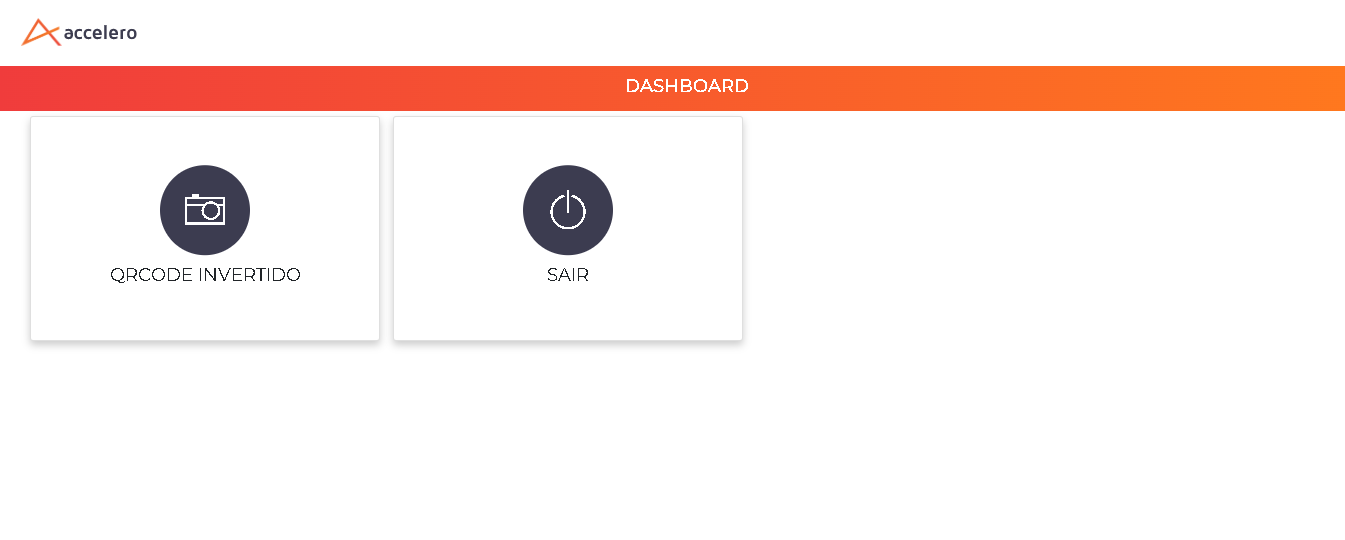
DirectPass turns the user's smartphone into the means of access. Instead of a reader installed at the access point, the user enters a web portal (with email and password) and, from there, releases access — whether by reading a fixed QR Code affixed to the door (inverted QR Code), or by presenting a QR Code generated on the phone to a reader (dynamic QR Code). The system's permission rules still apply: the opening only occurs if the user has authorized access to that area.
DirectPass is a licensed feature and has a limit of active users defined in the license. Once the limit is reached, it is not possible to enable new users until space is freed up. See Licensing.
What it is for
The main benefit of DirectPass is to eliminate the reading hardware at the access point. Instead of installing and maintaining a reader (with cabling, power, and infrastructure), the reading device becomes the user's own phone.
This makes access control viable at points where installing a reader would be expensive, unfeasible, or unnecessary, while maintaining the same permission rules of the system.
Use cases
- Secondary doors and points where the cost of a dedicated reader is not justified.
- Sporadic or low-traffic access, where the convenience of the QR Code pays off.
- Expanding environments, allowing new points to be released quickly without infrastructure work.
- Inviting visitors, letting the user themselves create events and release access for third parties through the portal.
Since it is a remote release, DirectPass depends on an internet connection at the time of access.
The DirectPass portal
The user accesses the portal through the client's address followed by /DirectPass, authenticating with email and password.
example: demo.accelerobr.com.br/DirectPass
Within the portal, the available functions depend on the permissions assigned to the user (see Configure the user):
| Function | What it does |
|---|---|
| Inverted QR Code | The phone reads a fixed QR Code affixed to the door and releases access — no reader at the point |
| Dynamic QR Code | The portal generates a QR Code on the phone to be presented to a QR reader |
| Events | Allows creating invitations and releasing access for visitors (see Events and invitations) |
| My data | The user edits their own data and changes the password for portal access |
Activation
Step 1: Create the inverted QR Code on the channel
Define which channel will be released by the inverted QR Code. Go to Settings > Controllers, edit the controller of the desired channel, and go to the Channels tab. On the channel, click Advanced and locate the Inverted QR Code submenu.
Set the start and end validity and, if necessary, enable Origin control. Click Add.
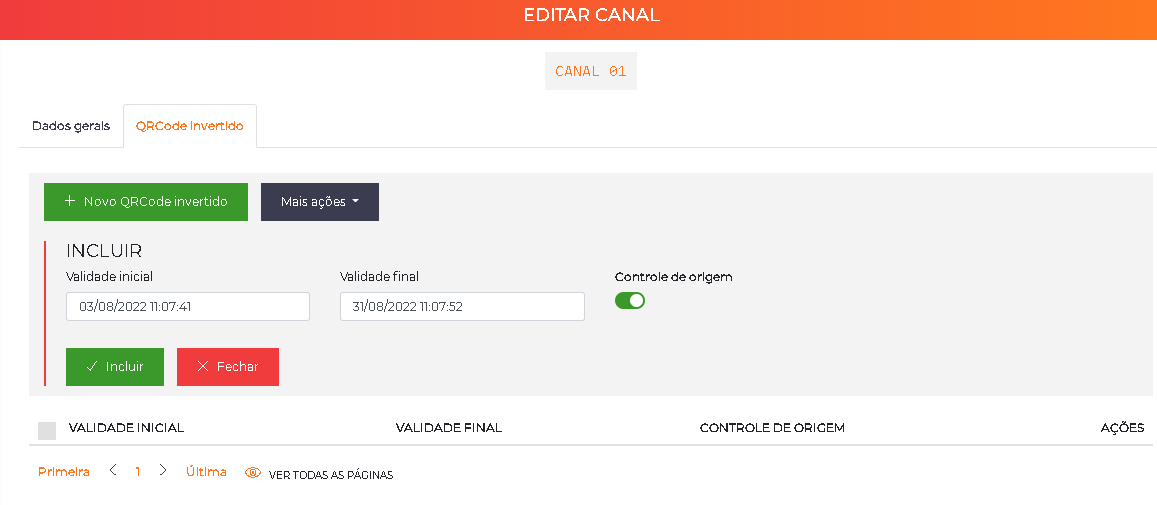
Once created, print the fixed QR Code using the print icon next to the record and install it at the access point.
Step 2: Configure the user
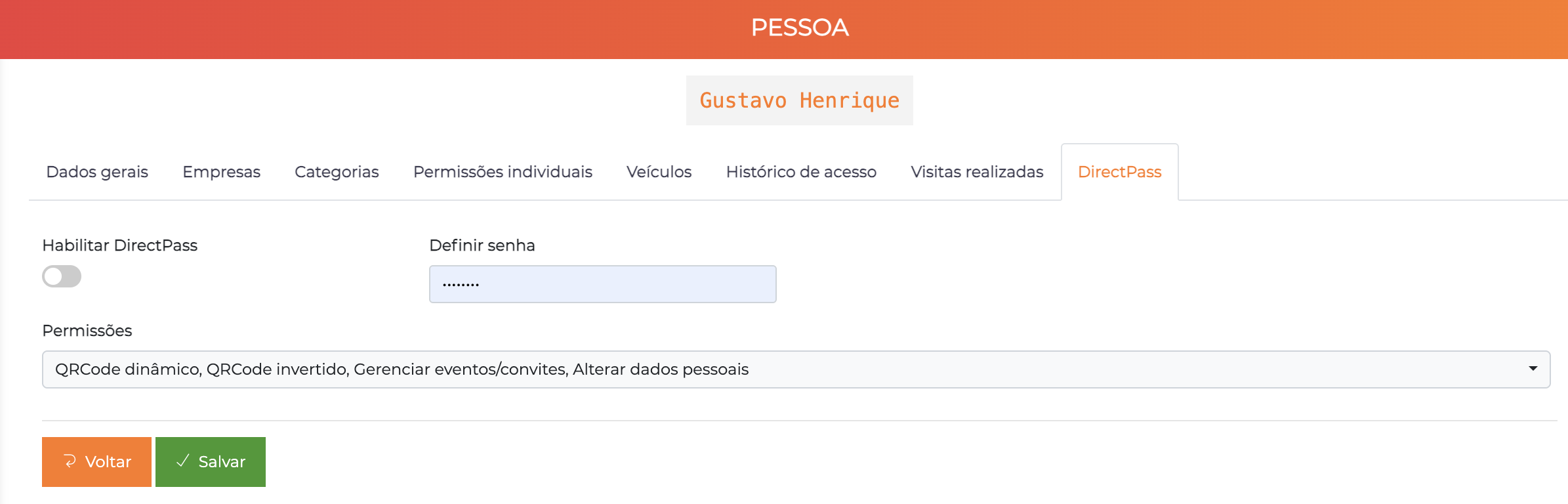
Go to People > All, locate the user, and click edit. On the General data tab, enter an email — it is required, since it will be used for login to the DirectPass portal.
Then go to the DirectPass tab and:
- Enable Enable DirectPass;
- In Set password, register the portal access password;
- In Permissions, select what the user will be able to do in the portal:
| Permission | Releases in the portal |
|---|---|
| Inverted QR Code | Read the door's fixed QR Code |
| Dynamic QR Code | Generate a dynamic QR Code on the phone |
| Manage events/invitations | Create events and invite visitors |
| Change personal data | Edit their own data and password |
Enabling DirectPass and granting the portal permissions does not grant access to the areas. Check whether the user has the categories that allow access to the areas where DirectPass will be used.
Step 3: Use the access
In the portal, the user taps Inverted QR Code, enables the camera, and scans the fixed QR Code installed at the access point — the barrier is released. For points with a QR reader, they use the Dynamic QR Code, presenting the code generated on the phone.
Events and invitations
Users with the Manage events/invitations permission can, through the portal itself, create events and release access for visitors, without depending on a system operator.
When creating an event, the user defines a period (start and end date) and adds the guests. For each guest, the system generates an access link that can be sent to the visitor. The host can authorize or cancel guests individually, and cancel the entire event when necessary.
This flow puts the invitation in the hands of the user themselves (the host), reducing the need for intervention from the gatehouse or an operator to release visits.
Flow and usage suggestions
Door without a reader (inverted QR Code)
A secondary meeting room receives a fixed QR Code printed on the door. An authorized employee opens the DirectPass portal on their phone, taps Inverted QR Code, scans the code, and enters — without having needed to install a reader at that point.
Self-service visit (Events)
An employee is going to receive a client. Through the portal, they create an event for the afternoon, add the client as a guest, and send the generated link. The client uses the link to have access released at the scheduled time, without going through the gatehouse queue.