PET Registration
The PETS plugin adds to ACCELERO a registration of animals (pets) linked to companies. Each PET records basic data about the animal — name, species, breed, color, gender, and date of birth — and receives its own QR Code, which can be printed and read later to quickly locate the animal's registration.
This feature is provided as a plugin (pets) and must be installed and enabled by the IONGRADE technical team. Contact support to check compatibility with your version of ACCELERO.
Current plugin version: 0.0.2 — compatible with ACCELERO 2.16.5 and 2.16.6.
What the plugin does
| Feature | What happens in ACCELERO |
|---|---|
| PET registration | Records animals with name, date of birth, species, gender, breed, color, linked company, and notes |
| Link with company | Each PET is associated with a company registered in ACCELERO |
| PET QR Code | Each PET receives a QR Code with its identifier and name, which can be printed |
| Search by QR Code | The camera reads a PET's QR Code and opens the corresponding registration directly |
Centralizes the registration of animals in ACCELERO and allows locating a PET's record just by reading the QR Code with the camera, without needing to search manually.
Configuration
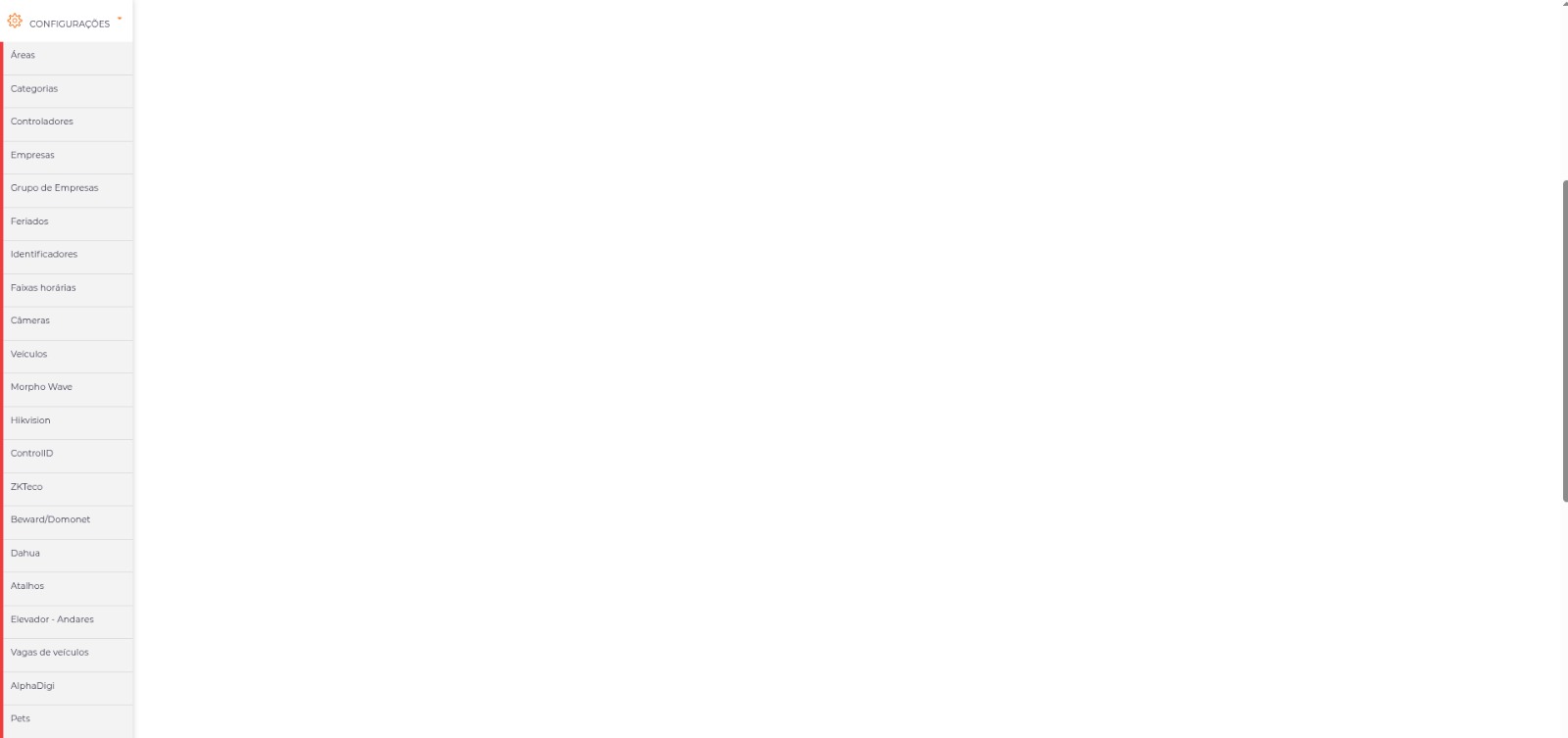
Navigation path: Settings > Pets
The plugin adds the Pets item to the Settings menu. There is no additional parameters screen: when you click the item, ACCELERO opens the PET listing directly.
PET listing
The main screen lists all registered PETS.
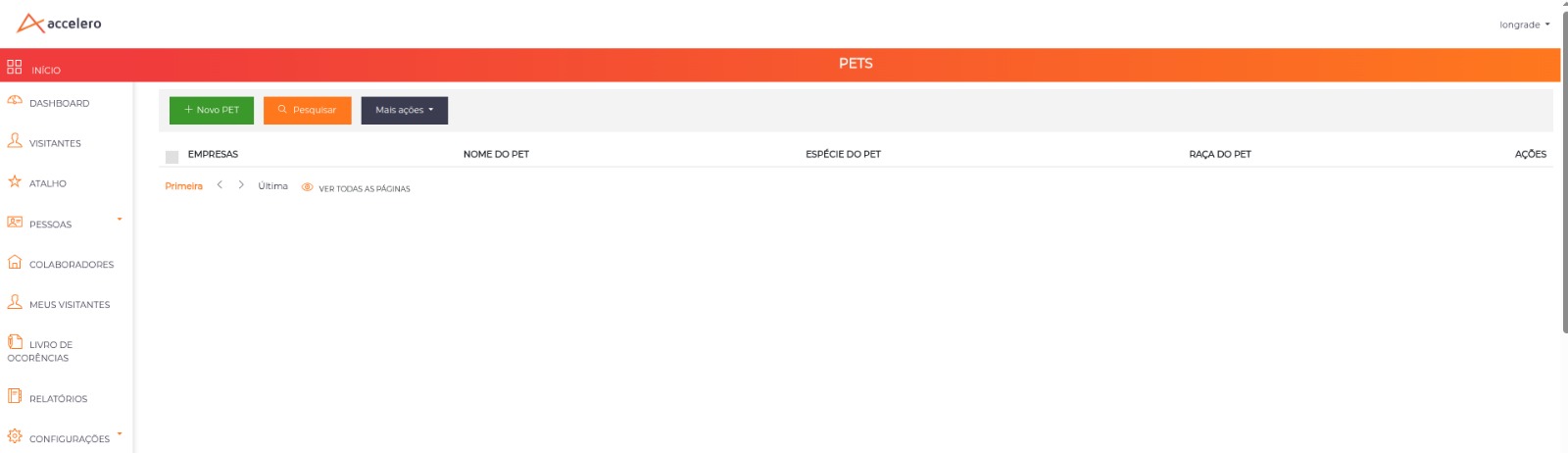
Columns
| Column | Content |
|---|---|
| Company | Company linked to the PET (the label follows the company nomenclature configured in the system) |
| PET Name | Name of the animal |
| PET Species | Selected species (Dog, Cat, Bird, Fish, Rodent, Reptile, or Other) |
| PET Breed | Provided breed |
| Actions | Button to edit the registration |
Screen buttons and actions
| Button / Action | Function |
|---|---|
| New PET | Opens the inline form to register a new PET directly in the listing |
| Search | Opens the search field by PET description (name) |
| More actions > Delete | Bulk deletes the PETS selected in the list |
| More actions > Search PET | Opens the Search by QR Code screen |
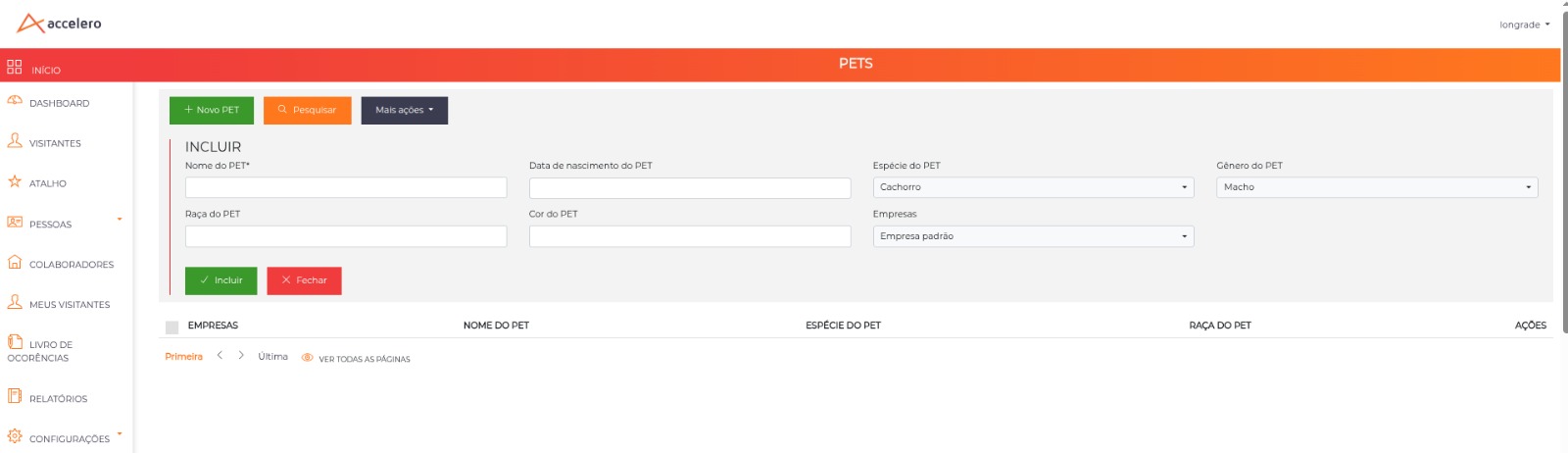
Quick registration (New PET)
The New PET button opens an inline form with the fields:
| Field | Description |
|---|---|
| PET Name | Name of the animal (required) |
| PET Date of birth | Date of birth of the animal |
| PET Species | List: Dog, Cat, Bird, Fish, Rodent, Reptile, Other |
| PET Gender | Male or Female |
| PET Breed | Breed of the animal |
| PET Color | Color of the animal |
| Company | Company to which the PET is linked (required) |
PET editing
When you click to edit a row in the listing, the Edit PET screen opens with the animal's complete registration.
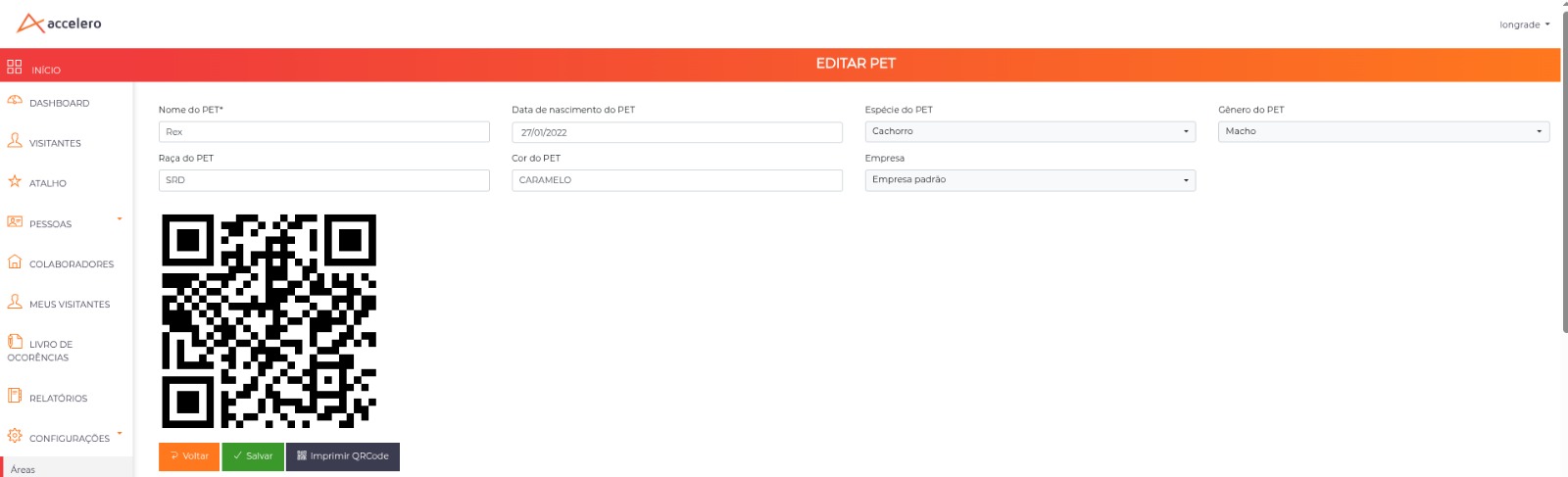
Fields
| Field | Description |
|---|---|
| PET Name | Name of the animal (required) |
| PET Date of birth | Date of birth of the animal |
| PET Species | Dog, Cat, Bird, Fish, Rodent, Reptile, or Other |
| PET Gender | Male or Female |
| PET Breed | Breed of the animal |
| PET Color | Color of the animal |
| Company | Company linked to the PET (required) |
The plugin's table also has a notes field for the PET. Its presence on the screens in use was not confirmed in the hardcode.
PET QR Code
On the editing screen, ACCELERO displays a QR Code automatically generated for the PET. This QR Code encodes the identifier (petID) and the animal's name.
| Button | Function |
|---|---|
| Save | Persists the PET registration |
| Back | Returns to the listing |
| Print QR Code | Generates a printout of the PET's QR Code for tagging/physical identification |
Print the QR Code and attach it to the animal (e.g., on the collar) or to a record card. Then just use Search by QR Code to open the PET's registration directly.
Search by QR Code
Navigation path: in the PET listing, More actions > Search PET.
This screen uses the device's camera to read a PET's QR Code and open the corresponding registration.
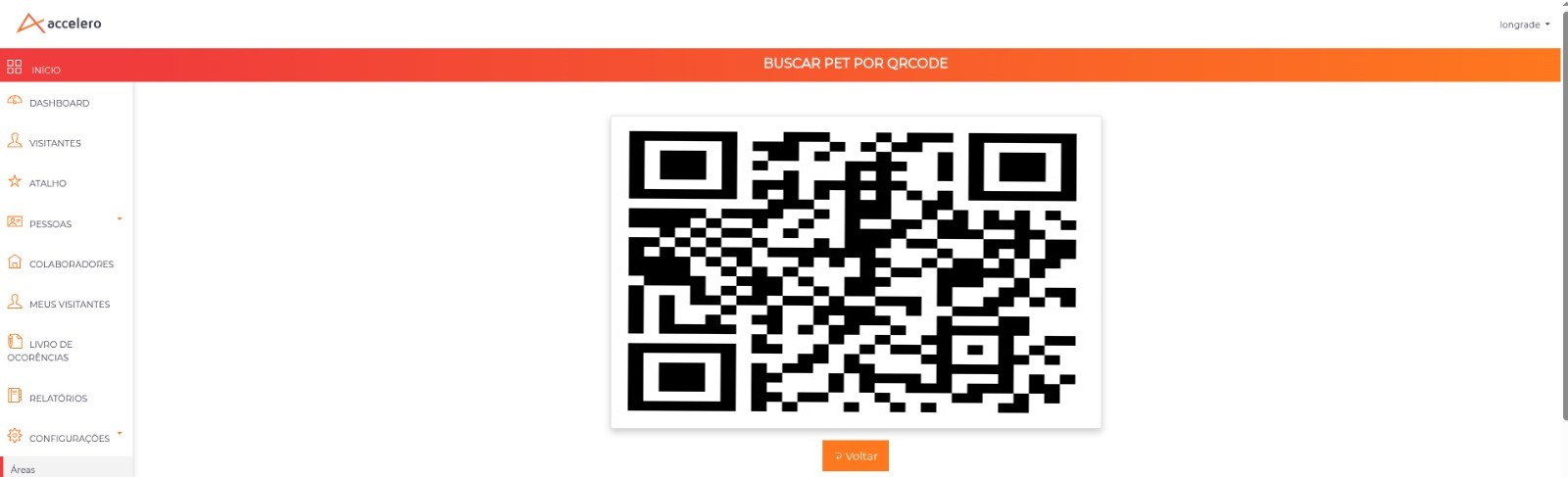
How it works
- The screen activates the device's camera (prioritizes the rear camera, when available).
- Upon detecting a valid PET QR Code, ACCELERO identifies the encoded
petID. - The system automatically redirects to the edit PET screen for the corresponding animal.
The reading requires access to the device's camera. In browsers, it is necessary to authorize the use of the camera when requested.
Permissions
The plugin creates dedicated permissions for PET control, which can be assigned to the operator profiles:
| Permission | Description |
|---|---|
| Pet - List all | View the PET listing |
| Pet - Edit | Edit PET registrations |
| Pet - Create new | Register new PETS |
| Pet - Delete | Delete PETS |
Use cases
Register a new PET
- Go to
Settings > Pets. - Click New PET.
- Fill in at least PET Name and Company (required fields) and the other desired data.
- Save. The PET now appears in the listing.
Generate and print a PET's QR Code
- In the listing, edit the desired PET.
- Check the QR Code displayed on the editing screen.
- Click Print QR Code to generate the printout.
Locate a PET by QR Code
- In the listing, open More actions > Search PET.
- Authorize access to the camera and point it at the PET's QR Code.
- ACCELERO automatically opens the registration of the read PET.
Best practices
- Always link to a company: the link with a company is required and organizes the query of animals by company.
- Use species from the standard list: prefer the predefined options (Dog, Cat, etc.) to keep the listing consistent; use Other only when necessary.
- Print the QR Code at registration: generating the QR Code right after registration speeds up later physical identification.
- Assign the correct permissions: restrict Pet - Delete only to the profiles that should actually remove registrations.
Troubleshooting
The "Pets" item does not appear in the Settings menu
Possible causes:
- Plugin not installed or enabled.
- Operator without the PET listing permission.
Solution:
- Confirm with IONGRADE whether the
petsplugin is installed and enabled. - Check whether the operator's profile has the Pet - List all permission.
The QR Code search does not read the code
Possible causes:
- Camera permission denied in the browser/device.
- No camera available.
- Damaged or low print-quality QR Code.
Solution:
- Authorize access to the camera when the browser requests it.
- Confirm that the device has a functional camera.
- Reprint the QR Code from the PET editing screen, if necessary.
Integration with other modules
Companies
Each PET is mandatorily linked to a registered company. See Companies to understand the registration to which PETS are associated.
The "Company" label on the PET screens follows the company nomenclature configured in ACCELERO (which may vary depending on the system's customization).