PDF Reports
The PDF Reports plugin adds to ACCELERO the native export of reports to PDF. Without it, reports can be generated on screen and exported to CSV; with the plugin active, an option appears to generate a formatted PDF file directly from the report list, ready for printing, filing, or sending.
This resource is provided as a plugin (pdfreport) and must be installed and enabled by the IONGRADE technical team. Consult support to check compatibility with your version of ACCELERO.
Current plugin version: 1.0.0 — compatible with ACCELERO 2.17.0 or higher.
What the plugin does
With the plugin active, the reports screen starts to offer PDF generation as one more output format, alongside the existing export.
| Feature | What happens in ACCELERO |
|---|---|
| PDF export | Generated reports gain the option to download as a formatted PDF file |
| PDF with signature | Generates the PDF including a signature field in the document header |
| PDF without signature | Generates the PDF without the signature field |
| Standardized header | The PDF includes the system's header/visual identity, the report title, the filters used, and the record count |
Replaces browser printing with a native, formatted, and standardized PDF, with a record of the applied filters and the number of records.
How to export a report to PDF
Navigation path: Reports — generate the desired report and open the export menu in the report list.
After the report is processed, open the export options menu of the corresponding row. In addition to the existing options, the plugin adds two entries for PDF:
| Option | What it generates |
|---|---|
| Download PDF (with signature) | PDF file including the signature field in the header |
| Download PDF (without signature) | PDF file without the signature field |
When you select one of the options, ACCELERO assembles the document and makes the download.pdf file available for download.
These entries share the same Actions menu with the on-screen viewing options (View on screen, with and without signature), the CSV export (with and without signature) and Delete.
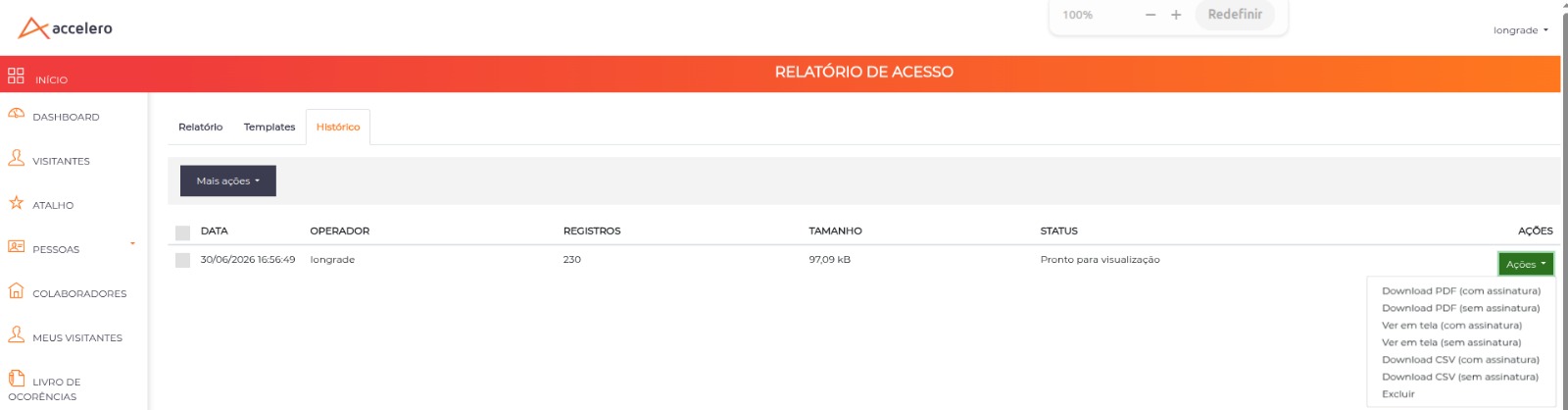
The exact labels of the options (report.exportPDF.signature and report.exportPDF.nosignature) are defined by ACCELERO's dictionary. The descriptions "with signature" / "without signature" above reflect the behavior of each option.
PDF file content
The generated PDF follows a standardized layout, assembled from the system's common header:
| Element | Description |
|---|---|
| Header | System's visual identity (login logo/header) and favicon |
| Title | Title of the exported report |
| Signature | Signature field — displayed only when the PDF (with signature) option is chosen |
| Filters used | Summary of the filters applied in the report generation |
| Record count | Total number of records included in the report |
| Data table | The report data, with the same column headers as the on-screen version |
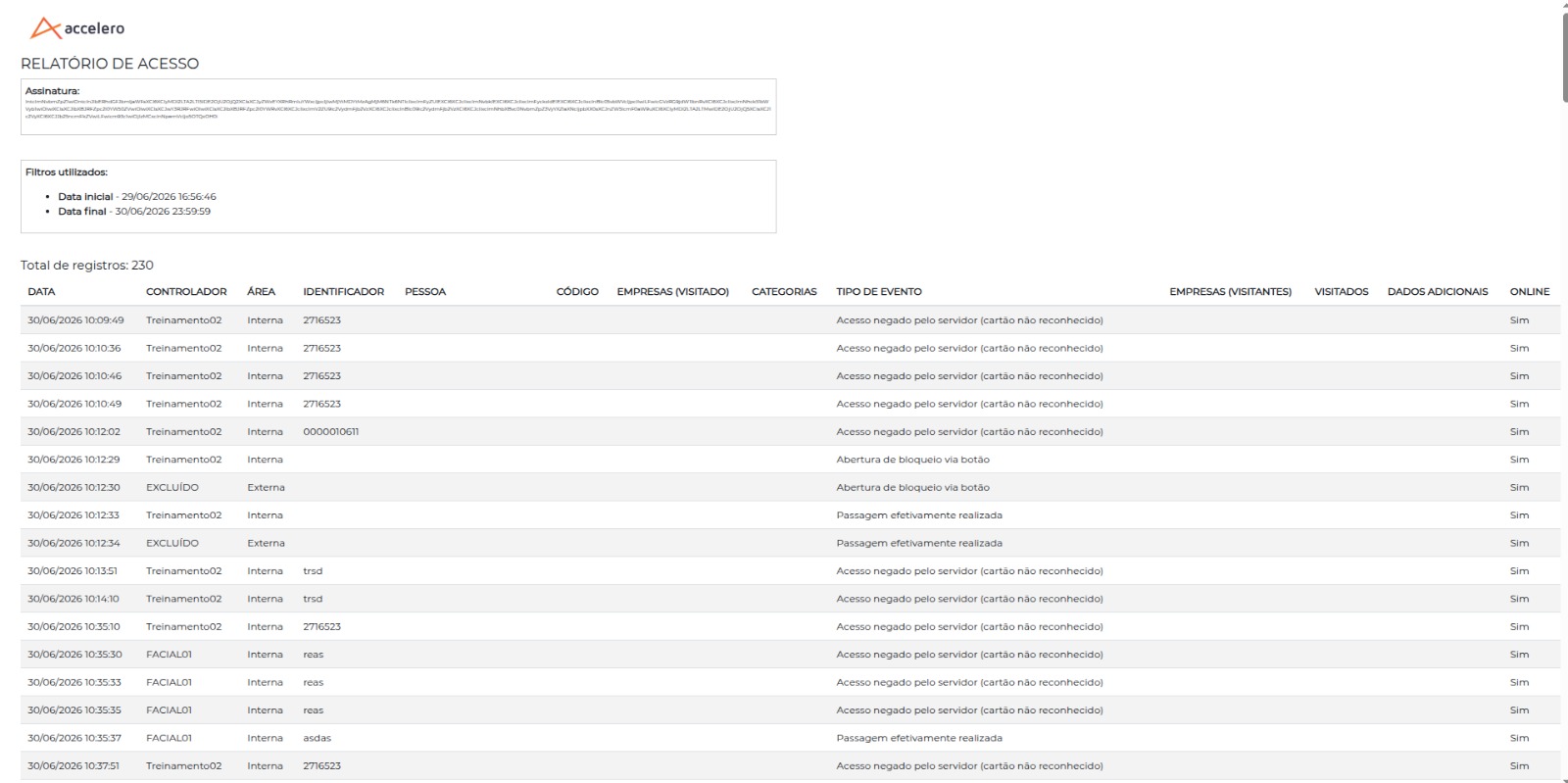
Record limit
PDF export has a maximum limit of 1.000 records per file. Reports with more records than this limit are not exported to PDF and the system displays the message:
The maximum number of records possible to export PDF files is 1000!
For data sets larger than 1.000 records, refine the report filters to reduce the volume or use the CSV export, which is more suitable for large volumes and analysis in spreadsheets. See Reports.
Use cases
Generate a signable PDF for physical filing
- Go to Reports and generate the desired report with the necessary filters.
- In the export menu of the report's row, choose PDF (with signature).
- Download the
download.pdffile — it will contain a signature field for manual review/validation.
Generate a PDF for sending or quick review
- Generate the report with the desired filters.
- Choose PDF (without signature) in the export menu.
- Download the PDF file, already with the filters used and the record count recorded in the header.
Best practices
- Refine the filters before exporting: in addition to making the report more readable, it avoids hitting the 1.000-record limit.
- Use CSV for large volumes: PDF is ideal for review and filing documents; for analysis of many records, prefer CSV.
- Choose "with signature" only when necessary: the signature field makes sense in documents that will be validated manually; for internal reviews, "without signature" keeps the document cleaner.
Troubleshooting
The PDF option does not appear in the export menu
Possible causes:
- The
pdfreportplugin is not installed or enabled. - ACCELERO version lower than the minimum compatible (2.17.0).
Solution:
- Confirm with IONGRADE support whether the plugin is enabled in the environment.
- Check the installed ACCELERO version.
The system reports that the number of records was exceeded
Cause: the report has more than 1.000 records, above the PDF export limit.
Solution:
- Refine the report filters to reduce the volume of records.
- If you need all the data, use the CSV export.
Integration with other modules
Reports
The plugin extends the Reports module, adding PDF as an output format in the report list. The filters, columns, and data are the same as the report generated on screen.