Hikvision Integration
The integration with Hikvision devices enables the use of facial recognition and LPR (license plate recognition) equipment in ACCELERO access control.
This feature requires the Hikvision module enabled in the license. See Licensing.
Overview
The Hikvision integration supports two main features:
| Feature | Description |
|---|---|
| Facial Recognition | Automatic synchronization of facial templates to Hikvision facial identification devices |
| LPR (License Plate Recognition) | Automatic capture of vehicle license plates with generation of access events. The Hikvision (and AlphaDigi) LPR can be disabled when not needed |
The integration is done through an ACCELERO/HIKVISION communication gateway (IONGRADE product). The gateway bridges the ACCELERO servers and the Hikvision devices.
Navigation path: Advanced > System > Integrations - Hikvision
Homologated models
| Type | Models | Integration mode |
|---|---|---|
| Facial | DS-K1T342, DS-K1T671, DS-K1T672, DS-K1T673 | Direct or Neon Controller |
| LPR | IDS-2CD7A46G0/P-IZHS, IDS-2CD7A26G0/P-IZHS(Y), DS-TCG405-E | Neon Controller |
The Hikvision facial devices support Direct Mode — in which the equipment queries Accelero in real time and dispenses with the Neon Controller — provided that they use the remote check function, available only in the manufacturer's BR firmware. Without it, they operate only via the Neon Controller.
Explanation of the modes (Direct × Neon Controller) and the complete matrix with firmware/notes in Homologated Equipment.
Facial Recognition
Architecture and Requirements
The integration with Hikvision facial identification devices uses:
- ACCELERO/HIKVISION Gateway (IONGRADE product)
- Hikvision Devices for facial recognition
- ACCELERO Server with the module enabled
Data flow:
ACCELERO → Gateway → Hikvision Devices
        ← Status ←
General Settings
Path: Advanced > System > Integrations - Hikvision > Settings
Main Parameters
| Field | Description |
|---|---|
| Virtual card format | Data format used when sending registrations to the devices. Important: The format must be equivalent on the equipment's output and on the controllers' input. To use the integrated card reader, select Wiegand 34-bit Mifare |
| Additional identifier types to synchronize | In addition to facial templates, it allows sending standalone identifiers for use in the equipment's integrated reader |
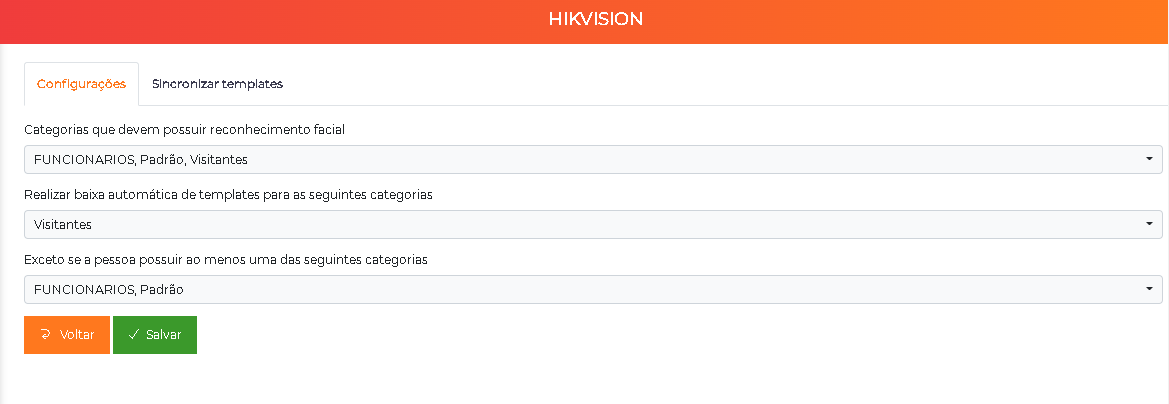
| Categories that must have facial recognition | Defines which categories will have facial templates generated and distributed. Example: disable for visitors |
| Automatically remove templates for the following categories | Categories whose templates are automatically deleted after passing through controllers with "Automatic visitor removal" |
| Except if the person has at least one of the following categories | Exception categories - people with these categories will never have their templates removed automatically |
| Remove orphan registrations daily | If enabled, the system performs automatic cleanup of templates that should not be on the devices |
NEVER change the "Virtual card format" field after the initial configuration!
If changed, it will be necessary to recreate all virtual identifiers. Consult IONGRADE technical support before modifying.
DO NOT enable "Remove orphan registrations daily" if you register templates directly on the Hikvision devices (without going through ACCELERO), as those templates will be deleted.
How to set up the categories: after registering the gateway and devices, go to Advanced > System and navigate to the Integrations - Hikvision submenu. Define, according to the client's needs, which categories use facial recognition and which undergo automatic template removal.
Always check the physical connections of the equipment — power, network, and the Wiegand connections on the desired controller — before putting the reader into operation.
Registering Gateways
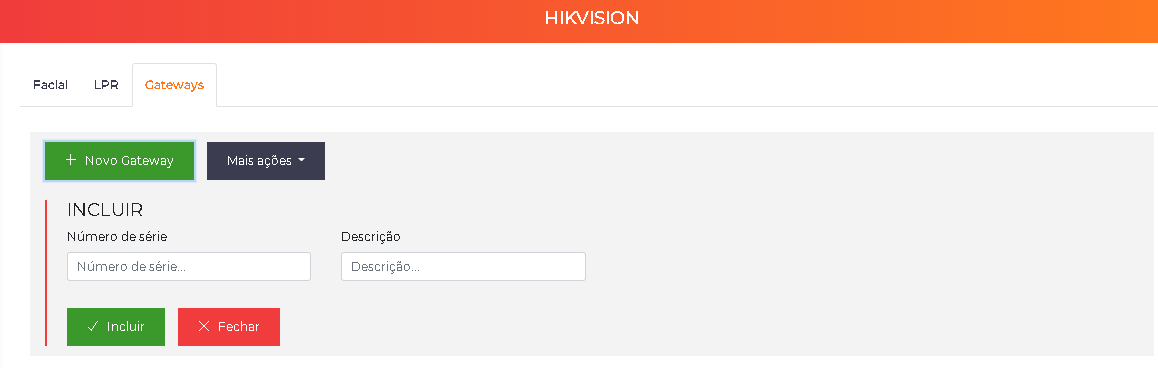
The gateway is the concentrator of the integration: it receives the registrations from the ACCELERO server and distributes them to all the facial readers pointed to it. Always start with the gateway configuration, since it is the one that manages the devices.
Before registering, make sure the gateway is connected to the internet network and to the power supply. Without this, communication will not be established.
Step by step:
- Go to the
Settings > Hikvisionmenu and select the Gateways submenu. - Click the option to add a new gateway.
- Fill in the fields below and save.
| Field | Description |
|---|---|
| Serial number | Serial number of the gateway, available on the label of the physical equipment. CRITICAL: The information must be correct or communication will fail |
| Description | Name/description of the gateway, at the client's choice |
Monitoring:
- ACCELERO ↔ Gateway communication status
- Gateway ↔ subordinate devices communication status
- Total number of person registrations in the usage statistics
Registering Devices
With the gateway configured, register the facial readers.
Step by step:
- Go to the
Settings > Hikvisionmenu and open the Devices submenu. - Click the option to add a new device.
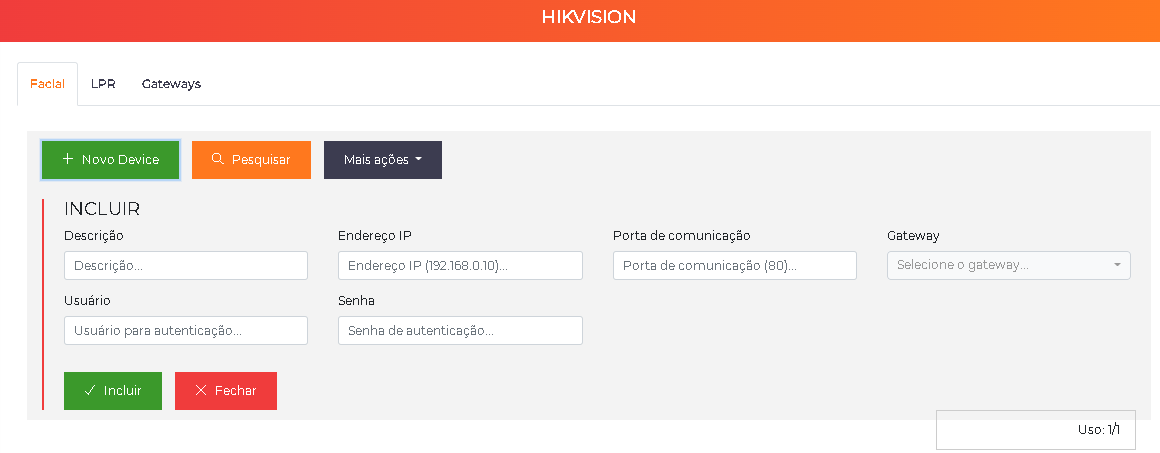
- Fill in the fields below and save.
| Field | Description |
|---|---|
| Description | Name/location of the equipment |
| IP address | IP of the facial reader on the network |
| Communication port | TCP port for communication. By default, 80 (some models use 8000) |
| User | Authentication user on the device. Fill in according to the configuration made on the equipment |
| Password | Authentication password. Fill in according to the configuration made on the equipment |
| Gateway | Gateway configured in the previous step, to which the device is subordinate |
| Synchronize only these categories | Additional filter of categories (in addition to the global filter). If empty, it synchronizes all categories configured globally |
| Active | If disabled, the device will not receive registration/deletion commands |
| Enable photo capture | If enabled, the device will appear as an option in the capture camera lists for operators |
The category filter works on two levels:
- Global (Settings): Defines allowed categories in the system
- Per device: Further filters which categories go to that specific device
Only categories that pass both filters will be synchronized.
Include a screenshot of the device registration screen showing all fields.
How Facial Synchronization Works
Automatic Synchronization
After the settings, synchronization happens automatically:
-
When saving a person's registration:
- The system checks whether the person has a category configured for facial recognition
- If so, it generates a template from the first photo of the registration
- It distributes the template to all active devices
-
Visual indicators on the photo:
- 🔴 Red icon: Templates not yet fully distributed
- 🔵🔵 Two blue icons: Templates distributed successfully
The first photo of the registration is always used for synchronization. Make sure:
- ✓ Good capture quality
- ✓ Good lighting
- ✓ Frontal framing of the person
- ✓ Neutral background (if possible)
Manual Synchronization (Resend)
Path: Advanced > System > Integrations - Hikvision > Synchronize templates
When to use:
- Replacing a device in the field
- Restoring after a failure
- Bulk update
How to do it:
- Select the desired devices
- Click Resend templates
- Wait for completion (it can take considerable time)
The resend time depends on the number of photos. For large systems (thousands of people), the process can take hours.
Include a screenshot of the template synchronization screen showing device selection and the resend button.
Automatic Visitor Removal
ACCELERO can automatically delete visitor templates after their exit to avoid fully occupying the device memory.
How It Works
When the deletion occurs:
-
When passing through a barrier with the "Remove visitors" flag:
- The system checks whether the person has a category from the "Automatically remove" list
- It checks whether the person does NOT have a category from the "Except if..." list
- If the conditions are met, it deletes the template from the devices
-
When closing/deleting an event:
- The same check above is performed
- Templates are removed automatically
Configuration example:
Automatically remove: VISITORS, CONTRACTORS
Except if the person has: EMPLOYEES, RESIDENTS

Result:
- Pure visitor: template will be deleted after exit ✓
- Visitor who is also an employee: template kept ✗
Automatic removal is essential in systems with high visitor traffic to:
- Avoid exhausting device memory
- Keep only active registrations
- Ensure facial recognition performance
LPR (Vehicle License Plate Recognition)
Architecture and Requirements
The Hikvision LPR integration also uses the ACCELERO/HIKVISION gateway.
Data flow:
LPR Device → Gateway → ACCELERO
                     → Generates access event
When the LPR identifies a plate, the system generates an access request on the configured controller/channel, applying the same access policy rules.
Gateway Configuration
Path: Settings > Hikvision > Gateways
Same configuration as facial recognition (shared gateway).
Registering LPR Devices
Path: Settings > Hikvision > LPR Devices
For each Hikvision LPR device:
| Field | Description |
|---|---|
| Description | Model/location of the LPR device |
| IP address | IP of the device on the network |
| Communication port | TCP port for communication |
| User | User for authentication |
| Password | Authentication password |
| Associated controller | Controller/channel where identified plates will be reported as access attempts |
The "Associated controller" field is critical: it defines which system channel will receive the access events when a plate is identified.
The access policy configuration of this channel will determine whether the vehicle is granted or denied access.
Include a screenshot of the LPR device registration screen.
How the LPR Integration Works
Operation Flow
- Hikvision LPR identifies a vehicle plate
- The gateway notifies ACCELERO
- ACCELERO generates an access request on the configured controller/channel
- The system applies the access rules:
- Checks whether the plate is registered
- Checks whether the vehicle is enabled
- Checks the access policies (category × area × schedule)
- Applies validity rules
- Result:
- ✅ Access authorized: Opening command sent
- ❌ Access denied: Event recorded, no opening
Visualization:
- The Event Log shows all the information normally
- The identified plate appears in the log
- The authorization result is recorded
See Vehicles for registering vehicles and plates.
The plate identification by the LPR is treated by the system as equivalent to a card passage on the configured channel. All access policy rules are applied normally.
Best Practices
Planning
-
Define categories before configuring:
- Which categories will have facial recognition?
- Which categories will have automatic removal?
- Which categories will be exceptions?
-
Size the device memory:
- Check the template capacity per device
- Plan the automatic removal policy
- Configure orphan cleanup if necessary
-
Document the card format:
- Note the selected format
- Ensure consistency with the controllers
- Never change it without planning
Operation
-
Photo quality:
- Train operators on the importance of the first photo
- Use adequate lighting
- Always frontal framing
-
Monitor synchronization:
- Check the status icons on the photos
- Investigate synchronization failures quickly
- Use resend only when necessary
-
Manage memory:
- Enable automatic removal for visitors
- Configure exception categories correctly
- Monitor device memory usage
-
LPR - Vehicle registration:
- Keep plates updated in the system
- Configure appropriate access policies
- Check the LPR logs periodically
Maintenance
-
Check communication status:
- Gateway ↔ ACCELERO
- Gateway ↔ Devices
- Resolve network problems quickly
-
Back up before changes:
- Back up before reconfiguring gateways
- Document configuration changes
- Test after changes
-
Device replacement:
- Use the template resend function
- Verify complete synchronization
- Test recognition after replacement
-
Firmware updates:
- Consult IONGRADE before updating Hikvision firmware
- Check compatibility
- Test in a controlled environment first
Troubleshooting
Templates do not synchronize
Possible causes:
- Gateway without communication with ACCELERO
- Gateway without communication with the device
- Device marked as inactive
- Person without a category configured for facial recognition
- Network/credential problems
Solution:
- Check the communication status on the gateways screen
- Confirm that the device is active
- Check whether the person has the correct category
- Test the access credentials to the device
- Use manual resend if necessary
LPR does not generate events
Possible causes:
- Associated controller not configured
- Gateway without communication
- Plate not registered in the system
- Vehicle disabled
Solution:
- Check the "Associated controller" configuration
- Confirm the gateway communication status
- Register the plate in Vehicles
- Check whether the vehicle is enabled
- Consult the Event Log for details
Device memory full
Solution:
- Enable "Automatic template removal"
- Configure the correct categories
- Enable "Remove orphan registrations daily" (if applicable)
- Perform manual cleanup via the Hikvision interface
- Consider increasing memory capacity (hardware)
Next Steps
- Vehicles - Register vehicles for use with LPR
- Categories - Configure categories for facial recognition
- Controllers - Configure channels for LPR
- People - Register photos for facial recognition
- Licensing - Check available modules