Inteligate Integration (RFB Bonded Premises)
The Inteligate integration connects ACCELERO to FlowFiscal, an intermediary platform that communicates with the Recintos system of the Brazilian Federal Revenue Service (RFB). It automates the regulatory obligations of accrediting people and recording physical accesses at bonded premises — ports, airports, customs yards, and the like.
This integration is provided as a plugin (inteligate) and must be installed and enabled by the IONGRADE technical team. Contact support to check compatibility with your ACCELERO version.
Current plugin version: 1.0.4 — compatible with ACCELERO 2.17.0-HF5 or higher.
What the integration does
With the plugin active, ACCELERO becomes the single source of truth for customs obligations: you just register the person and link them to a configured category for the submissions to happen automatically, without manual access to the RFB Recintos portal.
| Feature | What happens in ACCELERO |
|---|---|
| Accreditation of people | When a person is saved or linked to a category, the accreditation is sent and the RFB protocol number is stored automatically |
| Access recording | Each physical passage through a configured channel is reported to the RFB in real time |
| Equipment unavailability | When a controller goes online/offline, the event is reported automatically |
| Georeferencing | The coordinates of each channel are sent to the RFB along with the accreditation |
| Contingency | When the API is unavailable, accesses can be recorded manually and synchronized later |
| Access control by passes | A dedicated verification rule grants or denies passage based on the person's passes (grants), including negative passes that block access |
| First-entry report | Automatic email delivery of a daily report with each person's first entry in the monitored channels |
Replaces the manual entry of accreditations and accesses in the RFB Recintos portal.
Configuration
Navigation path: Settings > Integrations - Inteligate
The screen has three tabs: Settings, Daily access report, and API.
Settings tab
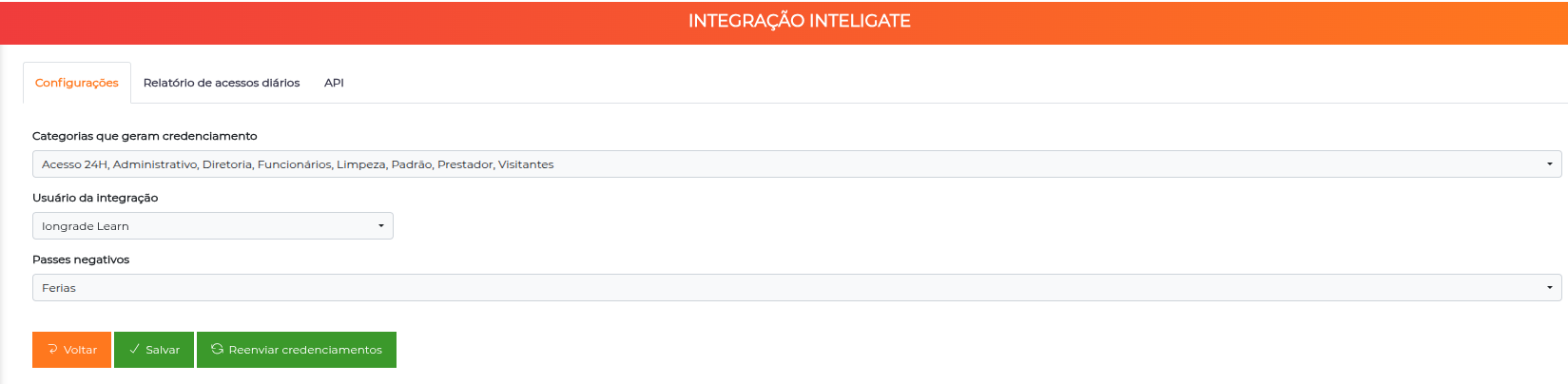
| Field | Description |
|---|---|
| Categories that generate accreditation | Multi-selection of ACCELERO categories. Every person linked to one of these categories will have an accreditation sent automatically to the RFB |
| Integration user | ACCELERO operator who will appear as the technical owner of the pending items generated by the plugin |
| Negative passes | Multi-selection of pass types used by the access control by passes rule. An active negative pass blocks the person's passage (see Access control by passes) |
Use categories specific to customs control (e.g., "Premises Employee", "RFB Visitor", "Port Operator"). Avoid generic categories like "Employee" or "Visitor" — this would generate unnecessary accreditations for all records.
Daily access report tab
Configures the automatic email delivery of the first-entry report of the day (see First-entry report).
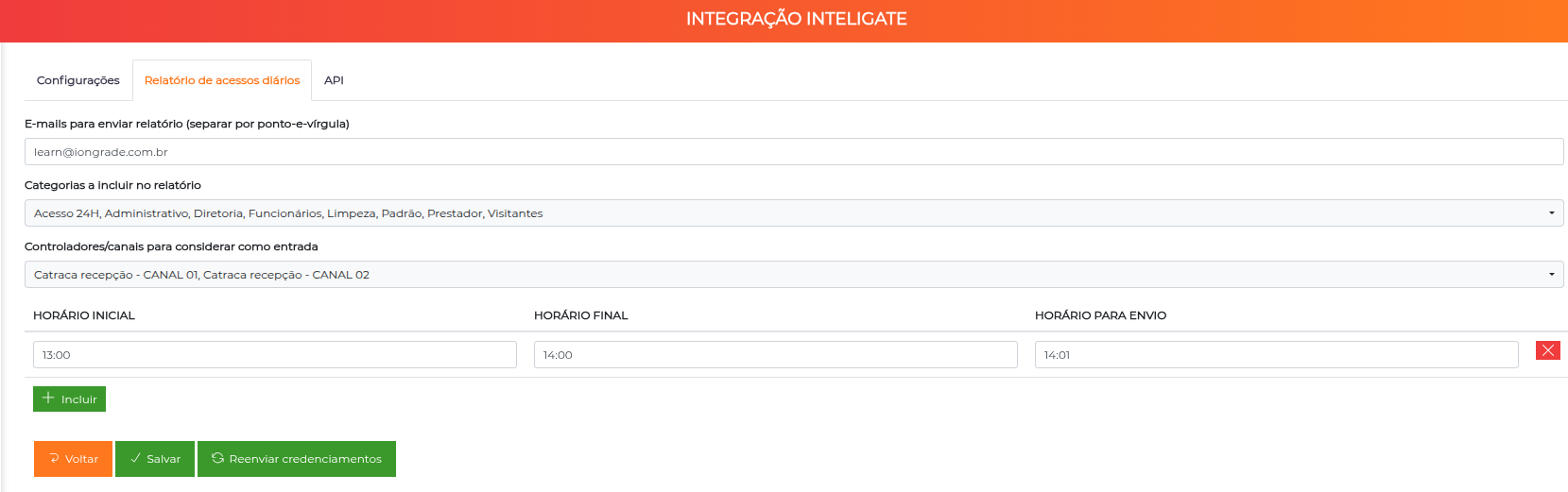
| Field | Description |
|---|---|
| Emails to send the report | List of recipients, separated by semicolons (;) |
| Categories to include in the report | Multi-selection of categories — only people from these categories appear in the report |
| Controllers/channels to consider as entry | Multi-selection of channels whose passage counts as "entry" for the report |
| Schedule table | One or more rules with Start time, End time, and Send time. Each rule triggers an email at the send time, consolidating the first entries that occurred within the given window |
Register one rule per shift (e.g., 06:00–14:00 sending at 14:05, 14:00–22:00 sending at 22:05) to receive partial reports throughout the day.
API tab
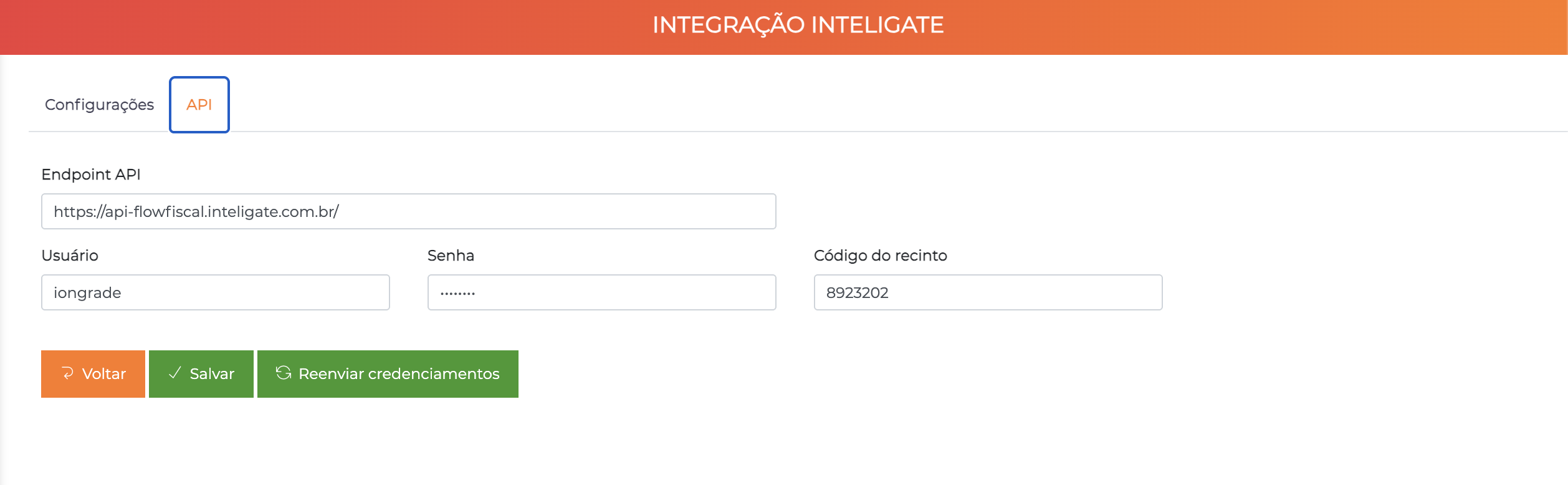
Connection data with the FlowFiscal service:
| Field | Description |
|---|---|
| API Endpoint | URL of the FlowFiscal service — provided by IONGRADE during deployment |
| User | Username for authentication in FlowFiscal |
| Password | Corresponding password |
| Premises code | Numeric code of the premises, assigned by the Federal Revenue Service. It uniquely identifies the physical location within the Recintos system |
The credentials are provided by IONGRADE during homologation. The Premises code is regulatory data — verify it with the customer's customs officer before filling it in.
Screen buttons
| Button | Function |
|---|---|
| Save | Persists the configuration |
| Resend accreditations | Reprocesses all pending accreditation items in the queue. Useful after fixing credentials or returning from a period of API unavailability |
Fields added to entities
The plugin extends ACCELERO forms with specific sections containing the data required by the RFB Recintos system.
Person
A Recintos section is added to the people registry (People > Edit > General Data):
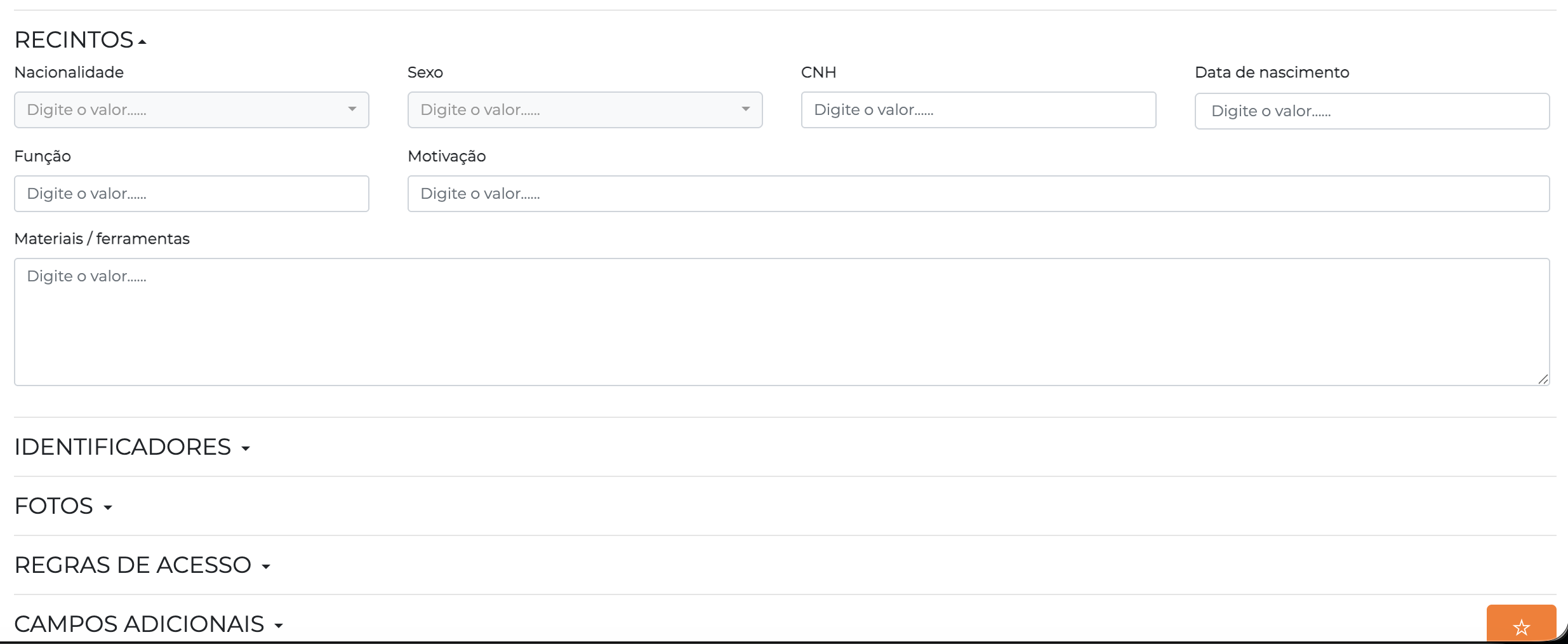
| Field | Description |
|---|---|
| Nationality | Person's nationality (default: Brazil) |
| Gender | Gender provided for the accreditation |
| CNH | Number of the National Driver's License |
| Date of birth | Person's date of birth |
| Role | Position or role performed at the premises |
| Motivation | Reason for the access to the premises |
| Materials / tools | List of materials or tools the person usually carries |
The person must have a registered CPF as a document. People without a CPF are not sent to the RFB.
Company
The company registry gains the Inteligate CNPJ field — an additional CNPJ used specifically for identification in the RFB Recintos system.
Operator
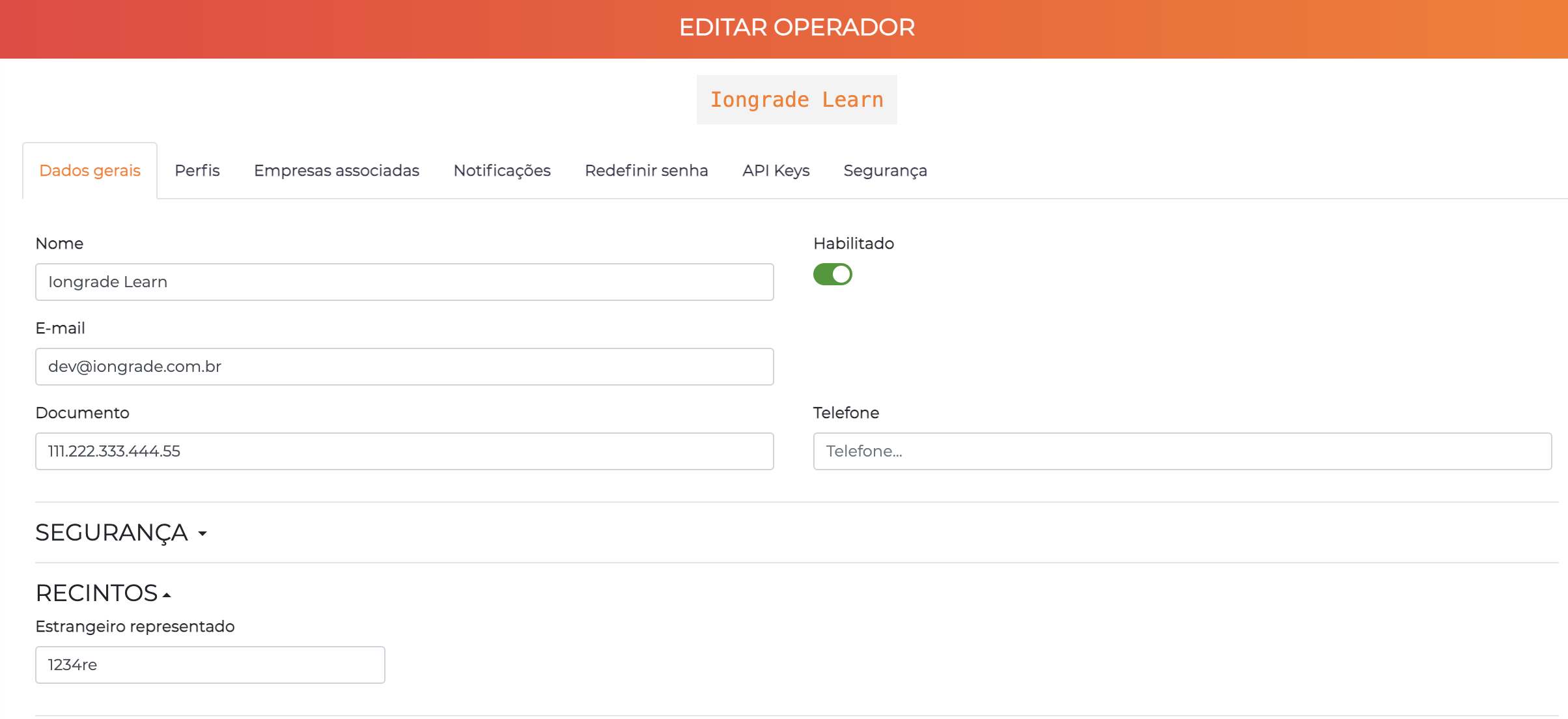
The integration uses two pieces of data from the operator registry:
| Field | Source | Description |
|---|---|---|
| Document | Standard operator field | CPF used to identify the operator in the records sent to the RFB (e.g., manual contingency logs) |
| Foreign operator represented | Recintos section (added by the plugin) | Name of the foreign operator that this user represents, when applicable to foreign-trade contexts |
Visit / Visitor
For visit events, the plugin adds the Recintos Data section with two groups of fields:
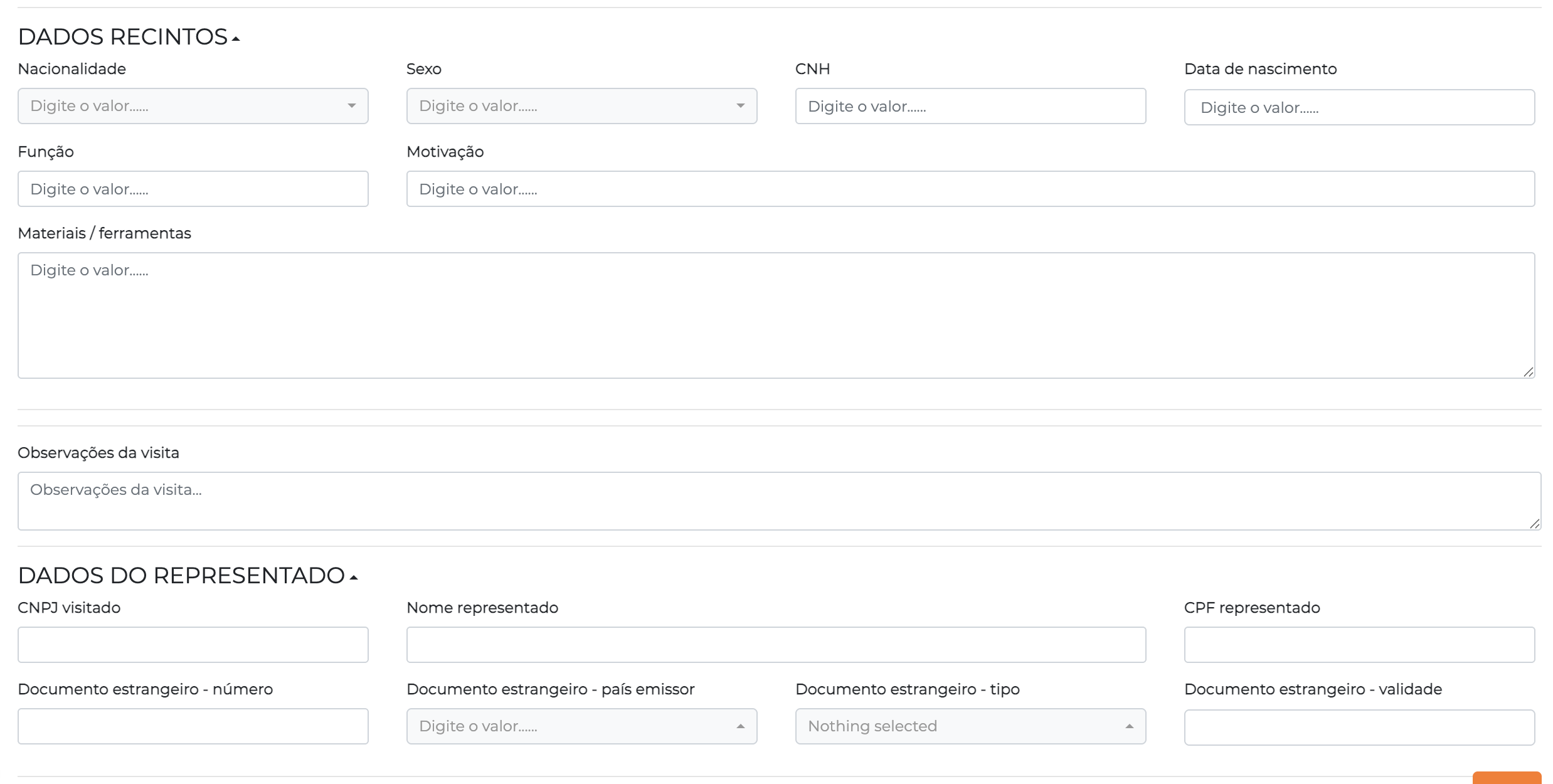
Recintos data — the same fields as the Person section (nationality, gender, CNH, date of birth, role, motivation, materials/tools), plus Visit notes.
Represented party data — used when the visitor represents a foreign company or person:
| Field | Description |
|---|---|
| Represented CNPJ | CNPJ of the represented company |
| Represented name | Name of the represented person or company |
| Represented CPF | CPF of the represented party |
| Represented foreign document | Number, issuing country, type, and validity of the foreign document |
Controller channel
In the channel edit form (Advanced > Controllers > Edit > Channels > Edit), the plugin adds the Inteligate - location tab:
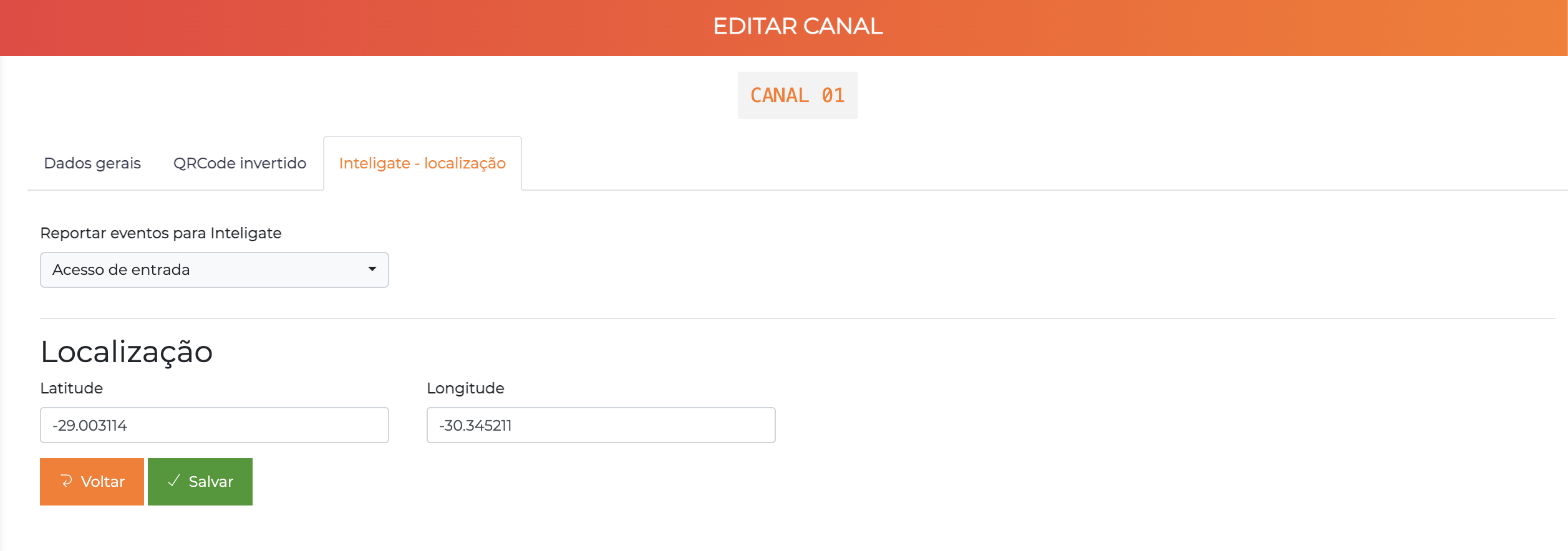
| Field | Description |
|---|---|
| Report events to Inteligate | Defines the direction of the reported accesses: Do not report / Entry access / Exit access |
| Latitude | Geographic coordinate of the control point |
| Longitude | Geographic coordinate of the control point |
Use Google Maps to obtain the exact coordinates of each physical barrier — the RFB requires precise georeferencing of the control points.
Channels with Report events to Inteligate set to "Do not report" do not send accesses or generate unavailability events to the RFB.
Dashboard
Path: Side menu > Inteligate > Dashboard
The dashboard offers a consolidated view of the integration's health over the selected period.
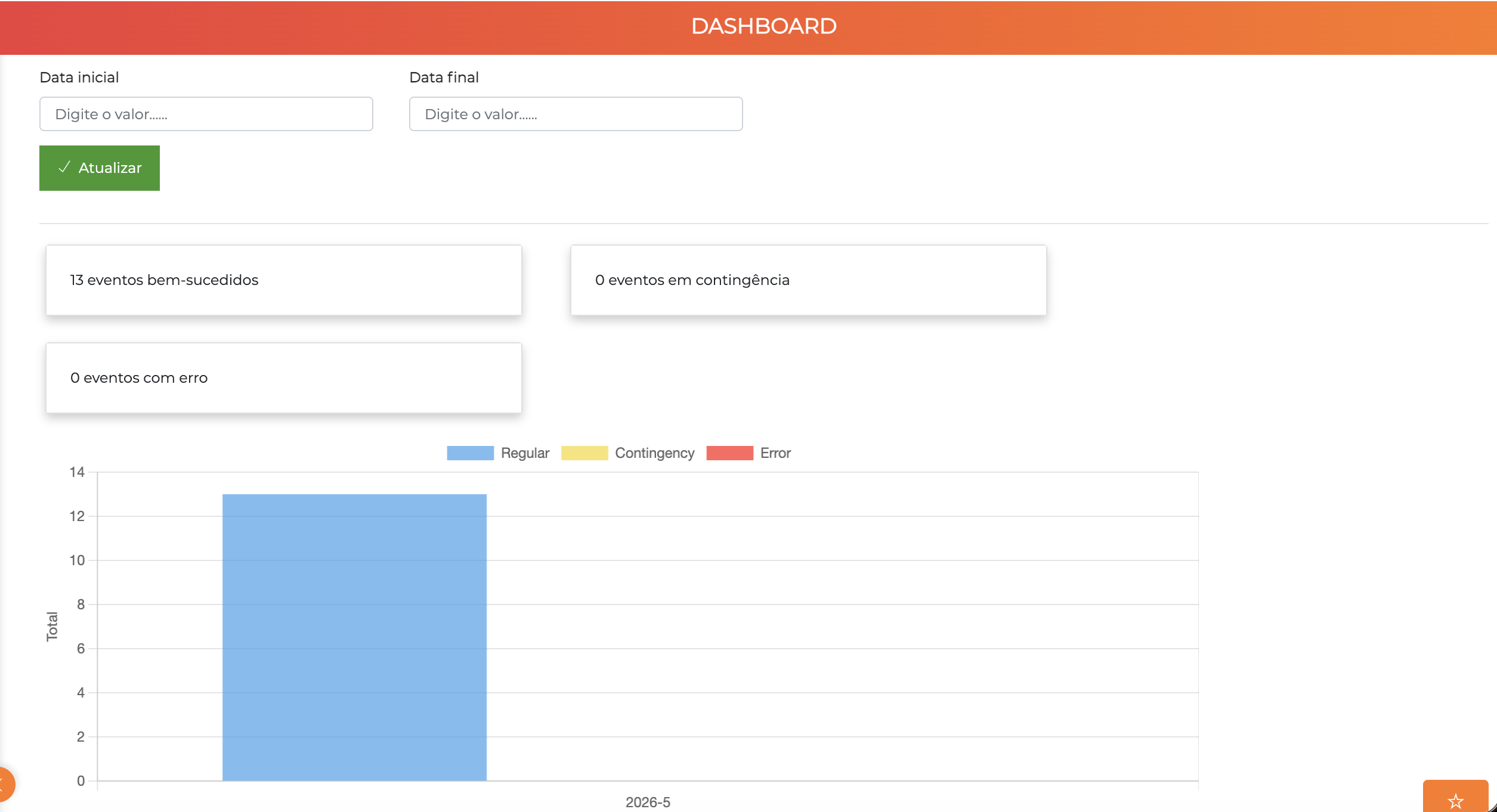
| Element | Description |
|---|---|
| Start date / End date | Period filter — click Update to apply |
| Successful events | Total of submissions successfully completed in the period |
| Events in contingency | Total of accesses recorded in contingency mode |
| Events with error | Total of submissions that failed and need attention |
| Bar chart | Daily history of regular, contingency, and error events |
Use the dashboard as the first stop of the daily inspection. Spikes in errors or contingency indicate communication or configuration problems that need immediate attention.
The Successful events and Events with error cards are clickable: when clicked, the Task List opens already filtered by the status and the period selected in the dashboard.
Task List
Path: Side menu > Inteligate > Tasks
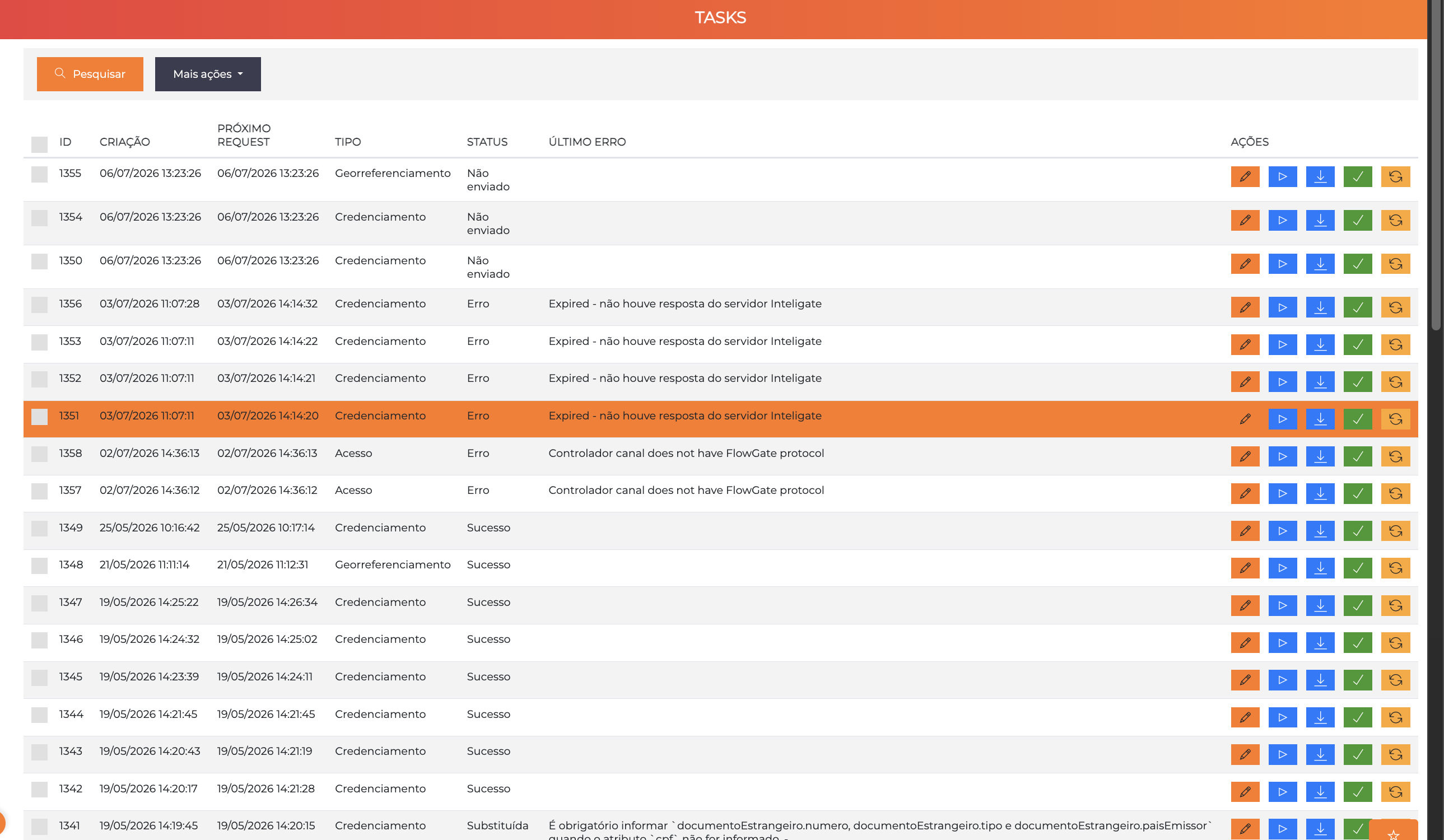
Complete list of all submissions processed by the plugin, with filters and per-row actions.
Available filters
| Filter | Options |
|---|---|
| Start / end date | Cutoff by task creation date |
| Type | Accreditation / Access / Georeferencing / Communication |
| Status | Not sent / Awaiting protocol / Success / Manually cleared / Replaced / Error |
| Text search | Searches the serialized data (e.g., name, CPF) |
Columns
| Column | Content |
|---|---|
| ID | Unique identifier of the task |
| Creation | Date and time the task entered the queue |
| Next request | Date/time of the next scheduling (automatic retry) |
| Type | Type of the submission (Accreditation, Access, etc.) |
| Status | Current state of the task |
| Last error | Error message of the last attempt, when there is one |
| Actions | Five buttons per row (detailed in Per-row actions): Edit context, View sent data, View received data, Clear manually, and Restart |
Task statuses
| Status | Meaning |
|---|---|
| Not sent | Task created, awaiting processing |
| Awaiting protocol | Sent to the API; awaiting confirmation from the RFB |
| Success | Protocol received and stored |
| Manually cleared | An errored task that was resolved outside the system and cleared manually by an operator, no longer requiring attention |
| Replaced | An errored task that was automatically replaced by a new equivalent task (e.g., a new submission of the same accreditation). The old task stops being processed |
| Error | Permanent failure — requires intervention |
Per-row actions
Each row brings five buttons, in the order they appear in the Actions column (from left to right):
| # | Button | Appearance | Function |
|---|---|---|---|
| 1 | Edit context | Orange, pencil icon | Opens the related entity (person, controller, event) in the corresponding edit screen. Useful for fixing the record that caused the error and triggering a new submission |
| 2 | View sent data | Blue, arrow icon | Displays, in a window, the full content sent to the API |
| 3 | View received data | Blue, download icon | Displays the API's response, including detailed error messages |
| 4 | Clear manually | Green, save icon | (only on tasks with Error) Marks the task as Manually cleared, indicating that the problem was handled outside the system and that it no longer needs attention |
| 5 | Restart | Orange, reload icon | (only on tasks with Error) Puts the task back in the queue to be resent from scratch, without having to recreate the record |
Details of each action:
- Edit context — use it to fix the record that caused the error. When you save the entity, a new submission is queued automatically.
- View sent data / View received data — comparing what was sent with the API's response is the fastest way to identify the cause of an error (empty required field, invalid CPF, etc.).
- Clear manually — available only on tasks with the Error status. Use it when the error has already been resolved by other means and the task should no longer appear in the pending queue.
- Restart — available only on tasks with the Error status. Use it when the cause of the failure has already been resolved (API restored, record fixed) and you want the system to try sending it again. Before restarting, the system opens a confirmation ("Confirm the full resend of this task?") that requires typing the displayed code in the box to complete the action.
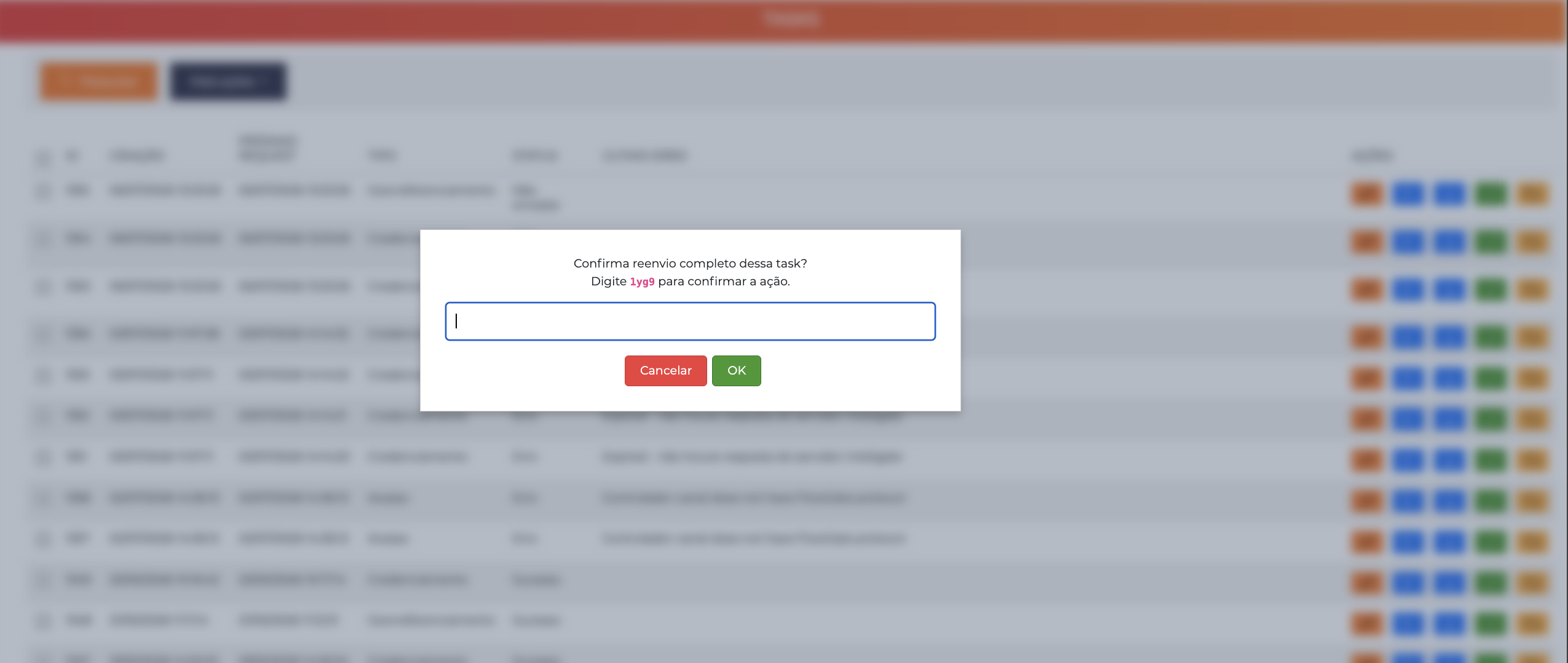
Both actions only appear on tasks with Error, but they have opposite effects: Restart makes the system try to send again; Clear manually just closes the pending item, without resending (for when the record has already been handled outside ACCELERO).
Batch restart
To reprocess several tasks at once, check the checkboxes of the desired rows and use More actions > Restart at the top of the list. The system asks for confirmation ("Confirm the restart of the selected tasks?") and re-queues all the selected ones.
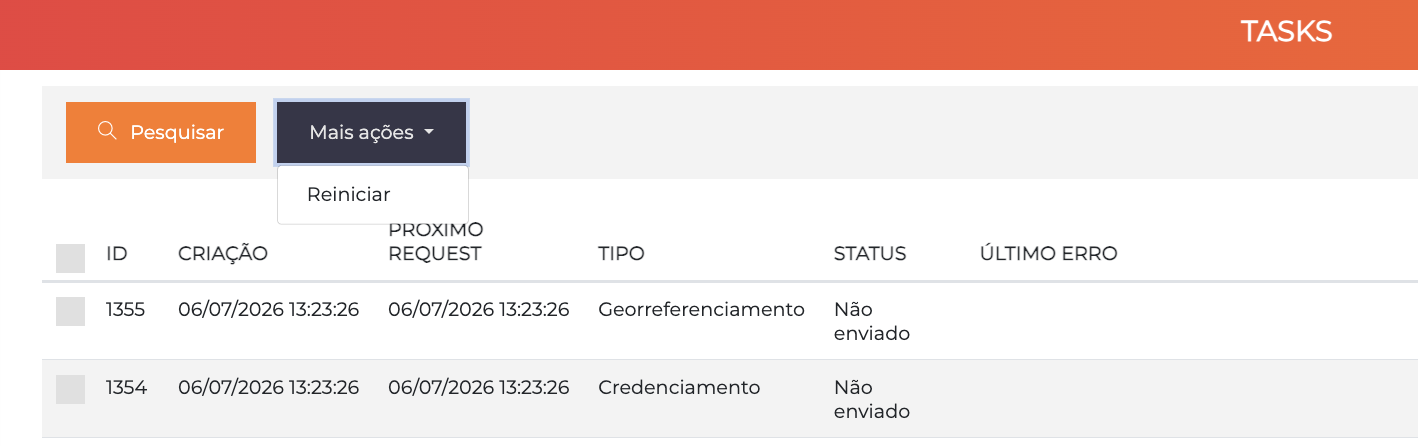
Restart — individual or batch — is only allowed on tasks with the Error status. If any selected task is in another status, the system displays "Only tasks with an error can be manually restarted!" and none is restarted.
Export
The Export button generates a file with the filtered list for external analysis or auditing.
Understanding and resolving errors
When a task appears with the Error status, the first step is to understand the cause before acting. Open the errored row, click View received data, and read the returned message. Based on it, you decide what to do.
Restart or fix the record?
There are two very different types of error, and each calls for a different action:
| Type of error | Message examples | What to do |
|---|---|---|
| Communication error — the data is correct, but the submission did not arrive or got no response | "Expired - no response from the Inteligate server", connection failures | Use Restart. The same task is resent to the Federal Revenue Service, without changing anything. |
| Data error — the Federal Revenue Service refused because some information is wrong or missing | "Invalid CPF", "required field not provided", document validations | Restarting won't help — you would resend the same wrong data. Click Edit context, fix the record, and save. |
If the Federal Revenue Service rejected it because of some data (an incorrect CPF, for example), clicking Restart will just repeat the same error. Fix the record first.
When you fix and save the person (or the related entity) via the Edit context option, ACCELERO automatically queues a new submission with the updated data. You do not need to click Restart afterward — that is only for the cases where the record was already correct and the failure was a communication one.
Whose error is it? The three systems of the integration
Behind this integration there are three systems in a chain, but you (the customer) only see ACCELERO:
ACCELERO  →  Inteligate (FlowFiscal)  →  Federal Revenue Service (Recintos)
 (what        (intermediary that bridges     (validates and records the
 you see)      to the Revenue Service)        accreditation/access)
Since the error message appears entirely within ACCELERO, the natural question is "whose fault is it?". The table below helps identify the source by the message in View received data and the resolution path:
| Source | How to recognize it | What to do |
|---|---|---|
| ACCELERO / configuration | Messages about the configuration of the system itself — e.g., "Controlador canal does not have FlowGate protocol" (channel without a configured protocol) or endpoint/credentials on the API tab not filled in | Adjust the configuration (API tab, controller channels). If it persists, contact IONGRADE support. |
| Federal Revenue Service (Recintos) | Descriptive messages about the data: required fields, invalid document, incorrect CPF. They are usually clear and point exactly to the field with the problem | Fix the record in Edit context and save — the resend is automatic. |
| Inteligate (FlowFiscal) | Messages from the intermediary that are not clearly our configuration nor a Revenue Service validation, and without a known catalog of meanings | Contact Inteligate together with IONGRADE to investigate. Keep the task's ID and the content of View received data. |
The Revenue Service responses are usually quite descriptive — you can normally understand and resolve them just by reading the message (almost always a piece of data to fix in the record). The Inteligate errors, on the other hand, have no public catalog of meanings; that is why, in those cases, the path is to contact Inteligate together with IONGRADE.
The message "Expired - no response from the Inteligate server" does not, by itself, indicate that there is something wrong with your record or your configuration. It means that the task went 3 hours without a response and was marked as Error. Most of the time this happens because the Inteligate server (or the Revenue Service behind it) became temporarily unavailable or was slow to respond.
- First action: when communication is restored, use Restart — the same task is then usually sent successfully, with no change to the record.
- If it happens on many tasks at once, it is a sign of unavailability on the Inteligate/Revenue Service side: contact Inteligate together with IONGRADE.
In other words: treat the "Expired" first as a communication problem — only investigate the record/configuration if it persists even with the servers up.
Manual Access (Contingency)
Path: Side menu > Inteligate > Manual Log - Contingency
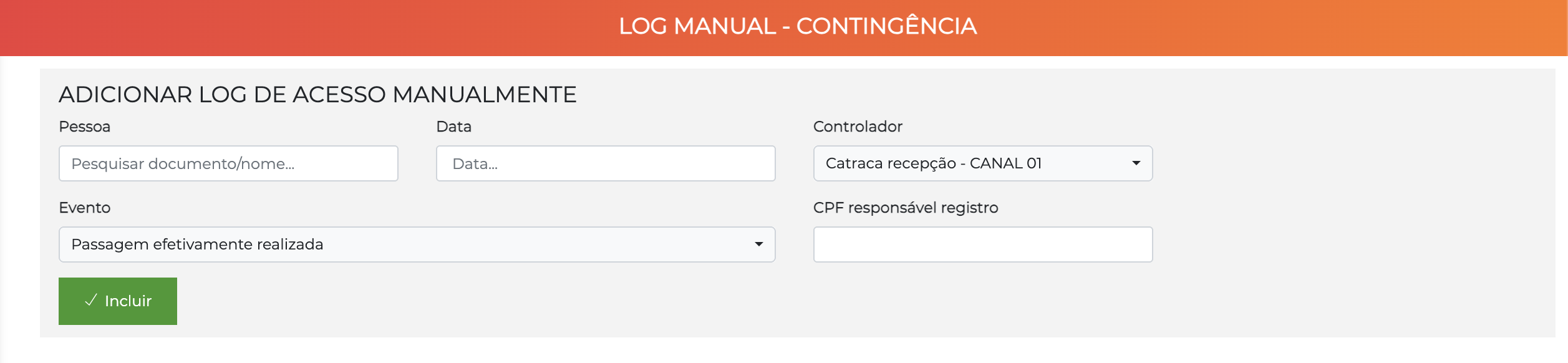
Screen used when the integration is unavailable and it is necessary to record accesses manually to fulfill the regulatory obligation.
When to use it
- FlowFiscal API unavailable for an extended period
- Connectivity problems on the ACCELERO server
- Physical control equipment out of operation, but with movement still occurring
Form fields
| Field | Description |
|---|---|
| Person | Search by the person's name or document in the ACCELERO registry |
| Date | Date and time the access actually occurred |
| Controller | Channel where the access occurred |
| Event | Type of the event (e.g., Passage actually performed) |
| CPF responsible for the record | CPF of the person making the entry — required for auditing |
After saving, the record is marked with the contingency flag. When the API responds again, the system synchronizes automatically.
Manual access is an exception tool — it should not be used to correct operational errors. Each entry is recorded with the CPF of the responsible person for auditing purposes.
First-entry report
The plugin can automatically send, by email, a report with the first entry of each person in a day, considering only the configured channels and categories. It is useful for presence checking and operational control of the premises.
The configuration is done on the Daily access report tab of the Settings > Integrations - Inteligate screen (see Configuration).
How it works
- Each schedule rule defines a window (start and end time) and a send time.
- At the send time, the system gathers the first passage of each person — from the configured categories — through the channels marked as entry within that window.
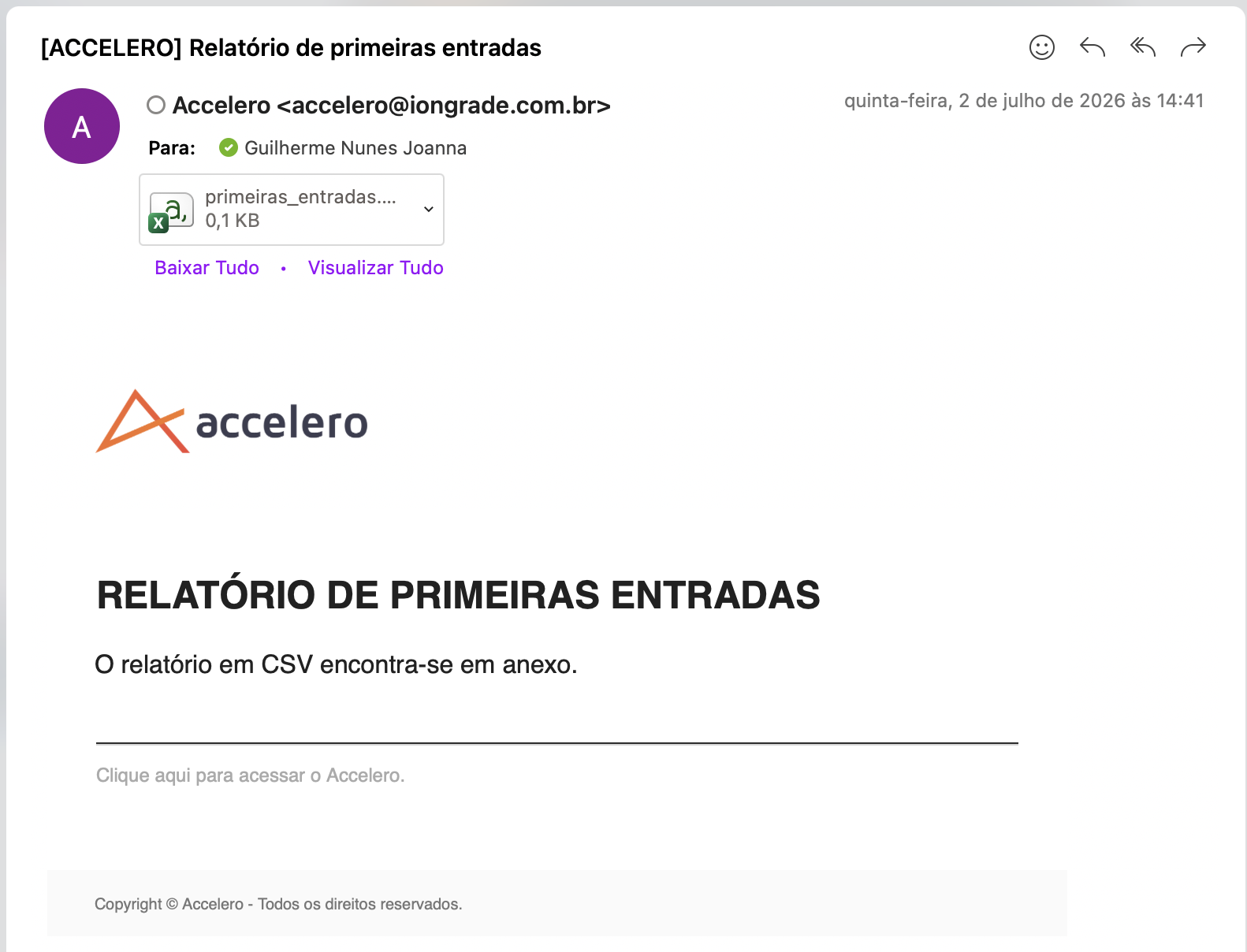
- The report is generated as a CSV file and sent, as an attachment, to the registered emails.
Email content
The email has the subject "First-entry report" and the body brings only the notice that the report is attached ("The CSV report is attached."). The data goes in an attached CSV file (primeiras_entradas.csv) with the columns:
| Column | Content |
|---|---|
| Time | Date and time of the person's first entry |
| Name | Person's name |
| Companies | Companies linked to the person |
| Area | Destination area of the access |
| Controller | Controller and channel where the entry occurred |
From version 1.0.4 on, the data is no longer displayed as a table in the email body and is now delivered as an attached CSV file — easier to open in a spreadsheet for checking and auditing.
If there is no first entry in the window, or if some required configuration item is missing (emails, categories, or channels), no email is triggered.
Access control by passes
The plugin provides a dedicated access verification rule — "Pass validation - premises" — that grants or denies passage based on the person's passes (grants). Unlike the standard rule, it treats not having the pass and having an expired pass in distinct ways (see How the rule decides).
How to enable it: the rule is enabled globally in Advanced > System > Customization - Customizable access rules. In the Access rules to enable field, check Pass validation - premises and save.
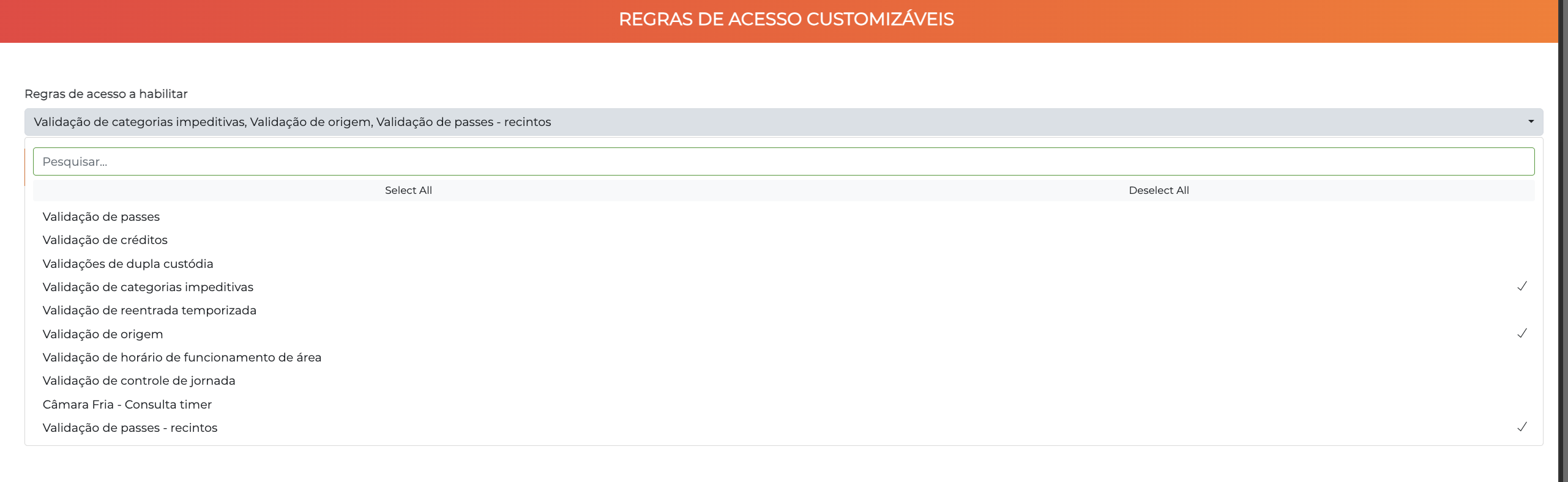
For the correct behavior to work, the standard Pass validation rule must remain unchecked and only Pass validation - premises enabled. Keeping both active at the same time makes the standard validation block those who do not have the pass, nullifying the premises-specific logic.
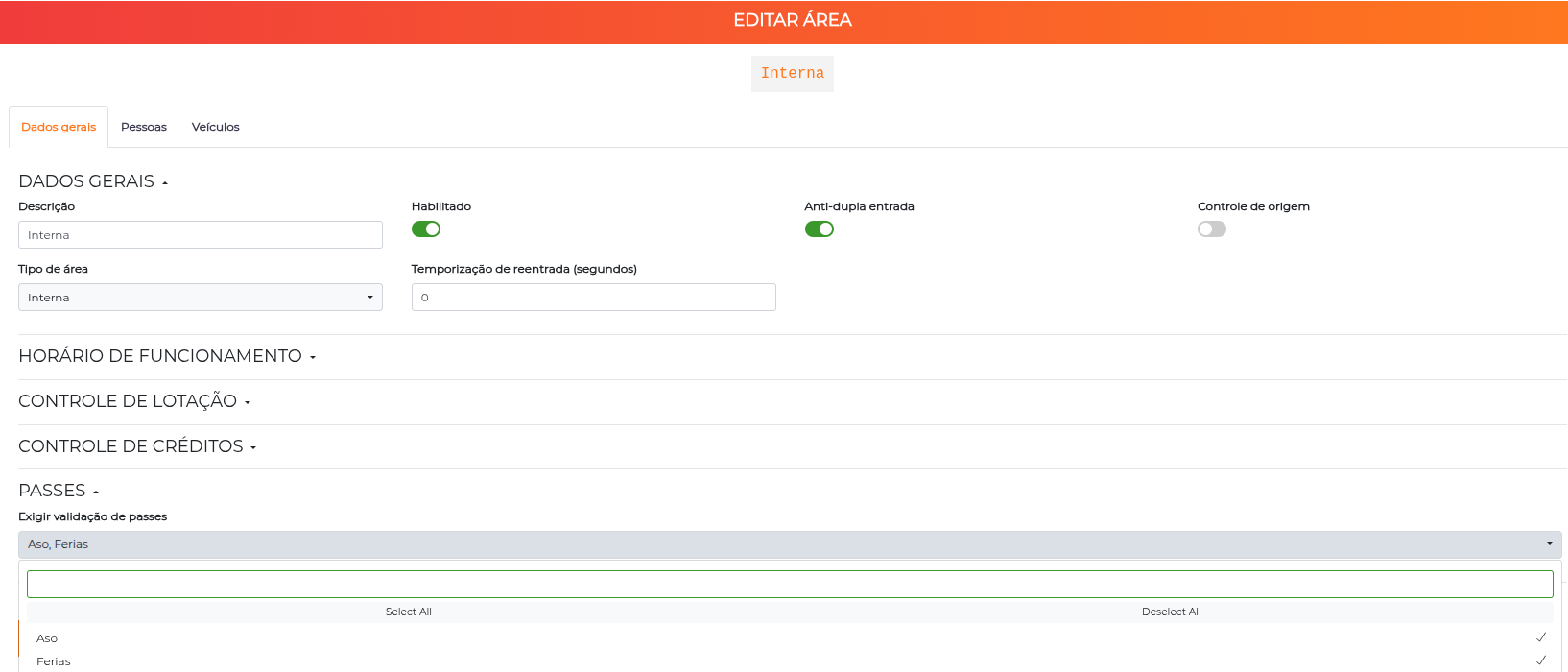
The areas keep declaring which passes they require normally in their configuration — the rule enabled here only defines how that requirement is evaluated.
How the rule decides
The rule acts on the passes required by the area:
- A negative pass blocks — if the person has a pass that is active and within validity that is in the Negative passes list (Settings tab) and that is also required by the area, access is denied.
- Requires a valid pass only from those who have the pass — for each pass required by the area (excluding the negative ones): if the person has that pass but no occurrence is active and within validity, access is denied. If the person does not have that pass, this rule does not block because of it.
- If the area does not require passes, access is granted by this rule.
The rule distinguishes not having the pass from having an expired/inactive pass, with opposite results: whoever never had that pass is not blocked by this rule (the requirement does not apply); whoever has the pass, but out of validity or inactive, is blocked. To explicitly prevent a person — regardless of the valid passes they hold — use an active negative pass.
When submissions are triggered
Accreditation
The accreditation is sent automatically when:
- A person is saved and is already linked to a configured category — any change to the record keeps the data synchronized
- A person is linked to a category configured to generate accreditation
- A person is unlinked from a category — generates an accreditation removal operation in the RFB
Accesses
Each physical passage on a channel with Report events configured (entry or exit) generates a submission, provided the person has a CPF and is linked to a configured category.
Accesses by people without a CPF, without a configured category, or on channels with "Do not report" selected are not sent. Only accesses relevant to the customs obligation are reported.
Georeferencing
Sent whenever a channel's coordinates are registered or changed.
Equipment unavailability
Sent automatically when a controller changes between online and offline, for channels with reporting configured.
Rectification and resend
Whenever data already sent to the RFB is corrected, ACCELERO resends the updated information automatically — the procedure varies according to the type of data.
Person's registration data
Any change to the person's record (name, CPF, nationality, role, etc.) triggers a new accreditation submission upon saving. The resend happens for all configured categories to which the person is linked — no extra action is needed beyond saving.
Channel geolocation
When you change the latitude or longitude of a channel in Advanced > Controllers > Edit > Channels > Inteligate - location and save, a georeferencing rectification is sent automatically to the RFB.
Represented party data (visits)
The represented party data is linked to the visit event, not to the person — so the rectification is done directly in the event edit form, in Visits / Appointments:
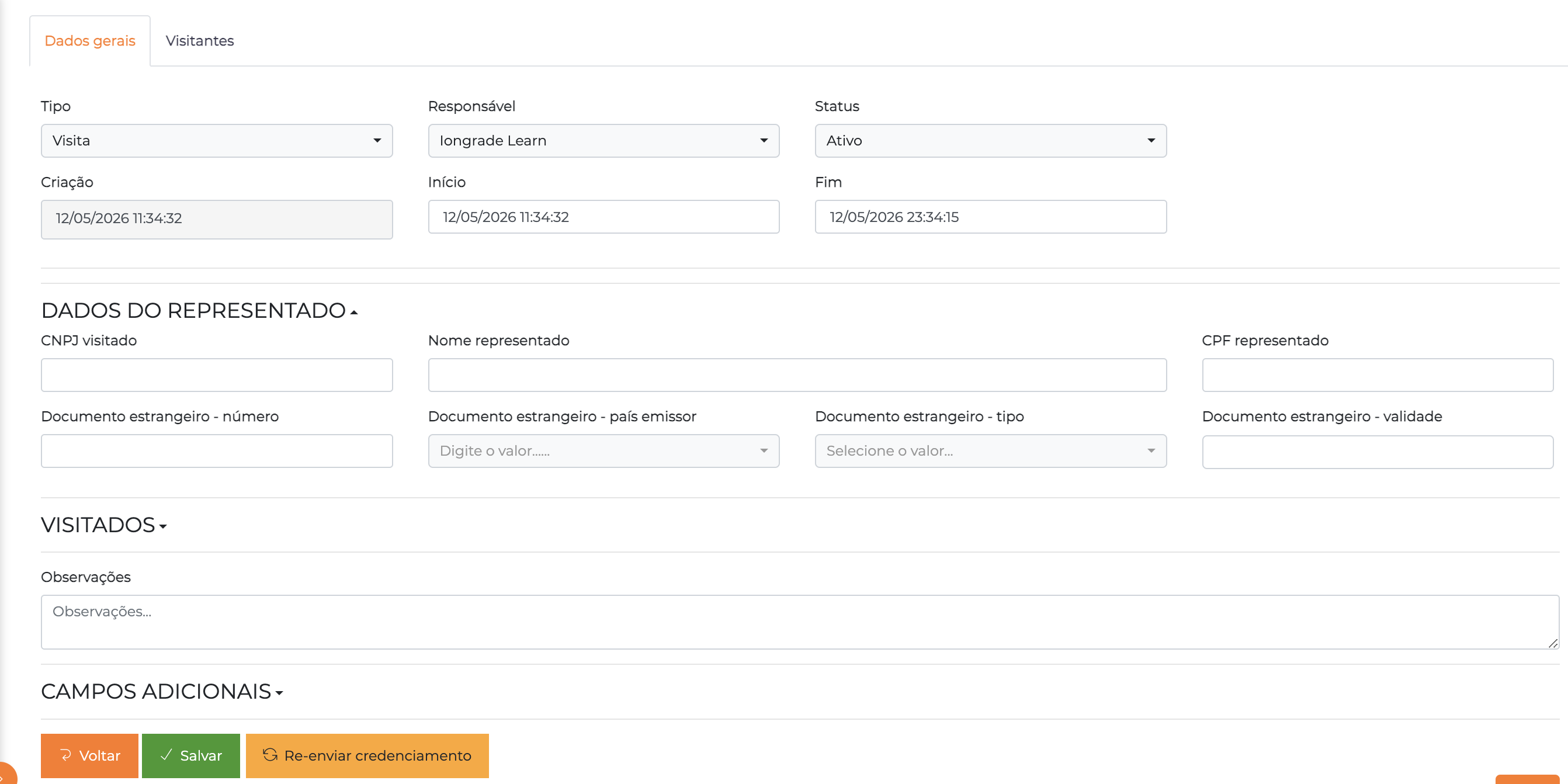
Fix the fields in the Represented Party Data section and click Resend accreditation to send the updated data to the RFB.
Global resend
The Resend accreditations button on the integration configuration screen (Settings > Integrations - Inteligate) reprocesses the entire queue of pending accreditations. Use it after resolving a systemic problem — corrected credentials, API restored after extended unavailability.
Use cases
Enable the integration for a bonded premises
- Request that IONGRADE install the
inteligateplugin - Receive the FlowFiscal credentials and the premises code
- In
Advanced > System > Integrations - Inteligate, fill in the API tab - On the Settings tab, select the categories that represent the regulated people
- On each controller channel of the customs border, set the report type and coordinates
- Make sure the relevant people have a registered CPF and the fields in the Recintos section filled in
- Track the Dashboard during the first 24 hours to validate the flow
Investigate an accreditation error
- Access Inteligate > Tasks, filter by Type: Accreditation and Status: Error
- For each errored row, click View received data — the API's returned message usually indicates the problem (invalid CPF, empty required field, etc.)
- If the problem is in the record, click Edit context → fix the person. Upon saving, a new accreditation is queued automatically
- If the record is already correct and the failure was only a communication one (e.g., "Expired - no response from the Inteligate server"), use Restart on the row itself — or select several and use More actions > Restart — to resend without changing the record
To understand the source of each error (ACCELERO, Revenue Service, or Inteligate) and when to restart vs. fix the record, see Understanding and resolving errors.
Operate in contingency
- Operators keep using the barriers normally
- For critical accesses, record manually in Manual access > Manual Log - Contingency
- After the API is restored, the system synchronizes the pending records automatically
Best practices
Configuration
- Specific categories: Use categories dedicated to the audience regulated by the RFB. Do not select broad categories.
- Precise coordinates: Imprecise channel geolocation can generate inconsistencies in Recintos.
- Complete documents: People without a CPF, date of birth, or nationality do not have an accreditation sent.
- Dedicated integration user: Create a specific ACCELERO user (e.g., "Inteligate Integration") as responsible for the pending items, instead of using a named account.
Operation
- Daily dashboard inspection: Check the dashboard once a day to anticipate problems before they pile up.
- Errored tasks do not come back on their own: Whenever the dashboard shows errors, fix the related record to trigger a new submission.
- Global resend after maintenance: After restoring the API or fixing credentials, use Resend accreditations to clear the queue.
- Operator training: Make sure at least two operators know how to use the manual access screen.
Troubleshooting
Accreditations are not generated
Possible causes:
- The person's category is not checked in "Categories that generate accreditation"
- The person does not have a registered CPF
- The plugin is not enabled
Solution:
- In
Settings > Integrations - Inteligate > Settings, confirm which categories are checked - Check whether the person is linked to one of those categories
- Confirm the CPF in the person's record
- Edit and save the person again to force a new submission
Tasks stay stuck in "Not sent"
Possible causes:
- API endpoint not configured or incorrect
- Incorrect credentials
- Outbound block in the firewall
Solution:
- Check the API tab — endpoint, user, password, and premises code
- Test the connectivity of the ACCELERO server to the FlowFiscal endpoint (HTTPS)
- If the problem persists, contact IONGRADE support
Tasks stay in "Awaiting protocol" for a long time
Possible causes:
- The FlowFiscal API receives the submission, but the RFB is slow to respond
- Silent error in the protocol query
Solution:
- Wait up to 3 hours — after that limit, the task is marked as Error with the message "Expired - no response from the Inteligate server"
- Check Received data to identify the returned message
- Once communication is restored, use Restart (individual or batch) to resend the expired tasks
- In case of a recurring error, contact IONGRADE support with the task IDs
Physical accesses are not being reported
Possible causes:
- Controller channel configured as "Do not report"
- Person without an active accreditation category
- Person without a CPF
Solution:
- Check the Inteligate - location tab of the channel:
Advanced > Controllers > Edit > Channels - Confirm that the person is linked to a configured category
- Confirm that the person has a registered CPF
Integration with other modules
People and Categories
The integration depends directly on the People registry and on the configuration of categories. The record must be complete (CPF, nationality, gender, date of birth) and the category link must point to one of the configured categories.
Controllers
Controllers must have their channels configured with a report type and geographic coordinates so that accesses and georeferencing are sent.
Logs and Events
The integration reports each access event of an eligible person in real time. See Logs and Monitoring to understand which events are captured.
Events (Visits)
In Events, the plugin adds the Recintos Data and Represented Party Data fields to meet the RFB requirements in visits by foreign representatives.
Next Steps
- People — Configure the Recintos fields in the people registry
- Events — Understand the additional fields in visits
- Controllers — Configure the report type and coordinates of the channels
- Logs and Monitoring — Understand which events trigger submissions
- Plugins — Learn more about the ACCELERO plugin system