Yeastar PBX Integration
The Yeastar integration brings front desk telephony into ACCELERO. The operator talks to the condominium units without a desk phone and without leaving the current screen: the call happens in the browser itself, over WebRTC, using the official Yeastar SDK.
The principle behind the feature is that nobody should have to know the extension number. Whoever answers thinks of "Casa 12" or "Mr. Lacerda", and the system figures out the rest.
This integration ships as a plugin (yeastar) and must be installed and enabled by the IONGRADE technical team. Contact support to check compatibility with your ACCELERO version.
Current plugin version: 0.2.0 — compatible with ACCELERO 2.16.9 and 2.17.2.
What the integration does
| Feature | What the operator gains |
|---|---|
| Quick search | Opens with a keyboard shortcut over any screen and searches by unit, block, resident name or extension |
| Call panel | When a unit calls, it shows who lives there (highlighting who can authorize entry), today's visits and the latest calls — before answering |
| Call in the browser | Answer, hang up, mute, hold, transfer and dial pad, with no external softphone |
| History | Who called which unit, from which post, when and with what outcome |
| Attendance posts | The extension belongs to the post, not to the person: whoever is logged in with that profile answers on that extension |
In ACCELERO the unit is the Company record. In a condominium, each house or apartment is a company, and the company Group is what appears as the block in the search and in the call panel.
Prerequisites
| Requirement | Why |
|---|---|
| Yeastar P-Series PBX | The integration uses the OpenAPI and the Linkus SDK, which belong to this line |
| Firmware 84.12.0.32 or higher | Earlier versions do not expose the sign/create used to authenticate the browser |
| Ultimate plan | The Linkus SDK is a paid PBX feature |
| Extension with a registered email | Yeastar identifies the extension by email, not by number |
| Browser with a microphone | The call happens in the operator's browser, over WebRTC |
This is a trade-off imposed by the PBX itself, not by the integration. If the condominium uses the Linkus app on mobile with notifications, confirm with the customer before turning the feature on.
On a PBX without the plan, the Linkus SDK screen shows "This is a demo. Subscribe to unlock this feature.", the button is locked and the AccessID/AccessKey come back empty. This is a commercial unlock from Yeastar — no configuration works around it.
Configuration on the Yeastar PBX
There are four steps on the PBX side, all of them before the ACCELERO configuration.
1. Enable the Linkus SDK
This credential pair is what produces the telephony itself: it is the only one that can sign the browser session.
- On the PBX, go to
Integrations > Linkus SDK. - Turn on the Linkus SDK switch.
- Click Save and then Apply.
- Copy the AccessID and the AccessKey — the AccessKey only appears when you click the eye icon.

In the field, turning on the Linkus SDK switch alone was not enough. It took enabling the feature, saving and applying, and only then were the AccessID and AccessKey generated. If the fields come back empty, repeat the Save and the Apply before suspecting anything else.
2. Enable the API
This is a different pair from the previous one, and equally mandatory. It is the one that reads the extension directory and the call history.
- Go to
Integrations > API. - Turn on the API switch.
- Save and apply.
- Copy the Client ID and the Client Secret.

The scopes are mutually exclusive. The AccessID/AccessKey signs the telephony and gets 10005 ACCESS DENIED on any other endpoint; the Client ID/Secret reads extensions and history and gets the same 10005 on telephony. Swapping one for the other makes the integration fail with ACCESS DENIED, and it is the most common configuration mistake.
3. Allow remote access
When ACCELERO talks to the PBX through the Yeastar FQDN, the PBX itself decides who may connect from outside. This is the step that generates the most support tickets, because when it is missing the error does not say what is wrong.
- Go to
System > Network > Yeastar FQDN. - Confirm the status is Successfully connected to the tunnel server.
- Under Features, open the Remote Access tab and set API Access to
Enabled. - Check the Access Type. If it is set to Allowed Account, follow the step below.
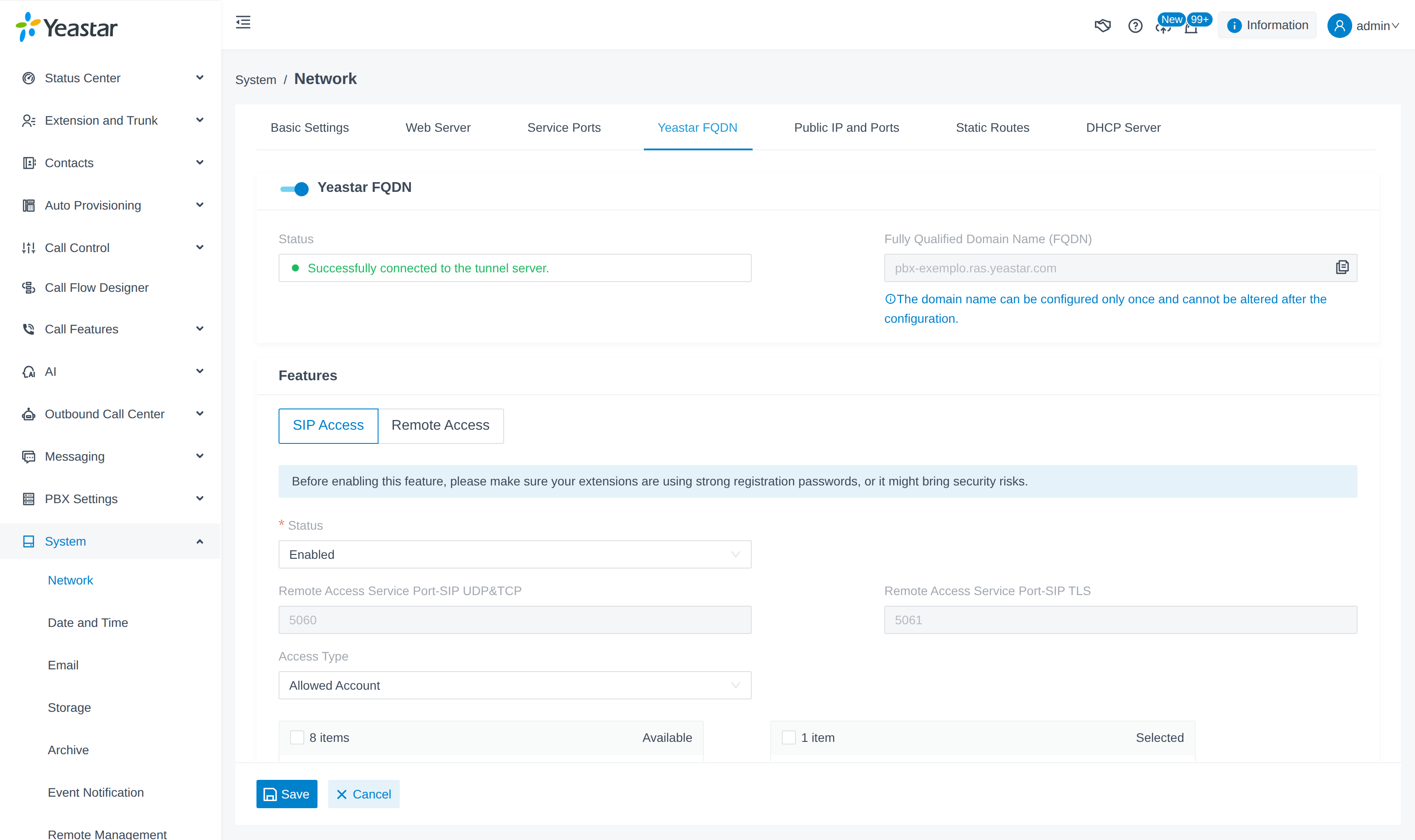
With Access Type set to Allowed Account, the extension used by ACCELERO must be allowed. In the field, adding the extensions individually to the list did not work, even after Save and Apply. What worked was including them in the Extension Group that was already allowed, under Extension and Trunk > Extension Group.
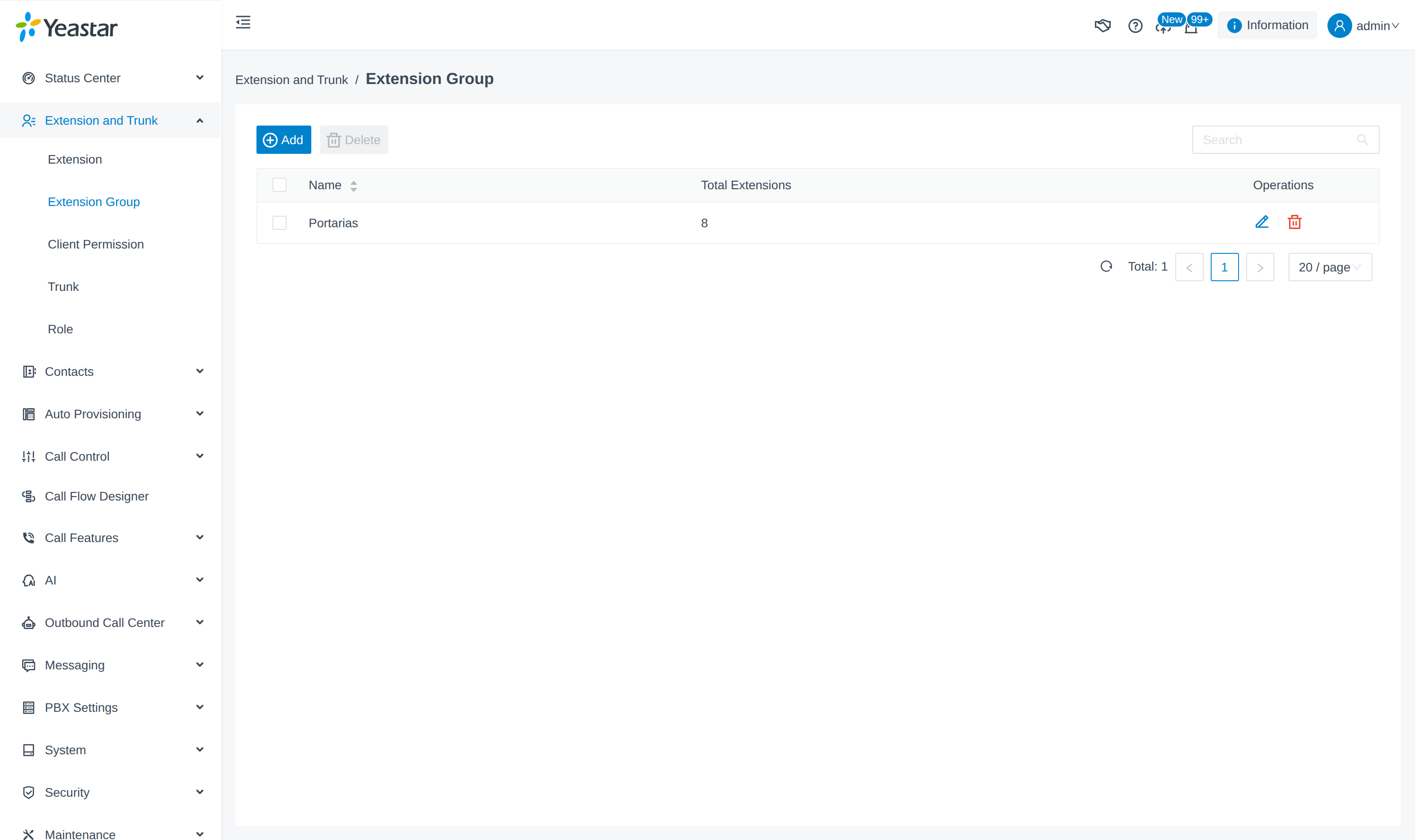
The Allowed Account gate is evaluated before the credential. A correct password and a wrong password both return exactly the same 70112, and the operator's browser only shows PBX_API_ERROR. This has already cost hours of investigation into a credential that was correct the whole time.
4. Prepare the extensions
Each attendance post consumes one PBX extension. Reserve one extension per post (main guard booth, service entrance) and check four points on each one.
| Extension field | Value and reason |
|---|---|
| Mandatory. Yeastar identifies the extension by email, and an extension without one never authenticates. The plugin configuration refuses to save and reports which extension is missing it | |
ICE (enb_ice) | Enabled. Without ICE the media is one-way: the operator hears nothing on an incoming call, even though the other side hears them normally |
NAT (enb_nat) | Enabled, for the same reason |
| Concurrent Registrations | Equal to the number of operators who staff that post at the same time. Each browser consumes one registration, even with several tabs open |
The Yeastar screen applies those defaults; the API extension/create does not. If the extensions were created through an integration or an import, check enb_ice and enb_nat before concluding the problem is on the network.
Configuration in Accelero
Navigation path: Advanced > System > Plugins - Yeastar PBX
The screen has a single tab (General) and holds the PBX credentials, the generic extension email and the attendance post table.
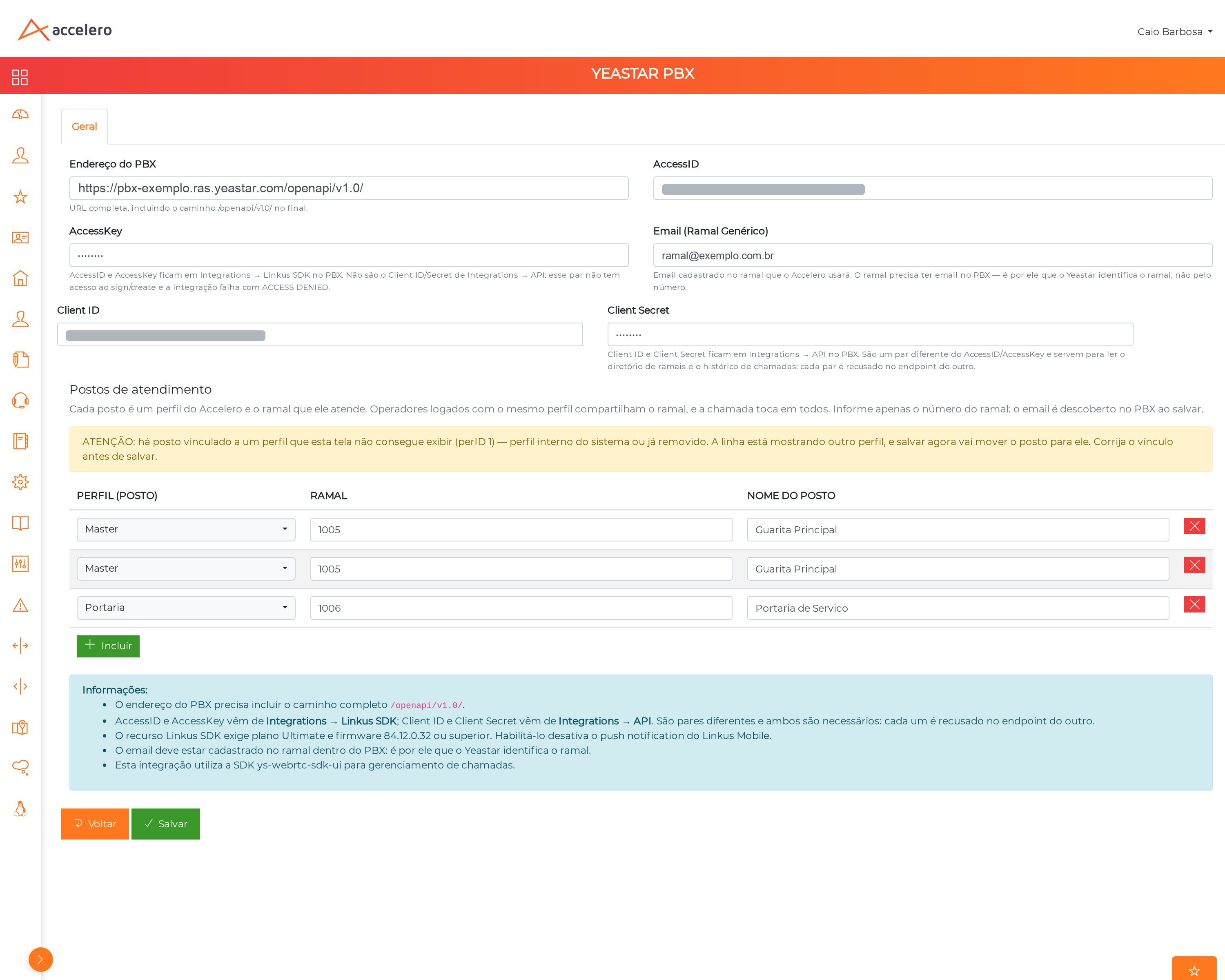
Credentials
| Field | What to enter |
|---|---|
| PBX address | Full URL including the path /openapi/v1.0/. Example: https://pbx-example.ras.yeastar.com/openapi/v1.0/ |
| AccessID | From Integrations > Linkus SDK on the PBX |
| AccessKey | From the same place |
| Client ID | From Integrations > API on the PBX |
| Client Secret | From the same place |
| Email (Generic Extension) | Email registered on the extension ACCELERO will use. The extension must have an email on the PBX: that is how Yeastar identifies it, not by number |
AccessKey and Client Secret come back as ••••••••. Leaving them that way preserves the stored value; typing over them replaces it. This exists so the PBX secret does not travel to the browser of every operator who opens the configuration screen.
Saving only discovers the email of each extension and stores it. If there is any other problem (swapped credentials, remote access closed), the error shows up when an operator loads a system screen, not here.
Attendance posts
On the same screen, the Attendance posts table links each ACCELERO profile to a PBX extension.

| Field | What to enter |
|---|---|
| Profile (post) | The ACCELERO profile that represents that post: the main guard booth, the service entrance |
| Extension | The number only. The email is discovered on the PBX when saving |
| Post name | How the post appears to the operator |
Use Add to insert a row and the red button to remove one.
The extension belongs to the post, not to the person. Whoever is logged in with that profile answers on that extension, including two operators at once — in which case the call rings for both and either one can answer.
Mapping a post to a profile without the Yeastar - use telephony permission results in nothing: the operator logs in and simply sees no phone at all, with no error anywhere. The configuration screen warns when this happens, naming the profile, but grant the permission under Advanced > Profiles before considering the deployment finished.
If the screen shows "there is a post linked to a profile this screen cannot display (perID N)", the post points to an internal system profile or one that has been removed. The row is showing another profile, and saving like that would move the post to it. Fix the link before saving.
The unit extension
So that the operator can call a unit — and so that the incoming call is recognized — each unit needs its extension.
Navigation path: Settings > Companies > Edit
On the Edit tab of the record, the Yeastar Integration section holds a single field.
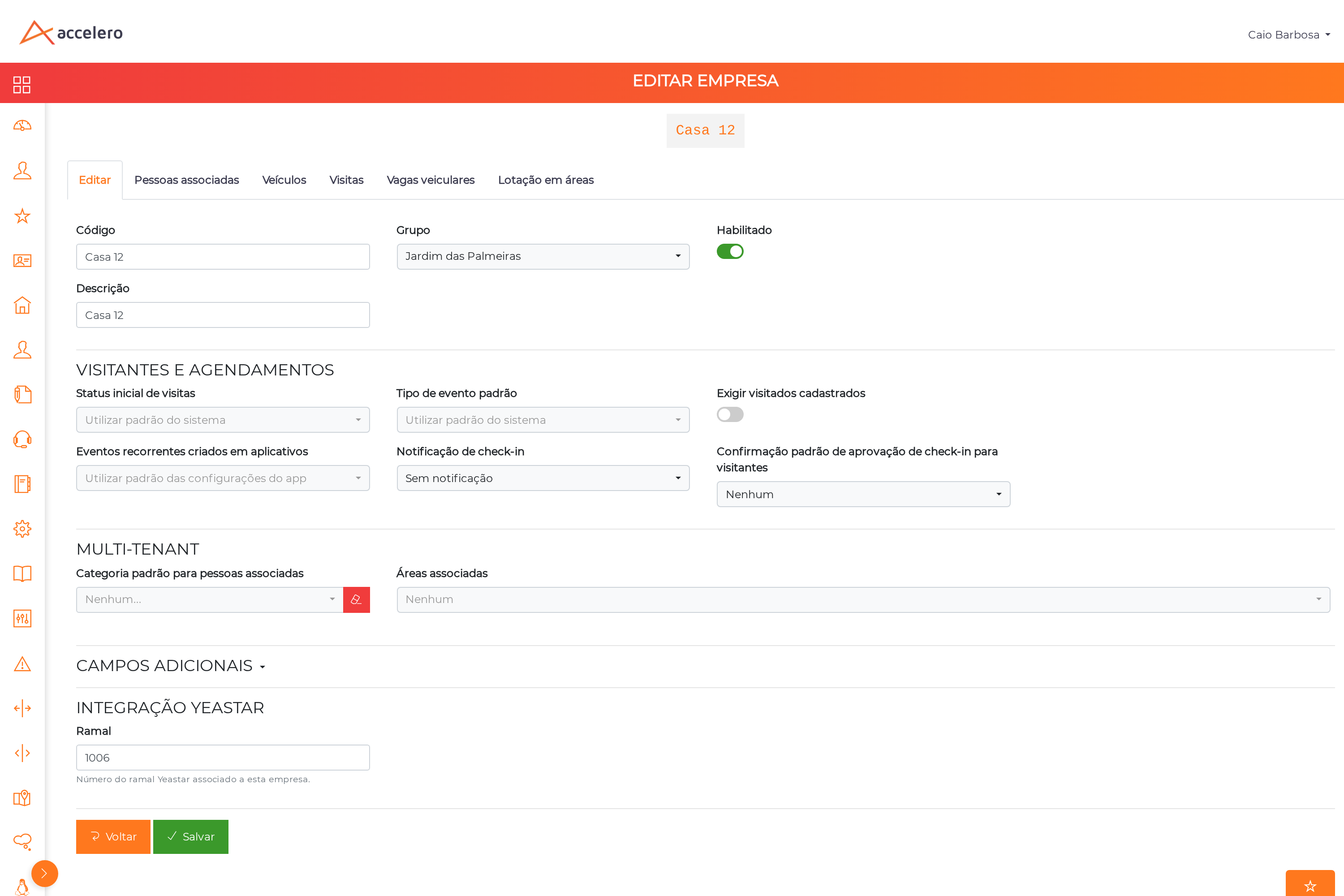
| Field | Description |
|---|---|
| Extension | The Yeastar extension number associated with this company (e.g. 1006) |
The system refuses to save and reports which unit already uses that number. The incoming call is resolved from extension to unit: with two records on the same number, the panel would show the wrong unit, with full confidence and nothing on screen indicating the ambiguity.
Permissions
There are three, granted under Advanced > Profiles. The first one decides whether telephony exists for that operator at all.
| Permission | Internal function | What it enables |
|---|---|---|
| Yeastar - use telephony | yeastarWidget | Receive and answer calls. Without it nothing is loaded |
| Yeastar - call units | yeastarCall | Use the quick search to originate calls |
| Yeastar - view call history | yeastarHistorico | Open the Call history menu |
It shows which operator talked to which unit and when. That is supervisory information, and it does not follow from being able to answer the phone. In the plugin update, everyone who could already call received the new permission automatically, so nobody loses access silently.
An operator whose profile is not linked to any post simply does not see the telephony. There is no error, only absence — the correct behavior for someone working in another role.
Day-to-day use
The operator's post
In the bottom right corner sit the orange phone button and a label with the post name and the state of the line in that tab.

| Indicator | Meaning |
|---|---|
| ● line | This tab is the one connected to the phone. This is where the call rings |
| ○ mirror | Another tab holds the line. The operator still sees everything and can act normally |
The browser only releases sound after a user interaction on the page. Without that, the first call of the day may arrive with no audio. Any click fixes it, and it holds for the rest of the shift.
Calling a unit
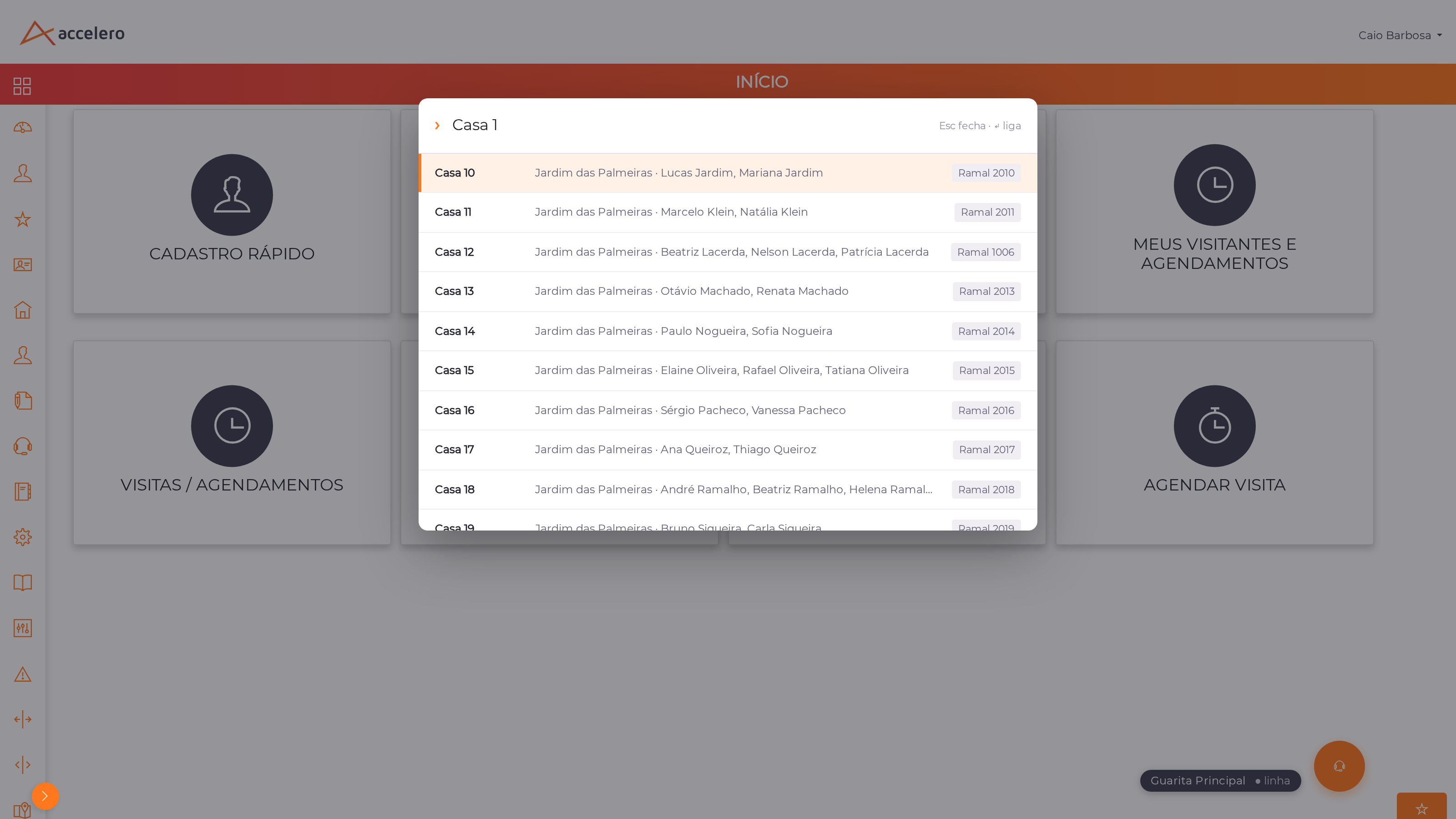
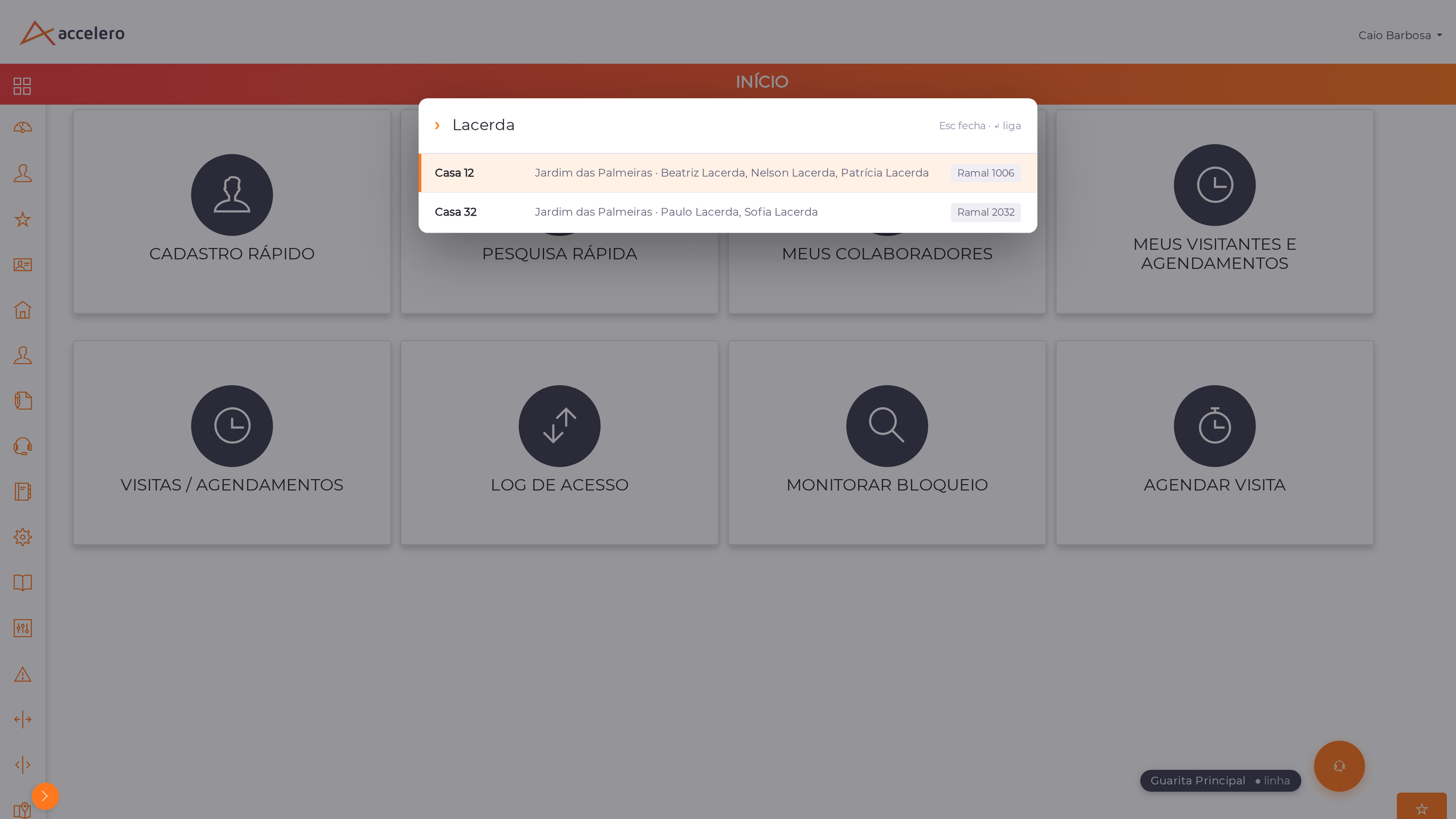
Press Alt + T from any screen, or click the orange phone button. The search opens on top of whatever the operator was doing, and looks for four things at once.
| The operator types | The search finds |
|---|---|
| The unit number | 12 finds Casa 12 |
| The block or sector | Palmeiras finds the units in that group |
| A resident's name | Lacerda finds the units where someone with that name lives |
| The extension itself | 2021 finds the unit that uses that number |
| Key | Does |
|---|---|
↓ and ↑ | Moves through the results |
Enter | Calls the selected one |
Esc | Closes and returns focus to where the operator was |
A condominium with repeated numbering across towers or blocks is the rule, not the exception. That is exactly where you call the wrong unit without noticing — which is why the block stays visible next to the number.
Type the number. If it does not match any registered unit, the last option in the list offers to dial that number directly — useful for a service intercom, maintenance or a neighboring front desk.
Receiving a call
When a unit calls, the phone rings and a panel appears in the top right corner, before answering. It exists so the operator already knows who they are about to talk to.
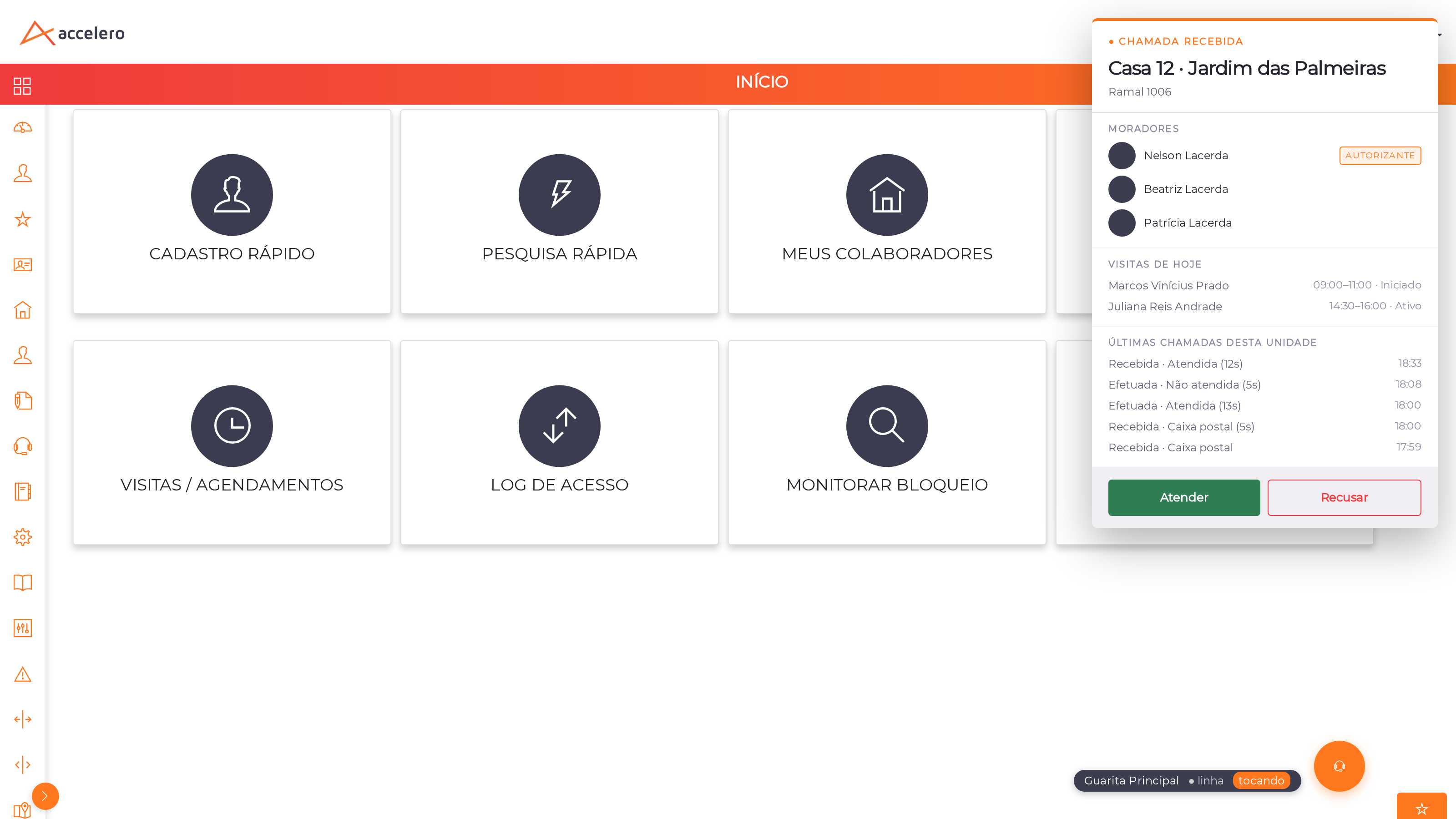
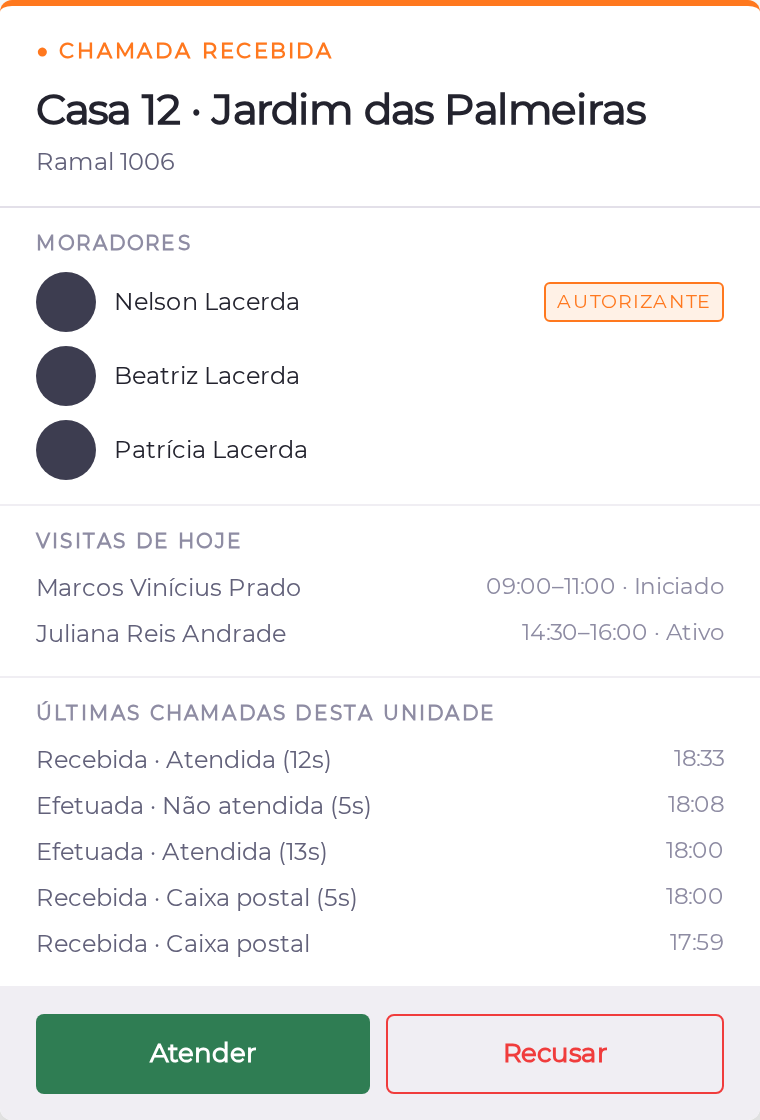
| The panel shows | What for |
|---|---|
| The unit and the block | The operator already knows where the call comes from, without asking |
| The residents | With the Authorizer badge on whoever can release entry |
| Today's visits | Who is scheduled for that unit, with time and status |
| Latest calls from this unit | Whether that unit has already called today, and how it went |
Use Answer to take the call or Decline to refuse it.
Knowing, before the first word, that the person on the other end can release entry avoids asking "do you authorize?" to someone who cannot authorize. It is the piece of information that saves the most time at the front desk.
If the number does not belong to any registered unit, the panel shows the number and the actions just the same. The operator never loses a call for lack of a record.
During the conversation
After answering, the call window appears with the controls. It can be dragged by its title bar to wherever is most comfortable.
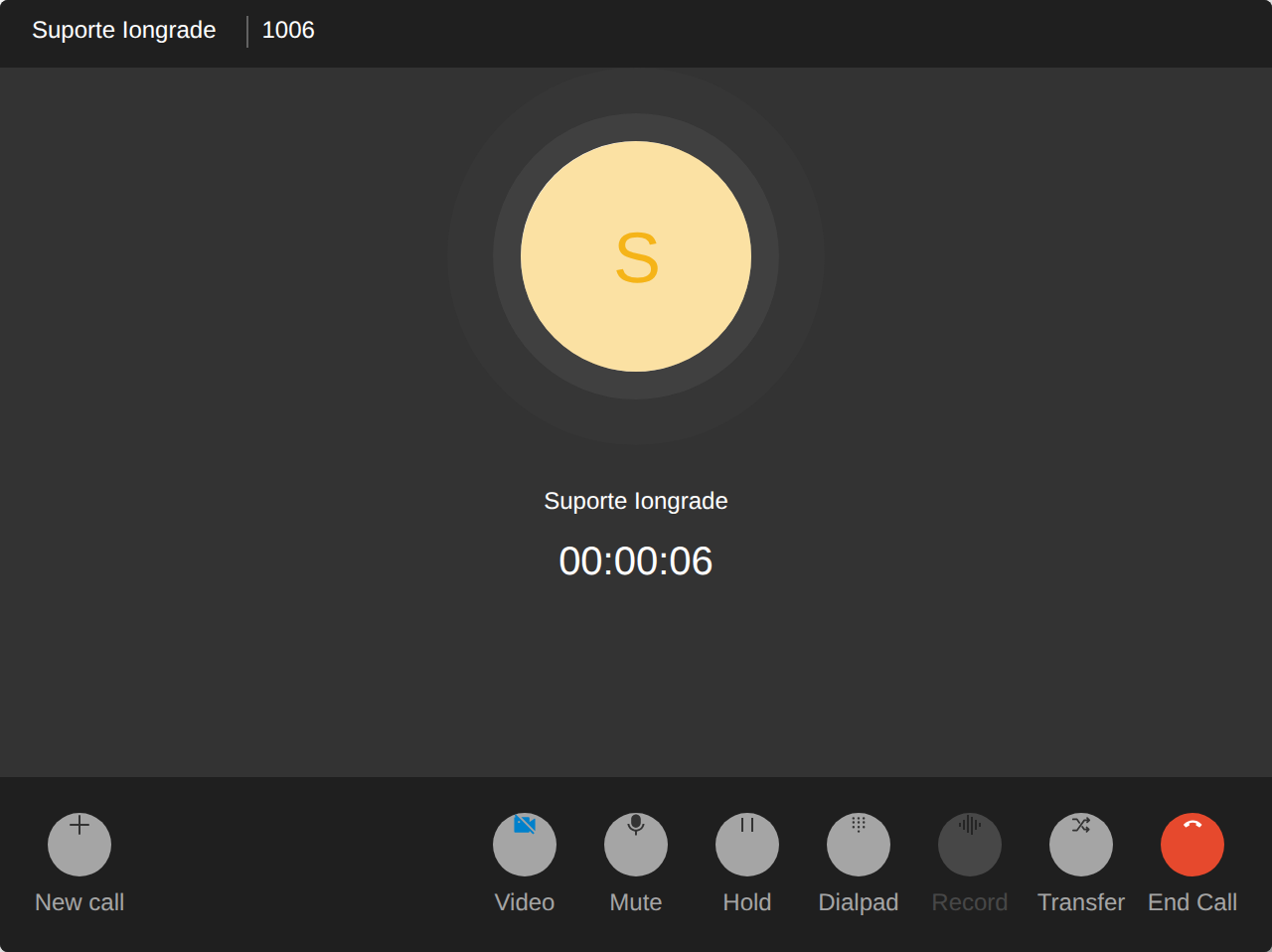
| Control | Does |
|---|---|
| End Call | Ends the call |
| Mute | Cuts the operator's microphone. The other side stops hearing them; the operator keeps hearing |
| Hold | Puts the call on hold |
| Video | Turns on the camera, when available |
| Transfer | Passes the call to another extension |
| Dialpad | Numeric keypad, for attendant menus |
| New call | Starts another call without ending the current one |
The call window is provided by the Yeastar SDK and keeps its original labels. The Record control appears disabled when recording is not enabled on the PBX.
Call history
Navigation path: side menu > Call history
Each row combines the PBX record (time, duration and outcome) with what ACCELERO knows: which post it came from and which operator acted.
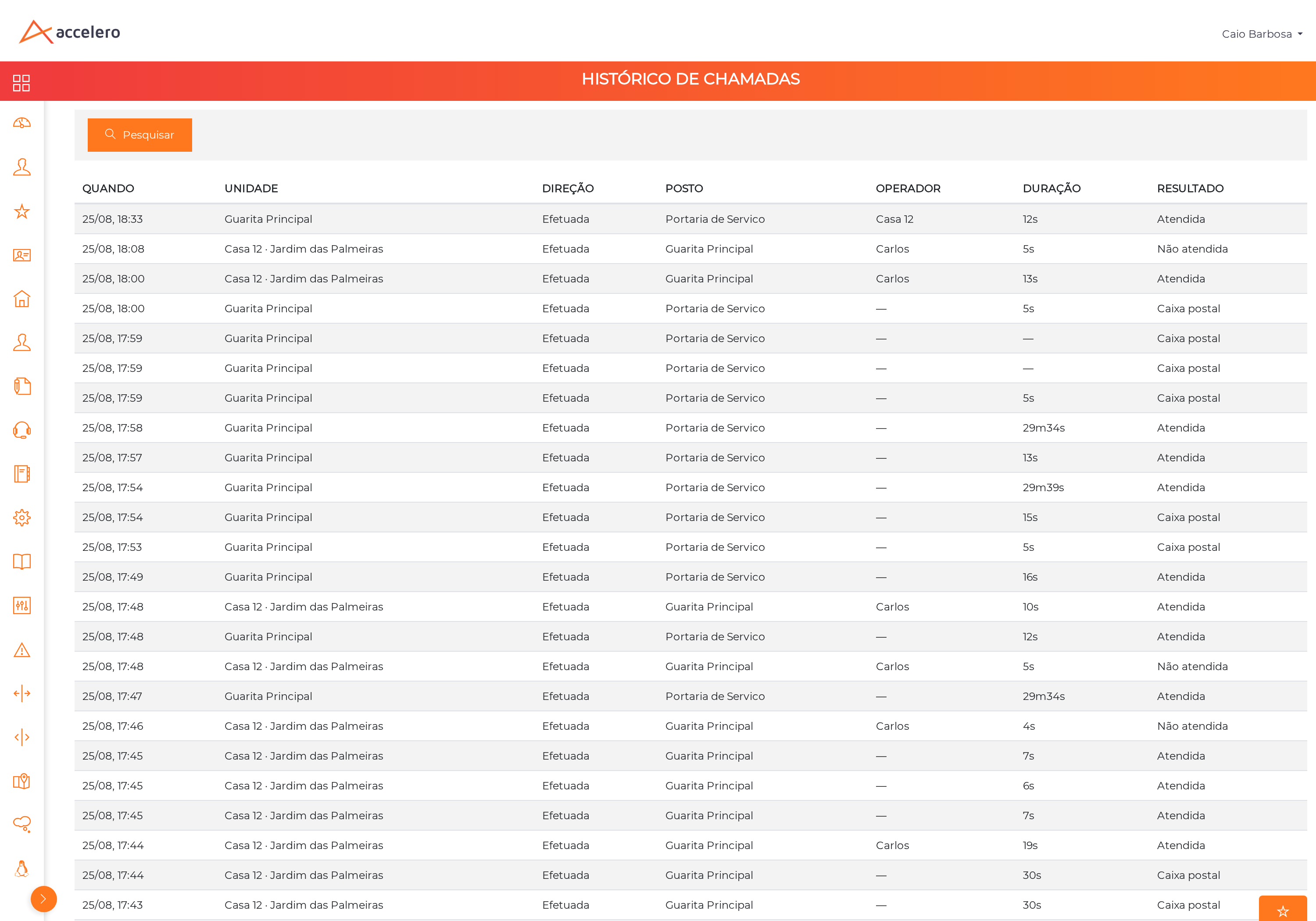
| Column | Content |
|---|---|
| When | Date and time of the call |
| Unit | The unit and the block, when the extension is linked to a record |
| Direction | Received or placed |
| Post | The attendance post involved |
| Operator | Who acted through ACCELERO |
| Duration | Talk time |
| Outcome | Answered, Not answered, Voicemail |
The Search button opens the search panel, in the same pattern as the other listings in the system.
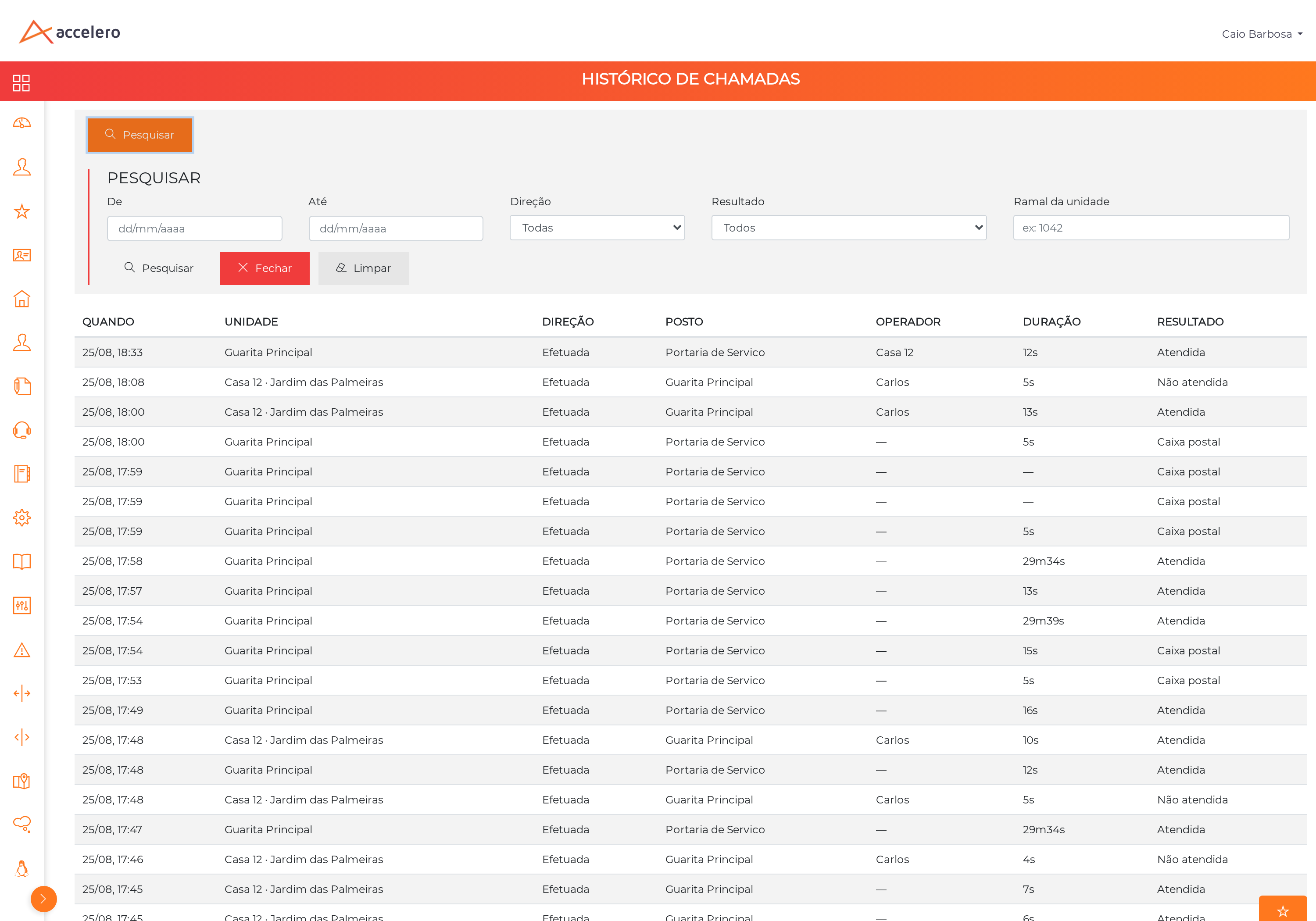
| Filter | Content |
|---|---|
| From / To | Period, in dd/mm/yyyy format |
| Direction | All, received or placed |
| Outcome | All, or a specific outcome |
| Unit extension | Extension number |
The Search, Close and Clear buttons complete the panel.
It means nobody acted through ACCELERO on that call — a call nobody answered, for example. The PBX record exists; what does not exist is an operator action to associate with it.
The PBX does not allow server-side filtering, so the plugin reads the most recent calls and applies the filter over them. For older periods, the full history lives on the PBX itself (a CDR query).
Several tabs open
It is common to work with ACCELERO open in more than one tab. Only one of them stays connected to the phone, chosen automatically: it is the one showing ● line.
- The tab with the line is where the call rings.
- The others show the same panel and forward the operator's actions.
- If the tab with the line is closed, another one takes over on its own within a few seconds.
In practice the operator does not need to worry about this. The distinction exists so the extension takes up one registration on the PBX, not one per tab.
Validating the deployment
Before handing over, confirm the five points below with a real operator on screen.
- Telephony appears. Log in with a user from the mapped profile. The phone button and the post name should show up in the bottom right corner.
- The search finds. Press
Alt + Tand type a unit number, then a resident's name. Both searches should find results. - The call goes out. Call a unit and confirm the audio goes both ways.
- The call comes in. Ask the unit to call. The panel should appear before answering, with the right unit.
- Only one tab registers. Open ACCELERO in three tabs and check under
Extension and Trunk > Extension, on the PBX, that the extension shows one registration, not three.
The browser only allows playing sound after a user click on the page. If the first call of the day arrives silent and the following ones work, that is the reason — not the integration.
Troubleshooting
Telephony does not appear for an operator
Check in this order:
- Whether their profile is linked to a post in the plugin configuration.
- Whether the profile has the Yeastar - use telephony permission (
yeastarWidget).
Without either one, nothing is loaded and no error is shown.
The browser shows PBX_API_ERROR and nothing else
Most likely cause: the FQDN Access Type is set to Allowed Account without the extension allowed. The PBX refuses the connection before checking the credential, so a correct and an incorrect password produce the same error.
Solution: allow it through the Extension Group, not extension by extension.
The integration fails with ACCESS DENIED
Cause: the two credential pairs were swapped.
Solution: the AccessID/AccessKey comes from Integrations > Linkus SDK; the Client ID/Secret comes from Integrations > API. Each one is refused on the other's endpoint.
Saving is refused saying an extension has no email
Cause: this is intentional. Yeastar identifies the extension by email, and an extension without one could never authenticate — the failure would surface much later, with no clue as to the cause.
Solution: register the email on the extension inside the PBX.
The operator does not hear the incoming call, but the other side hears them
Cause: an extension without ICE enabled. This happens with extensions created through the API instead of the interface.
Solution: enable enb_ice and enb_nat on the extension. Also check the microphone permission in the browser.
The call arrived silent
Solution: click anywhere on the page and try again — the browser only releases sound after an interaction. If it persists, confirm the microphone is authorized for the site.
"Session expired" appeared
Cause: the ACCELERO session dropped.
Solution: reload the page and log in again.
The operator searched for a unit that exists and did not find it
Cause: that unit probably has no extension linked in its record yet.
Solution: fill in the Extension field in the Yeastar Integration section of the company record.
Alt + T does not open the search
Solution: check that the focus is on the ACCELERO page and not on another window. The orange phone button does the same thing.
Two operators on the same post — do both ring?
Yes, by definition: the extension belongs to the post and either one can answer. Check that the extension's Concurrent Registrations covers the number of simultaneous operators.
Integration with other modules
Companies
The unit is the Companies record. The Extension field in the Yeastar Integration section links the PBX extension to the unit, and the company Group is what appears as the block in the search and in the call panel.
People
The residents shown in the incoming call panel come from the People associated with the company. The Authorizer badge reflects the authorizer flag on the link between the person and the unit.
Events (Visits)
The Today's visits block of the panel lists the Events of the day for that unit, with time and status. Canceled visits are left out.
Operators and Profiles
The post is a profile, and the three plugin permissions are granted to the profiles of the Operators who staff it.