Maintenance
Although most of the system's maintenance is performed by IONGRADE, some actions can/should be performed by the user/integrator themselves, depending on the operation.
Navigation path: Advanced > Maintenance
Include a screenshot of the maintenance menu showing all the available options.
Backup
Navigation path: Advanced > Maintenance > Backup
IONGRADE performs a data/photo backup daily. However, you can generate and download a backup at any time.
Manual Backup
The manual backup is not managed by IONGRADE; it is the user's responsibility.
When to do it:
- Before reconfiguring controllers
- Before batch registration of identifiers
- Before any important action in the system
- Periodically for archiving
How to do it:
- Go to
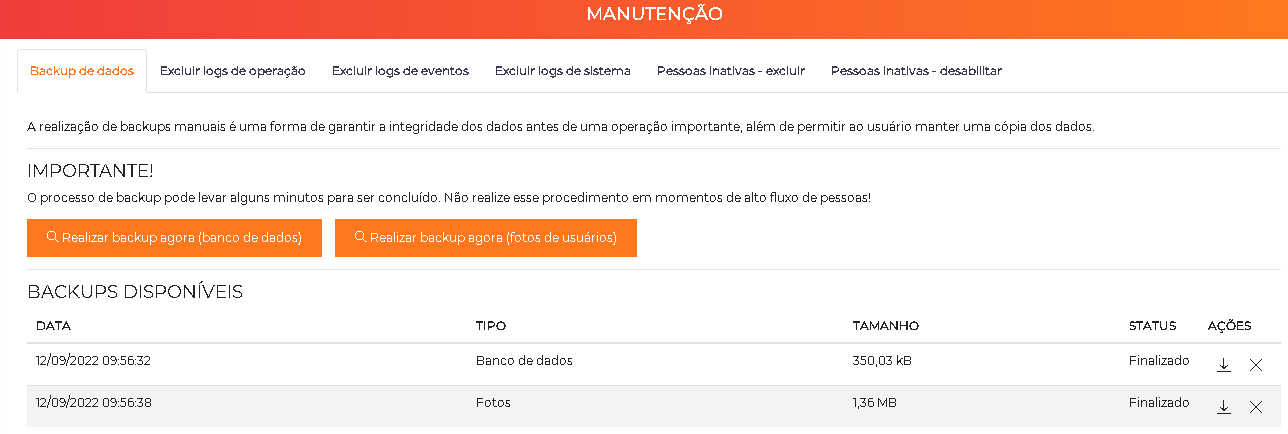
Advanced > Maintenance. The first screen displayed is the data backup screen. - Select the desired options for the backup (data and/or photos).
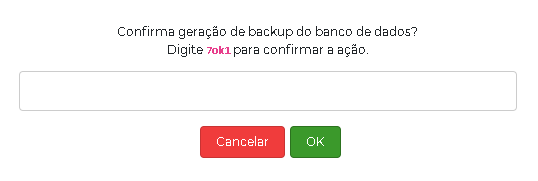
- Fill in the captcha confirmation box and click OK.
- Wait for the file to be generated. After a few minutes, refresh the page and check whether the download is already available.
- Download the backup and store it in a safe place.
To confirm the generation, the system requests that a security captcha be filled in before performing the action. This same captcha confirmation appears in other maintenance operations (deleting logs, inactive people, etc.).
We suggest performing a manual backup before carrying out any important action in the system.
For security reasons, the generated backup file is automatically deleted after 24 hours. Download and store it right after generation — preferably in the cloud. It is recommended to create a backup monthly as a precaution.
Log Deletion
Navigation path: Advanced > Maintenance > Log deletion
The ACCELERO usage license provides for the storage of a limited quantity of event (access) and operation (audit) logs.
Automatic Deletion
When the amount of stored logs exceeds the contracted volume, the oldest logs are automatically deleted.
Manual Deletion
Manual log deletion allows this operation to be performed in a more controlled way.
Recommendation: Use this feature always after performing a manual backup, for safety.
Log Types
| Log Type | Description | Counted Toward the Limit |
|---|---|---|
| Event logs | Access records (passages, denials, etc.) | ✓ Yes |
| Operation logs | Audit of operator actions | ✓ Yes |
| System logs | Internal ACCELERO notifications | ✗ No |
The deletion of operation logs (audit) itself generates a log reporting that a log deletion occurred. For security, this specific log is never deleted to ensure there is always evidence of this critical action.
How to Delete Logs Manually
The procedure is the same for each log type, changing only the selected option:
- Go to
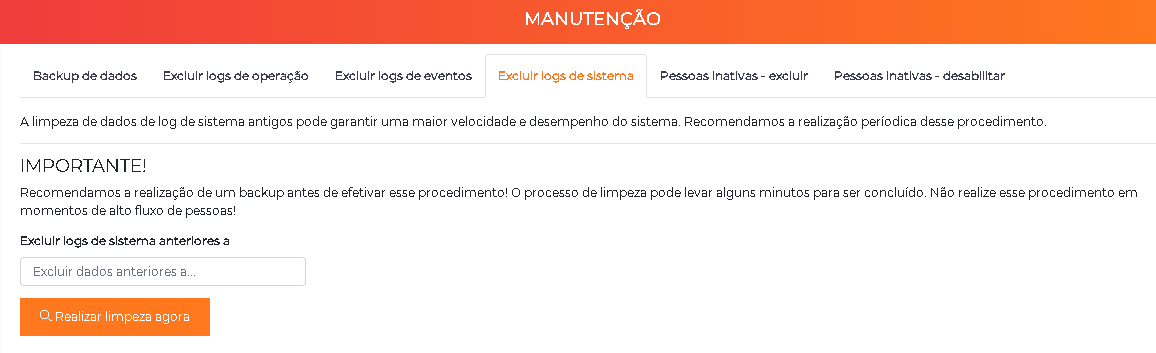
Advanced > Maintenanceand locate the deletion option corresponding to the desired log type. - Select the cutoff date for the cleanup. All logs prior to the informed date will be deleted. For example, when selecting
01/01/2022, all logs prior to that date are deleted. - Click Run cleanup now.
- Fill in the captcha in the confirmation box and click OK. The cleanup runs automatically, without interrupting the use of the system.
Create a manual backup and store it in a safe place before the cleanup, in case it becomes necessary to undo the procedure.
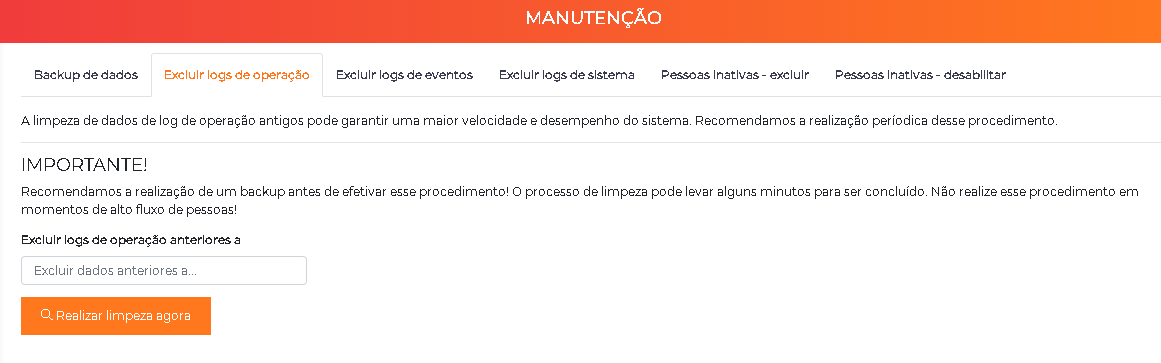
Operation logs — audit of operator actions (who deleted a user, who changed a card, etc.):
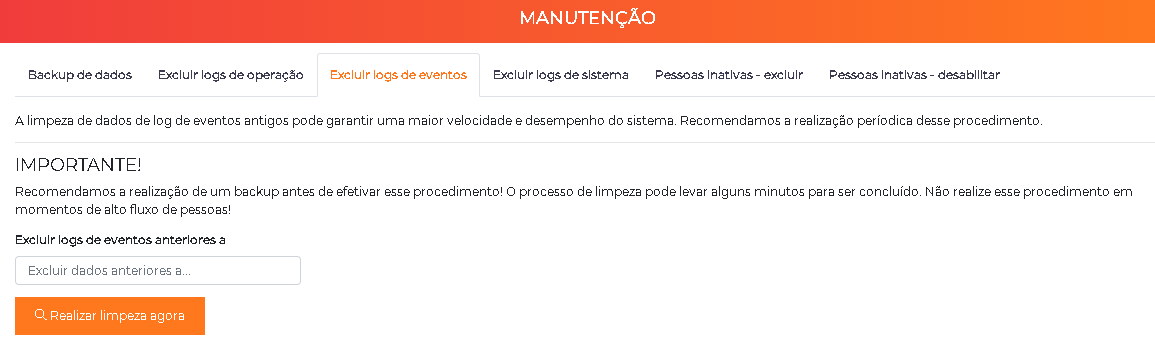
Event logs — access records, such as passages and denials of users:
System logs — internal ACCELERO notifications, such as loss of connection of a controller or failure to send a photo to a facial device/gateway:
Deletion of Inactive People
Navigation path: Advanced > Maintenance > Inactive people - delete
It is advisable to periodically delete the registration of inactive people, both for data privacy reasons and for LGPD compliance.
What Inactive People Are
Inactive people are those who have no access history for a long period of time.
Available Filters
| Filter | Description |
|---|---|
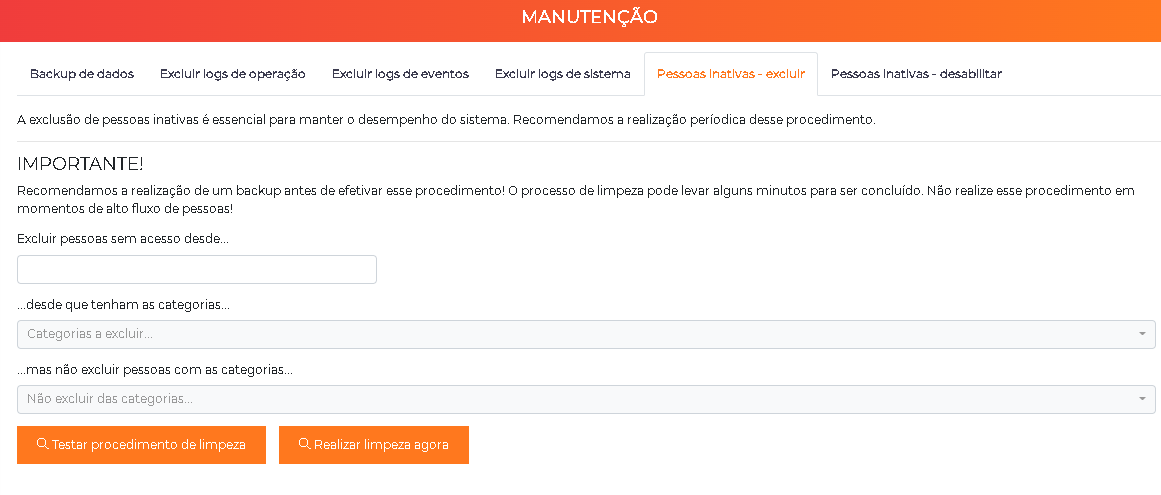
| Delete people with no access since... | Cutoff date for the data deletion |
| ...provided they have the categories... | Only people belonging to these categories will be deleted |
| ...but do not delete people with the categories... | People who have these categories will not be deleted |
In ACCELERO, people can have more than one category. The deletion considers all of the person's categories.
How to Delete Inactive People
- Go to
Advanced > Maintenanceand locate the option to delete inactive people. - Configure the filters as needed. For example: delete visitors and service providers with no access for more than 6 months.
- Before running, click Test cleanup procedure to check the number of people who will be deleted.
- Once the result is confirmed, click Run cleanup now.
- Fill in the captcha in the confirmation box and click OK. The cleanup runs internally, without interrupting the use of the system.
Create a manual backup and store it in a safe place before the cleanup, in case it becomes necessary to undo the procedure.
Automatic Deletion of Inactive People
Navigation path: Advanced > System > Advanced > Scheduled tasks
You can configure the system to perform the automatic deletion of inactive people.
Characteristics:
- Run every day during the early morning
- Simplifies operational processes
- Ensures compliance with privacy policies
Available settings:
| Field | Description |
|---|---|
| Enable automatic deletion of inactive people | Enables the automatic deletion feature |
| Automatically delete people with no access for more than... | Limit of days "without access" that will cause a person to be considered inactive |
| ...provided they have the categories... | Only people belonging to these categories will be deleted |
| ...but do not delete people with the categories... | People who have these categories will not be deleted |
Include a screenshot of the scheduled tasks screen showing the automatic deletion settings.
Disabling of Inactive People
Navigation path: Advanced > Maintenance > Inactive people - disable
For security reasons, it may be convenient to disable inactive people instead of deleting them. Their data remains in the system, but access is blocked on all controllers.
Available Filters
| Filter | Description |
|---|---|
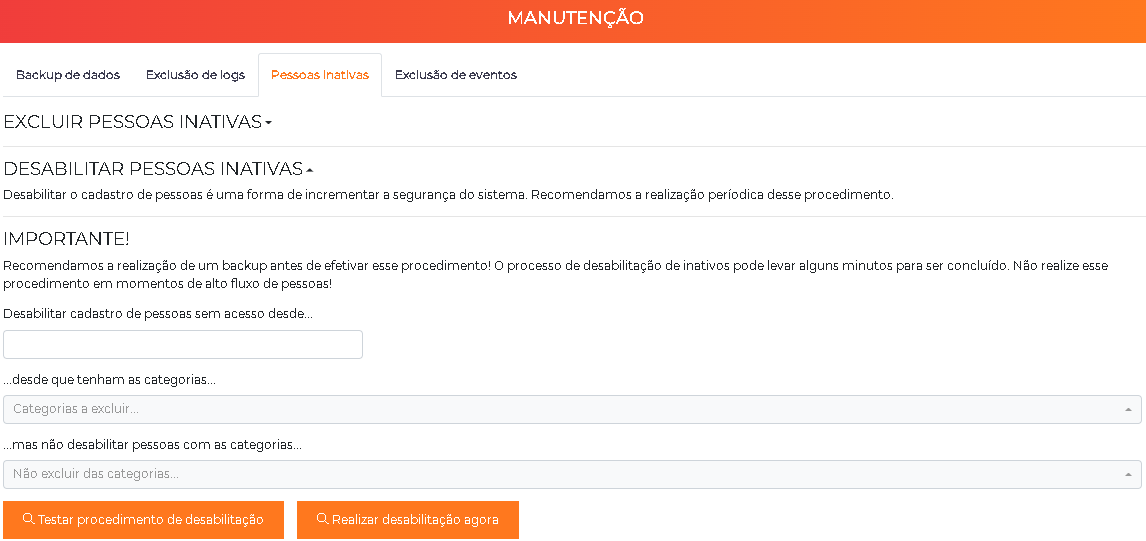
| Disable registration of people with no access since... | Cutoff date for disabling registrations |
| ...provided they have the categories... | Only people belonging to these categories will be disabled |
| ...but do not delete people with the categories... | People who have these categories will not be disabled |
By disabling instead of deleting, the registrations remain saved in the system. When the person returns to the location, the operator simply reactivates the existing registration, speeding up service.
How to Disable Inactive People
- Go to
Advanced > Maintenanceand locate the option to disable inactive people. - Configure the filters as needed. For example: disable visitors and service providers with no access for more than 9 months.
- Before running, click Test disabling procedure to check the number of people who will be disabled.
- Once the result is confirmed, click Run cleanup now.
- Fill in the captcha in the confirmation box and click OK. The procedure runs internally, without interrupting the use of the system.
Create a manual backup and store it in a safe place before the procedure, in case it becomes necessary to undo it.
Automatic Disabling of Inactive People
Navigation path: Advanced > System > Advanced > Scheduled tasks
You can configure the system to perform the automatic disabling of inactive people.
Characteristics:
- Run every day during the early morning
- Keeps data in the system
- Blocks access automatically
Available settings:
| Field | Description |
|---|---|
| Automatically disable inactive people | Enables the automatic disabling feature |
| Automatically disable people with no access for more than... | Limit of days "without access" that will cause a person to be considered inactive |
| ...provided they have the categories... | Only people belonging to these categories will be disabled |
| ...but do not delete people with the categories... | People who have these categories will not be disabled |
Deletion of Photos of Inactive People
Navigation path: Advanced > Maintenance > Inactive people - delete photos
For security and privacy reasons, it may be convenient for inactive people to have their photos deleted, but without making any additional changes to their registration.
Available Filters
| Filter | Description |
|---|---|
| Delete photos of people with no access since... | Cutoff date for the photo deletion |
| ...provided they have the categories... | Only people belonging to these categories will have their photos deleted |
| ...but do not delete photos of people with the categories... | People who have these categories will not have their photos deleted |
Deleting photos reduces the disk space used and improves compliance with privacy policies, keeping the registration data.
Deletion of Events
Navigation path: Advanced > Maintenance > Event deletion
It is advisable to periodically delete old events.
Old events are visits that occurred a long time ago and no longer serve any operational function.
Available Filters
| Filter | Description |
|---|---|
| Delete events whose end date is prior to... | Cutoff date for the event deletion |
Automatic Deletion of Events
Navigation path: Advanced > System > Advanced > Scheduled tasks
You can configure the system to perform the automatic deletion of events.
Characteristics:
- Run every day during the early morning
- Simplifies operational processes
Available settings:
| Field | Description |
|---|---|
| Automatically delete events whose end date is older than... | Cutoff date (in days) for the event deletion |
Batch Movement of People
Navigation path: Advanced > System > Advanced > Scheduled tasks > Batch movement of people
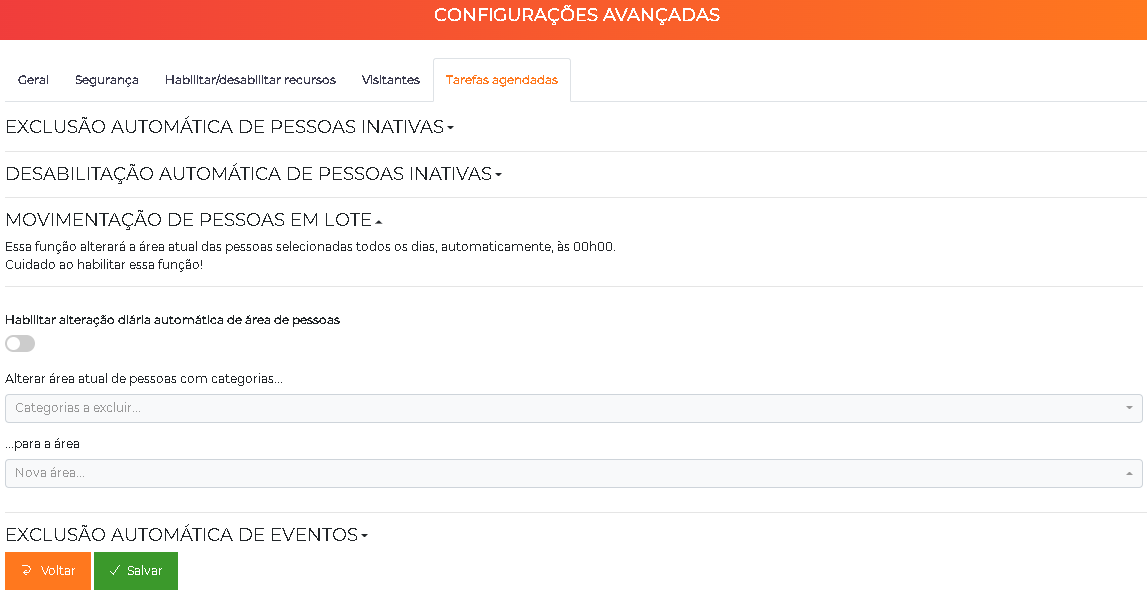
You can configure the system so that the current area of certain people is changed on specific days/times automatically.
This function can be useful in systems where it is not possible to guarantee with absolute certainty that the physical flow of people will occur as planned in the project.
Rule Configuration
Several simultaneous rules can be created to handle various scenarios.
To include a new rule:
| Field | Description |
|---|---|
| Move categories... | Determines which person categories should have their areas changed automatically |
| ...to the area... | Which area the people should be moved to |
| ...on the days... | On which days of the week the movement should occur |
| ...at | At what time the movement should occur |
Usage example:
Move categories: EMPLOYEES
To the area: EXTERNAL
On the days: Monday to Friday
At: 18:00
How to Configure
- Go to
Advanced > System, select the System advanced menu, and navigate to the Scheduled tasks tab. - Enable the daily change of area.
- Fill in the rule fields (categories, destination area, days of the week, and time) as needed.
- Click Save. The task starts running automatically at the defined time.
Automatic Sending of Identifier List
Navigation path: Advanced > System > Advanced > Scheduled tasks
You can configure the system so that identifier lists are automatically sent to the controllers on specific days of the week.
Characteristics:
- The sending always occurs during the early morning
- Ensures periodic synchronization with controllers
- Important for contingency operation
How to configure:
- Select the days of the week on which you want to perform the automatic sending
- If no day is selected, the feature will be disabled
See Operation - Sending the Identifier List for more details.
Automatic Credit Management
Navigation path: Advanced > System > Advanced > Scheduled tasks > Automatic credit management
This feature is only available if the Credits module is enabled in the license.
You can configure the system so that credits are automatically added, removed, or changed at specific days/times for specific categories.
Rule Configuration
Several rules can coexist.
Configuration fields:
| Field | Description |
|---|---|
| Days of the week | On which days of the week the rule should be applied |
| Time | The exact time at which the rule should be applied |
| Affected categories | Which categories will be affected by the rule (people with at least one of the listed categories will be affected). People with multiple categories will be affected by each individual rule only once |
| Action | What should be done: Add (adds credits), Force value (changes the credit to a specific value, regardless of the current credits), Remove (removes credits) |
| Credits | How many credits should be added/removed, or the amount of credits that will be "forced" for the person, depending on the configured action |
Example:
Days: Monday to Friday
Time: 06:00
Categories: EMPLOYEES
Action: Add
Credits: 1
Result: Every business day at 6 a.m., each employee receives 1 additional credit.
Include a screenshot of the automatic credit management screen showing a rule example.
Credit Consolidation
Navigation path: Advanced > Maintenance > Credit consolidation
This feature is only available if the Credits module is enabled in the license.
What Consolidation Is
Credit consolidation replaces several individual entries of credits/debits in the database with a single consolidated entry on the chosen date.
Objective: Improve system performance by reducing, in a controlled way, the traceability of the entries.
Consolidation reduces traceability. In general, it is recommended to consolidate credits for already-closed periods (where there is no dispute or need for manual verification/audit).
Automatic Credit Consolidation
Navigation path: Advanced > System > Advanced > Scheduled tasks
You can configure the system so that credits are automatically consolidated daily.
Benefits:
- Optimizes database usage automatically
- Improves system performance
- Generally recommended
Exception: Do not enable it if there is a need for frequent manual auditing of credits and debits.
Deletion of Virtual Identifiers
The system offers a function to delete virtual identifiers of people who do not have a valid category. This is useful for keeping the database clean, removing orphan identifiers of people who are no longer part of the system.
Navigation path: Advanced > Maintenance
Maintenance Best Practices
-
Back up before critical actions: Always generate a manual backup before important operations
-
Configure automations: Use scheduled tasks for automatic maintenance and prevent problems
-
Monitor disk space: Delete old logs and events periodically
-
Review inactive people: Configure automatic deletion/disabling according to internal policy
-
Document configurations: Keep a record of the configured scheduled-task rules
-
Test before production: Test movement and credit rules before activating
-
LGPD compliance: Implement data deletion policies in accordance with legislation
-
Consolidate credits: If you use the credits module, configure automatic consolidation