Operation
After ACCELERO has been configured by certified technicians, the process of system operation begins: daily use by regular operators.
This section describes the most important parts of the system related to day-to-day operation.
Quick Person Link
Navigation path: Advanced > System > Operation - Quick person link
From a technical standpoint, ACCELERO makes no distinction between the different types of people (permanent staff, residents, visitors, etc.). From an operational standpoint, however, this division can make a lot of sense.
To simplify the use of the system, you can customize the menu so that the people listing screen performs the automatic grouping of some categories.
Step by Step
- Go to
Advanced > Systemand locate the Operation - Quick person link option. - Click Edit to open the configuration screen.
- Add a new group and fill in the three parameters described below.
- Save. The group starts appearing as a subitem of the People side menu.
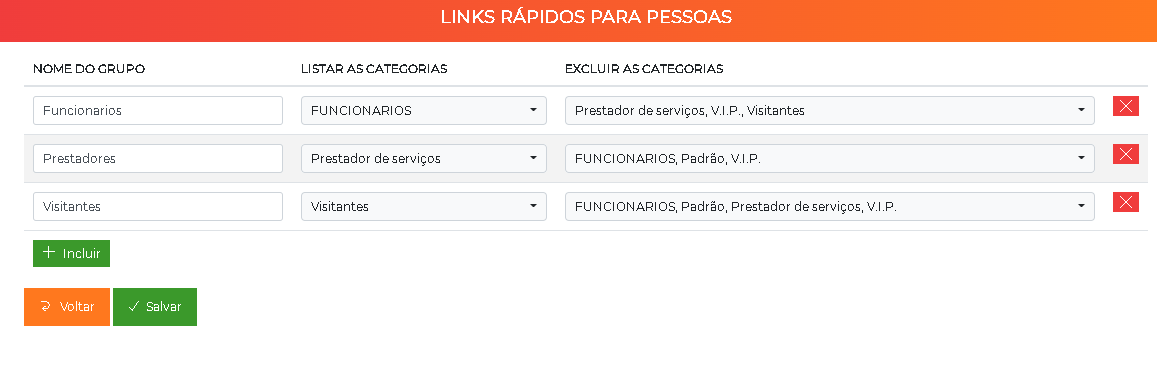
The screen lets you define the group name and which categories will be listed or excluded, organizing the separation of users by their categories and making searching in the system easier.
Group Configuration
You can create several groups that represent junctions of the various categories in the system.
Configuration fields:
| Field | Description |
|---|---|
| Group name | Name that will appear in the side menu |
| List the categories | List of categories that are part of this group |
| Exclude the categories | List of categories that will not be part of this group |
Practical Example
Group name: Residents and dependents
List the categories: RESIDENTS, DEPENDENTS, FAMILY MEMBERS
Exclude the categories: DEACTIVATED
Result: This new group will list all people who have at least one of the categories RESIDENTS, DEPENDENTS, or FAMILY MEMBERS, provided they do not have the DEACTIVATED category.
Display in the Menu
The created groups will be presented as a subitem in the People side menu.
The menu will always present an All option, which is the complete (unfiltered) listing of all people registered in the system (active and inactive).
Batch Association of Categories
Navigation path: Advanced > System > Operation - Batch operations > Batch association of categories
In some situations, it is necessary to associate a category with several people simultaneously. ACCELERO allows this operation to be performed in batch to simplify the process.
Two-Step Process
Step 1: Define category and validity
- Select which category should be associated
- Configure the validity (start and end date)
Step 2: Select people
- Determine which people will have the category associated
- Use search rules:
- People belonging to a certain category
- People associated with certain companies
- A combination of both criteria
Include a screenshot of the batch operations screen showing the two steps of the process.
Sending the Identifier List
Navigation path: System > Send identifiers
ACCELERO automatically sends and maintains identifiers on the controllers for operation in contingency mode (offline access).
When to Force an Update
It is important to force a complete update of the contingency list when there is:
- A change of access policies (category × area × time range association)
- Changes to controller configuration
How to Send
- Select the controllers that should receive an updated list
- Click the Send list button
- Track the sending status in real time
We recommend that this operation be performed periodically (usually once a week is enough) to ensure the synchronization of information.
Test Without Sending
You can click the Test list sending button to determine how many identifiers would be sent to a controller without the sending actually being performed.
The result will be shown through notifications/popups, and may take a few moments.
Information displayed:
- Sending status of each list
- Number of identifiers in the list sent to each controller
- Estimated completion time
Depending on the size of the system, this operation can take a few minutes.
Include a screenshot of the send identifiers screen showing the controller selection and action buttons.
System Dashboard
After logging into ACCELERO, the operator is directed to a home page. On this home page, some icons with the most common functions are presented - this is the system dashboard.
Some functions available on the dashboard are accessible through other paths via the system menu, and other functions are accessible exclusively through the dashboard.
Include a screenshot of the complete dashboard showing all the quick-access icons.
Quick Event
It is the fastest way to do the "visitor registration".
Alternative access: Side menu titled Visitors
See Events for complete details on visitor registration.
Quick Search
Quick search allows searching for people and vehicles in a centralized way.
How to use:
- Type part of the person's name or document
- OR type part of the vehicle's plate
- Receive a quick, summarized list with basic data
Most common uses:
- Find "who owns the vehicle"
- Discover whether the person is already registered
Include a screenshot of the quick search screen with a search example and results.
Search QR
This function starts the browser's webcam and scans QRCodes.
How it works:
- The camera is activated
- A QRCode is scanned
- The schedules screen is presented automatically filtered to show:
- Only the identified event, OR
- The events of the identified person (depending on the type of QRCode)
Benefit: Allows a quick check of the data and possible release of the visit.
Access via QR
This function allows you to scan access QRCodes to perform various actions, simulating the passage of a QRCode at a controller.
Required settings:
-
Controller/channel associated with the scan
- The system will simulate that the QRCode is being presented at the selected controller/channel
-
Operating mode (3 options):
| Mode | Description |
|---|---|
| Screening | The simulation simply reports whether the QRCode has authorized access or not |
| Access with opening command | If there is authorized access after the scan, an opening command will be sent to the selected controller/channel, effectively releasing the physical block |
| Access with automatic passage | If there is authorized access after the scan, the system will consider that the person passed through the block automatically, effectively "changing the person's area". No opening command is sent to the block |
The third operating mode (Access with automatic passage) allows the use of "virtual blocks", an extremely useful feature at events and situations where it is necessary to quickly release queues.
Include a screenshot of the access via QR screen showing the configuration options and the three operating modes.
Custom Shortcuts
The dashboard also displays custom shortcuts created by the operator. At the bottom of the ACCELERO interface there is a star icon — when you click it, the system creates a shortcut to the current URL where the operator is located.
How it works:
- Navigate to the desired screen in ACCELERO
- Click the star icon at the bottom of the interface
- Define a name and a custom icon for the shortcut
- The shortcut will be displayed on the dashboard alongside the other quick-access icons
Common uses:
- Quick access to frequent reports
- Shortcut to the most-used registration screens
- Links to specific listing filters
My Visitors and Schedules
Target audience: Decentralized operators
Function aimed at operators who register their own visitors.
Characteristics:
- Allows the operator to see and track their own visits
- Allows releasing their own visits
- No access to visits of other units
Ideal for: Residents, users of specific companies, unit managers
Visits/Schedules
Target audience: Front desk and security
Shows all scheduled and ongoing visits in the system.
Available actions:
- Access release
- Closing of visits
- Performing visitor check-in
See Events for more details.
Schedule a Visit
Target audience: Decentralized operators
Allows the creation of visitor schedules.
Behavior: Depending on the system settings, the visitor may have access:
- Pre-authorized (already released for access), OR
- Not authorized (awaiting approval)
See Events for the complete flow.
System Usage Dashboard
Navigation path: System > System usage
The ACCELERO usage license provides for some usage limits, such as:
- Number of active people
- Registered controllers
- Event logs
- Operation logs
Display
The limits are presented in the form of a "gauge"-type chart for easy understanding.
Benefits:
- Quick view of the resource usage level
- Allows taking action preventively
- Identifies when you are close to reaching the contracted limits
If any resource is close to the limit, contact IONGRADE to expand your license before reaching the maximum limit.
Include a screenshot of the system usage dashboard showing the gauge-type charts.
Logs and Monitoring
ACCELERO has several logging and monitoring features for real-time tracking and system auditing.
See Logs and Monitoring for complete documentation on:
- Event log (real-time access monitoring)
- Operation log (audit of operator actions)
- System log (technical events)
- Block monitoring (rich event display)
- Check-in monitor (electronic visit panel)
- Arrivals monitor (queue management)
- Operational statistics
Operational Best Practices
-
Configure people groups: Use quick links to organize people by operational function
-
Use quick search: Before registering a new visitor, check whether they already exist in the system
-
Send lists periodically: Schedule weekly list sending to ensure contingency
-
Monitor system usage: Track the usage dashboard to avoid surprises
-
Train operators: Ensure each operator knows only the functions necessary for their role
-
Use the appropriate dashboard: Configure the dashboard according to the operator's profile
-
Document processes: Keep standard operating procedures (SOPs) up to date
Next Steps
- Events - Understand the complete visitor registration flow
- Reports - Extract information for analysis and auditing
- Profiles - Configure appropriate permissions for each type of operator
- Maintenance - Learn about system maintenance tasks