Integrations - AcceleroApp — General tab
Overview
Configuration screen that lives inside Access Control (Accelero), under Integrations - AcceleroApp. This is where the "marriage" is established between the gatehouse/turnstile system and Accelero APP: which access operator is used, which tokens authenticate the communication in both directions, and how new people and visits are classified when they arrive from the app. It is one of the central steps of the Onboarding a new company and is usually filled in by Support/Integrator.
Where it is / How to access
In Access Control (Accelero):
- In the menu, go to Advanced → System.
- Under System, open the Integrations - AcceleroApp item.
- You reach the integration page — General tab (the other tab is Integration — Synchronization).
Screens and elements
Create / Edit
The screen is always in edit mode (one configuration per company). Sections and fields:
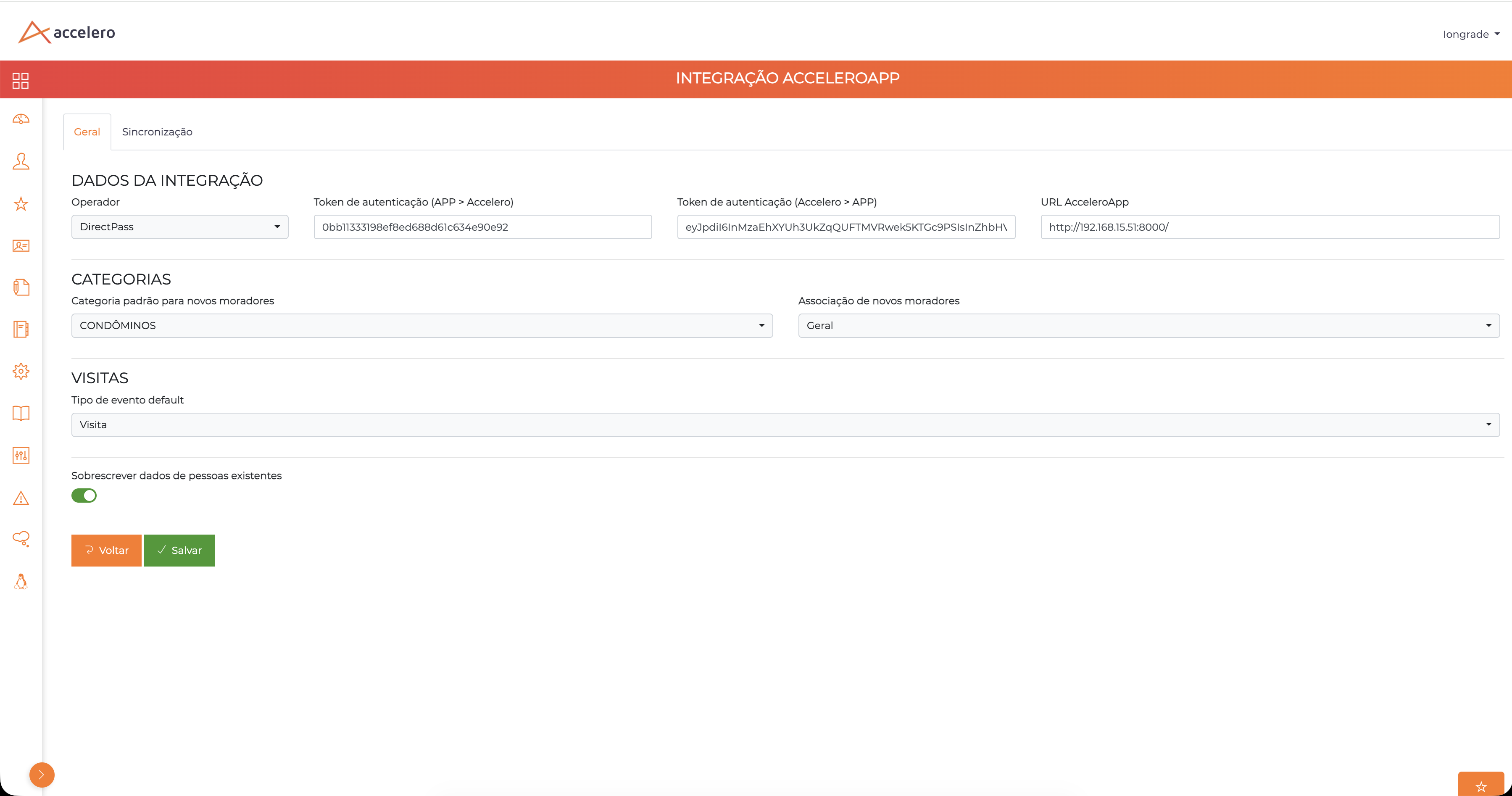
INTEGRATION DATA
| Field | Type | Required | Description / Rule |
|---|---|---|---|
| Operator | Selection | Yes | Access control system used (e.g., APP). Defines the "dialect" of the integration. |
| Authentication token (APP → Accelero) | Text | Yes | Key that authenticates the calls from the app toward Access Control. |
| Authentication token (Accelero → APP) | Text (JWT) | Yes | Key that authenticates the calls from Access Control toward the app. It matches the keys generated when registering the company in the Panel — see Companies / Condominiums. |
| AcceleroApp URL | Text (URL) | Yes | Base address of Accelero APP that access control will call (e.g., https://apiacceleroapp.accelerobr.com.br/). |
CATEGORIES
| Field | Type | Required | Description / Rule |
|---|---|---|---|
| Default category for new residents | Selection | Yes | Access Control category assigned to newly created residents (e.g., CONDÔMINOS). |
| Association of new residents | Selection | Yes | Default group/association applied to new residents (e.g., General). |
VISITS
| Field | Type | Required | Description / Rule |
|---|---|---|---|
| Default event type | Selection | Yes | Event type applied to visits coming from the app (e.g., Visit). |
Others
| Field | Type | Required | Description / Rule |
|---|---|---|---|
| Overwrite data of existing people | Toggle (Yes/No) | — | When turned on, the synchronization updates records that already exist in Access Control instead of ignoring them. |
Actions: Back and Save.
Step by step
- Select the Operator matching the customer's access control.
- Paste the two tokens and the AcceleroApp URL (obtained when registering the company in the Panel — see Companies / Condominiums).
- Set the Default category and Association of new residents, and the Default event type of visits.
- Decide whether you want to Overwrite data of existing people.
- Save. Then move on to Integration — Synchronization.
Business rules and integrations
- This tab does not trigger synchronization — it only defines the parameters. The bulk sending is on the Integration — Synchronization tab.
- The tokens must match the ones generated in the Panel; any divergence breaks the communication in both directions.
The two tokens (APP → Accelero and Accelero → APP) must match exactly the ones generated when registering the company in the Panel. Any divergence breaks the communication — and the failure is usually silent.
- The "Default category" and the "Association" determine where the residents appear on the access control side.
Related
- Integration — Synchronization
- Companies / Condominiums — where the keys (tokens, Facility ID, endpoint) are generated.
- Onboarding a new company — the full flow.
This is the key screen of the integration contract — Operator, the two tokens (opposite directions) and the URL. "Overwrite data" changes the upsert behavior during synchronization.