Registration (first access)
Overview
Account creation flow for the resident in the app. It starts on the welcome screen, searches for the person by document (the type is chosen by the resident — CPF, Passport, Foreign document, or Other), completes the data, sets a secure password and, optionally, captures an identification photo. After registering, the resident still needs to link a condominium (Condominiums (link unit)) and wait for approval (People moderation).
Where it is / How to access
App home screen (not signed in) → First access button. (Those who already have an account use Sign in — see Sign-in and password recovery.)
Screens and elements
1. Welcome (not signed in)
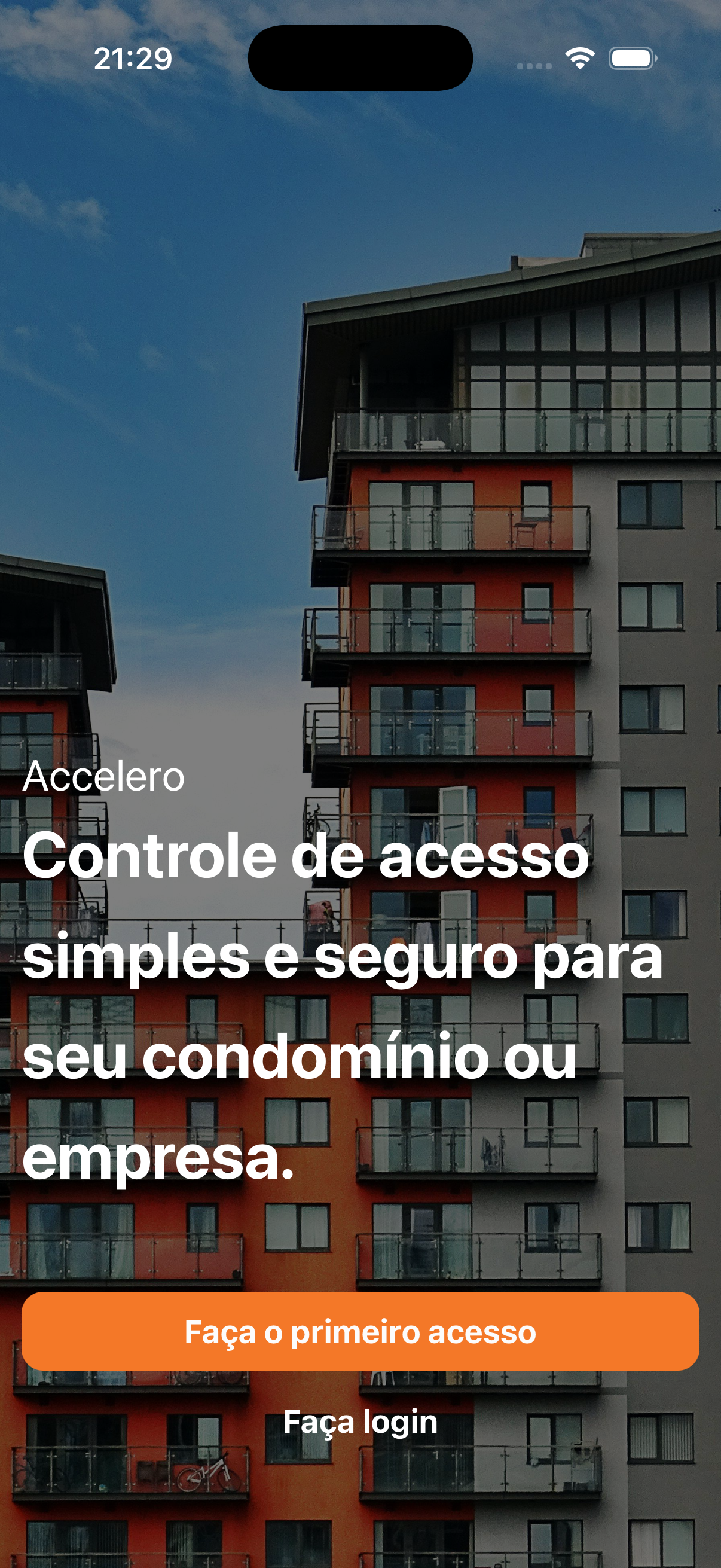
- Accelero branding over a condominium image.
- Tagline: "Simple and secure access control for your condominium or company."
- Buttons: First access (primary, orange) and Sign in (secondary).
2. "Enter your document…"
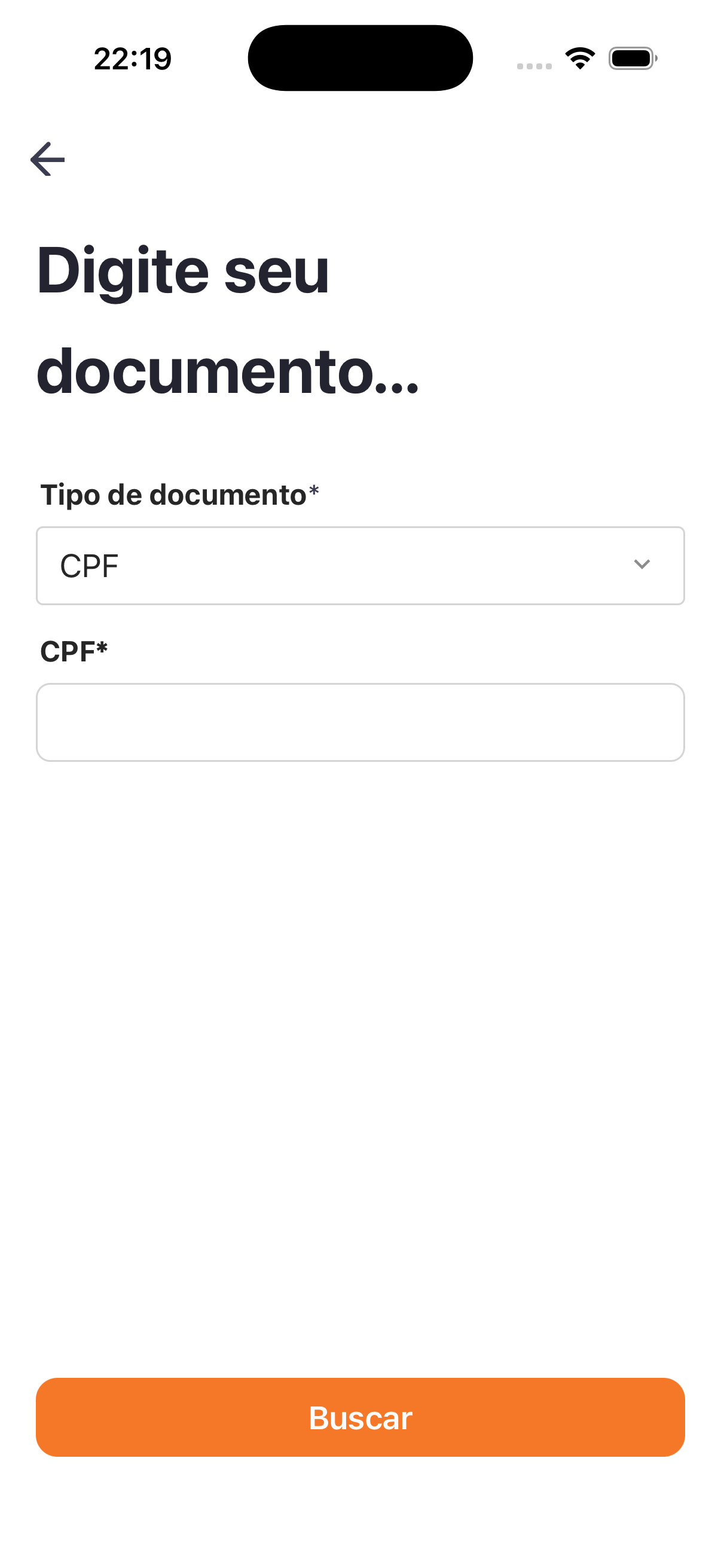
| Field | Type | Required | Description |
|---|---|---|---|
| Document type | Selection | Yes | CPF, Passport, Foreign document, or Other. |
| Document number | Text | Yes | Number according to the selected type. |
| Issuing country | Selection (country) | Conditional | Shown for Passport, Foreign document, and Other; required for Passport and Foreign document. |
| Document expiration | Date | Conditional | Same rule as Issuing country. |
Action: Search (looks for the person pre-registered/imported in the Panel based on the document).
3. "We need a few more details…"
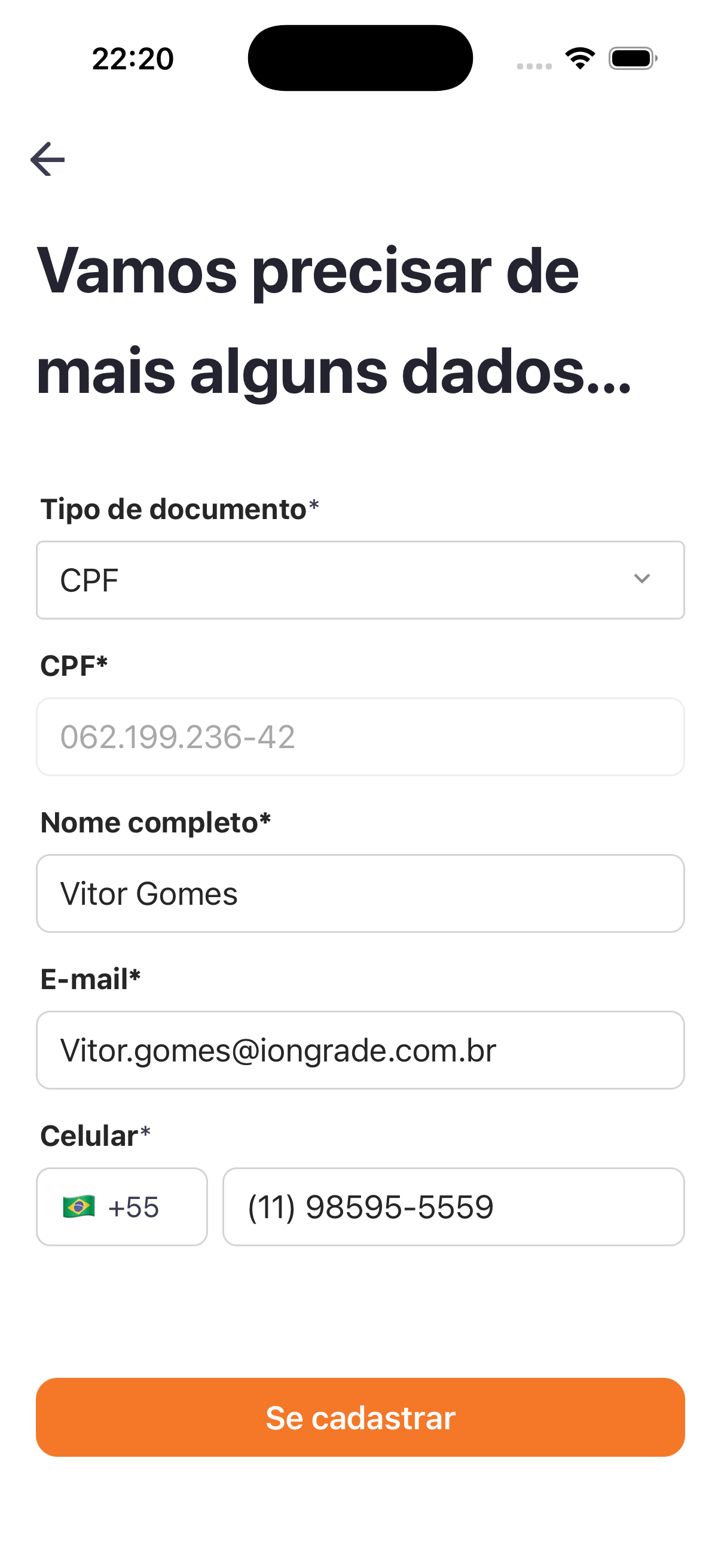
| Field | Type | Required | Description |
|---|---|---|---|
| Document type | Selection | Yes | Filled in from the search. |
| Document number | Text | Yes | Filled in from the search. |
| Full name | Text | Yes | Resident's name. |
| Text | Yes | Sign-in/contact. | |
| Mobile | Phone (+55) | Yes | With country code/flag. |
Action: Sign up.
4. "Now a secure password to protect your account."
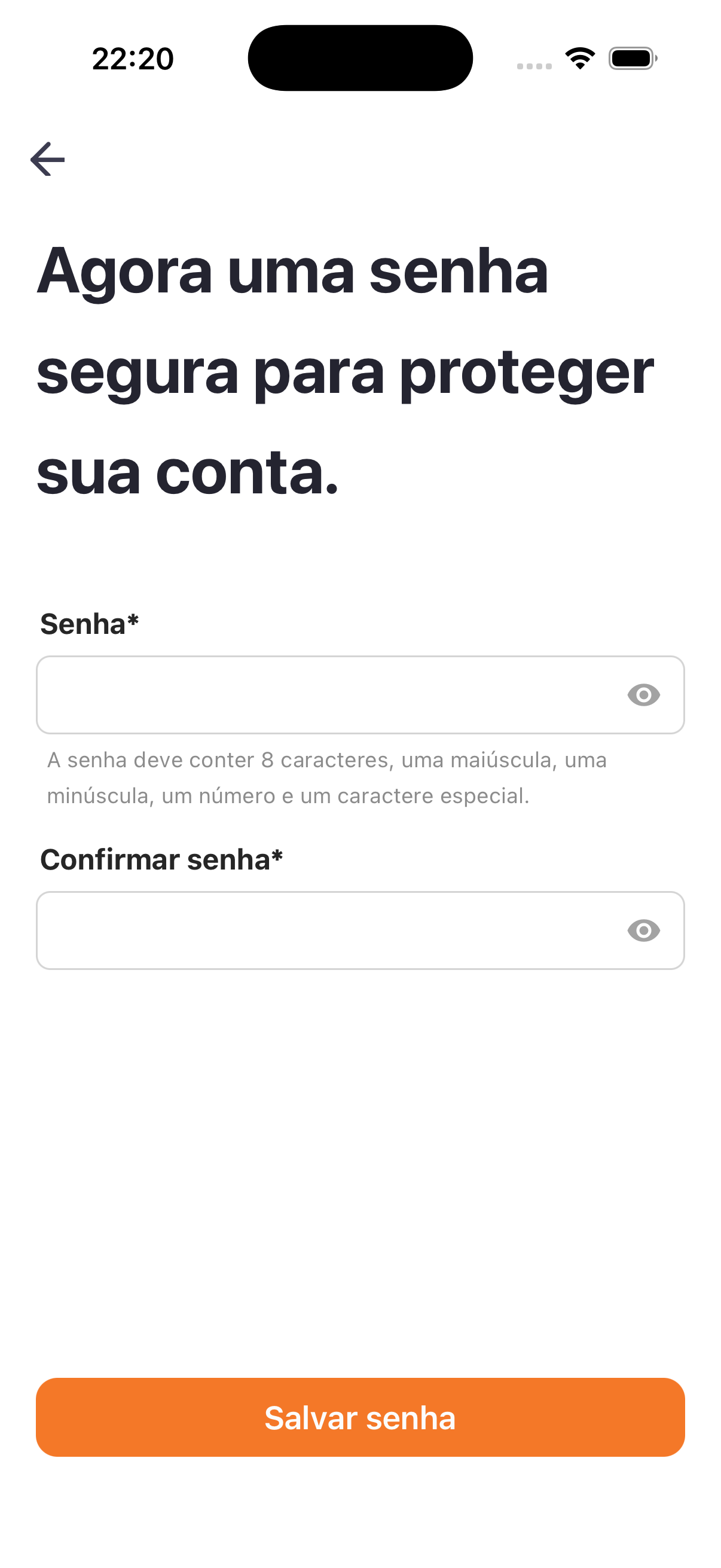
| Field | Type | Required | Description |
|---|---|---|---|
| Password | Password (eye) | Yes | Rule: "The password must contain 8 characters, one uppercase letter, one lowercase letter, one number, and one special character." |
| Confirm password | Password (eye) | Yes | Password repetition. |
Action: Save password.
5. Identification photo (optional)
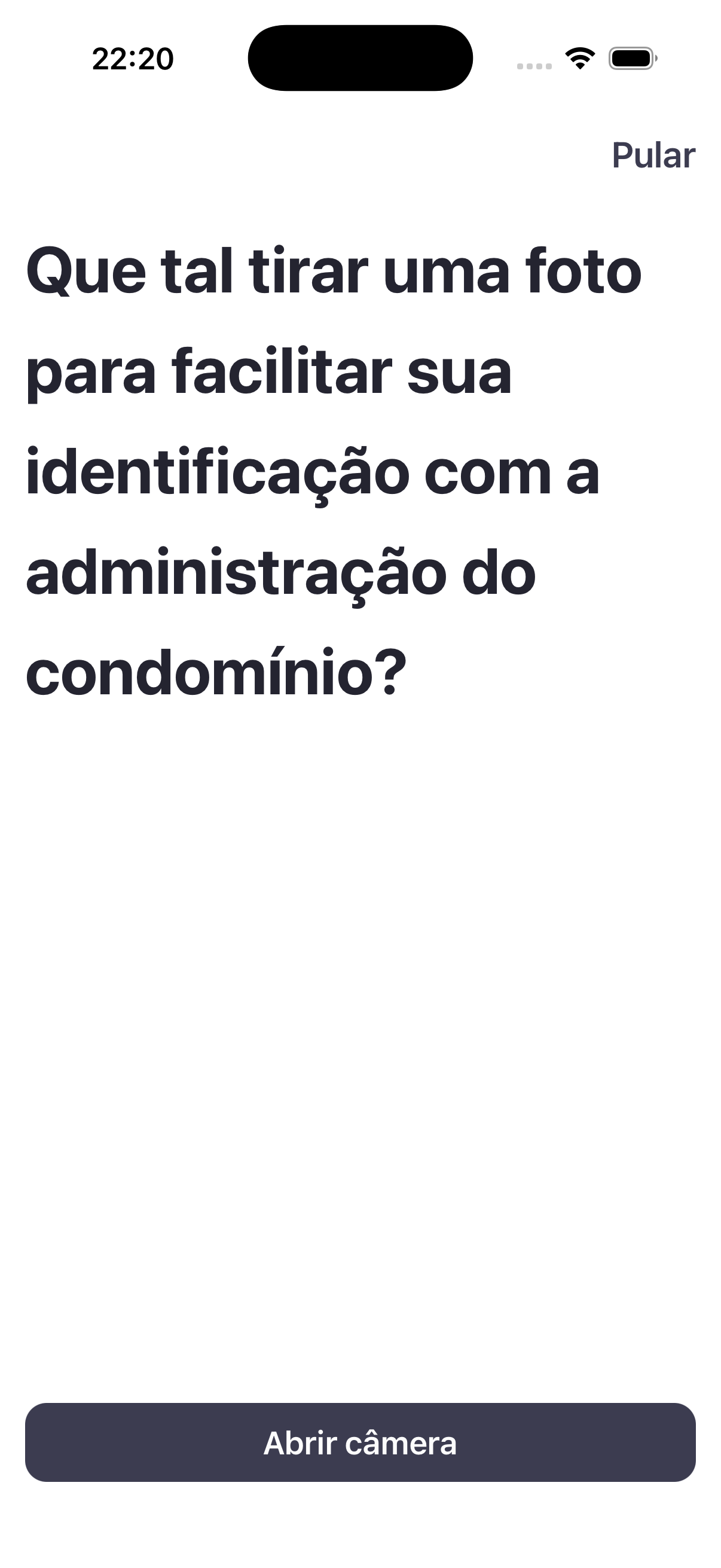
- Question: "How about taking a photo to make it easier for the building management to identify you?"
- Actions: Open camera or Skip (optional step).
Step by step
- On the welcome screen, tap First access.
- Select the Document type, enter the number (and, for Passport/Foreign document, Issuing country and Expiration) and tap Search.
- Complete Name, Email, Mobile and tap Sign up.
- Set the password within the rules and tap Save password.
- Take the photo or tap Skip.
- Next, link a condominium (Condominiums (link unit)) and wait for approval.
Business rules and integrations
- The document search assumes the person already exists in the Panel (registration/import — see People and People import).
- The document is generic: the type (CPF, Passport, Foreign document, Other) defines the number format and the extra fields. Passport and Foreign document require Issuing country and Document expiration.
- The password requires 8+ characters, uppercase, lowercase, number, and special character.
- The photo is optional and is used for identification by the building management.
- Completing the registration does not unlock the app: a link plus approval on the unit is required.
Related
- Sign-in and password recovery, Condominiums (link unit), People moderation, People
This is the first step in the app. After registering, add your condominium and wait for approval to use the features.