Home and navigation
Overview
Home screen for the signed-in resident and the app navigation structure. The header shows the active condominium/unit and the greeting; the body brings the feature shortcuts (cards). Access to the features depends on the resident being approved on the unit.
Where it is / How to access
It is the screen shown after signing in (Home tab). Also available through the first tab of the bottom bar.
Screens and elements
Header
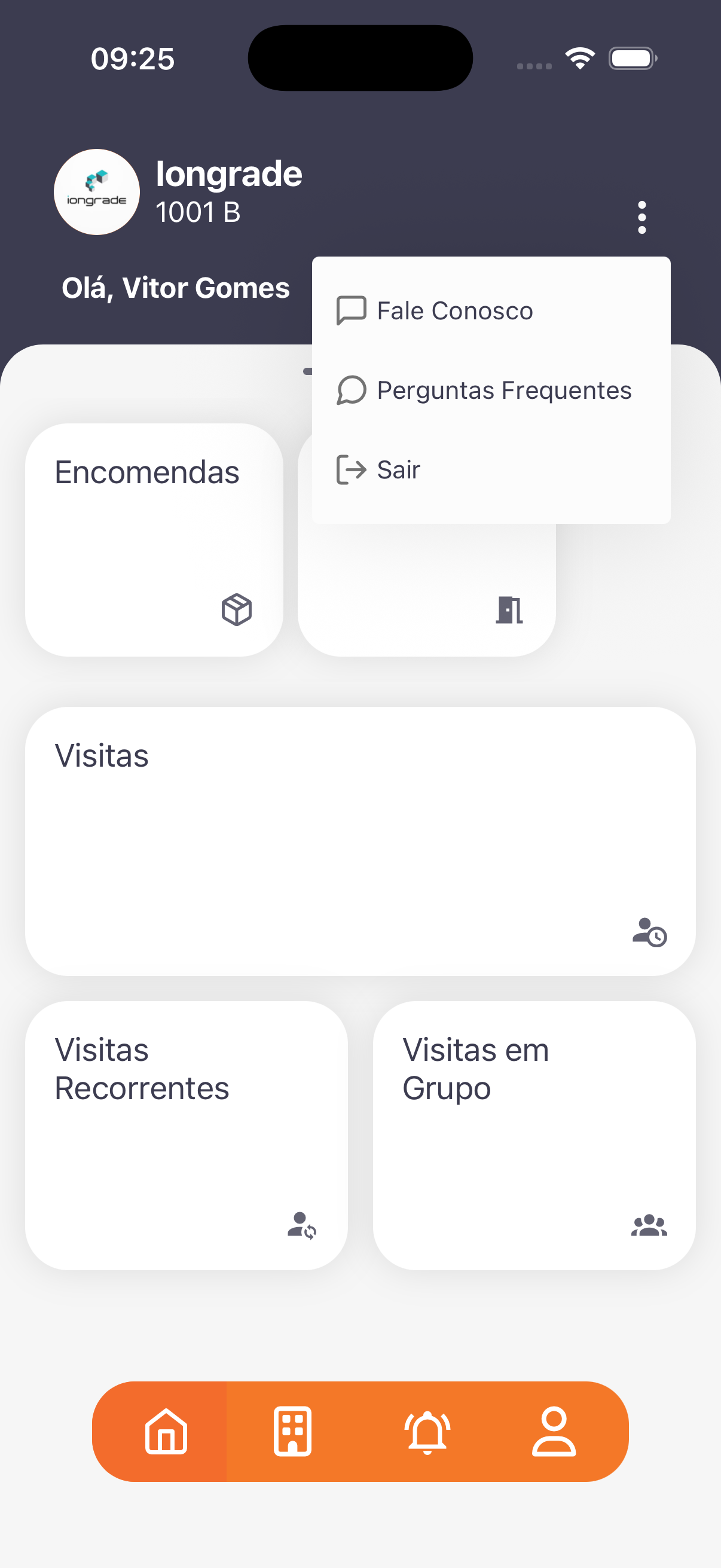
- Logo + condominium name (e.g.: Iongrade) + unit (e.g.:
1001 B) + Hello, {name}. - ⋮ icon (kebab) → menu with Contact Us (Contact us), Frequently Asked Questions (Frequently asked questions (FAQ)), and Sign out (logout).
Bottom navigation bar (4 tabs)
| Tab | Icon | Destination |
|---|---|---|
| Home | house | this home screen |
| Condominiums | building | Condominiums (link unit) |
| Notices | bell | Notices (notifications) |
| Profile | person | Profile and access credential |
APPROVED state — feature cards
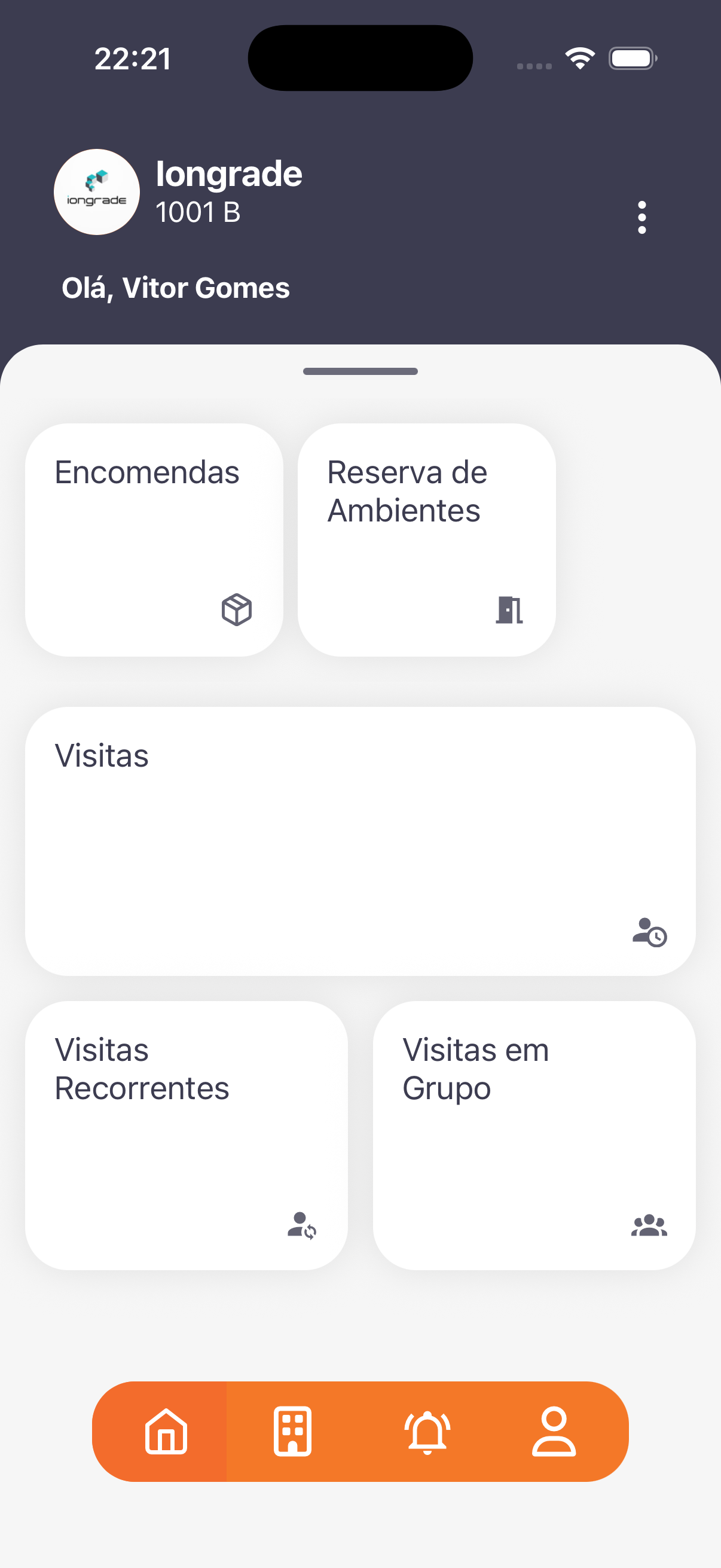
- Parcels (Parcels) · Common Area Booking (Common area booking) · Visits (Visits) · Recurring Visits (Recurring visits) · Group Visits (Group visits).
NOT APPROVED state
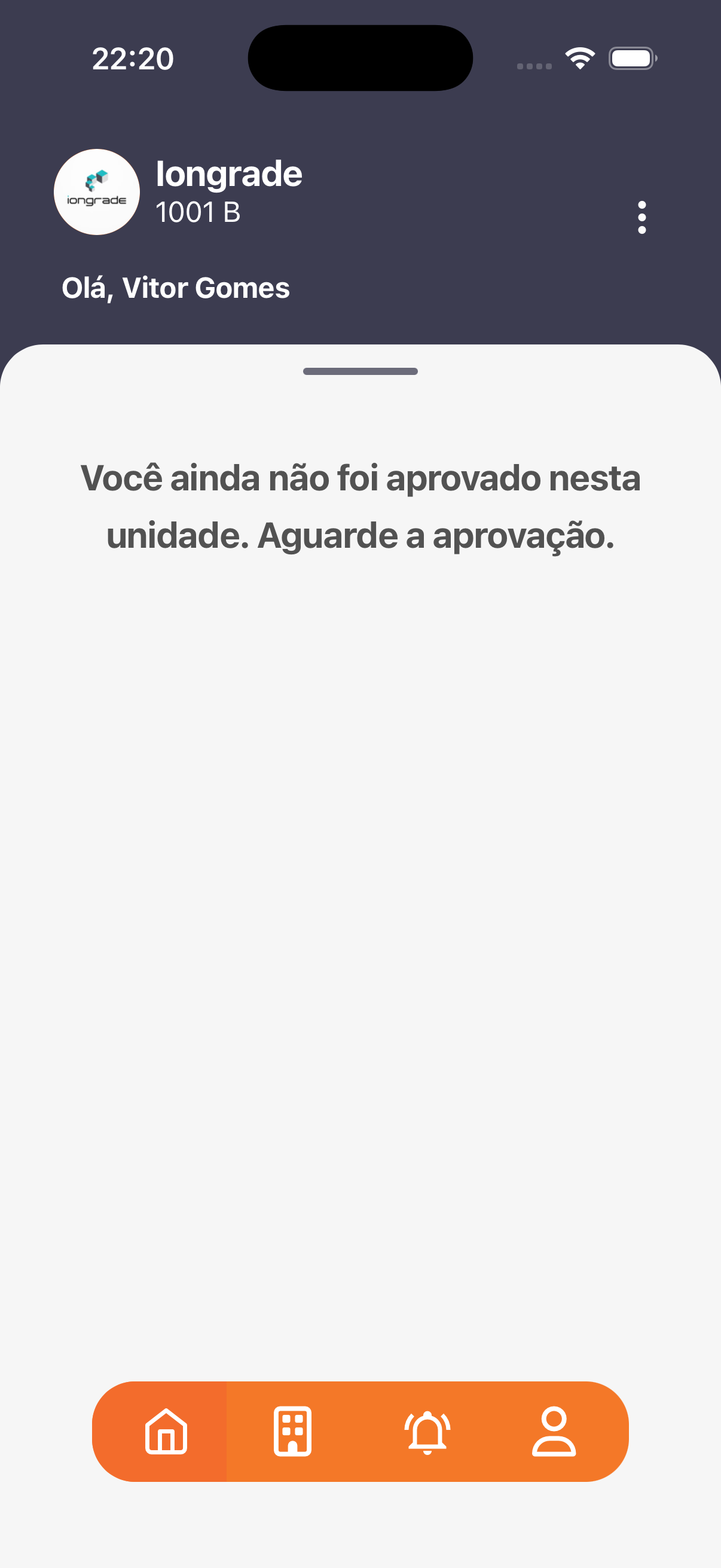
- Instead of the cards, the message: "You have not been approved on this unit yet. Please wait for approval."
- Header and bottom bar remain visible.
Step by step
- After signing in, check the header with the active condominium/unit.
- If approved, tap a card to open the feature.
- Use the bottom bar to switch between Home, Condominiums, Notices, and Profile.
- Use ⋮ for Contact Us, Frequently Asked Questions, or Sign out.
Business rules and integrations
- Approval gating: without approval on the unit, the features stay hidden. Approval is performed in the Panel (People moderation).
- The condominium/unit shown reflects the active link selected in Condominiums (link unit).
Related
- Condominiums (link unit), Profile and access credential, Notices (notifications), People moderation
For you
The shortcuts only appear after your approval on the unit. Use the ⋮ menu for help (Contact Us / Frequently Asked Questions) or to sign out.