Sign-in and password recovery
Overview
Entry point for residents who already have an account (sign-in with email and password) and the password reset flow using a code sent by email. Those who don't have an account yet should follow Registration (first access).
Where it is / How to access
Home screen → Sign in. Recovery starts at Forgot your password? inside the sign-in screen.
Screens and elements
Sign-in
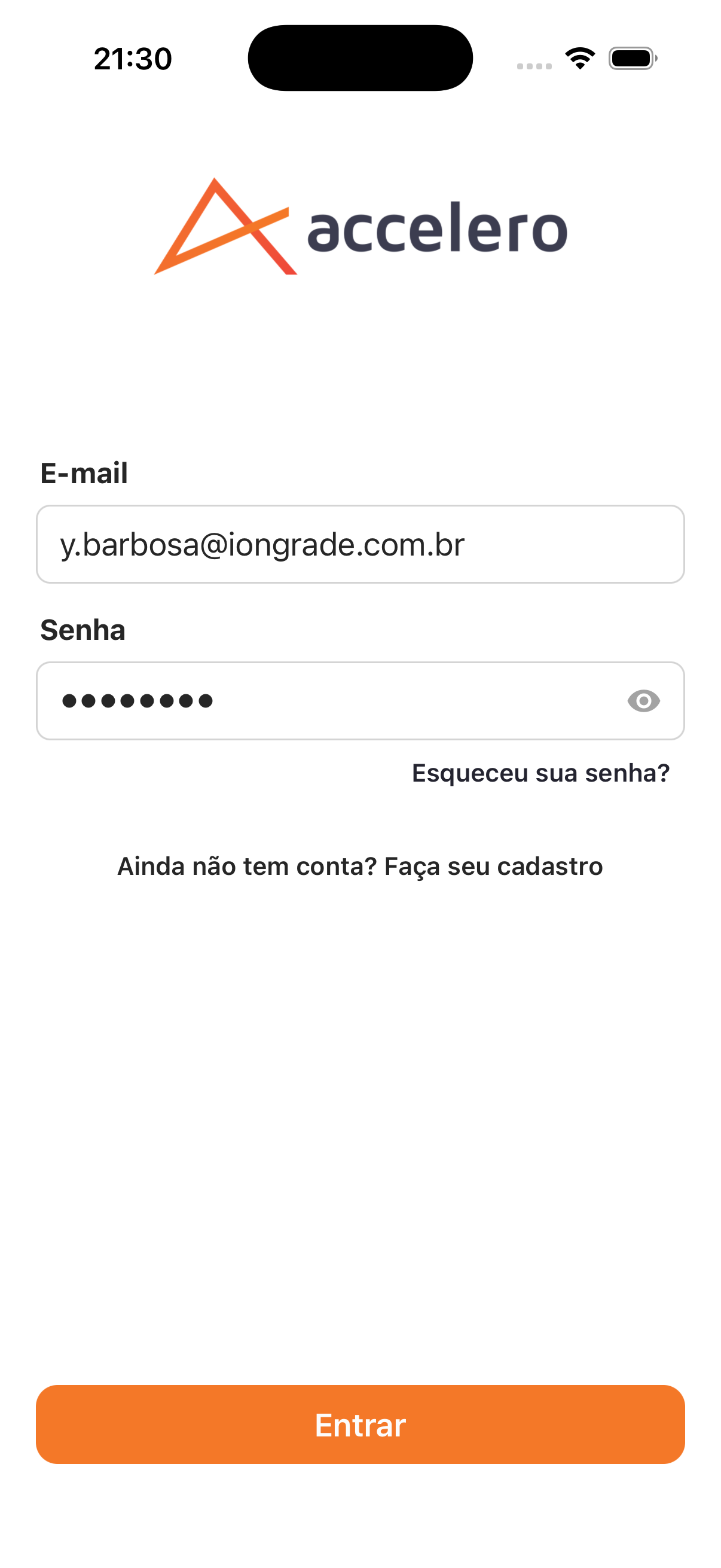
| Field | Type | Required | Description |
|---|---|---|---|
| Text | Yes | E.g.: y.barbosa@iongrade.com.br. | |
| Password | Password (eye) | Yes | Show/hide button. |
- Links: Forgot your password? and Don't have an account yet? Sign up (Registration (first access)).
- Action: Sign in.
Recovery — 1. Enter your email
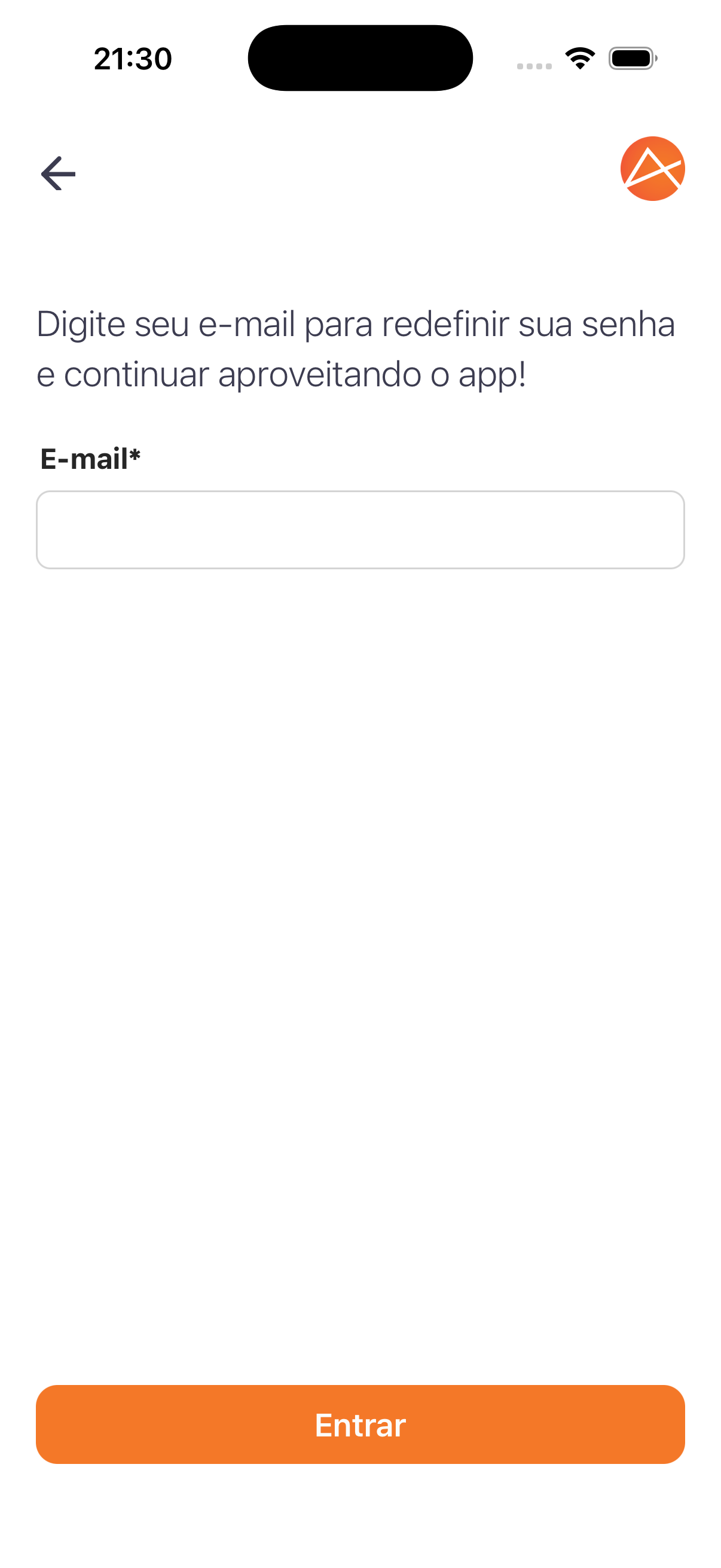
- Text: "Enter your email to reset your password and keep enjoying the app!"
- Field: Email* · Action: Sign in.
Recovery — 2. Verification code
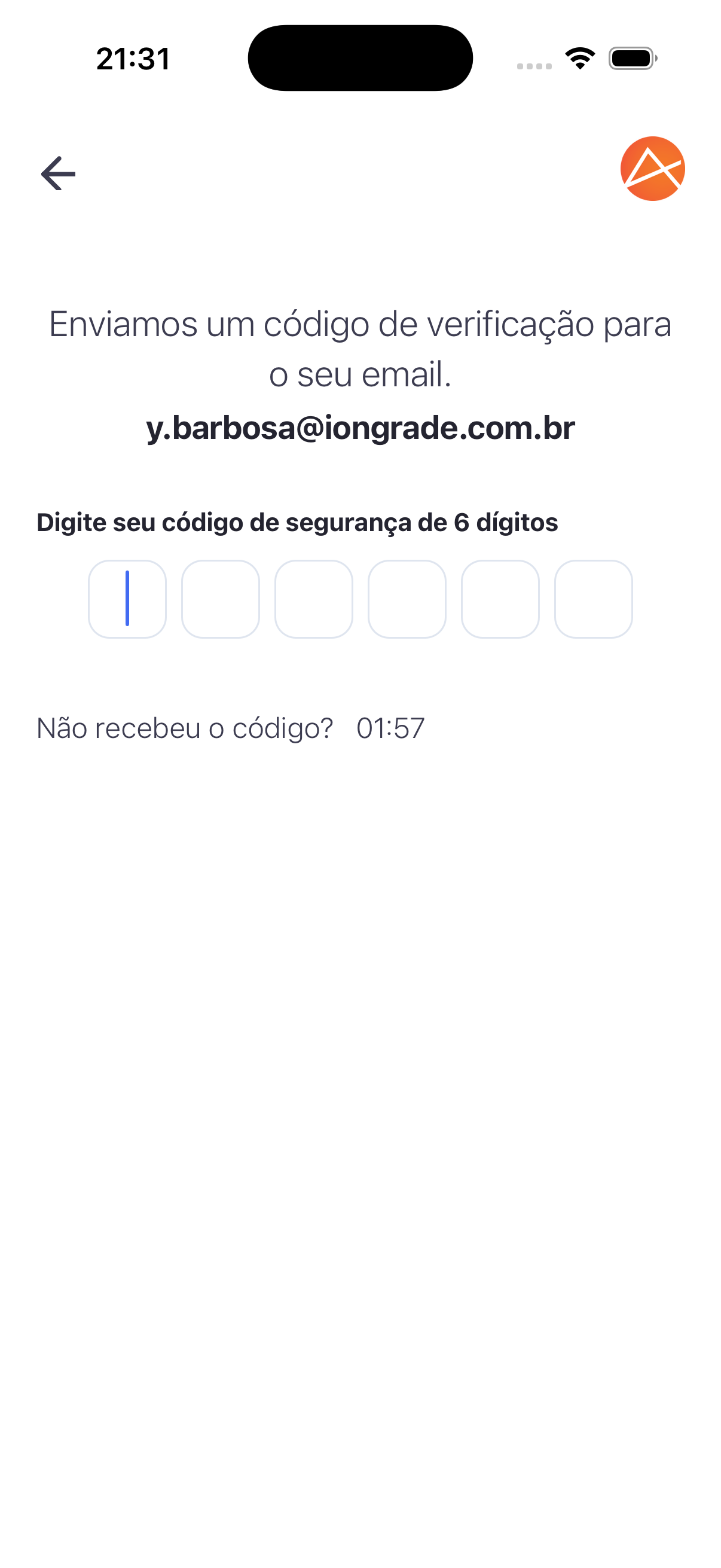
- Text: "We sent a verification code to your email" + the email address.
- Field: 6-digit security code (6 boxes).
- "Didn't get the code?" with a timer for resending.
Recovery — 3. New password
-
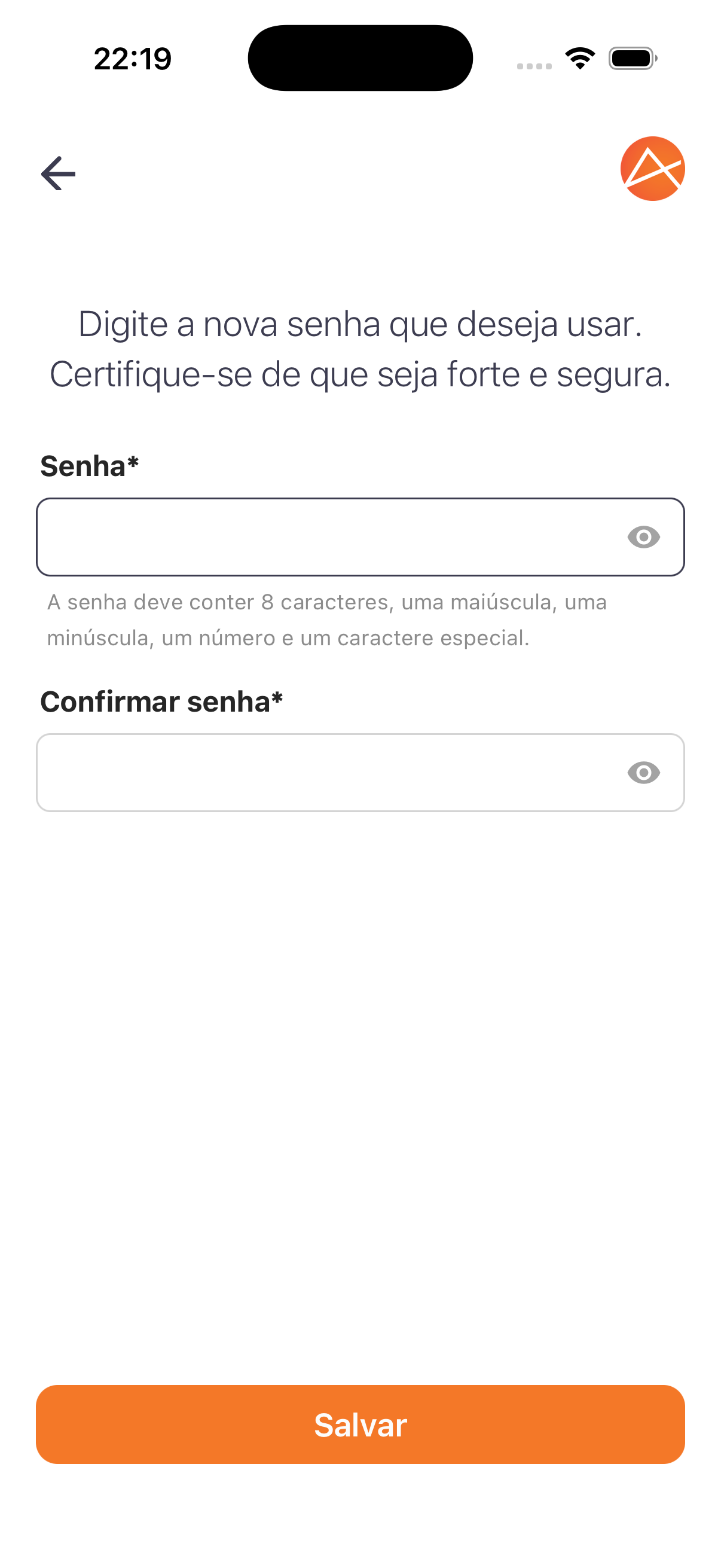
Text: "Enter the new password you want to use. Make sure it is strong and secure." | Field | Type | Required | Description | | --- | --- | --- | --- | | Password | Password (eye) | Yes | Rule: "8 characters, one uppercase letter, one lowercase letter, one number, and one special character." | | Confirm password | Password (eye) | Yes | Repetition. |
-
Action: Save.
Step by step
- On Sign in, enter your email and password and tap Sign in.
- Forgot your password? Tap Forgot your password?, enter your email and tap Sign in.
- Enter the 6-digit code you received (resend it after the timer, if needed).
- Set the new password within the rules and tap Save.
Business rules and integrations
- Reset via a 6-digit OTP code sent by email, with a timed resend.
- The new password follows the same complexity rules as Registration (first access).
Related
Use the email from your registration. Forgot your password? Reset it with the code sent to your email.