Common area booking
Overview
Where the resident books a common space/area (court, party room), in a 5-step flow: view my bookings → choose the area → view details → choose the date → enter guests and confirm. The booking is requested (it goes through approval) — see Booking moderation. The areas, prices, and capacities come from Spaces / Areas.
Where it is / How to access
Home (approved) → Common Area Booking card.
Screens and elements
1. My bookings
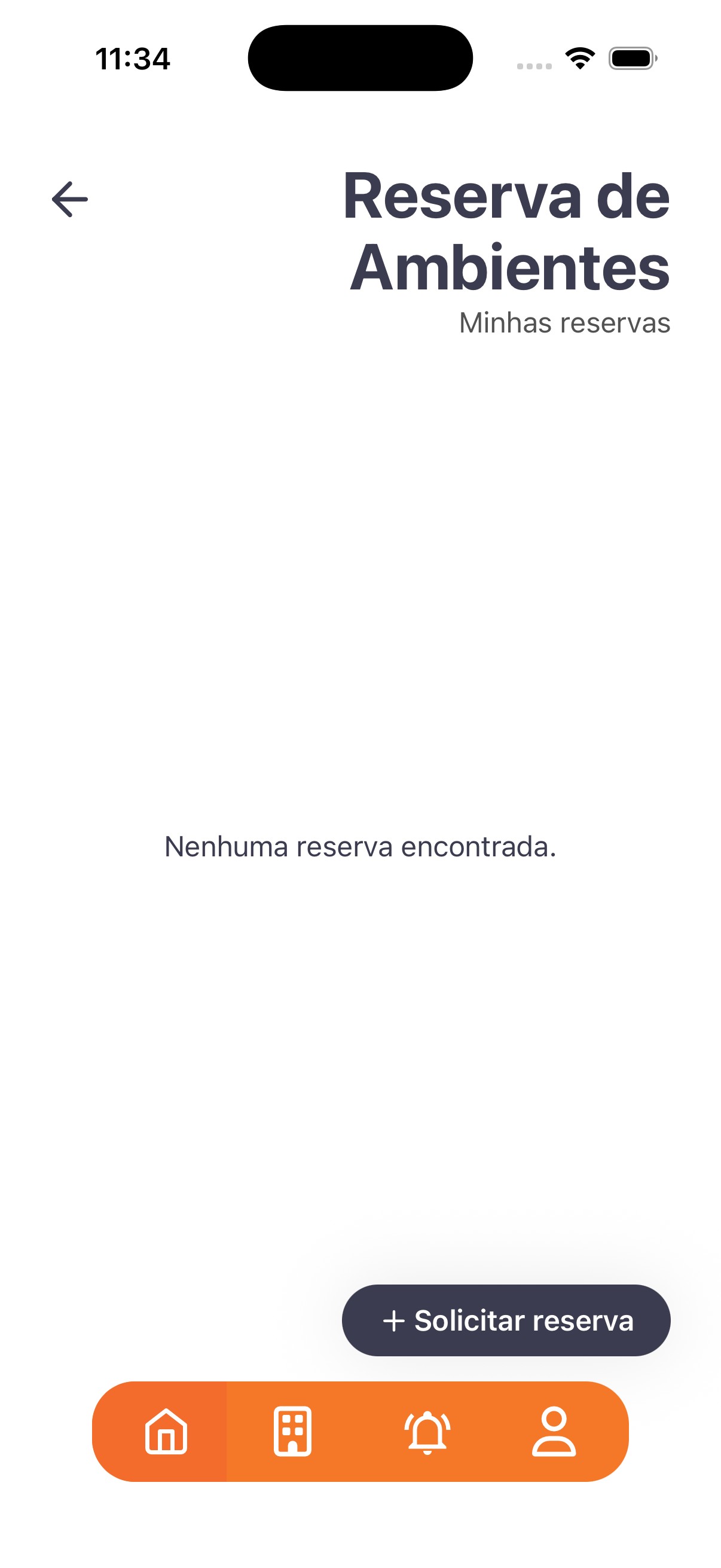
- List of the resident's bookings. Empty: "No booking found." · Action: + Request booking.
2. Choosing the area
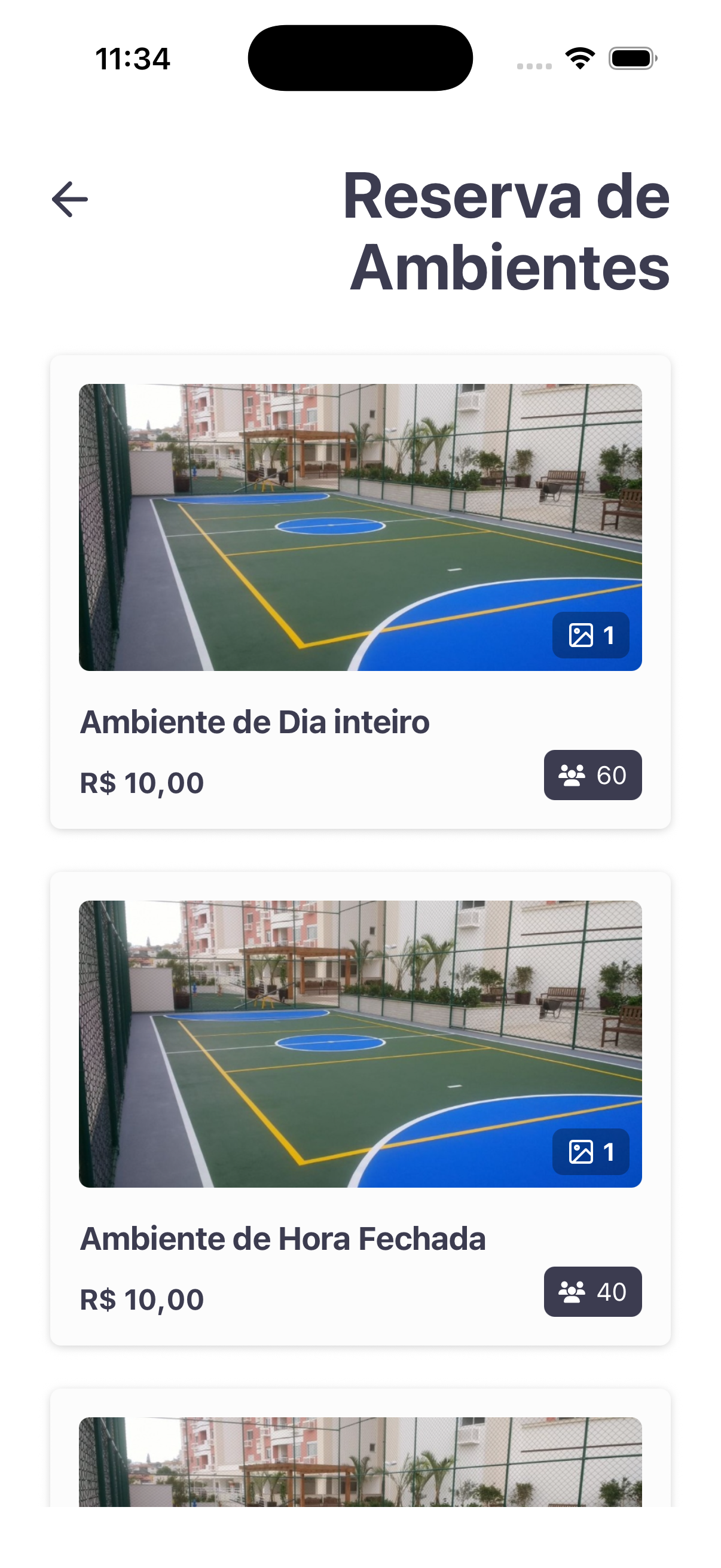
- Cards with a photo, name (e.g.: "All-day Area", "Fixed-hour Area"), price (e.g.: R$ 10,00) and capacity (people badge, e.g.: 60 / 40).
3. Area detail
- Photo, Price, Capacity (e.g.: "60 people") and description. Action: Request Booking.
4. Select the day (modal)
- Monthly calendar; past dates disabled; choose one day.
5. Booking data and confirmation
| Field | Type | Required | Description / Rule |
|---|---|---|---|
| (header) | — | — | Area + chosen date. |
| Number of guests | Number | — | Warning: "Maximum capacity: N people". |
| Generate invitations for the guests | Toggle | — | Creates invitations for the guests. |
| Notes | Long text | — | Optional. |
- Final action: Request Booking.
Step by step
- Common Area Booking card → + Request booking.
- Choose the area and check the details (price, capacity).
- Tap Request Booking → select the day in the calendar.
- Enter the number of guests (respecting the capacity), decide whether to generate invitations, and add notes.
- Tap Request Booking to send it for approval.
Business rules and integrations
- It is a request (not an immediate confirmation): it goes through approval in Booking moderation.
- Price and maximum capacity come from Spaces / Areas; the number of guests respects the capacity.
- It can generate invitations for the guests (toggle).
- Note (i18n): the calendar and the displayed date appear in English (e.g.: "June 2026", "June 23, 2026") — an improvement point.
Related
- Spaces / Areas, Booking moderation
For you
Choose the area, the date, and the guests — the booking is requested and stays pending approval by the building management.