Visits
Overview
Where the resident generates a visit invitation link for a visitor. It sets the type, start, and duration; once generated, the app shares a link (through the phone's native sharing) that the visitor uses to register/confirm. The administrative counterpart is Visits (Panel).
Where it is / How to access
Home (approved) → Visits card. Empty list: "No visit scheduled yet."
Screens and elements
Listing
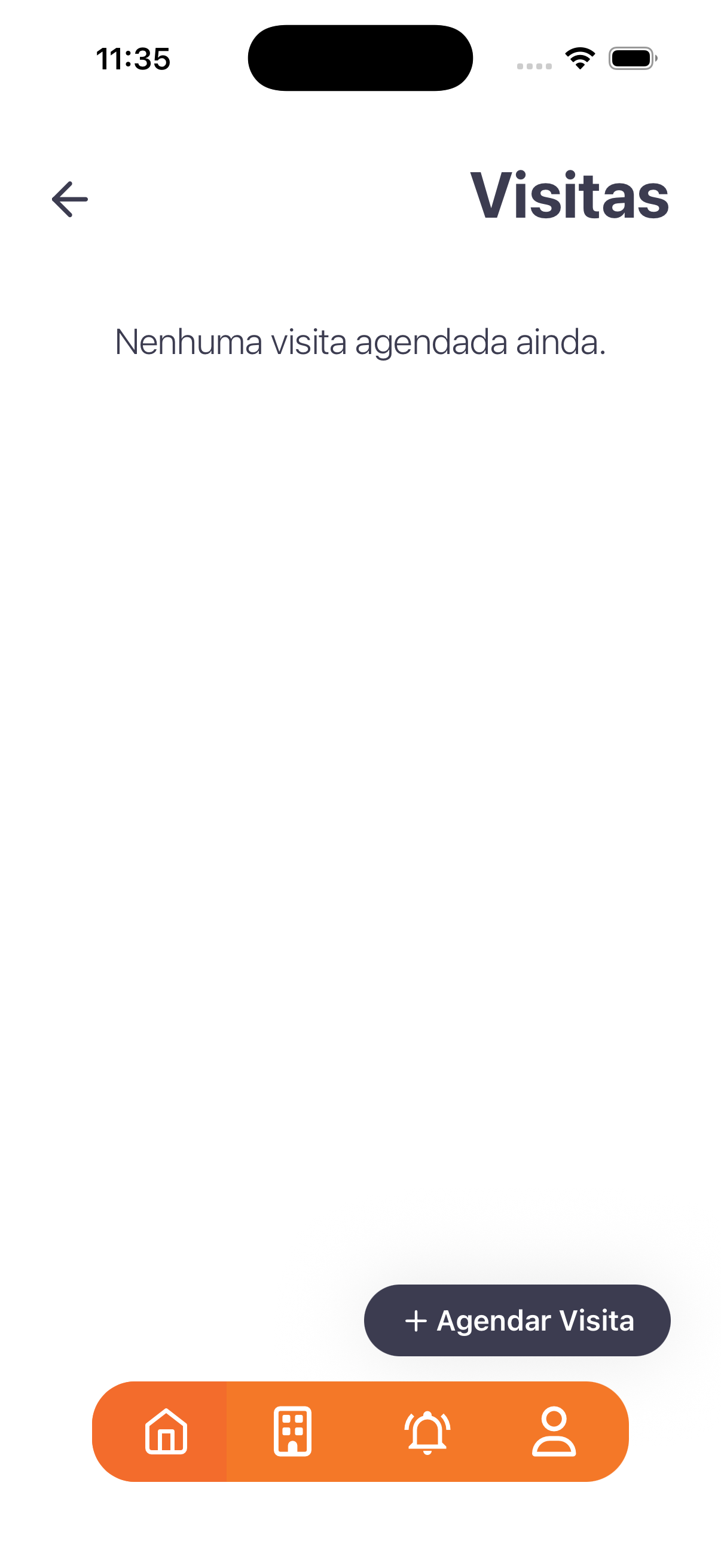
- Empty state: "No visit scheduled yet."
- Action: + Schedule Visit.
"Generate visit link" modal
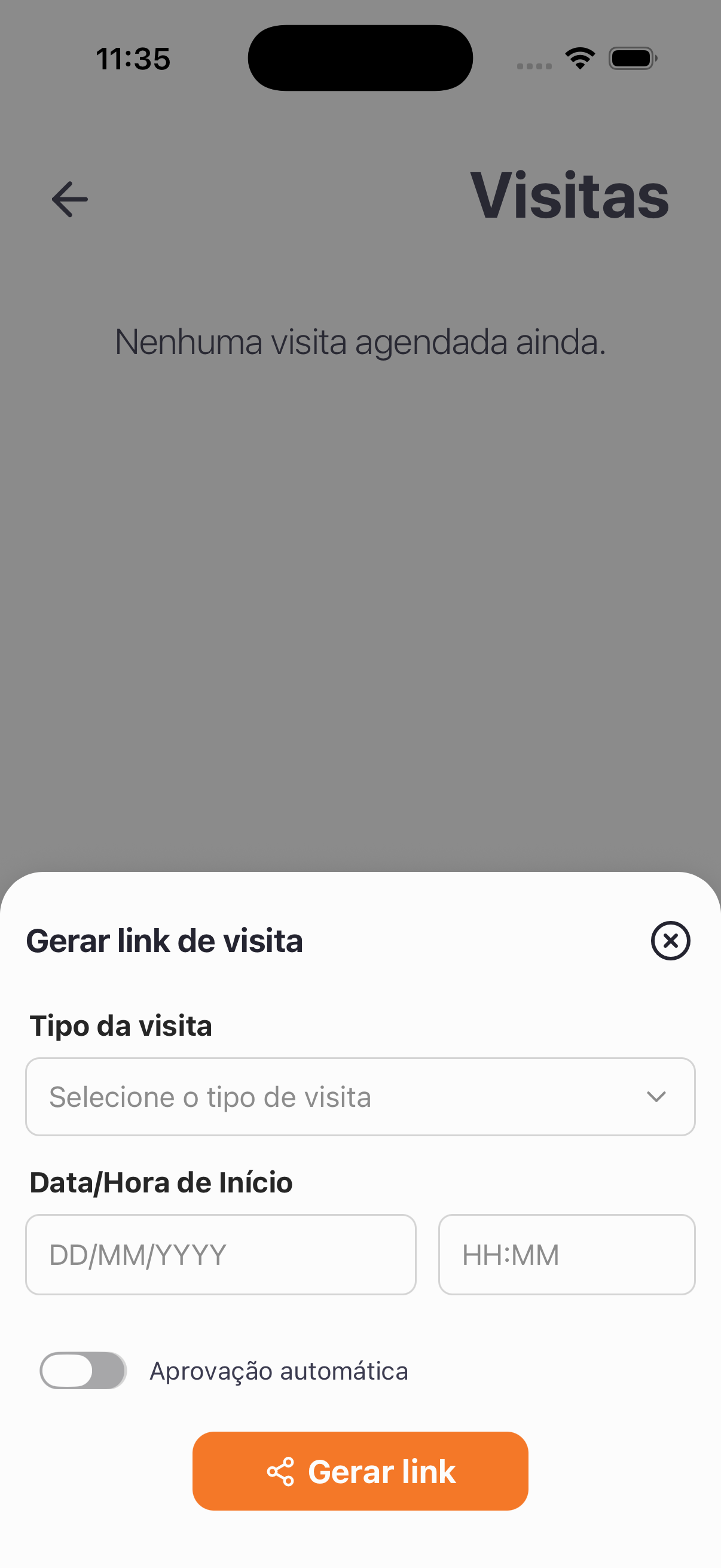
| Field | Type | Required | Description / Rule |
|---|---|---|---|
| Visit type | Selection | — | "Select the visit type" (types come from Visit types, e.g.: 01_Visita). |
| Start Date/Time | Date + Time | — | DD/MM/YYYY and HH:MM. |
| Duration | Options | — | 2 hours / 12 hours / 24 hours / Custom (appears after filling in the fields). |
| Automatic approval | Toggle | — | When on: "Careful, the visitor will be approved automatically upon completing registration, without the need for manual approval." |
- Action: Generate link (share icon).
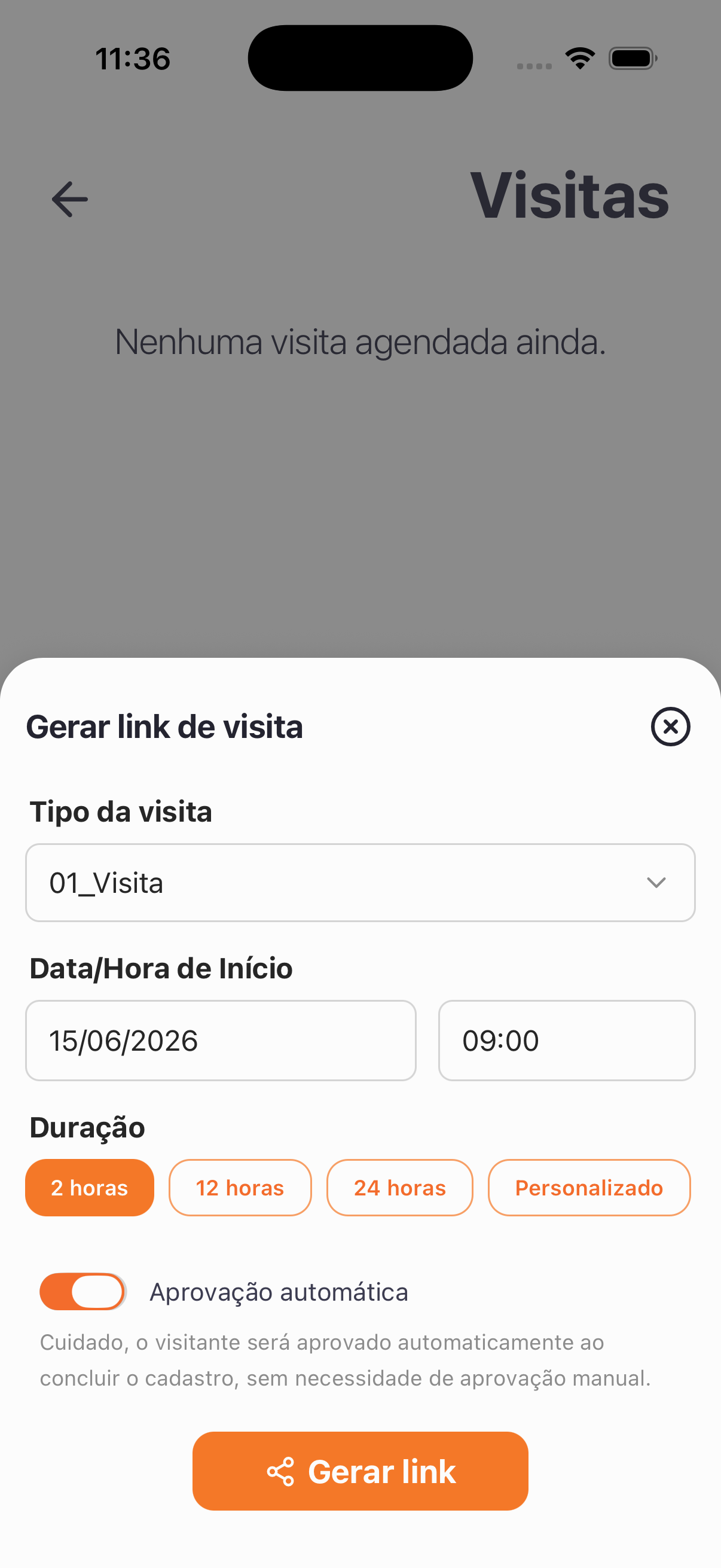
Result
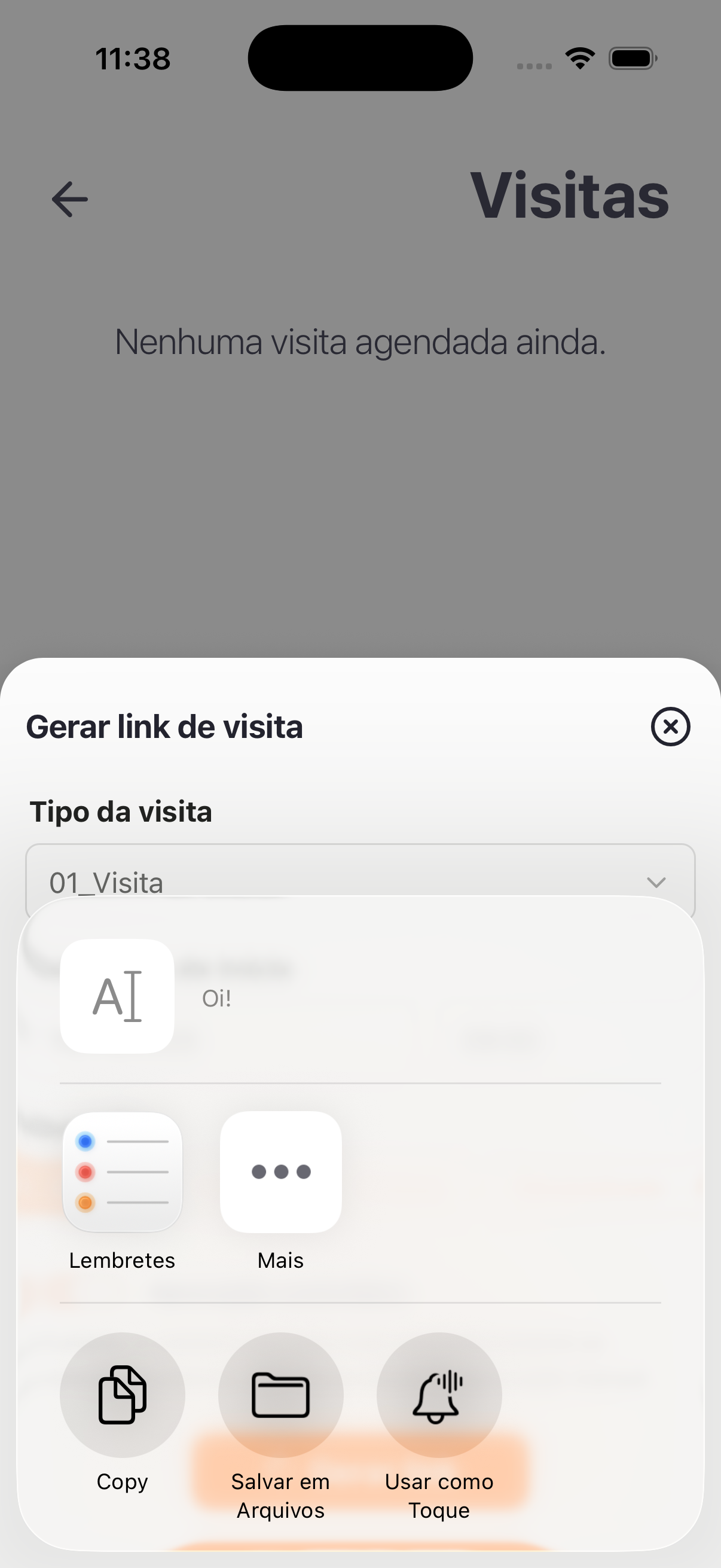
- It opens the phone's native sharing with the invitation link (a pre-started message, e.g.: "Hi!"). The resident sends the link to the visitor. (It is not a QR code — it is a link.)
Step by step
- Visits card → + Schedule Visit.
- Choose the Visit type, set the Start Date/Time and the Duration.
- Decide on Automatic approval (mind the warning).
- Tap Generate link and share it with the visitor.
Business rules and integrations
- The result is a shareable link (not a QR code).
- Automatic approval ON waives the manual approval of the visitor upon completing registration.
- The available visit types follow Visit types.
- The generated visits appear to the building management in Visits (Panel).
Related
- Recurring visits, Group visits, Visit types
For you
Generate the link, choose the duration, and share it with your visitor. With automatic approval, they are released upon completing registration.