Companies — People import and synchronization
Overview
Brings together the actions to import people in bulk into a company and keep them synchronized with Access Control. It concentrates four actions of the company menu: Import people, Import status, Notify inactive people and Resend people to access control. It is common in the Onboarding a new company to populate the database before synchronization.
Where it is / How to access
Companies / Condominiums → company actions menu (⋮) → one of the actions: Import people / Import status / Notify inactive people / Resend people to access control.
Screens and elements
Import people
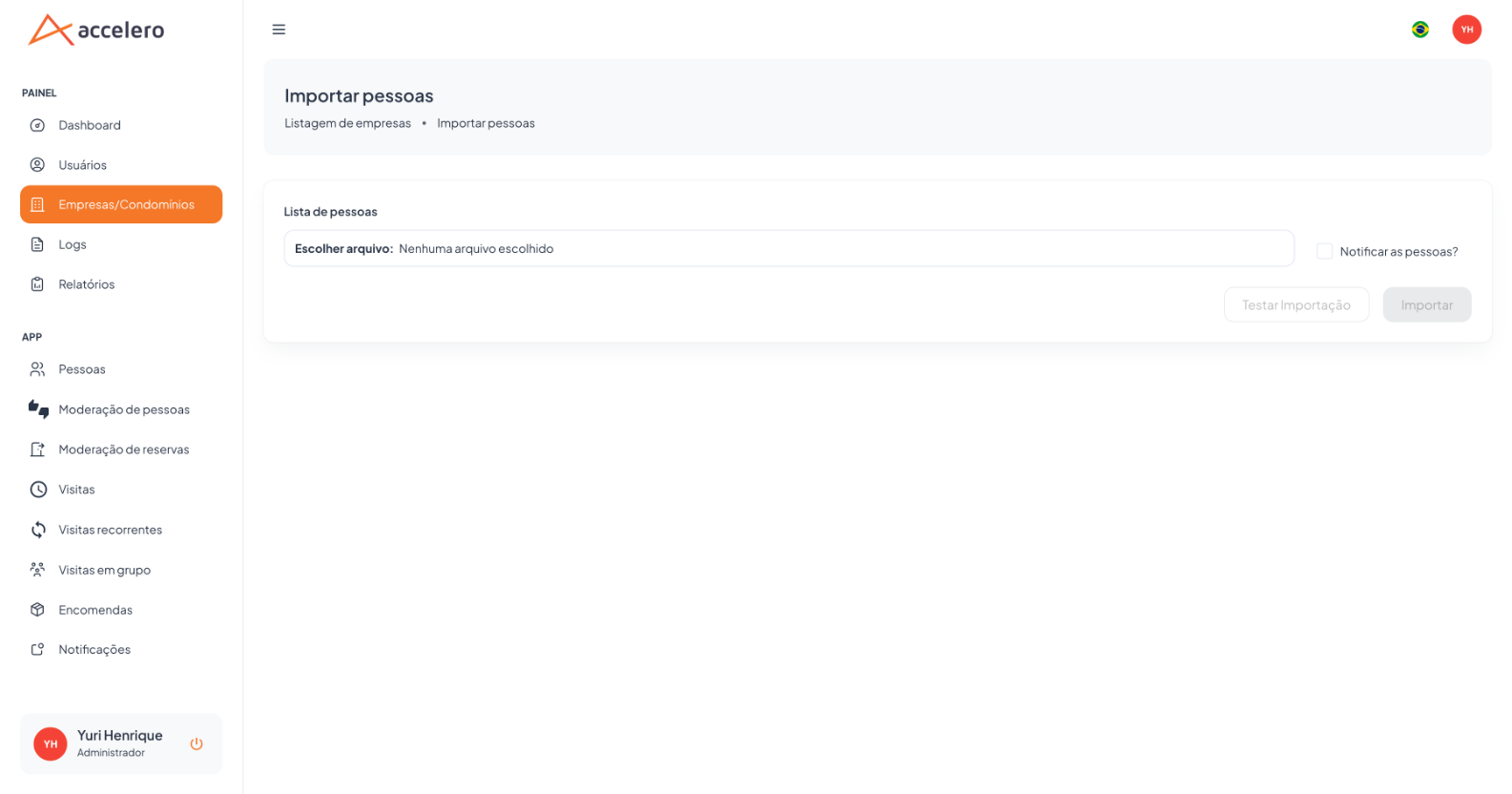
| Field / Element | Type | Description / Rule |
|---|---|---|
| People list | File upload | Spreadsheet with the people to import ("Choose file"). |
| Notify the people? | Checkbox | If checked, the imported people receive a notification (welcome email). |
| Test Import | Button | Validates the file without writing (dry run). |
| Import | Button | Actually runs the import. |
Import status (history)
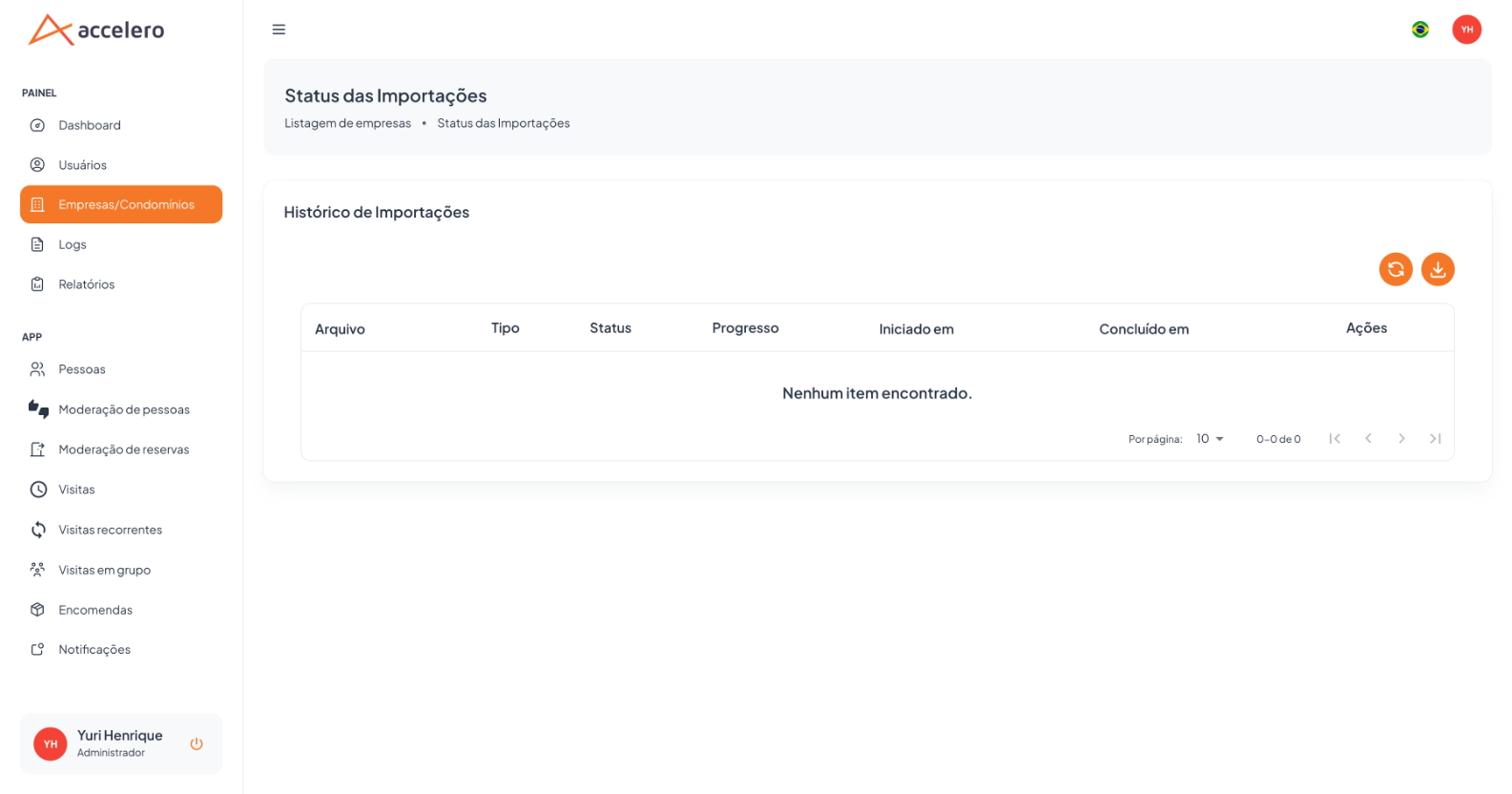
- Title: "Import History".
- Columns: File, Type, Status, Progress, Started at, Completed at, Actions.
- Refresh and download buttons; empty state: "No items found."
Notify inactive people (action)
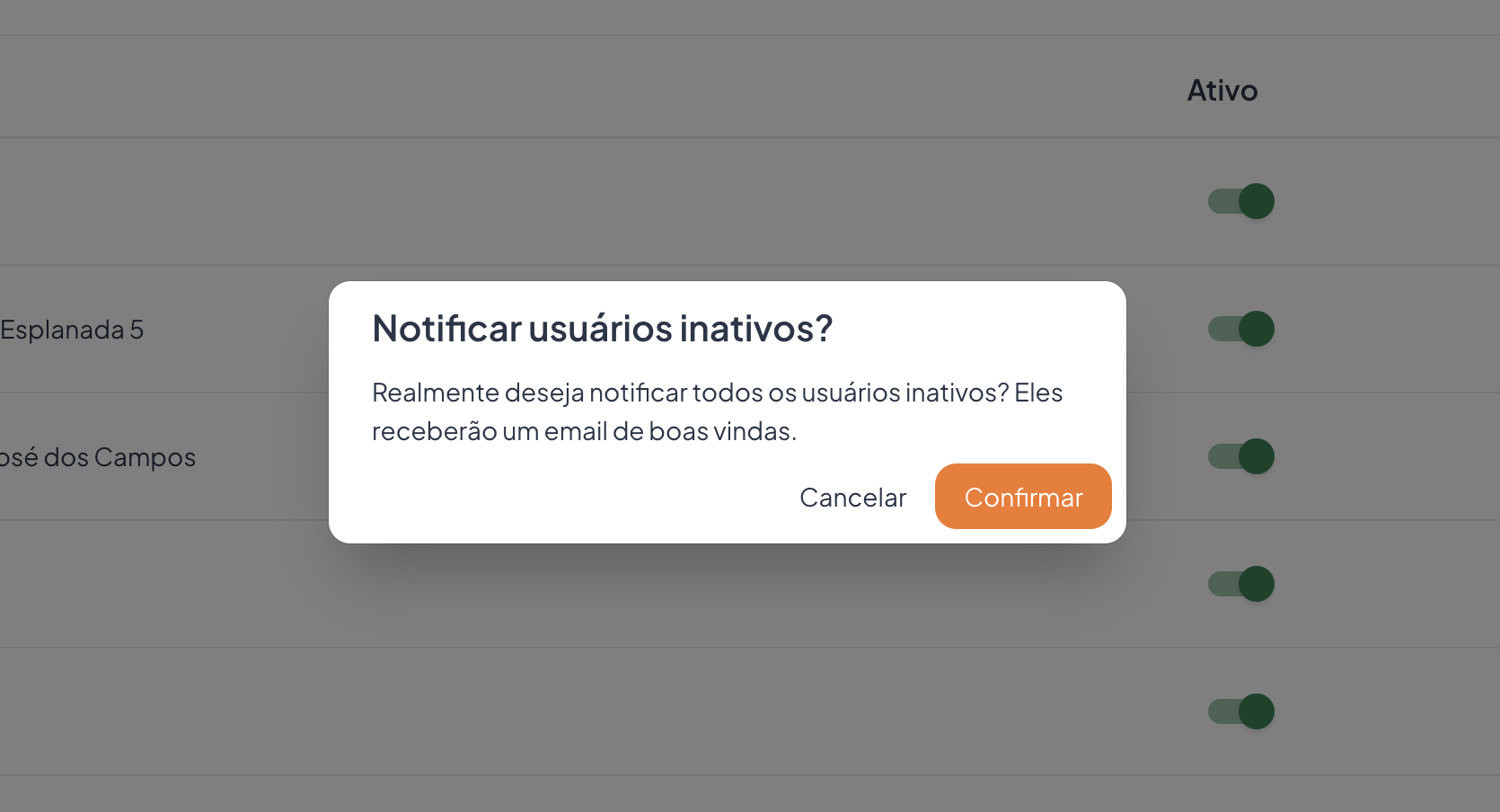
- Confirmation dialog: "Notify inactive users?" — "Do you really want to notify all inactive users? They will receive a welcome email." Buttons Cancel / Confirm.
Resend people to access control (action)
- Action that resends the company people to Access Control (re-synchronizes the records with the gatehouse system). Triggered from the company menu.
Step by step
Import:
- Open Import people; choose the file.
- Click Test Import to validate.
- Check Notify the people? if you wish, and click Import.
- Track it in Import status (Progress/Status), refreshing when needed.
Notify inactive: menu → Notify inactive people → Confirm.
Resend to access control: menu → Resend people to access control.
Business rules and integrations
- Test Import is a dry run — use it before importing for real.
- The import runs in the background; the history shows progress and completion.
- Notify inactive sends a welcome email to those who are inactive.
- Resend to access control complements the synchronization of the Integration — Synchronization (pushes already registered people again).
Related
- Companies / Condominiums, People, Units
- Integration — Synchronization — bulk synchronization on the access control side.
- Onboarding a new company
Understand the relationship between importing (Panel) → synchronizing/resending (access control); the spreadsheet format defines the input contract for people.