Beacons
Beacons are the tracked devices on the ION Guard platform. Each beacon emits BLE signals that are captured by the antennas installed in the site's zones and sent to the server via MQTT to determine its location by zone.
This page describes the registration of the beacon in the software. For the specifications of the physical devices — safety wearables, asset tags, repeaters, and locators — see the Beacons and Tags catalog in the hardware documentation.
Beacon types
| Type | Use | Description |
|---|---|---|
| Panic Button | Personal safety | Device with an emergency button. When pressed, it generates an immediate critical alert |
| Asset Tracker | Asset control | Attached to equipment or objects for location tracking |
| Personal Tag | Presence control | Used to track the presence of people in specific zones |
Beacon status
| Status | Indicator | Meaning |
|---|---|---|
| Pending | Gray | Registered but has not sent signals yet |
| Online | Green (pulsing) | Actively sending signals |
| Offline | Red | Stopped sending signals |
| Low Battery | Amber | Online, but battery below threshold |
| Decommissioned | Gray | Removed from service |
Beacon list
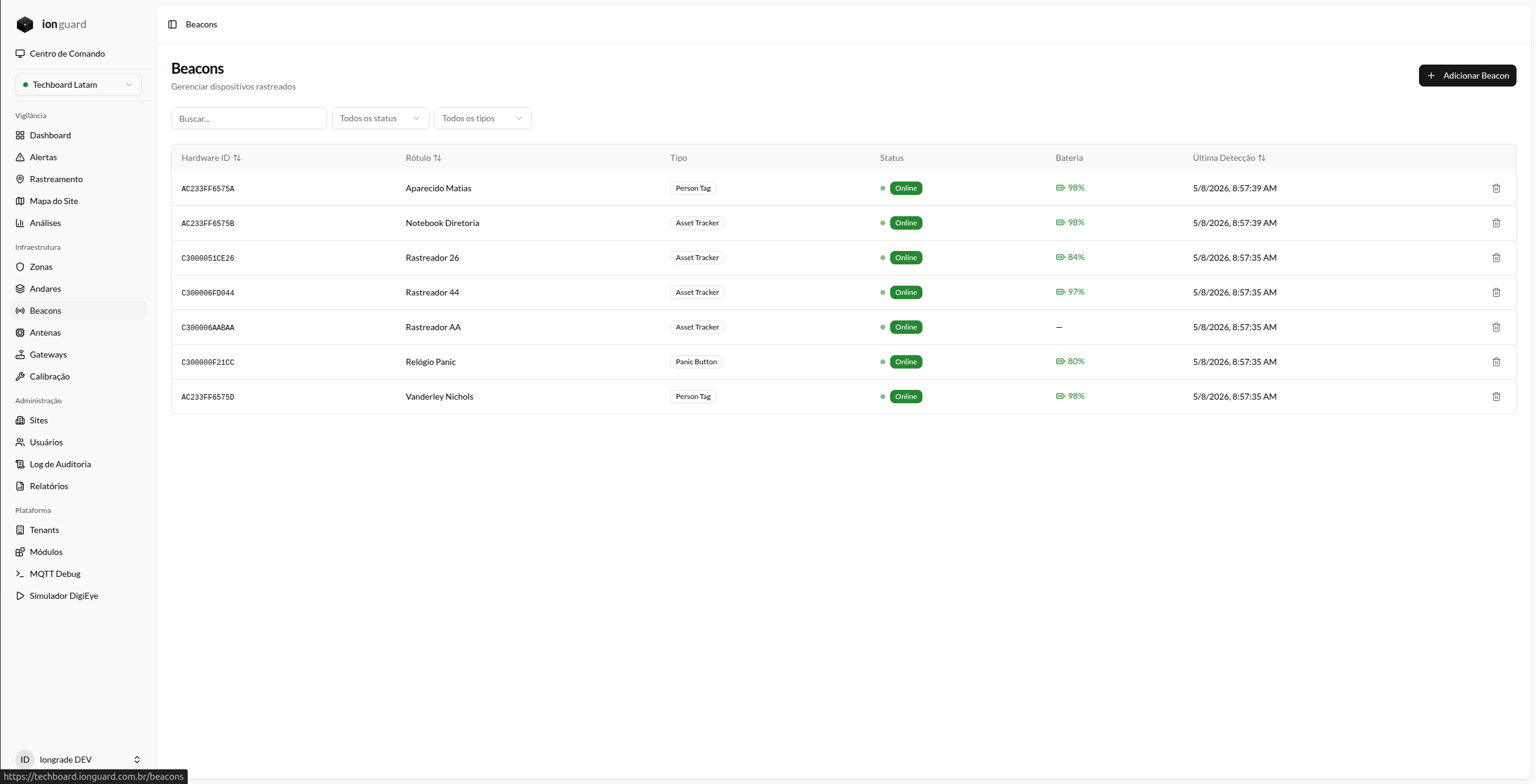
The Beacons page (/beacons) displays all beacons of the selected site in a paginated table with:
- Hardware ID — Unique device identifier
- Label — Assigned friendly name
- Type — Panic Button, Asset Tracker, or Personal Tag
- Status — With a visual indicator (pulsing dot when online)
- Battery — Visual indicator of the charge level
- Last signal — When the beacon was last seen
Available filters
- Search by hardware ID or label
- Status: Pending, Online, Offline, Low Battery, Decommissioned
- Type: Panic Button, Asset Tracker, Personal Tag
- Sorting by hardware ID, label, or last signal
Register a beacon
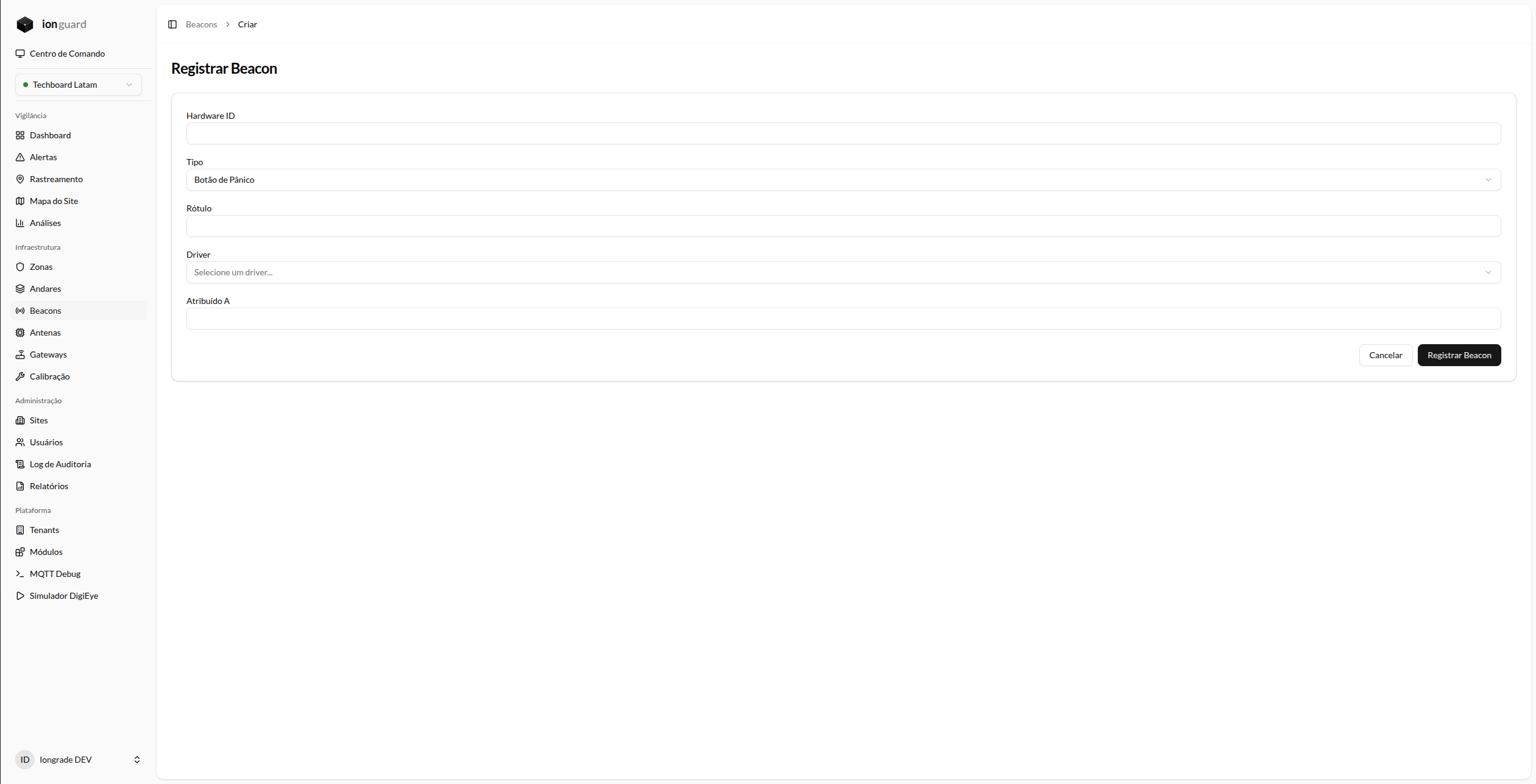
- In the beacon list, click "Add Beacon"
- Fill out the form:
| Field | Required | Description |
|---|---|---|
| Hardware ID | Yes | Unique device identifier (printed on the beacon). Max. 255 characters |
| Type | Yes | Panic Button, Asset Tracker, or Personal Tag |
| Label | Yes | Friendly name (e.g., "Panic - John Smith"). Max. 255 characters |
| Driver | Yes | Compatible hardware driver (e.g., Minew). Listed automatically |
| Assigned to | No | Associated person or asset (e.g., "John Smith" or "Forklift #3") |
- Click "Save"
The Hardware ID is the MAC or serial identifier printed on the physical device. It must be unique per site — the same beacon cannot be registered twice on the same site.
This is the platform registration — it is what names the beacon, sets its type and feeds the alerts and the location history.
The Radium Gateway additionally has its own local registration (via CSV, on the Beacons page of the board's portal). It does not replace this one: the gateway publishes signals from any beacon in range, registered on it or not. The local registration exists to enable the rules that run inside the gateway, even without internet — panic alarm, beacon battery and lost beacon, driving the physical outputs. See Installation Commissioning.
Beacon details
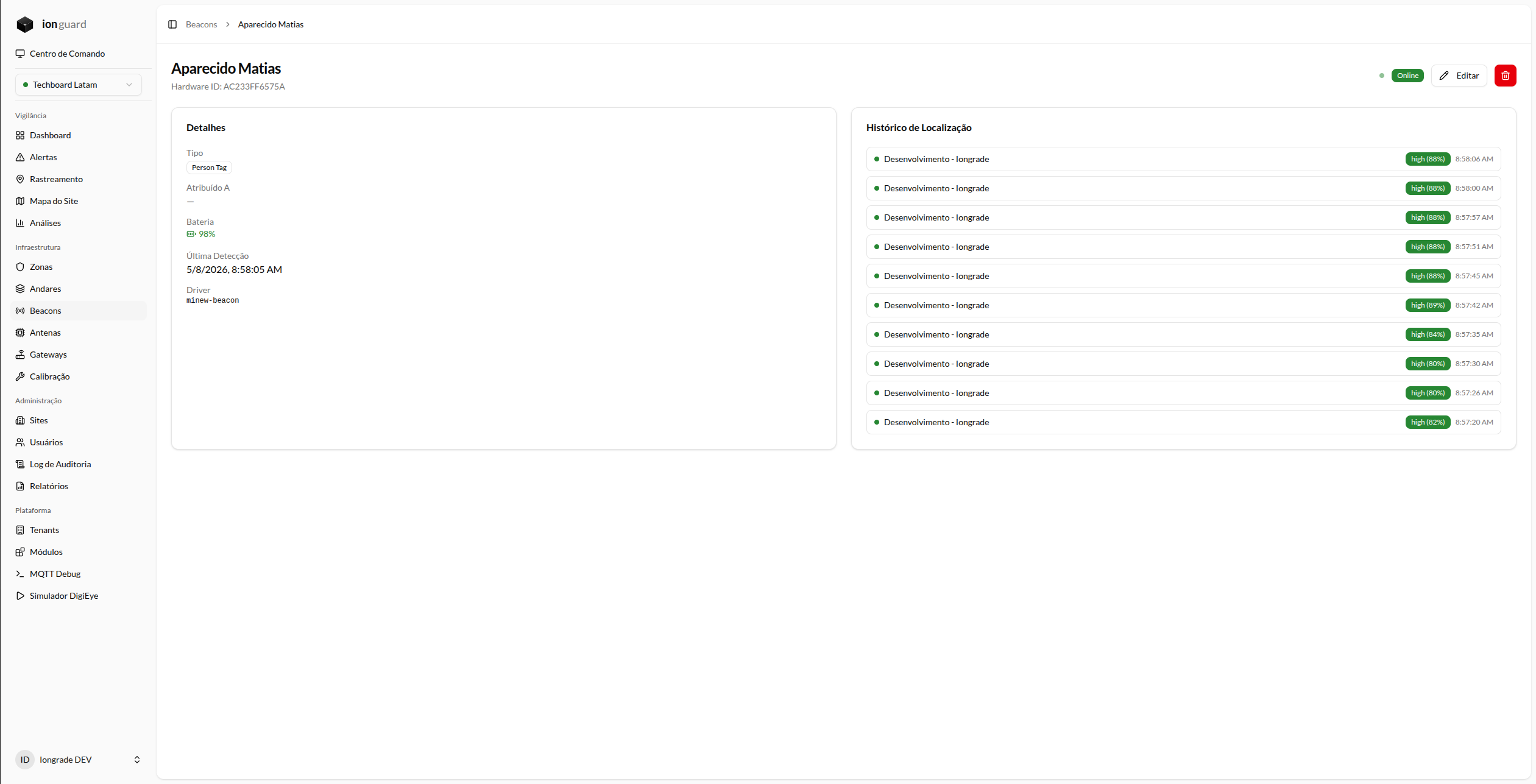
When you click a beacon in the list, the details page displays:
- General information — Type, assignment, driver, hardware ID
- Current status — With a visual indicator
- Battery level — When available
- Last signal received — Date and time
- Location history — Last 10 movements between zones, with a link to the full history
Edit a beacon
On the details page, click "Edit". You can change:
- Label — Friendly name
- Assigned to — Associated person or asset
The Hardware ID, Type, and Driver cannot be changed after registration. To change these fields, delete the beacon and register it again.
Delete a beacon
In the list or on the details page, click "Delete". A confirmation dialog is displayed before deletion. Deletion removes the beacon and its location history.