Zone Map
The zone map provides an interactive visualization of the site's floor plan, with zones drawn as polygons and real-time presence indicators.
Accessing the map
- Select the desired site in the Site Selector (sidebar)
- Go to the Site Map menu (available when the Synapsys module is enabled)
Prerequisite
The map requires the site to have at least one floor with a floor plan configured. See Floor Plans to learn how to upload one.
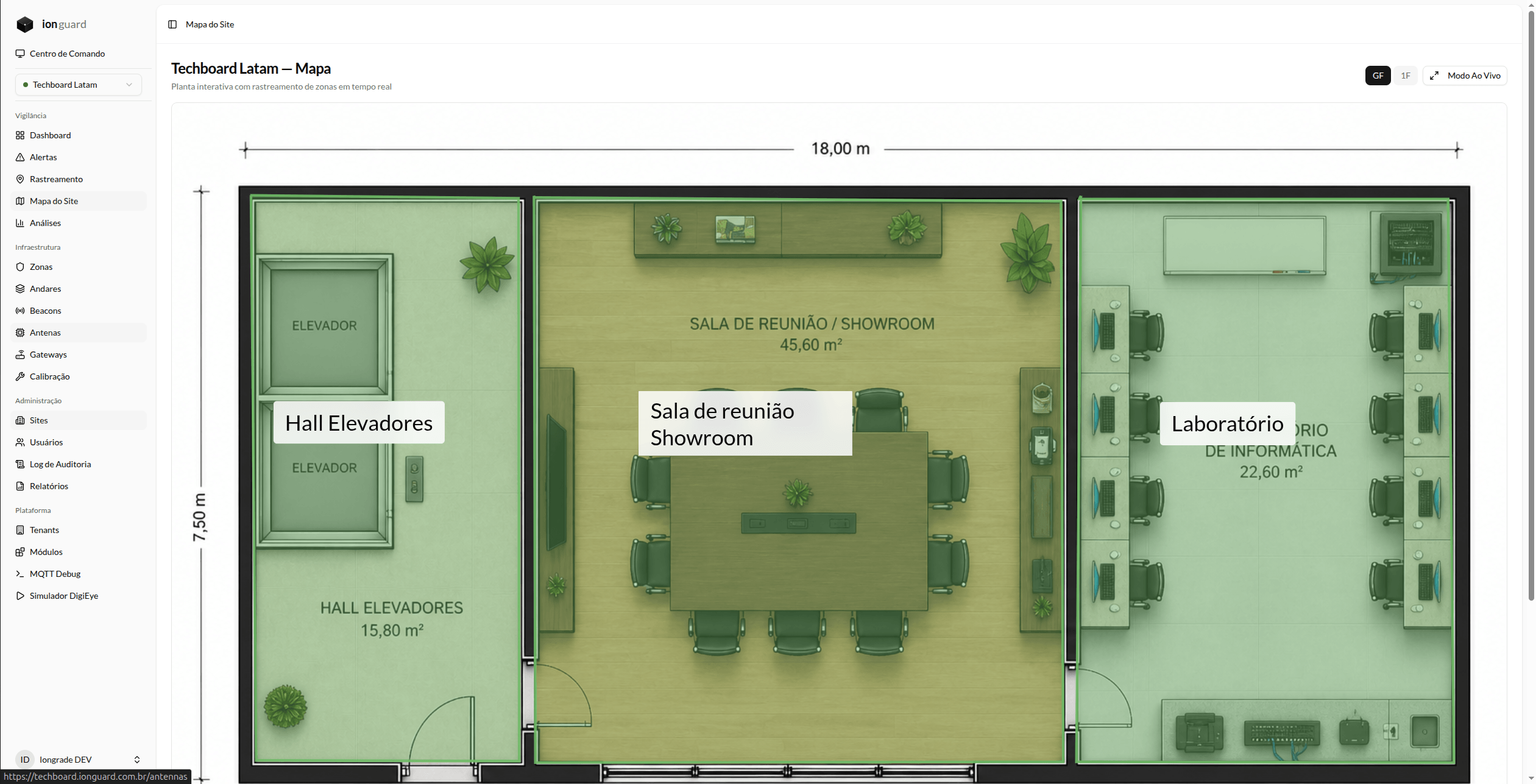
Map elements
Floor plan
The floor plan image is displayed as a background layer. If the site has multiple floors, a floor selector allows switching between levels.
Zones
Each zone appears as a colored polygon overlaid on the floor plan:
- The color is configurable per zone
- The zone type is indicated by a badge (Restricted, Common, External)
- Zones with active alerts display a pulsing animation proportional to severity
Side panel
When you click on a zone in the map, a side panel displays:
- Name and type of the zone
- Description (if configured)
- Number of beacons present in the zone
- Active alerts for the zone with Acknowledge/Resolve actions
Live mode
The "Live" button opens the map in a separate full-screen tab, ideal for dedicated security monitors. In this mode:
- The map occupies the entire screen
- Location updates and alerts appear in real time
- Ideal for the Security Operations Center
Real-time updates
The map receives updates via WebSocket without reloading:
- Zone entry — beacon appears in the zone count
- Zone exit — count is decremented
- New alert — zone starts pulsing with severity color
- Alert resolved — alert animation is removed
Accessibility
- Pulsing animations respect the
prefers-reduced-motionpreference of the operating system - Status information is communicated via color + icon + text (never by color alone)