Reports
ION Guard lets you generate detailed reports on security operations, device availability, and site activity.
Access
Navigation path: Side menu → Administration → Reports
The Reports page is available to Platform Admin, Tenant Master, Tenant Admin, and Operator (with the View reports permission). Generating a report, however, requires the Generate reports permission, restricted to Platform Admin, Tenant Master, and Tenant Admin. In addition, each report type has its own minimum profile — which is why an Operator can open the page but does not always find reports available for their profile.
Report types
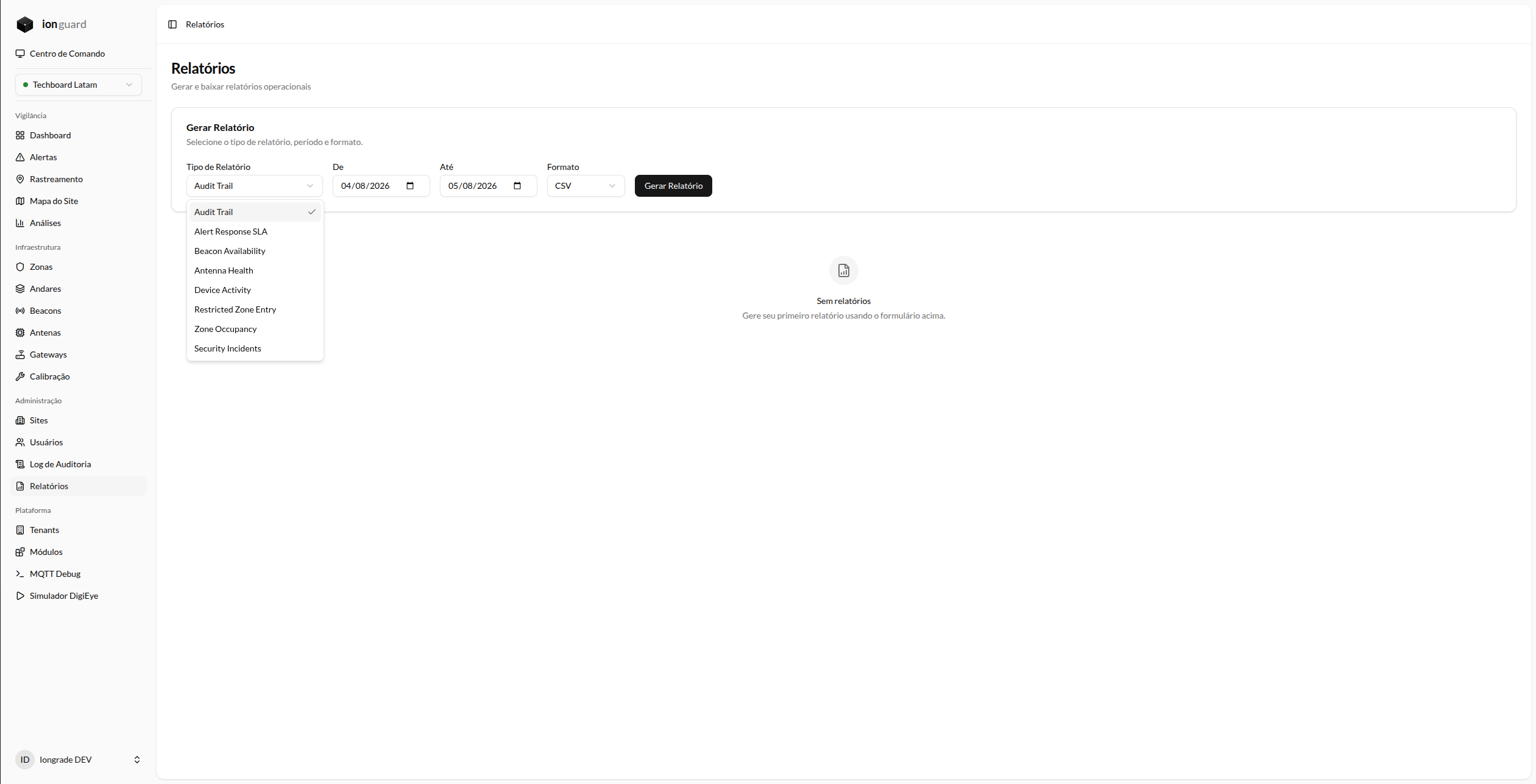
| Report | Description |
|---|---|
| Alert Response (SLA) | Response, acknowledgment, and resolution times for alerts in the period |
| Beacon Availability | Uptime and downtime per beacon — identifies problematic devices |
| Antenna Health | Status and availability of antennas by zone |
| Zone Occupancy | Presence metrics per zone — how many people/assets in each period |
| Security Incidents | Consolidated summary of alerts, escalations, and resolutions |
| Audit Trail | Log of all changes made in the system |
| Device Activity | Detailed log of beacon signals and movements |
| Restricted Zone Entry | Record of all detected entries into restricted zones |
| Cold Room Compliance | Exposure time and shift compliance — requires the Cold Room module |
The list above is the catalog of report types planned in the platform. The reports actually available on your screen depend on three factors:
- Your profile — each report has a minimum profile (for example, "Audit Trail" requires Tenant Master).
- Modules enabled on the site — reports such as "Beacon Availability" and "Antenna Health" require the Synapsys module; "Cold Room Compliance" requires the Cold Room module.
- Handlers implemented in the installed version — the platform shows only the types with processing available in your version.
Generate a report
- On the Reports page, select the report type
- Set the period:
- Start date — Default: 30 days ago
- End date — Default: today
- Select the export format. Each report type declares the formats it accepts — the screen shows only those. The platform core reports export in CSV; formats such as XLSX and PDF are offered by reports delivered by the modules that support them:
- CSV — Ideal for importing into spreadsheets and data analysis
- XLSX — Formatted Excel spreadsheet
- PDF — Document for printing and sharing
- Click "Generate"
Beyond the period, some reports offer additional filters (for example, by zone or by device type). These fields appear dynamically according to the chosen type.
Processing
Reports are generated asynchronously — generation is sent to a processing queue and does not block the interface.
| Status | Meaning |
|---|---|
| Pending | In queue, waiting to be processed |
| Processing | Being generated |
| Completed | Ready for download |
| Failed | Error during generation — the error message is displayed |
The page automatically polls every 5 seconds while there are pending or processing reports.
Download
When the status is Completed, the actions column shows the download button (the file is served directly by the server) and a View button, which opens the report for review.
Only the user who requested the report (or a Platform Admin) can download it.
History
The page displays the history of the reports you generated for the current site (paginated, 15 per page), including:
- Report type
- Period (start date — end date)
- Format (CSV, XLSX, PDF)
- Current status
- Total rows (when completed)
- Request date
Automatic cleanup
Old reports are automatically removed by the CleanupOldReportsJob job to free up disk space. Retention follows the policy configured by the administrator.