Compliance and Shifts
The compliance page lets OHS and compliance managers review adherence to the regulatory standards shift by shift, worker by worker. This is where you check whether each shift met the requirements of NR-15 and NR-36.
Compliance Page
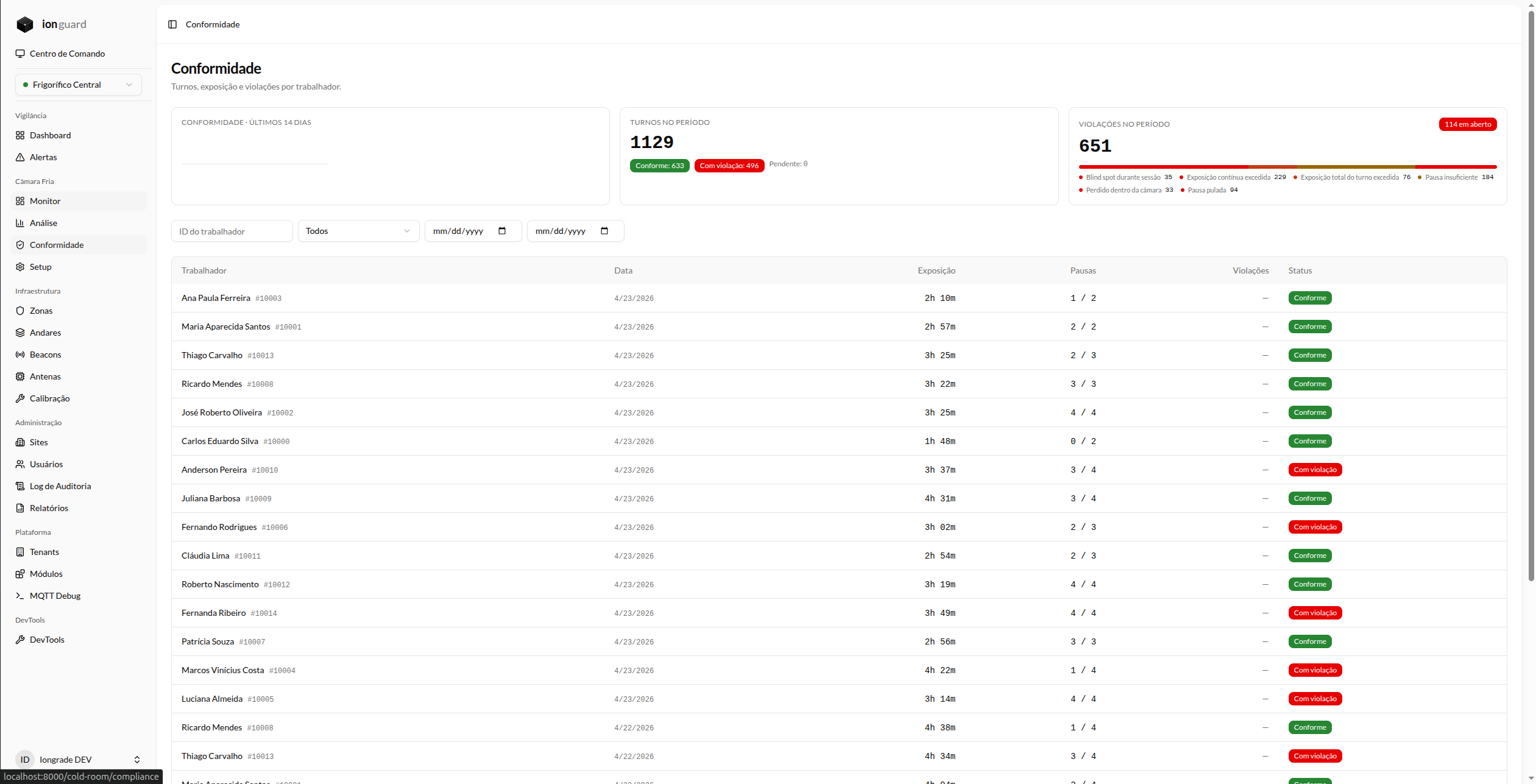
Summary indicators
The top of the page displays:
| Indicator | Description |
|---|---|
| Compliance sparkline | Compliance trend over the last few days |
| Shift distribution | Visual bar showing the proportion of compliant shifts, shifts with violations, and pending shifts |
| Total violations | Count of violations in the selected period, with a breakdown by type |
Shift table
The main table lists all shifts with the following columns:
| Column | Description |
|---|---|
| Worker | Name and employee ID |
| Date | Shift date |
| Shifts | Number of shifts in the period |
| Entries | Total entries into cold rooms |
| Breaks | Breaks taken / breaks required |
| Violations | Number of violations in the shift |
| Status | Compliant, Violations, or Pending |
Available filters
- Period — select a date range
- Worker — filter by a specific worker
- Status — filter by Compliant, Violations, or Pending
- Violation type — filter by a specific violation type
Compliance status
| Status | Color | Meaning |
|---|---|---|
| Compliant | Green | All NR-15 and NR-36 rules were met |
| Violations | Red | One or more violations were recorded |
| Pending | Gray | Shift still in progress or not consolidated |
Shift detail
When you click a shift in the table, a side panel displays the full details.
Compliant shift
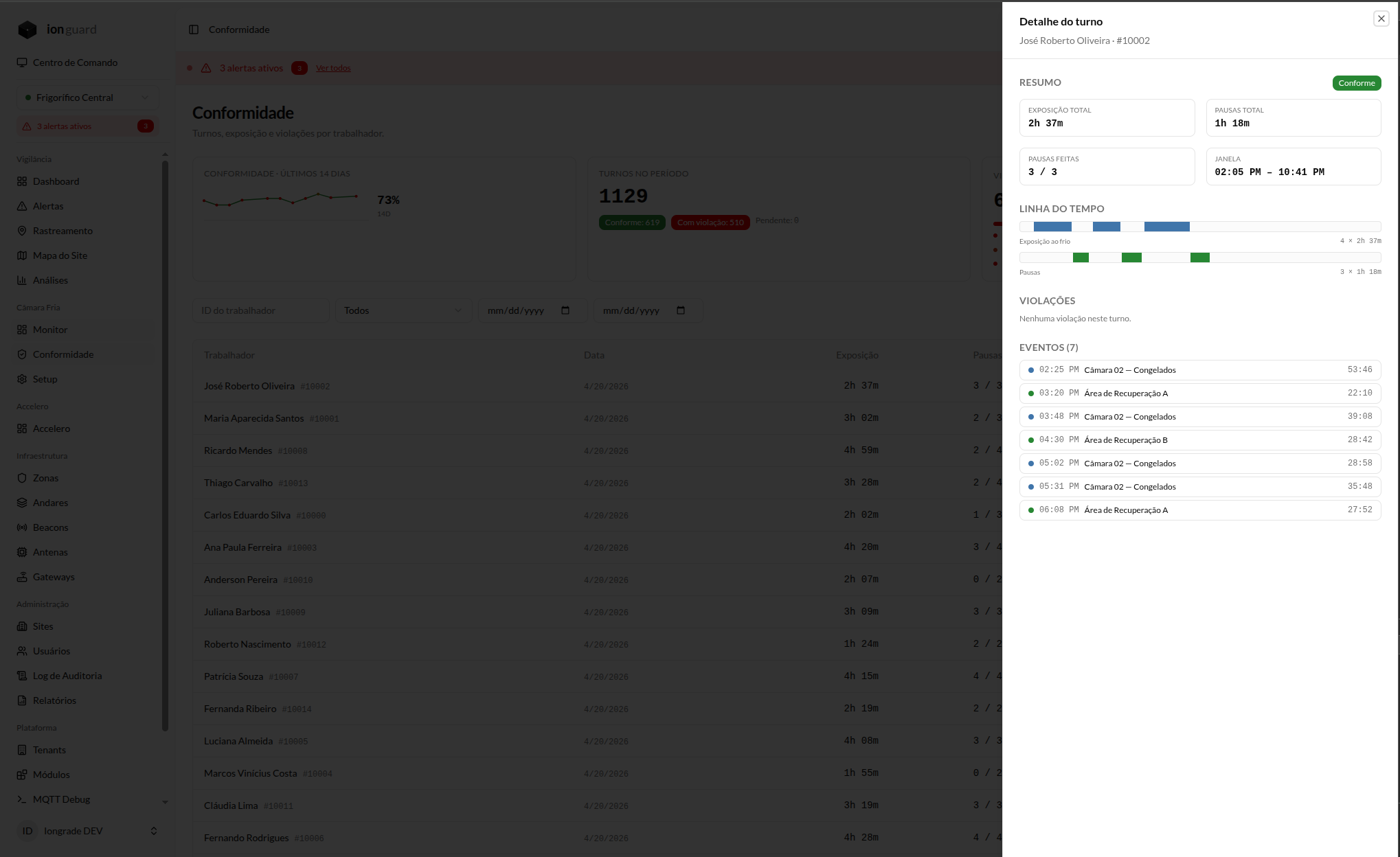
The detail of a compliant shift shows:
- Summary — total exposure, total breaks, breaks taken/required, shift time
- Visual timeline — a horizontal representation of the shift with colored blocks:
- Blue = periods inside the cold room
- Green = break periods in the recovery area
- Event list — chronological record of each transition (entry, exit, break start, break end)
Shift with violations
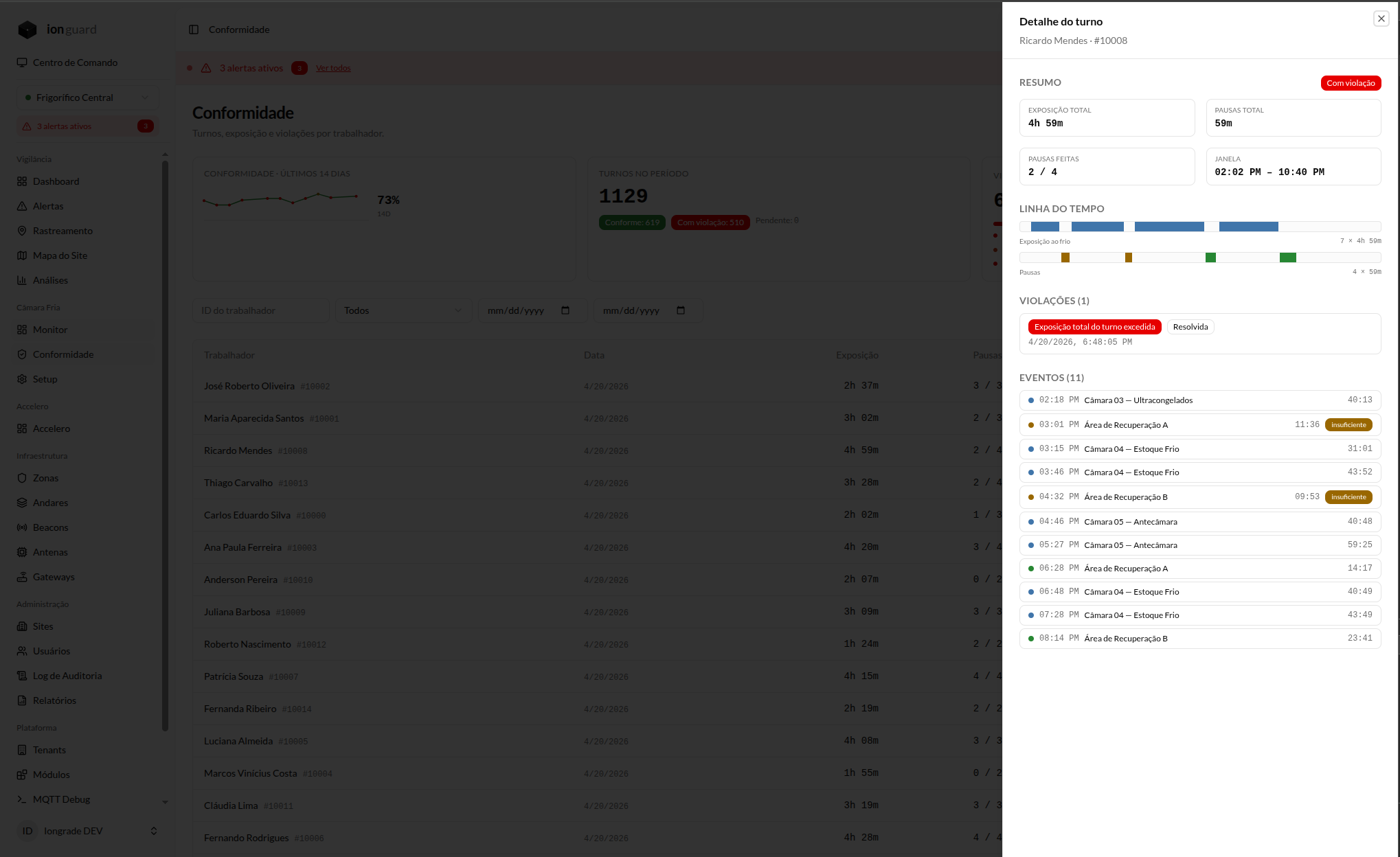
The detail of a shift with violations adds:
- Violation cards — each violation is shown as a red card with type, description, time, and resolution status
- Timeline markers — visual indicators at the timeline points where the violations occurred
- Detailed events — a complete record showing the transitions between zones that led to the violations
Violation types
The system records 6 violation types:
| Type | Description | Trigger | Standard |
|---|---|---|---|
| Continuous Exposure Exceeded | Worker stayed in the cold room beyond the continuous limit | Timer reaches 100% | NR-15 Annex 9 |
| Shift Total Exceeded | Total breaks in the shift below the minimum required by NR-36 | Daily consolidation detects insufficiency | NR-36 item 36.7 |
| Insufficient Break | Break in the recovery area shorter than the minimum | Worker leaves recovery before the minimum time | NR-15 / CLT 253 |
| Break Not Taken | Worker returned to the room without a break in the recovery area | Entry without a prior break | NR-15 / CLT 253 |
| Cold Room Signal Lost | Beacon signal lost while the worker was in the room | Beacon with no signal for more than 2 minutes | Operational safety |
| Blind Spot During Session | Antenna went offline while there were active sessions | Antenna with no heartbeat for more than 2 minutes | Operational safety |
Violation resolution
Violations can be resolved by authorized users. Resolution does not delete the violation — it only marks that it was reviewed and handled.
Who can resolve
- TenantMaster — full access
- TenantAdmin — operational access
- Operator — access limited to assigned sites
How to resolve
- On the compliance page or in the violation list, click the violation
- Click Resolve
- Fill in the resolution note describing the action taken
- Confirm the resolution
The resolution records:
- Who resolved it (user name)
- When it was resolved (timestamp)
- Note describing the justification or corrective action
Resolved violations remain in the history for auditing purposes. The original record is immutable — resolution only adds information, it never modifies or removes the violation record.
Automatic shift consolidation
When it runs
Shift consolidation runs automatically every day at 02:00 (UTC) via a scheduled process.
What it checks
For each worker who had activity the previous day:
- Infers the shift boundaries — uses the day's first and last activity, with a 30-minute inactivity timeout to separate shifts
- Sums the total exposure — total time inside cold rooms during the shift
- Sums the breaks taken — total time in recovery areas
- Compares with NR-36 — checks whether the total breaks meet the minimum required for the registered work schedule duration
- Records violations — if the total breaks are insufficient, records a Shift Total Exceeded violation
Shift inference
When ionguard is not integrated with an electronic time clock, the system infers the shift boundaries:
- Start — time of the day's first cold room activity
- End — time of the last activity + inactivity timeout (default: 30 minutes)
- Shift separation — if there is an inactivity gap greater than the timeout, the system treats it as two distinct shifts
The inference may differ from the worker's actual shift. For greater accuracy, it is recommended to register the correct work schedule for each worker in their profile.