Wallboard
The wallboard is a full-screen display designed to be shown on TVs and monitors at the entrance of cold rooms and recovery areas. It shows large, visible timers, letting workers and supervisors track exposure times without accessing the system.
Cold room wallboard
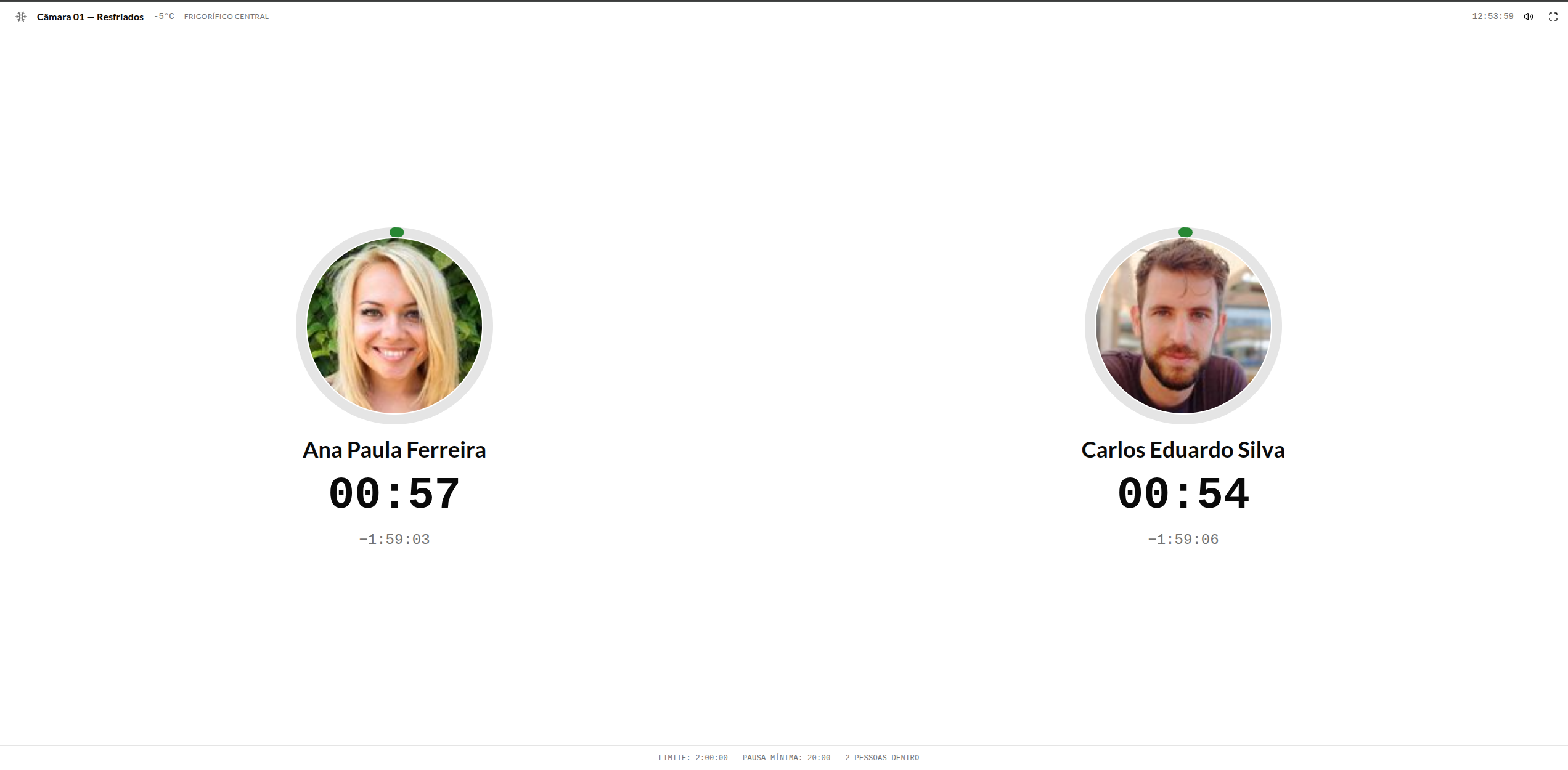
Displayed information
| Element | Description |
|---|---|
| Header | Zone name, temperature, current time, sound icon, full-screen button |
| Worker card | Circular photo, name, exposure timer (counting up), countdown to the limit (counting down) |
| Footer | Configured limit (e.g.: 2:00:00), minimum break (e.g.: 20:00), total people inside |
Visual indicators
The circular timer changes color as it approaches the limit:
- Green — within the safe limit (0-74%)
- Yellow — attention (75%)
- Orange — alert (90%)
- Red — limit reached or exceeded (100%+)
When the limit is reached, the card border turns red and the audible alarm is triggered (if configured).
Recovery area wallboard
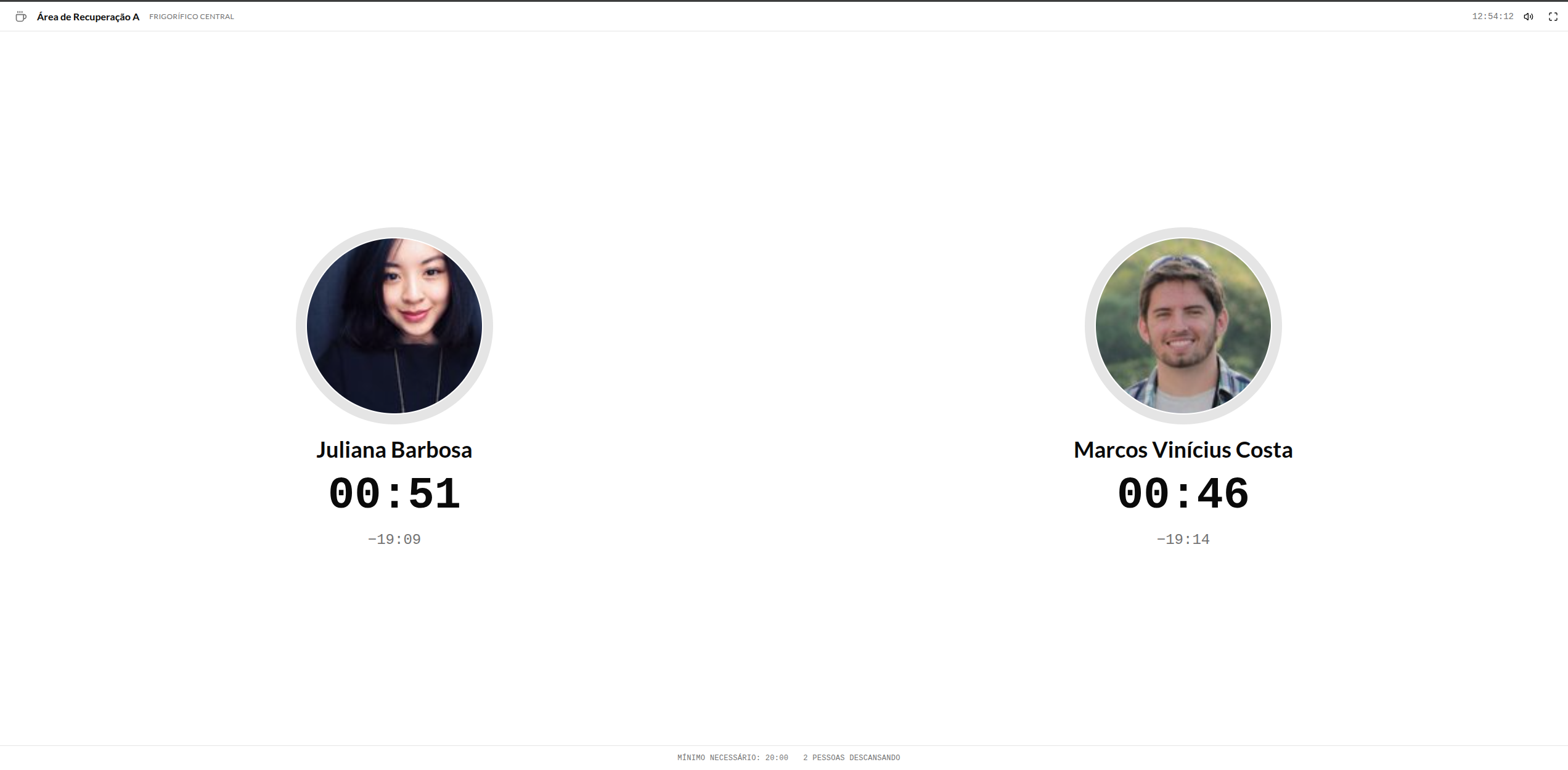
Differences from the cold room wallboard
| Aspect | Cold Room | Recovery Area |
|---|---|---|
| Timer | Exposure (countdown to the maximum limit) | Break (countdown to the required minimum) |
| Color semantics | Red = danger (limit exceeded) | Green = sufficient break reached |
| Footer | Maximum limit + minimum break | Required minimum + people resting |
How to access the wallboard
The wallboard is accessed via URL directly in the browser:
- On the monitoring panel, click the card of a cold room or recovery area
- Select the Wallboard option
- The wallboard will open in a new tab
- Click the full-screen icon (top corner) to expand
To open the wallboard directly, navigate to /cold-room/wallboard/{id-da-zona} for cold rooms or /cold-room/breaks/wallboard/{id-da-zona} for recovery areas.
Hardware setup
Display recommendations
| Requirement | Recommendation |
|---|---|
| Screen | TV or monitor of at least 32" (visibility at 5m distance) |
| Minimum resolution | 1280x720 (HD). Recommended: 1920x1080 (Full HD) |
| Device | PC Stick (Intel Compute Stick, Raspberry Pi 4+) or fixed tablet |
| Browser | Chrome, Edge, or Firefox, up to date |
| Connection | Stable network (Wi-Fi or Ethernet) with access to the ionguard server |
Kiosk mode
To have the wallboard start automatically when the device is powered on:
- Configure the browser to open in kiosk mode (full screen, no address bar)
- Set the wallboard URL as the home page
- Configure the operating system to start the browser automatically at boot
Audible alert
The wallboard can emit an audible alert when a worker reaches the configured threshold:
- The sound icon in the top corner controls the volume
- The alert plays automatically when the configured percentage is reached (default: 100%)
- The operator can temporarily mute it by clicking the icon
The browser may block automatic sound playback. To ensure it works, access the wallboard manually at least once and interact with the page (click). This authorizes the browser to play sounds automatically the next times.
Best practices
- Position the monitor where the worker can see it before entering the cold room
- Keep the volume audible in noisy environments — the audible alert is the last line of defense
- Set up one wallboard per cold room at the entrance and one in the recovery area
- In rooms with many workers, consider a larger monitor (43" or more)
- Periodically check that the wallboard is connected and up to date