DigiEye Module
The DigiEye module integrates the ION Guard platform with DigiEye gateways to trigger physical outputs (relays, sirens, signal lights) in response to system alerts.
How it works
DigiEye acts as a reaction layer: whenever any platform module generates an alert (panic, device offline, restricted zone, etc.), DigiEye can trigger commands on physical devices via MQTT.
Alert created → Event mapping → MQTT command → DigiEye gateway → Physical device
Features
Gateways
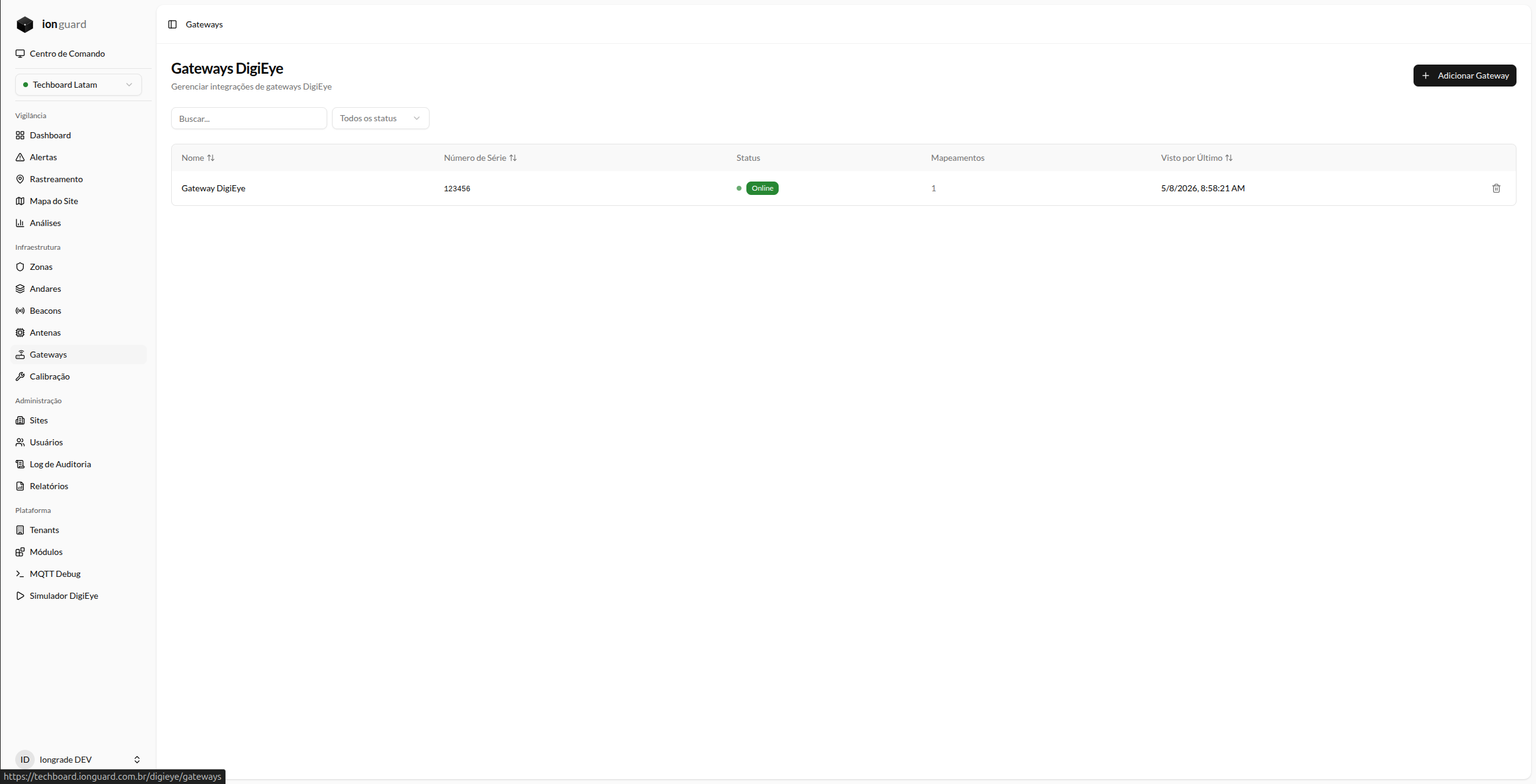
DigiEye gateways are the physical controllers that receive MQTT commands and trigger devices.
- Registration and management of gateways with automatic MQTT credentials
- Health monitoring — heartbeat every 2 minutes, with alert if offline
- Real-time status — online/offline based on the last heartbeat
Devices
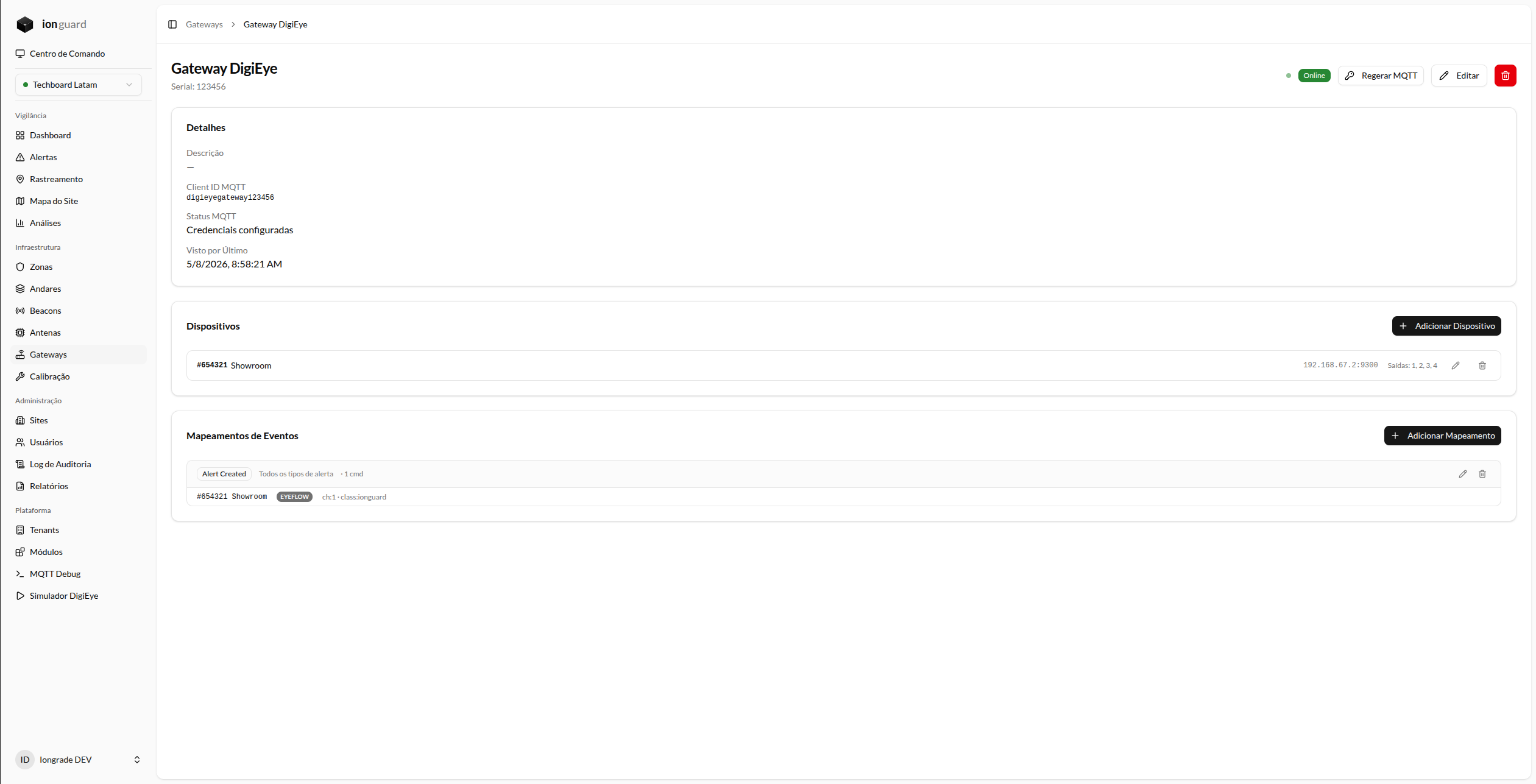
Each gateway can have multiple associated devices with 3 command types:
| Type | Description | Example |
|---|---|---|
| IO | Digital outputs (relays) | Trigger siren, unlock door |
| EyeFlow | Flow payloads | Start programmed sequence |
| DigiAI | AI payloads | Trigger visual analysis |
Event mapping
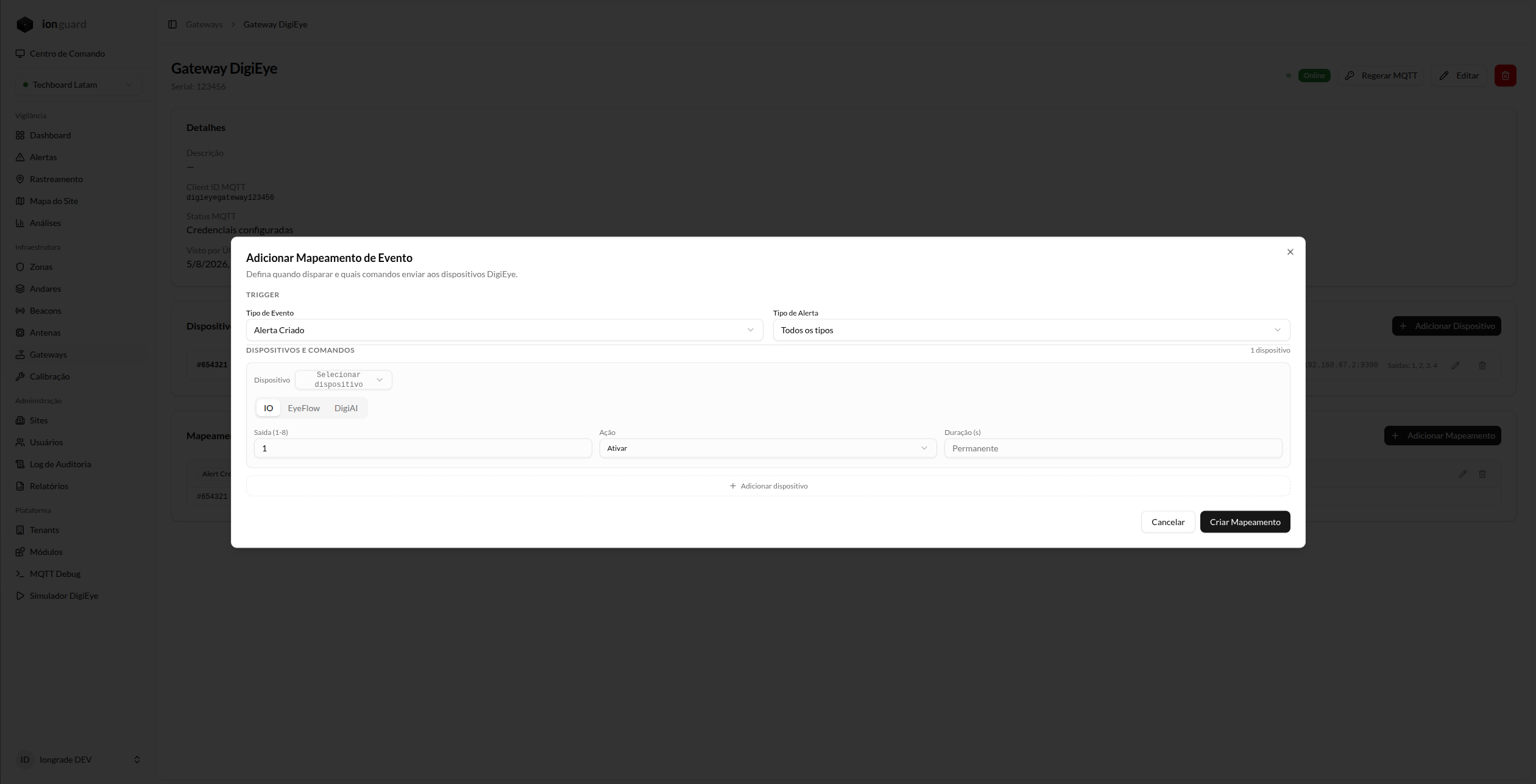
The central feature of DigiEye is event-to-action mapping:
- Configure which alert types (from any module) should trigger which devices
- Group multiple actions into mapping groups — a single event can trigger several devices
- Configure duration for automatic deactivation (e.g.: siren for 30 seconds)
- Map different actions to each stage of the alert:
- Alert created → trigger siren
- Alert acknowledged → turn off siren
- Alert resolved → gateway reset
- Alert escalated → trigger siren + signal light
Menus added
When enabled, the module adds to the menu:
- DigiEye Gateways — List and management of gateways and devices
- Simulator — Alert testing tool (Platform Admin only)
Usage flow
- Register gateway — Register the DigiEye gateway with a name and serial number
- Generate MQTT credentials — The system automatically generates connection credentials
- Configure the physical gateway — Use the displayed MQTT credentials to configure the device
- Register devices — Add the gateway's devices (IOs, EyeFlows, DigiAIs)
- Create mappings — Configure which alerts trigger which devices
- Test — Use the simulator to trigger test alerts and verify triggering
Per-site configuration
Each site can have its own DigiEye settings, accessible from the module configuration page. Settings are stored at the site level.
Prerequisites
- Operational MQTT — Active Mosquitto broker
- DigiEye Gateway — Hardware installed and connected to the local network
- Network — Gateway must be able to reach the MQTT broker (port 1883 or 9001 via WebSocket)