System Settings
The ION Guard platform offers personalization and administration settings accessible through the interface.
Accessing Settings (/settings) without a sub-path automatically redirects to Profile (/settings/profile).
Profile
Access: Sidebar → Settings → Profile (/settings/profile)
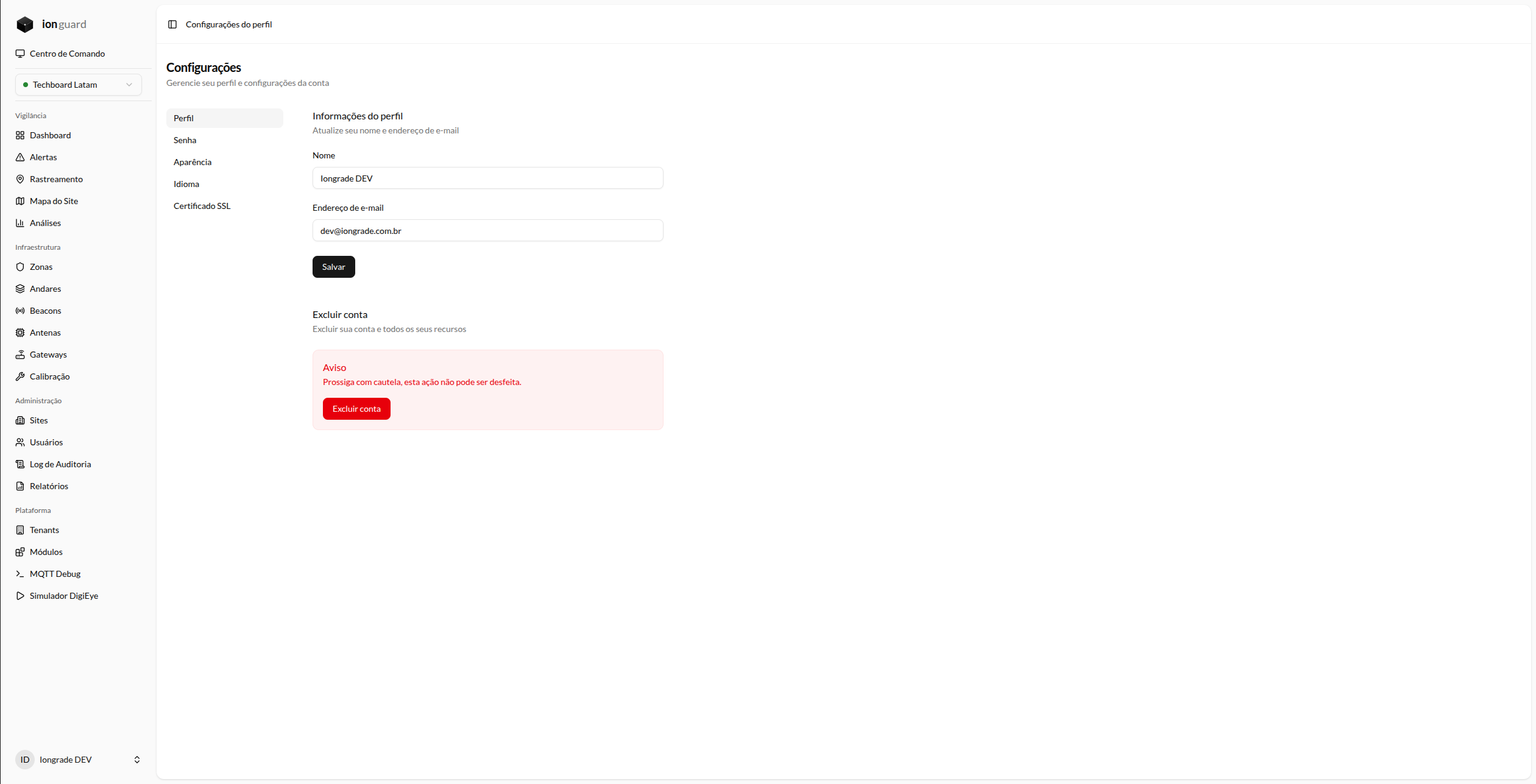
Lets you update your name and email address. The bottom section lets you delete your account (an irreversible action).
Password changes are on a dedicated page, Password (/settings/password).
Appearance
Access: Sidebar → Settings → Appearance (/settings/appearance)
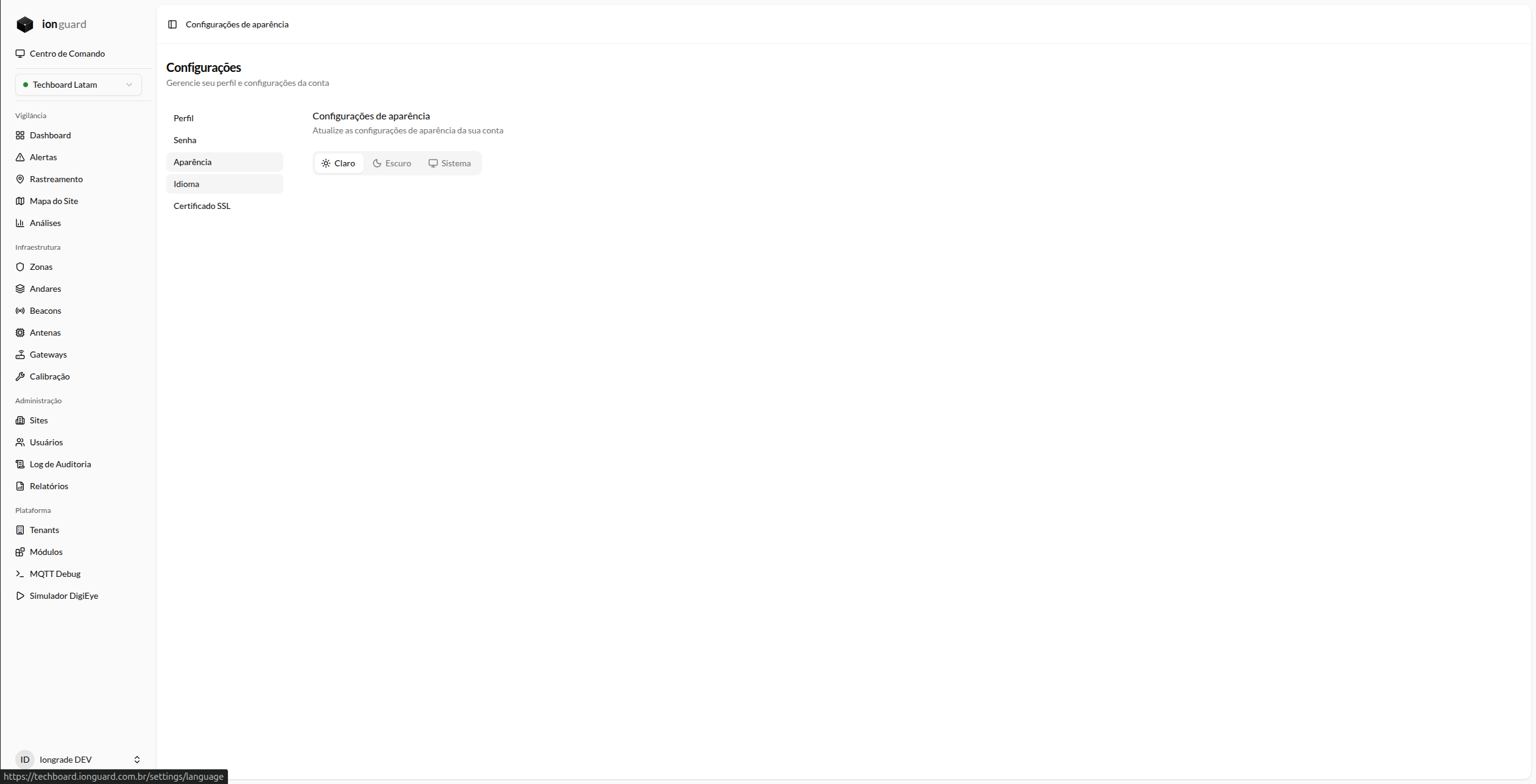
Lets you customize the platform's visual theme:
- Light theme — White background, dark text
- Dark theme — Dark background, light text
- Automatic — Follows the operating system preference
The preference is saved per user and applied immediately.
Language
Access: Sidebar → Settings → Language (/settings/language)
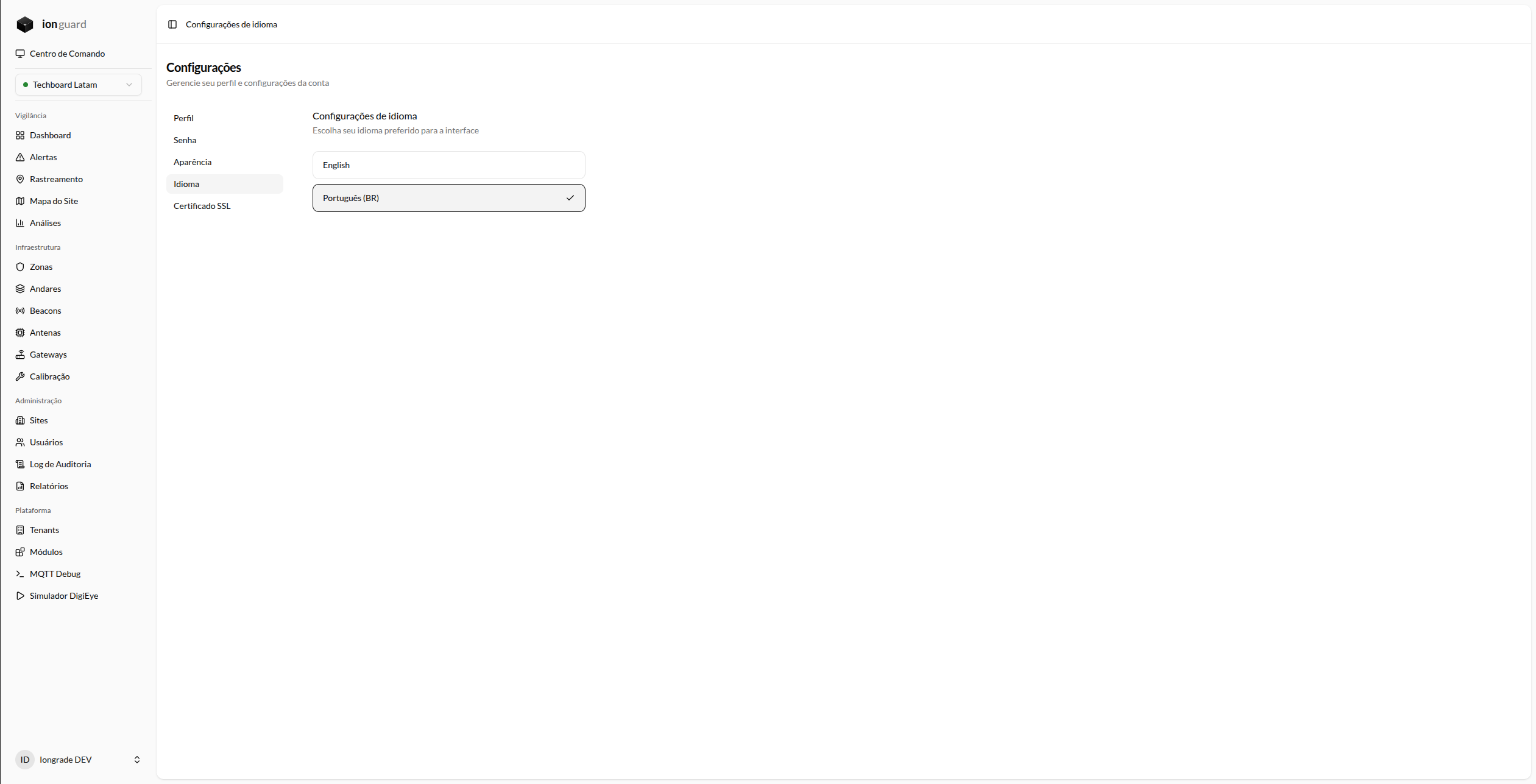
Lets you select the interface language:
- Portuguese (Brazil) — pt_BR
- English — en
When you select a language, the page reloads automatically with the translations applied. The preference is saved on the server.
SSL Certificate
Access: Sidebar → Settings → SSL Certificate (/settings/ssl-certificate)
Available only to Platform Admin.
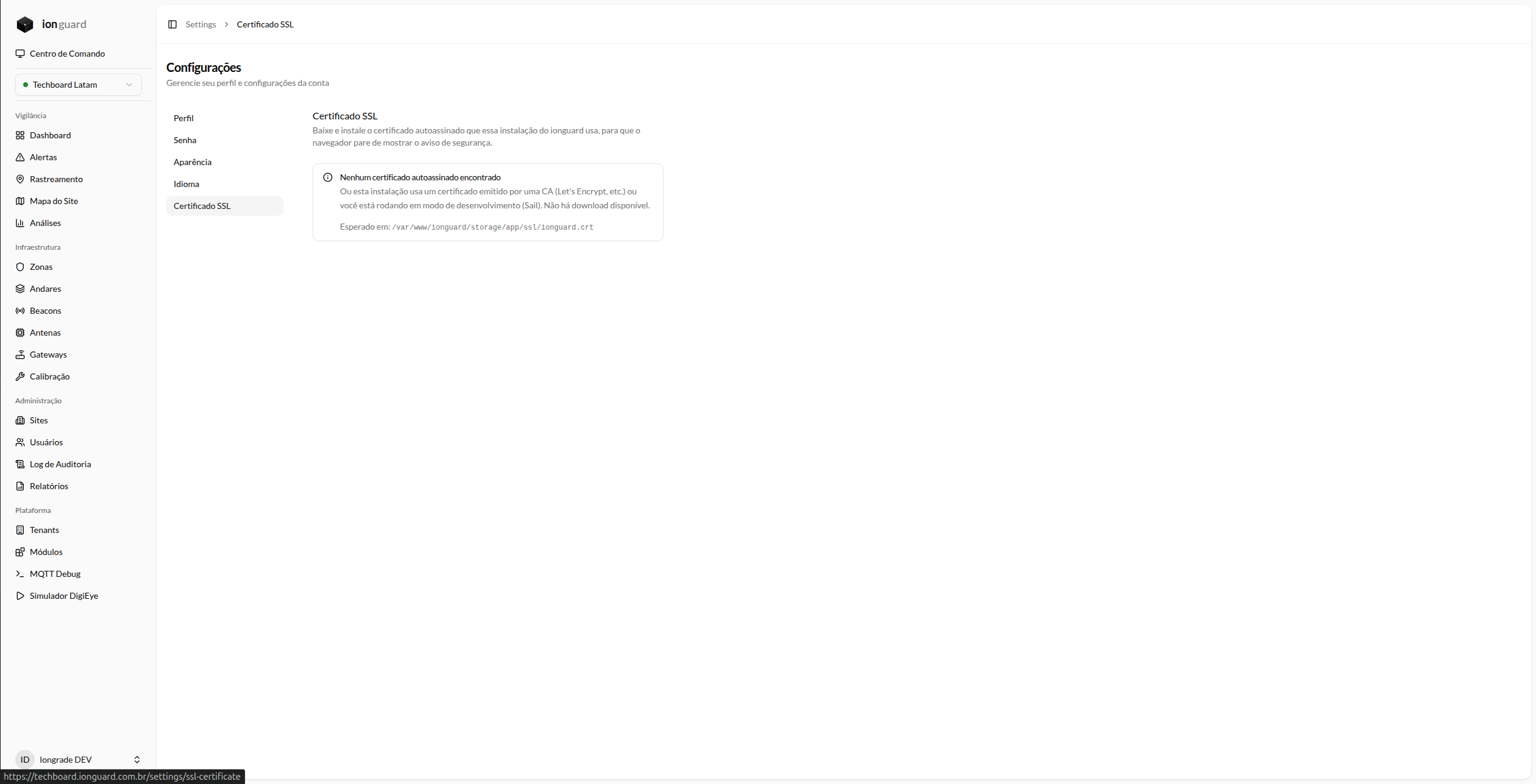
Displays information about the installed SSL certificate:
| Information | Description |
|---|---|
| Subject (CN) | Common name of the certificate |
| Issuer | Issuing authority |
| Self-signed | Indicator of whether the certificate is self-signed |
| Valid from | Validity start date |
| Valid until | Expiration date |
| SHA256 Fingerprint | Certificate fingerprint |
| SANs | Alternative names (DNS and IP) |
Downloading the certificate
The "Download Certificate" button lets you download the .crt file for installation on client devices.
Installation instructions
The page includes step-by-step instructions to install the self-signed certificate on:
- macOS — Keychain Access
- Windows — Computer certificates
- Linux — ca-certificates
- Firefox — Certificate exceptions
- iOS — Configuration profile
- Android — Security credentials
On-premises installations use a self-signed certificate by default. Installing the certificate on client devices avoids security warnings in the browser.
MQTT Debug
Access: Sidebar → MQTT Debug (/mqtt-debug)
Available only to Platform Admin.
A diagnostic tool for monitoring MQTT messages in real time:
Controls
- Connect/Disconnect — Opens/closes the WebSocket connection to the MQTT broker
- Topic filter — Filter by MQTT topic (e.g.,
ionguard/+/alerts). Set before connecting - Search — Text filter on the received messages
- Pause/Resume — Freezes reception for analysis
- Clear — Removes all messages from the screen
Message view
Each message displays:
- Timestamp — HH:MM:SS.mmm
- Topic — Hierarchical MQTT path
- Size — Payload size (bytes or KB)
- JSON — Badge indicating whether the payload is valid JSON
- Payload — Click to expand and see the full content (formatted JSON or raw)
Statistics
Badges at the top show:
- Total messages received
- Messages displayed (after filters)
- A "Paused" indicator when active
Use MQTT Debug to check whether antennas are sending signals correctly, diagnose connectivity issues with DigiEye/Accelero gateways, and validate the structure of the payloads.