Pending approvals
Overview
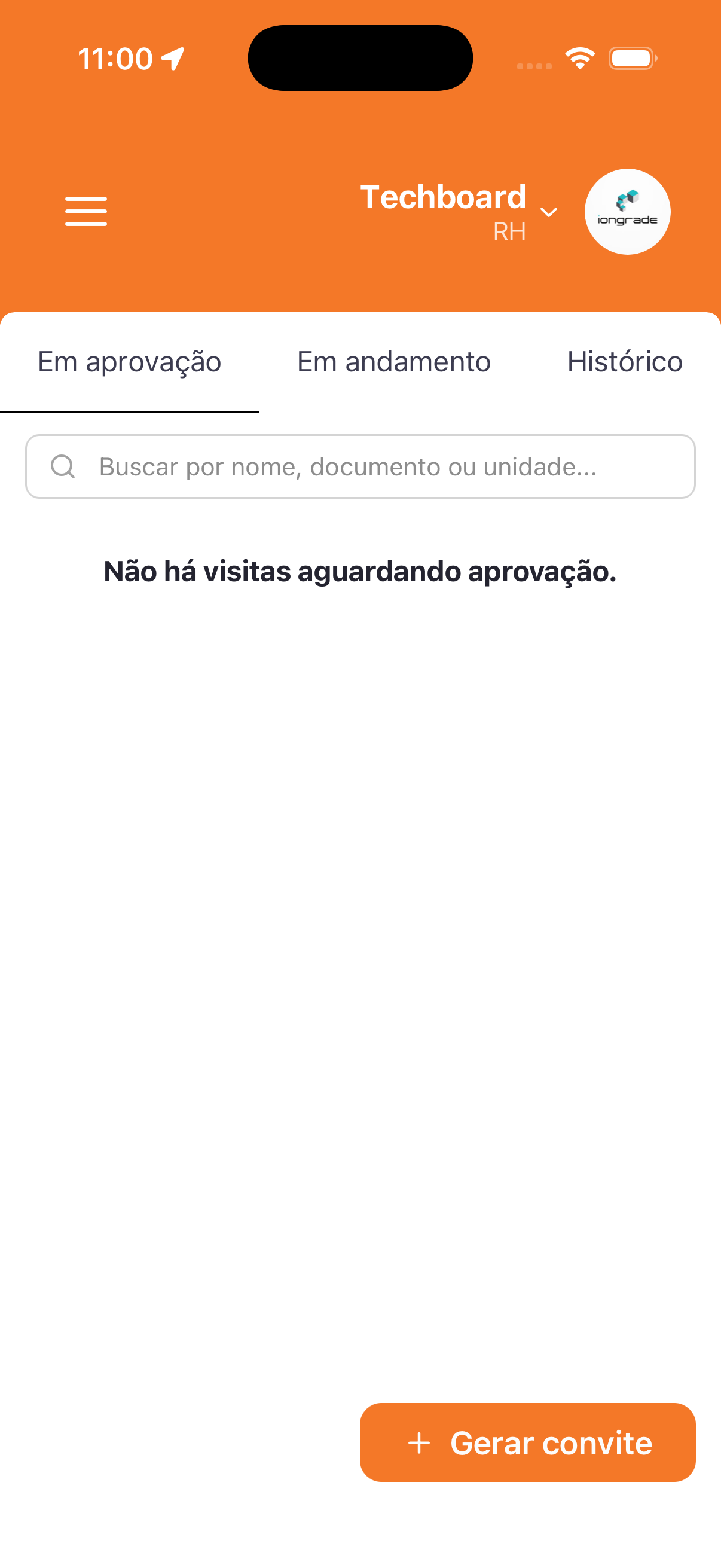
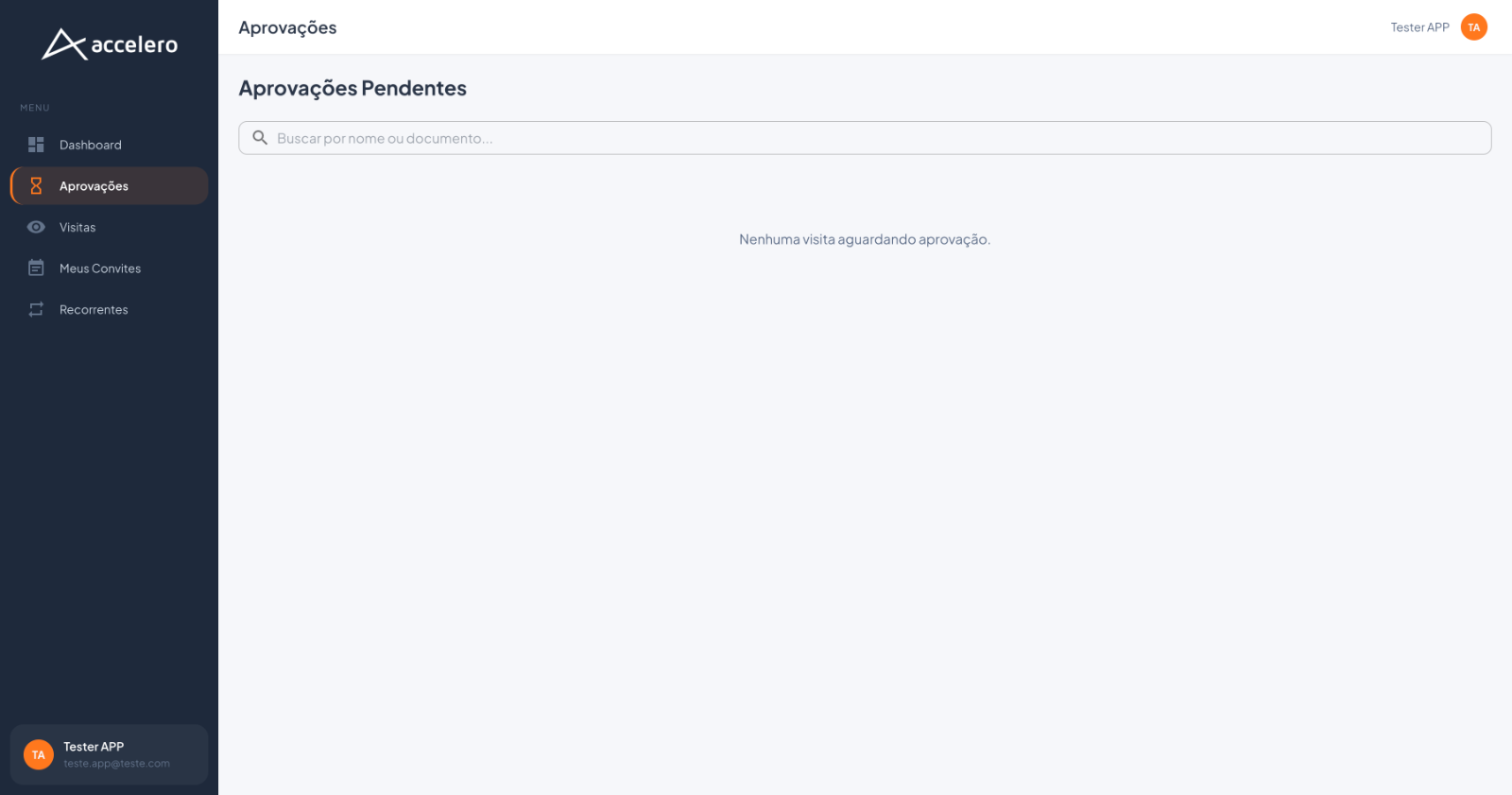
Visits that are waiting for the approver's decision — where you approve or reject whoever requested access. In the app it is the Awaiting approval tab; in the web panel it is the Approvals / Pending Approvals section. Both show the same queue and offer a search by name/document. In the current screenshots the queue is empty (no pending visits).
In the app and in the web panel
- App — Awaiting approval tab: among the Awaiting approval / In progress / History tabs, at the top of the screen. It has the Search by name, document, or unit... search field and, when there is nothing, the message There are no visits awaiting approval. At the bottom, the + Generate invitation button.
- Web panel — Pending Approvals: reached through the Approvals menu item. Title Pending Approvals, the Search by name or document... field and, when empty, the message No visits awaiting approval. The Dashboard also leads here through the View pending approvals button (see Invitations and navigation).
Fields / search
- Search — by name or document (in the app, also by unit).
- When there are items, each pending visit brings the visitor's data for the approver to decide. (In the screenshots, the list is empty.)
Actions
- Approve / Reject the pending visit (individual decision; when there are several, bulk decisions are possible).
- + Generate invitation (app) — shortcut to create an invitation.
The exact labels of the approve/reject buttons do not appear in the screenshots (empty queue); describe them as displayed on screen once there are pending visits.
States / statuses
- No pending items: There are no visits awaiting approval. (app) / No visits awaiting approval. (web).
- In the web panel, the Dashboard summarizes the queue in the Pending card (count).
This is your decision inbox. Check the visits that are waiting, use the search to find them by person or document, and approve or reject. After approval, the visit starts appearing in Visits in progress; the decisions are recorded in the Visit history.