Invitations and navigation
Overview
Where the approver navigates between the product areas and sees the list of invitations they created (My Invitations). Available in the app and in the web panel, with the same content and one navigation difference: the app uses a side menu (hamburger) and the web panel uses a fixed menu on the left side. Anyone who serves more than one unit can switch the active unit.
In the app and in the web panel
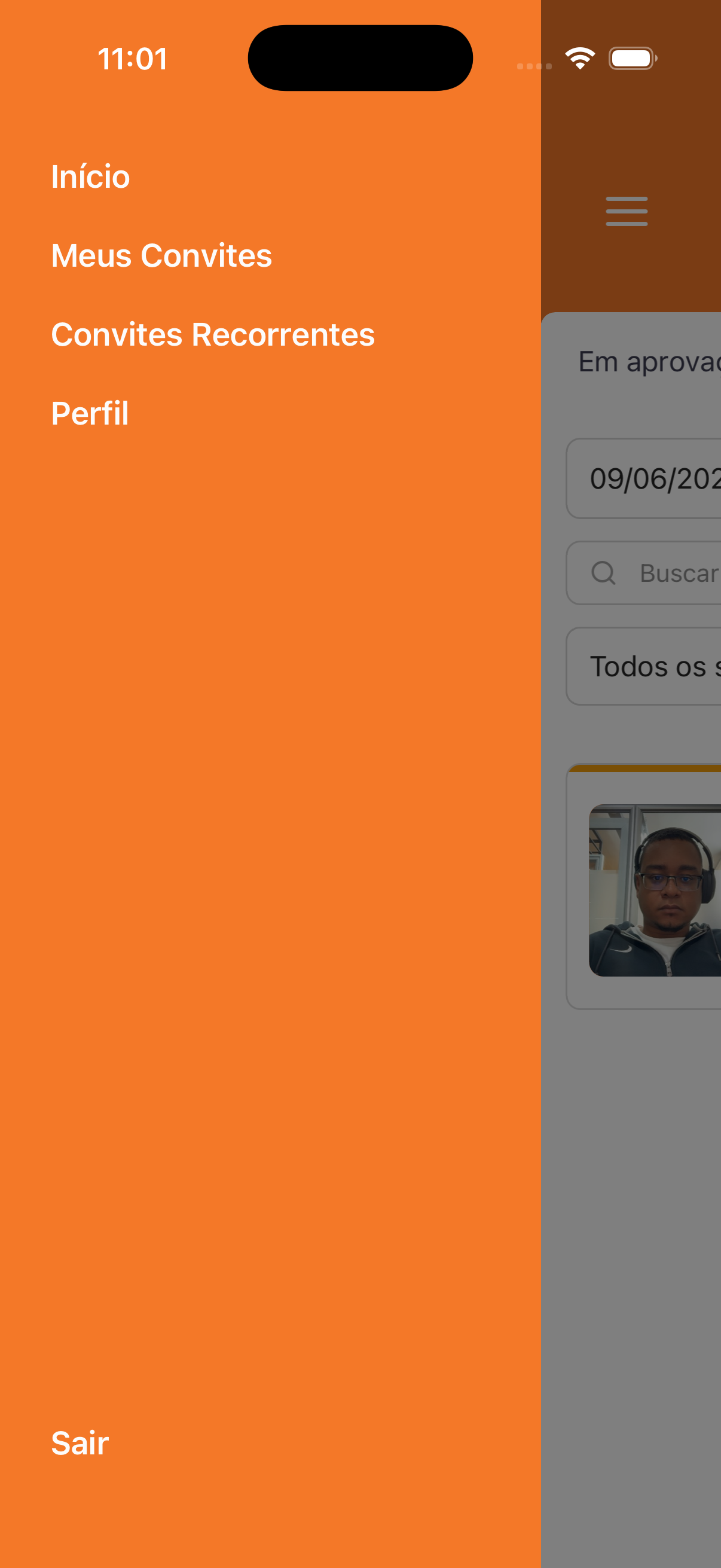
- App — side menu: opened by the hamburger icon, it lists Home, My Invitations, Recurring Invitations, Profile and, at the bottom, Sign out.
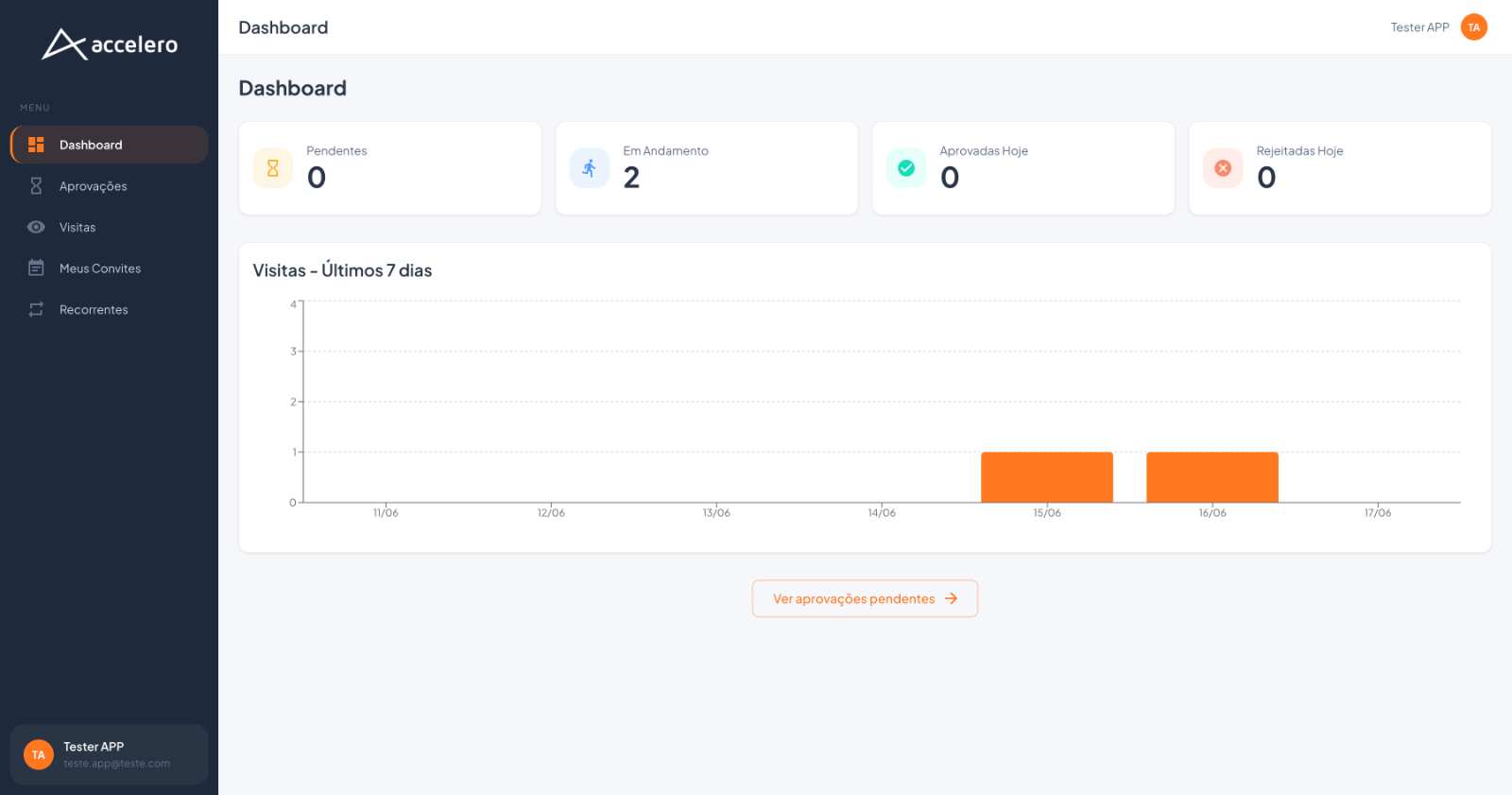
- Web panel — fixed menu (MENU): Dashboard, Approvals, Visits, My Invitations, Recurring. In the footer, the card of the signed-in user (name and email) is shown.
- Dashboard (web panel only): home screen with the Pending, In Progress, Approved Today, and Rejected Today cards (each with a number), the Visits - Last 7 days chart, and the View pending approvals → button.
- Unit selection (multi-unit):
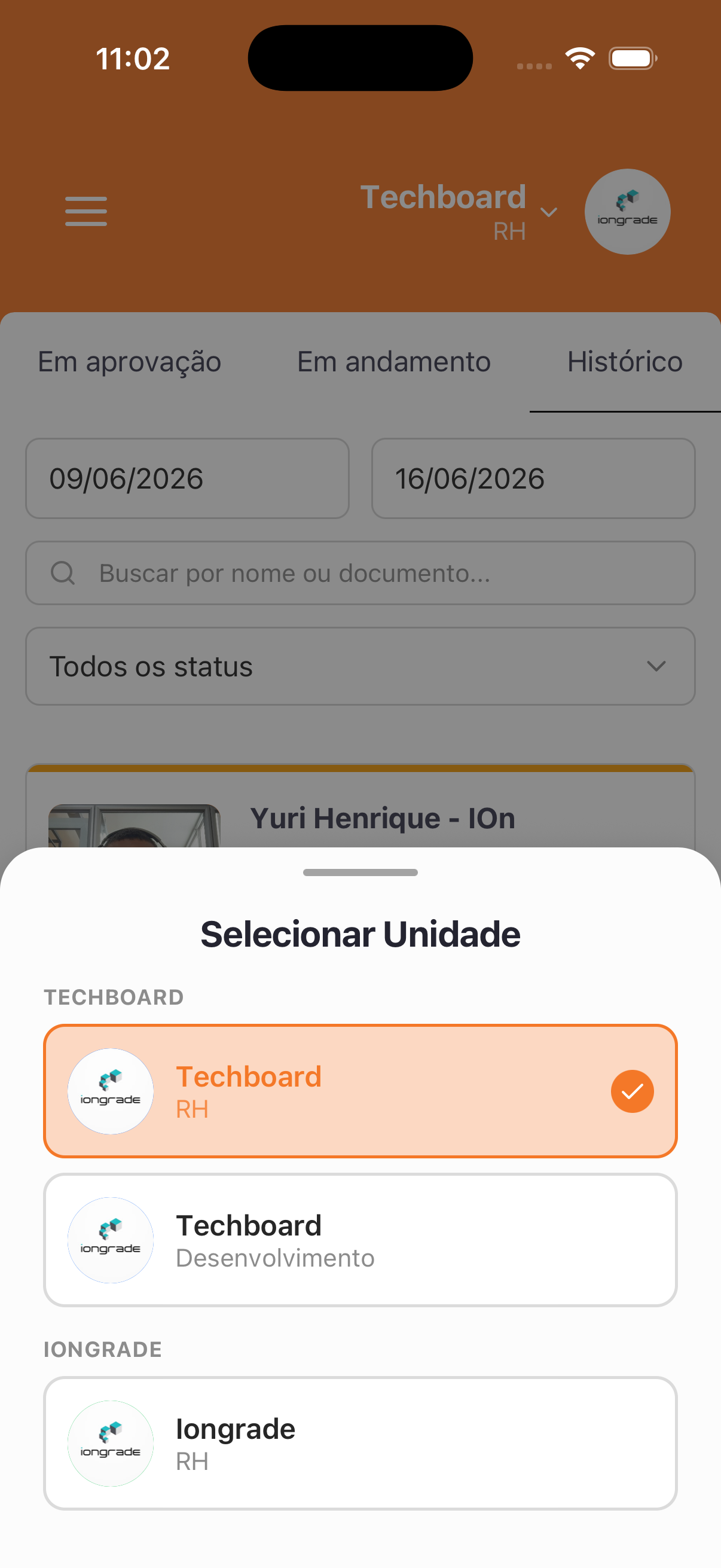
- App: the current unit appears at the top (e.g., Techboard / HR) with an arrow; tapping it opens Select Unit, grouped by company (e.g., TECHBOARD with Techboard – HR and Techboard – Development; IONGRADE with Iongrade – HR). The active unit is marked.
- Web: the Select Unit field (e.g., Techboard – HR) at the top of the list.
My Invitations — what is shown
List of the invitations created by the approver. Each item shows:
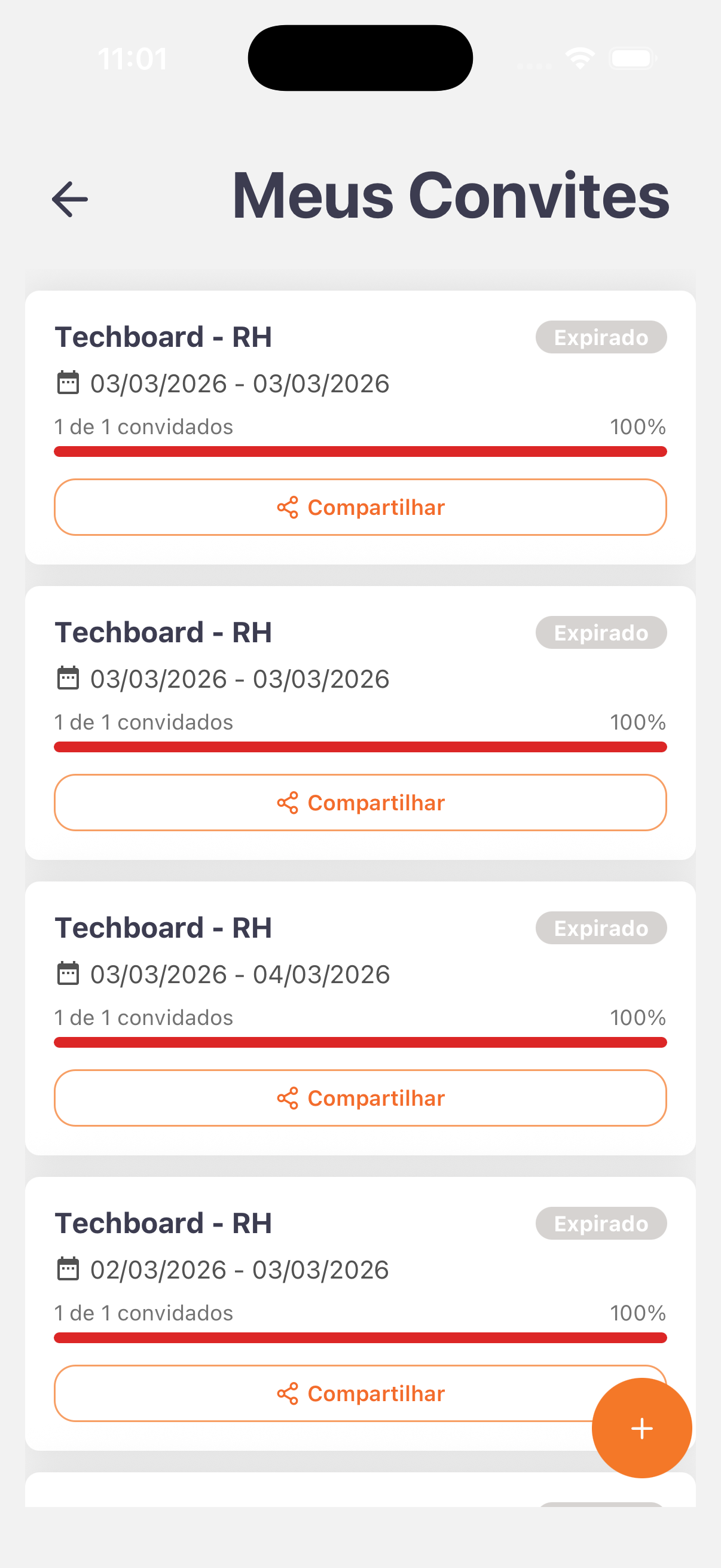
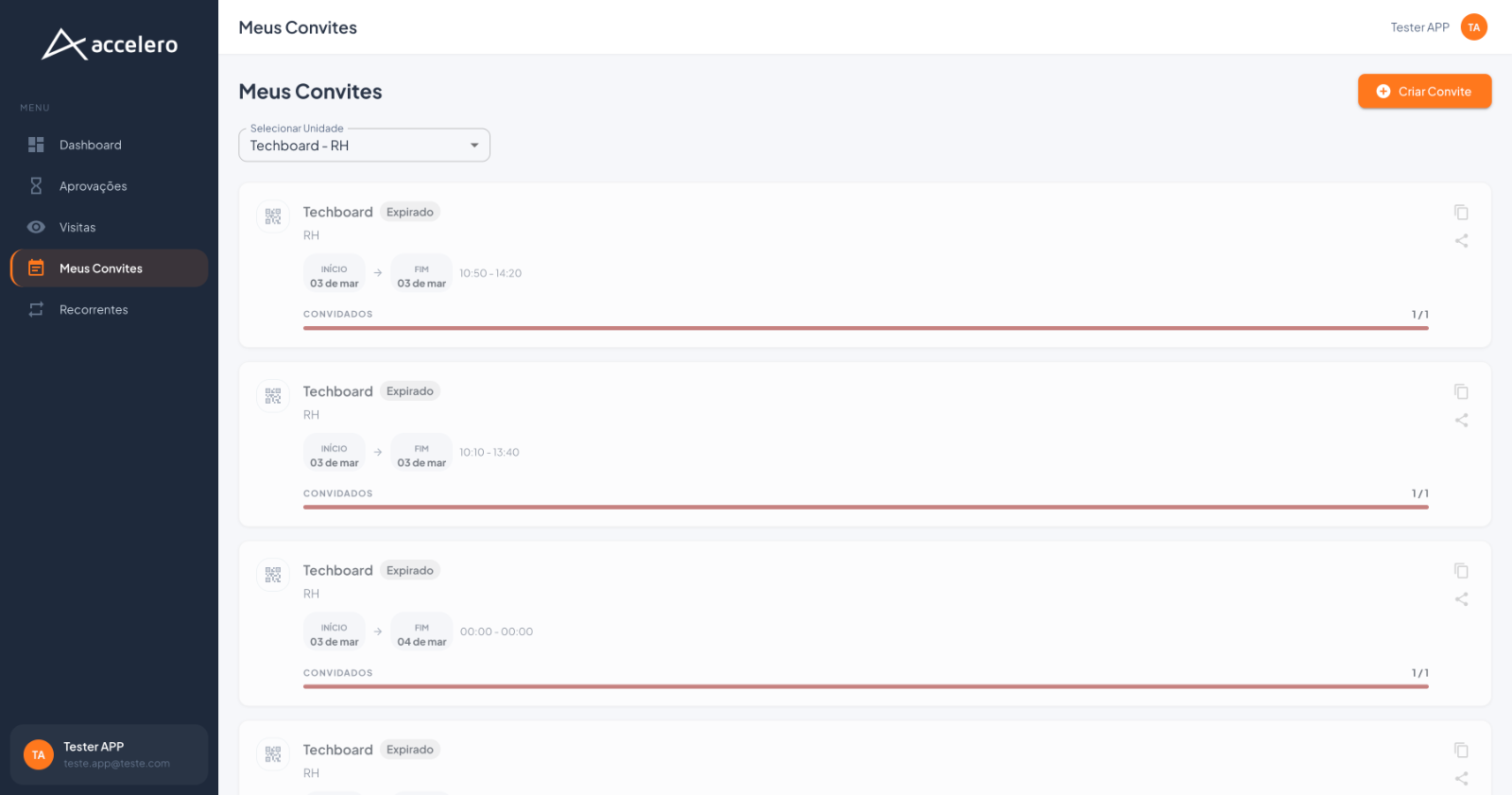
- Unit/company name (e.g., Techboard) and the department (e.g., HR).
- Invitation period (start and end dates) and, in the web panel, also the times (START / END and the time range, e.g.,
10:50 - 14:20). - Guests — attendance count (e.g., 1 of 1 guests /
1/1) with a progress bar and, in the app, the percentage (e.g.,100%). - Status of the invitation (e.g., Expired).
Actions
- Share (app) / share and copy icons (web panel) — sends/copies the invitation link.
- Create invitation — the + button (app, bottom corner) or Create Invitation (web panel, top right corner). See Create invitation.
- In the web panel, each item also displays a QR Code icon for the invitation.
In My Invitations you track the invitations you created and the attendance of each one. Do you serve more than one unit? Switch the active unit at the top (app) or in the Select Unit field (web) before creating or checking invitations. Use Share to send the link to the visitor and the + / Create Invitation button to generate a new one.