Sign-in and password recovery
Overview
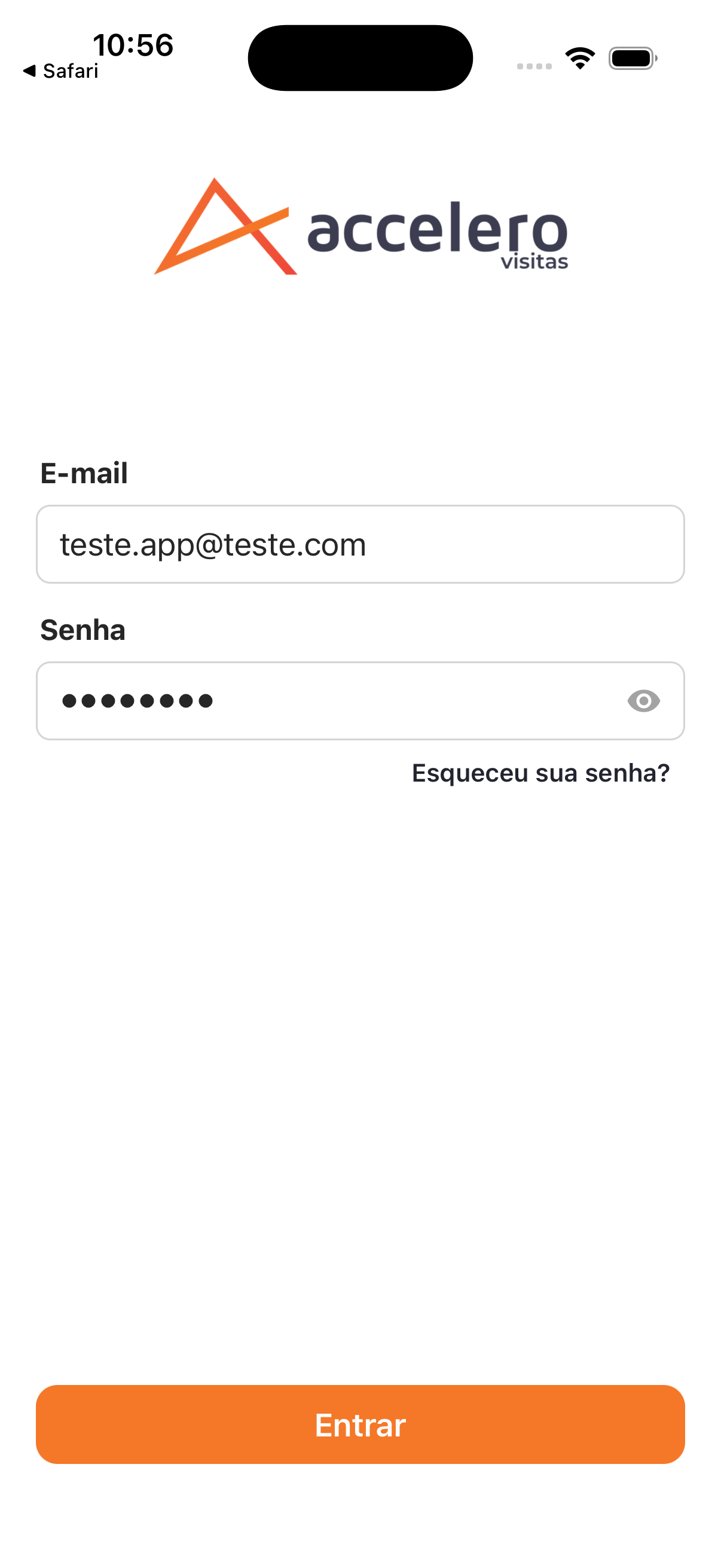
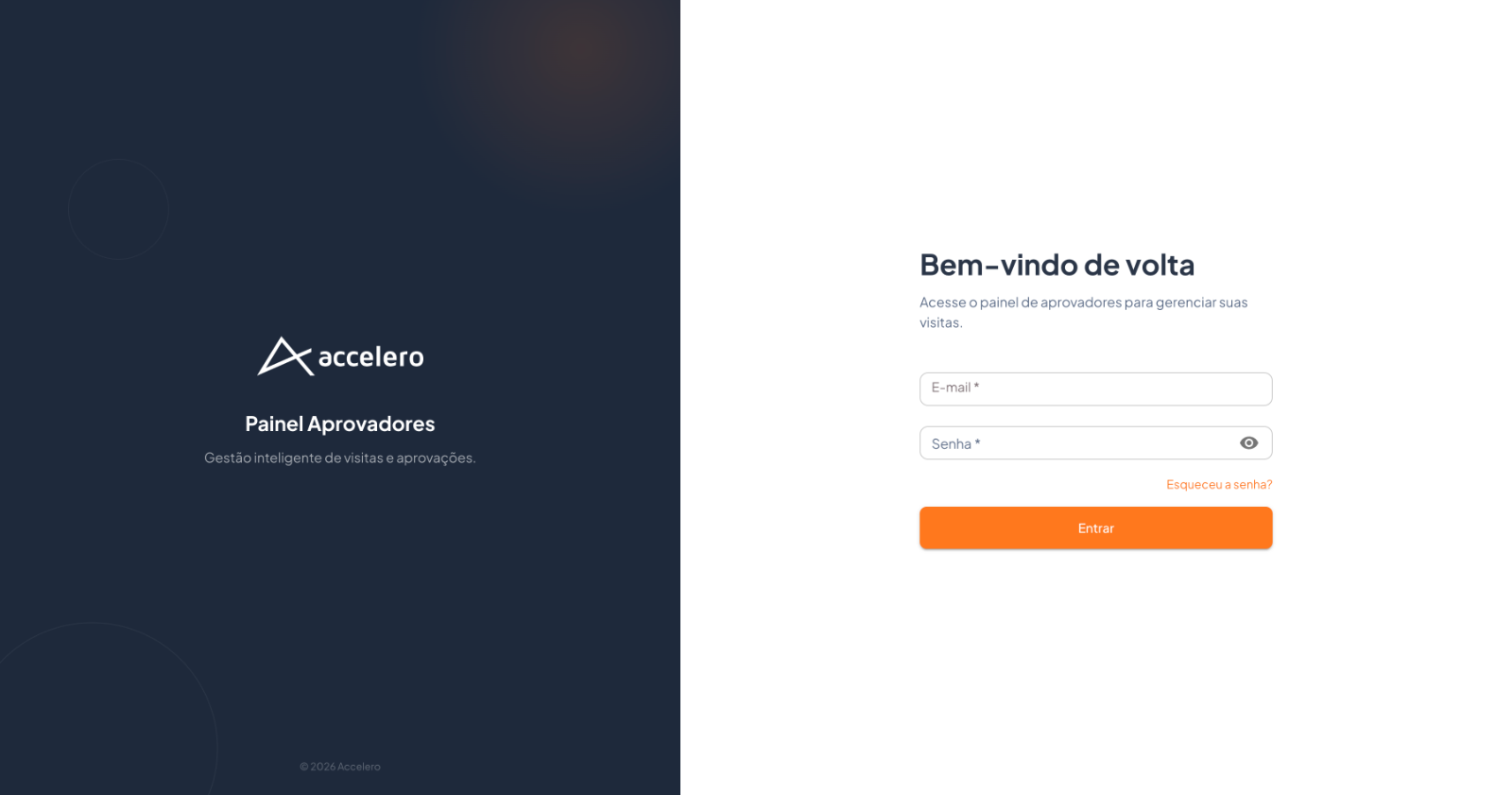
The approver sign-in screen in Accelero Visitas. The same access exists in two places: the app (mobile) and the approver web panel, used according to each person's preference. In both, the approver signs in with Email and Password and, if the password was forgotten, follows a recovery flow with a code sent by email followed by setting a new password.
In the app and in the web panel
- App: vertical screen with the accelero visitas logo, the Email and Password fields, the Forgot your password? link below the password field, and the orange Sign in button at the bottom.
- Web panel: split screen — on the left the dark panel with the Approver Panel brand and the text Smart management of visits and approvals; on the right the form with the title Welcome back and the subtitle Access the approver panel to manage your visits. It has the Email * and Password * fields, the Forgot your password? link, and the Sign in button.
- The content is the same (email + password + recovery); only the presentation differs.
Fields
- Email — the approver's registered email.
- Password — field with an eye icon to show/hide what was typed.
Step by step (sign in)
- Enter the Email.
- Enter the Password (use the eye icon to check it).
- Tap/click Sign in.
Password recovery
The flow has three steps, identical in the app and in the web panel (only the labels differ slightly):
-
Enter the email.
- App: from the Forgot your password? link, it opens the Enter your email to reset your password and keep enjoying the app! screen with the Email* field and the Sign in button.
- Web: from Forgot your password?, it opens Recover Password (Enter your email to receive the recovery code) with the Email * field and the Send Code button. There is a Back to sign-in link.
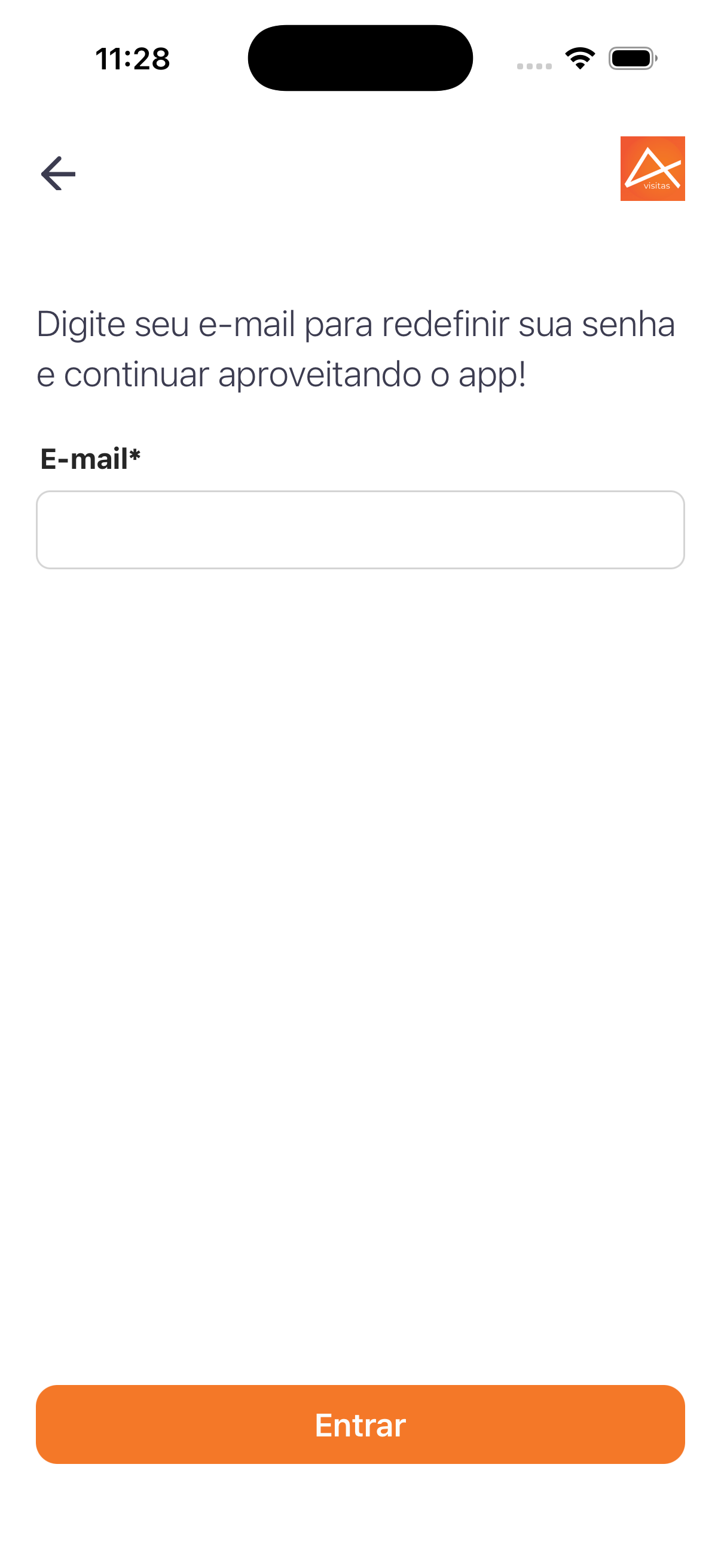
In the app, the approver enters the email to receive the recovery code. 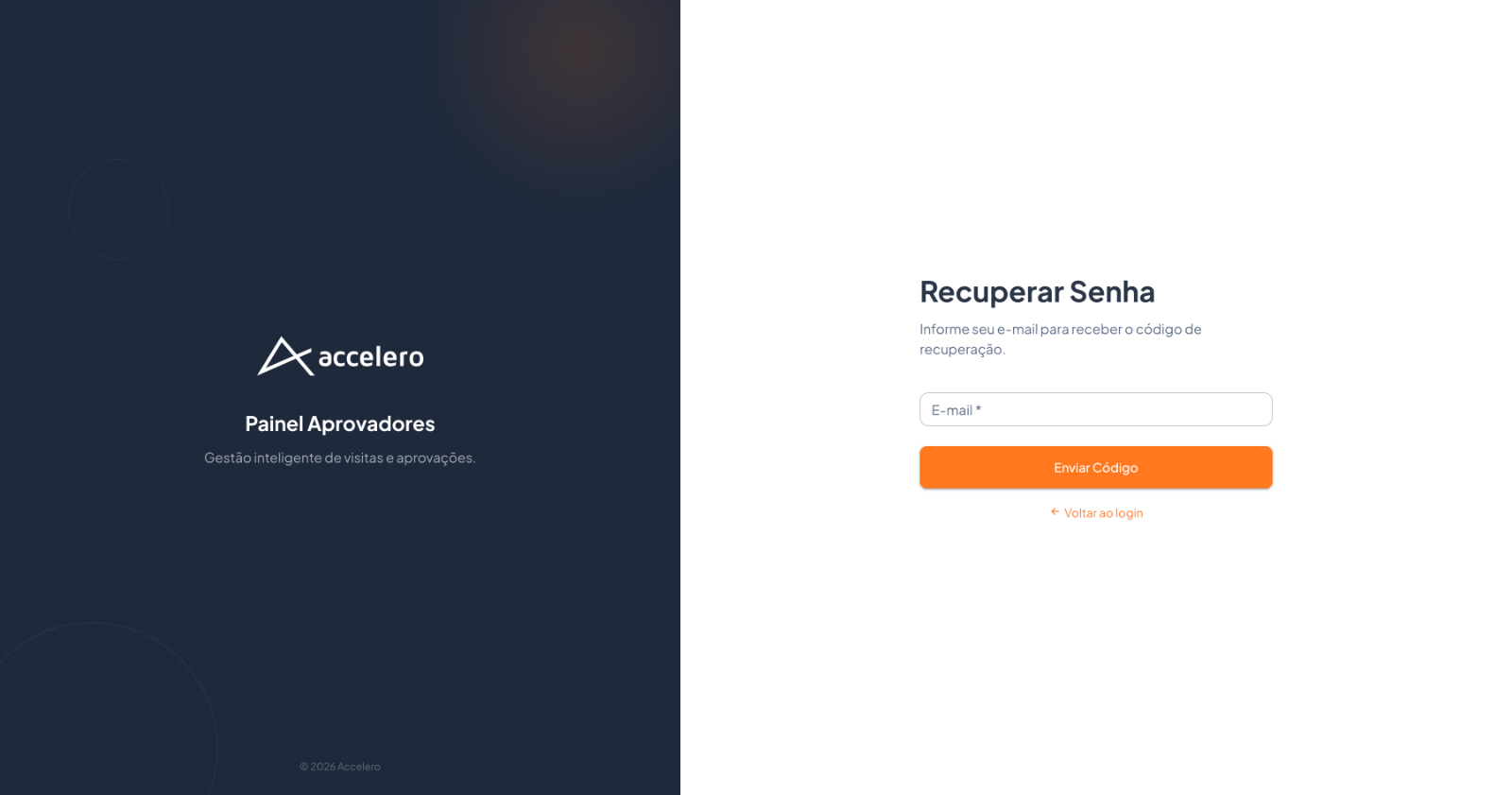
In the web panel, Recover Password asks for the email and sends the code. -
Enter the verification code.
- App: the We sent a verification code to your email screen (showing the email) and the Enter your 6-digit security code field, with six boxes. There is Didn't receive the code? and a countdown (e.g.,
01:55) for resending. - Web: the Verification Code * field and the Verify Code button.
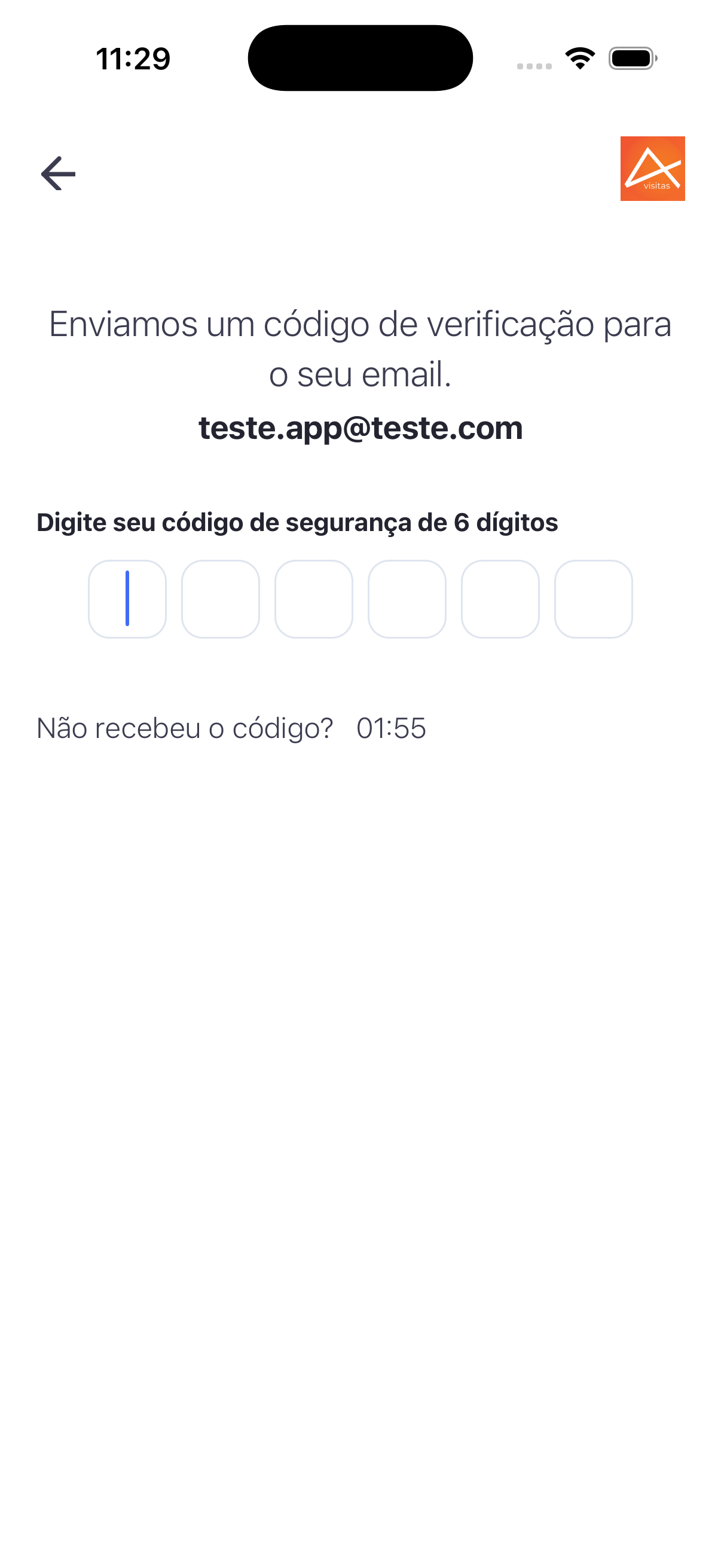
In the app, the approver enters the 6-digit code received by email. 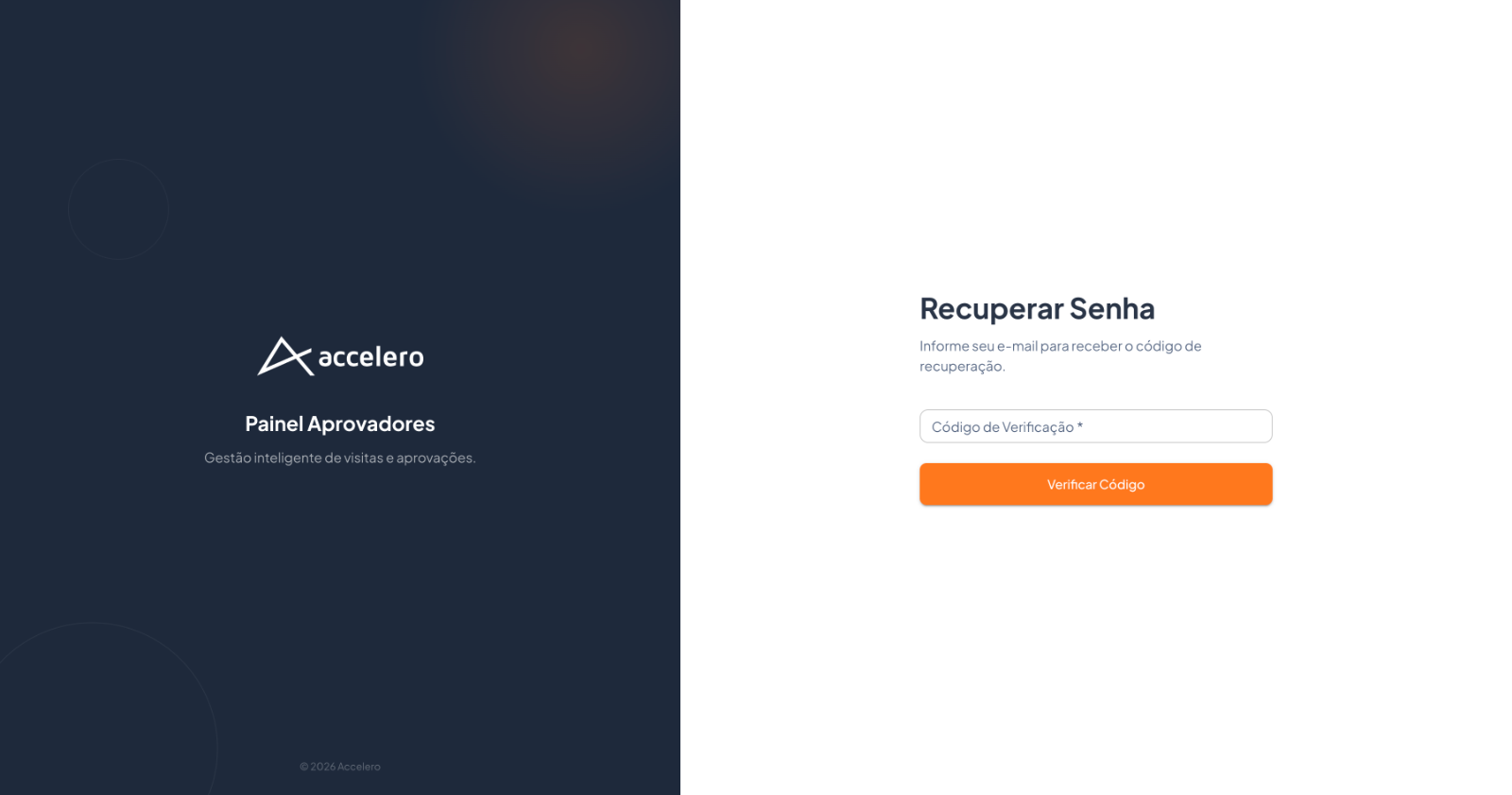
In the web panel, the same code is entered for verification. - App: the We sent a verification code to your email screen (showing the email) and the Enter your 6-digit security code field, with six boxes. There is Didn't receive the code? and a countdown (e.g.,
-
Set the new password.
- App: the Enter the new password you want to use. Make sure it is strong and secure. screen with the Password* and Confirm password* fields (both with an eye icon) and the Save button. Rule shown: The password must contain 8 characters, one uppercase letter, one lowercase letter, one number, and one special character.
- Web: the New Password * and Confirm Password * fields and the Change Password button. Rule shown: The password must have at least 8 characters, including uppercase letters, lowercase letters, numbers, and special characters.
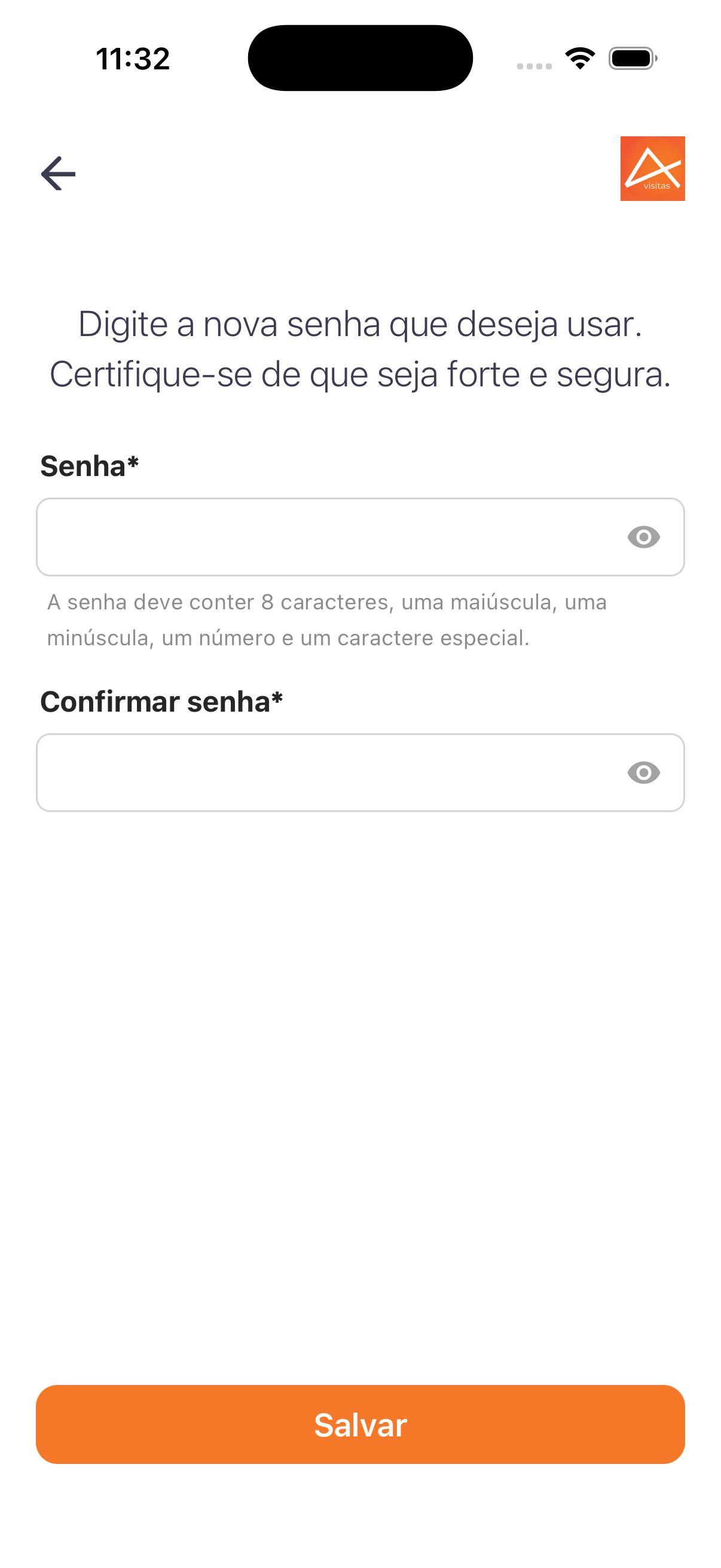
In the app, the approver sets and confirms the new password, following the security rules. 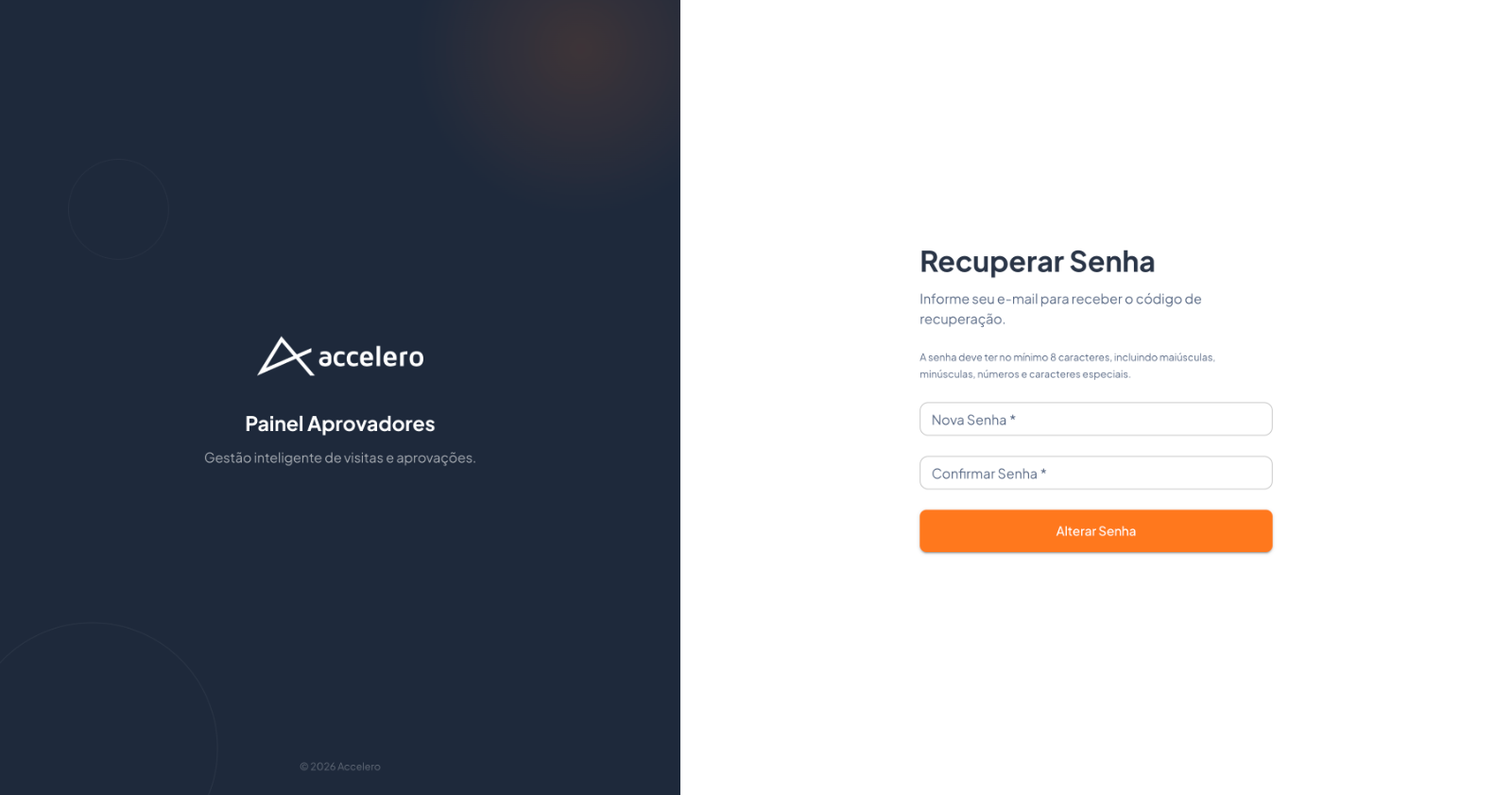
In the web panel, the new password is set and confirmed to complete the recovery.
Sign in with the email and password you registered. Forgot your password? Use Forgot your password?, enter your email, type the 6-digit code received by email (if it takes a while, wait for the countdown and request a resend), and create a new strong password (at least 8 characters, with an uppercase letter, a lowercase letter, a number, and a special character).