Profile
Overview
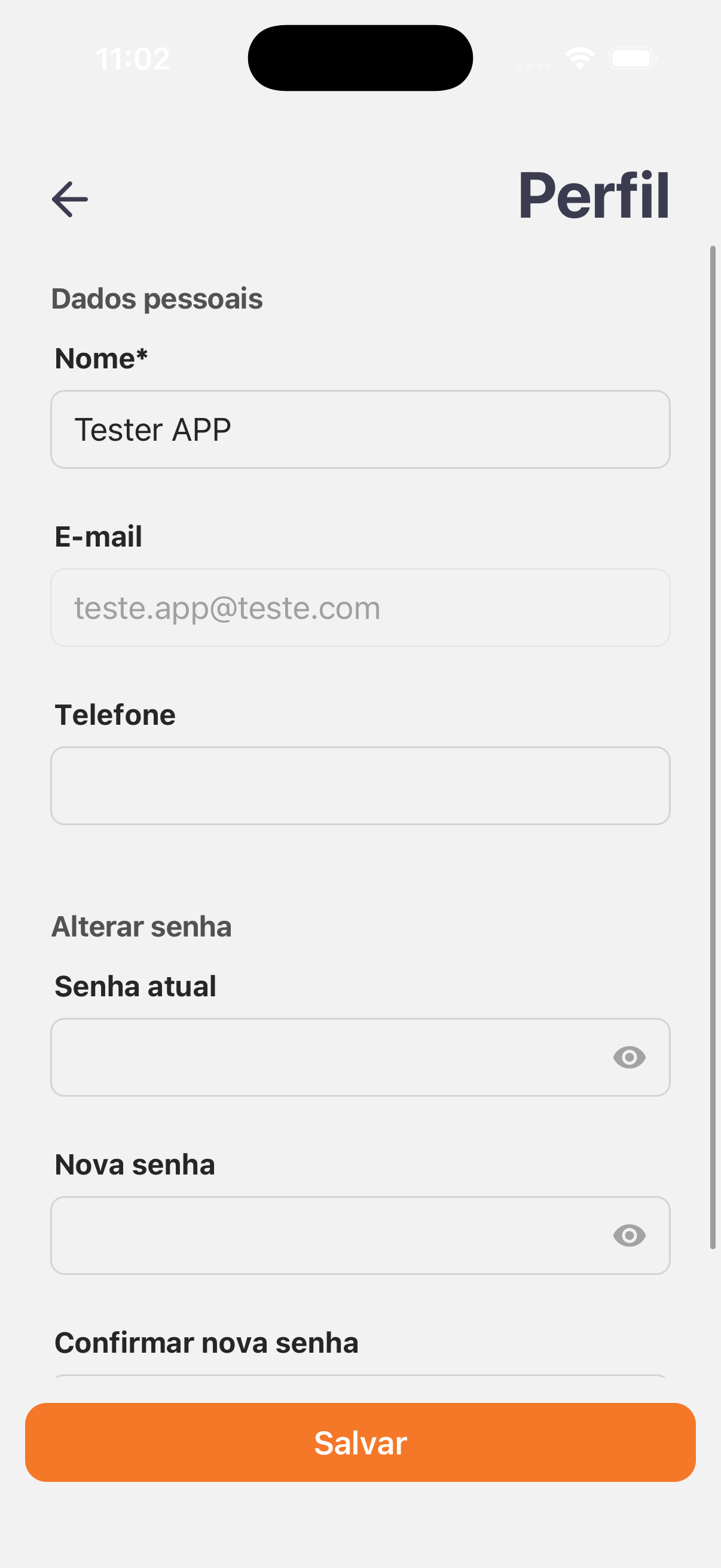
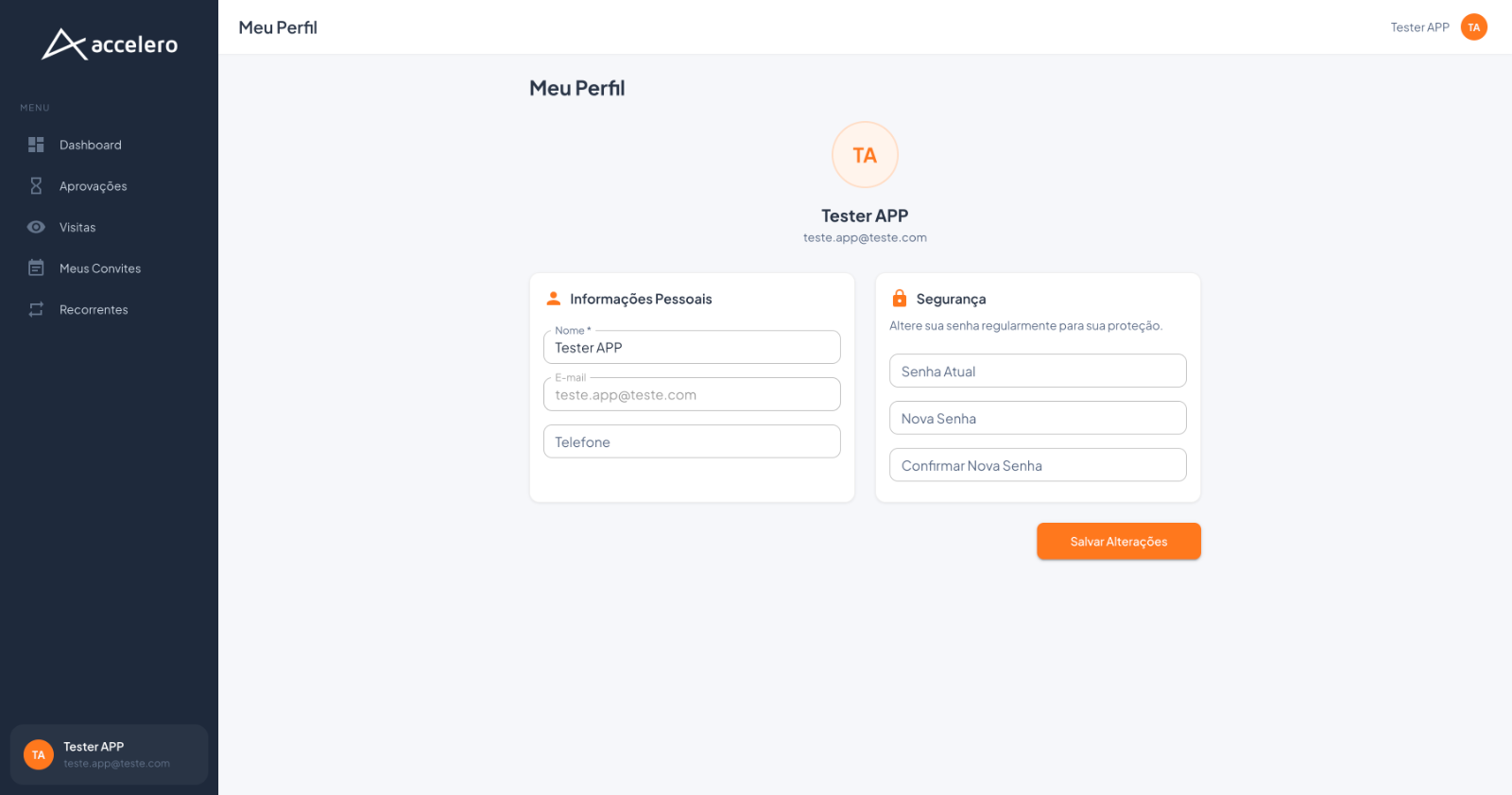
The approver's account data screen, with personal data and password change. It exists in the app (Profile) and in the web panel (My Profile) with the same fields; the web panel organizes everything in two columns and the app in a single one.
In the app and in the web panel
- App — Profile: single-column layout, with the Personal data section followed by the Change password section and the Save button at the bottom.
- Web panel — My Profile: shows the user's avatar, name, and email at the top and splits the content into two columns — Personal Information (left) and Security (right) — with the Save Changes button.
Fields
Personal data / Personal Information
- Name* — the approver's name (required).
- Email — the account email (displayed, read-only).
- Phone — phone number (may be empty).
Change password / Security (in the web panel with the notice Change your password regularly for your protection.)
- Current password / Current Password — field with an eye icon (app).
- New password / New Password — field with an eye icon (app).
- Confirm new password / Confirm New Password.
Actions
- Save (app) / Save Changes (web) — records the data and/or password changes.
Step by step
- Update the Name and/or Phone in Personal data / Personal Information.
- To change the password, fill in Current password, New password, and Confirm new password in Change password / Security.
- Tap/click Save (Save Changes in the web panel).
For you
Keep your name and phone up to date and change your password periodically here (enter the current password and confirm the new one). The email is display-only. Forgot your password and cannot sign in? Use the recovery on the Sign-in and password recovery screen.