Companies
Overview
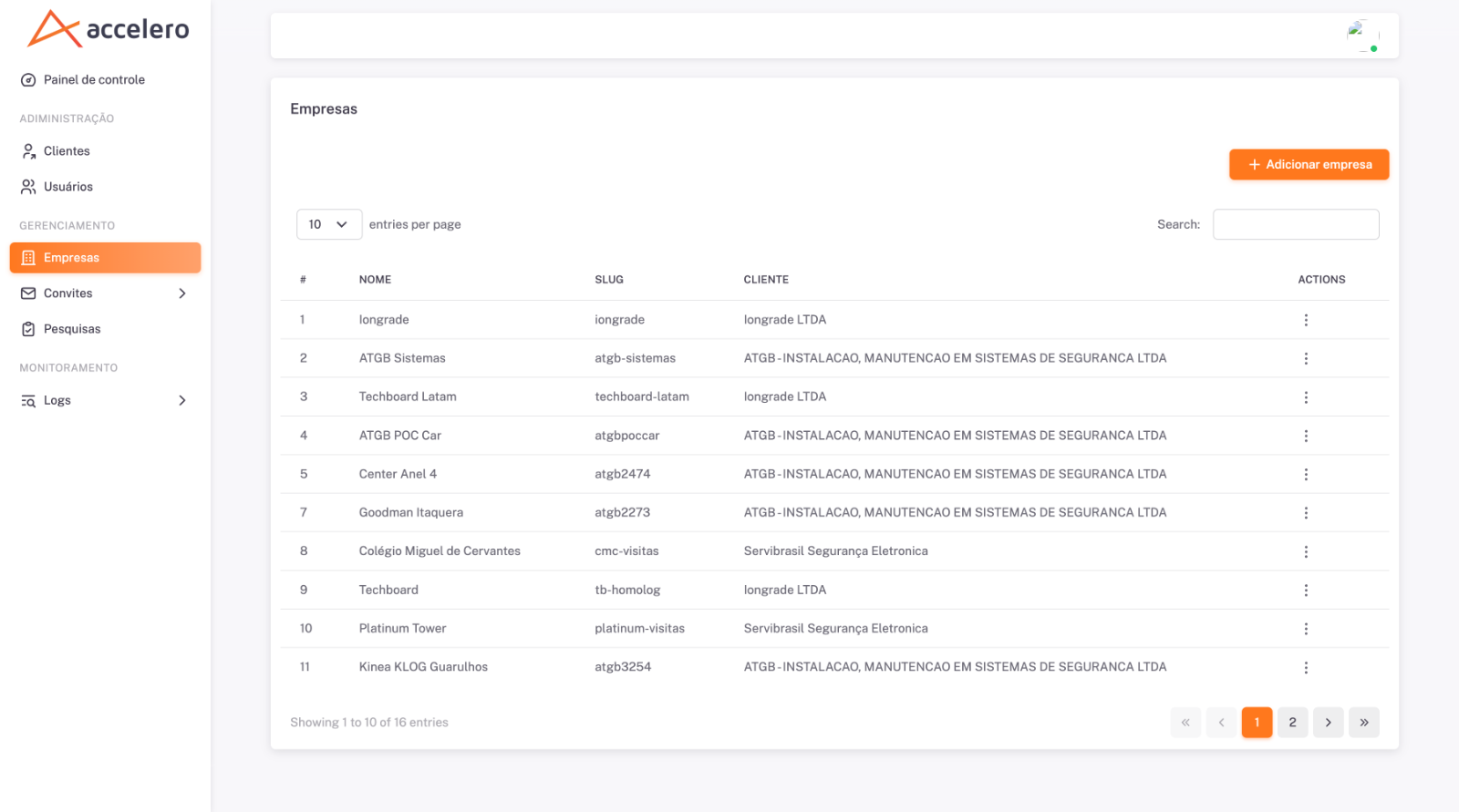
The Companies screen is the central registry of the sites served by Accelero Visitas. Each company is a tenant identified by a slug (used in the public URL of the visitor flow) and is linked to a client. From here you configure general data, location for the proximity rule, visual identity (logo), integration data with Accelero and the behaviors of the visit operation.
The screen is under Management > Companies. Each company also concentrates shortcuts to its Units, Approvers, Analytics and QR Code generation.
How to access
In the side menu, under Management, click Companies. Use + Add company to create a new one or the actions menu (three dots) of each row for the other operations.
List columns
- # — sequential number.
- Name — company name.
- Slug — identifier used in the URL (e.g.,
iongrade,atgb-sistemas). - Client — client the company belongs to.
- Actions — actions menu per row.
The list has Search, an items-per-page selector and pagination.
Actions (list menu)
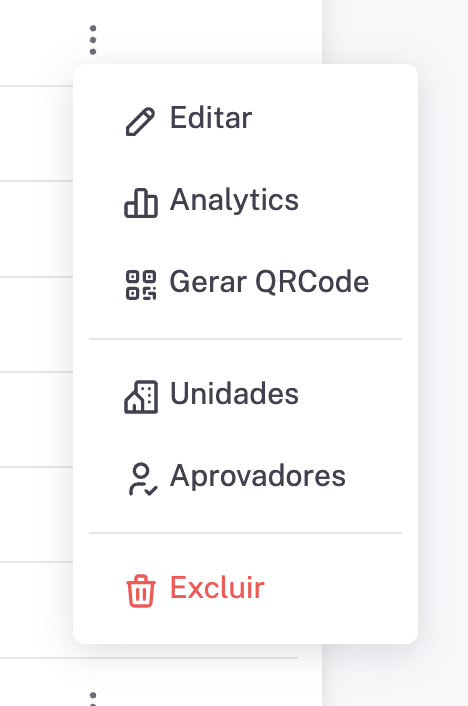
The three-dot menu of each company brings:
- Edit — opens the company form.
- Analytics — opens the indicator panel of that company.
- Generate QR Code — generates the company access QR Code.
- Units — opens the company's unit management.
- Approvers — opens the company's approver management.
- Delete — removes the company (action highlighted in red).
Fields (create / edit)
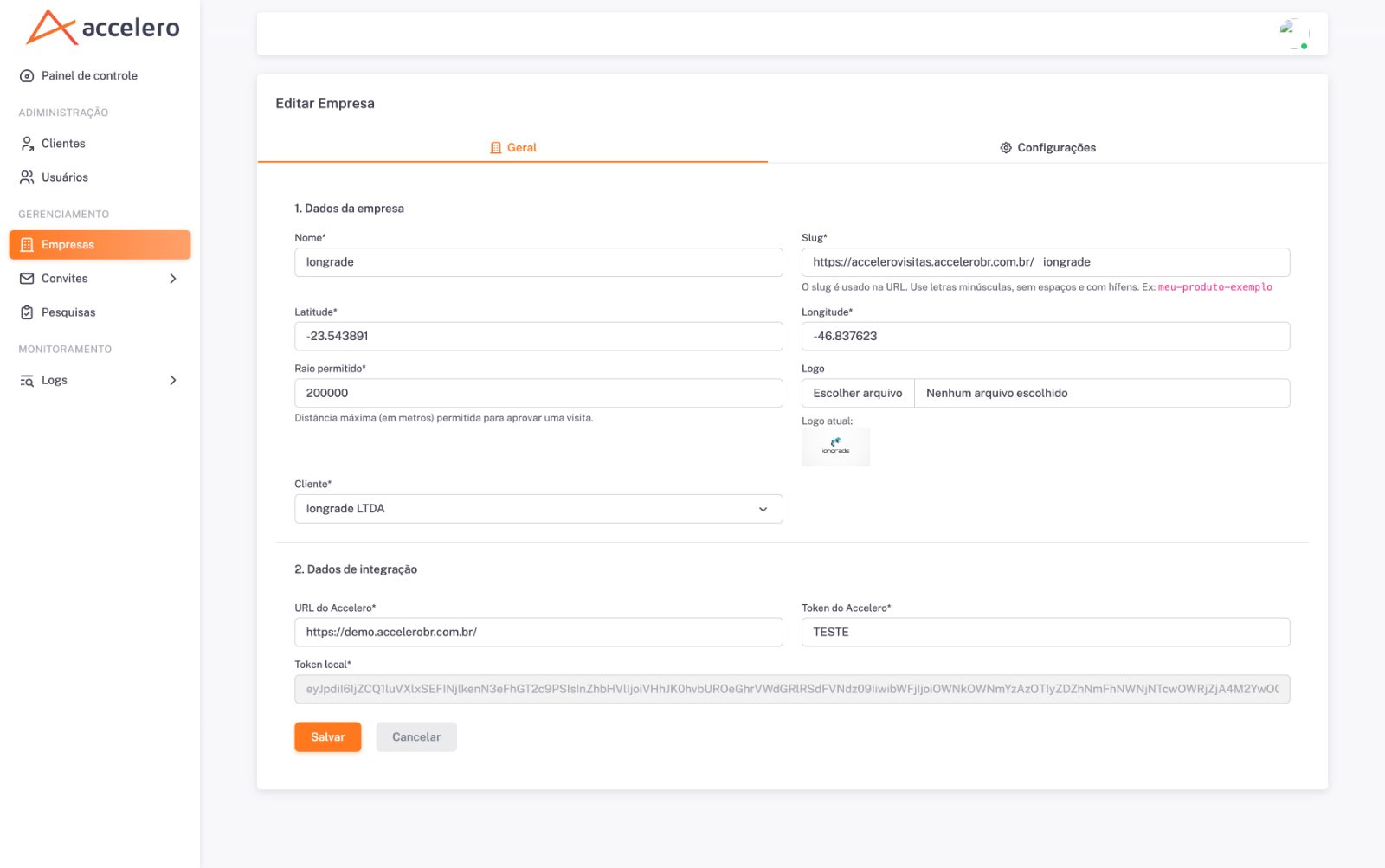
The form has two tabs: General and Settings. Create and edit use the same form (editing comes pre-filled).
General tab
1. Company data
- Name* — company name.
- Slug* — identifier in the URL; the panel shows the resulting public URL (
https://accelerovisitas.accelerobr.com.br/<slug>). On-screen guidance: lowercase letters, no spaces and with hyphens (e.g.,meu-produto-exemplo). - Latitude* and Longitude* — coordinates of the company site.
- Allowed radius* — maximum distance (in meters) allowed to approve a visit.
- Logo — image upload (Choose file); the panel shows the Current logo.
- Client* — client the company will be linked to.
2. Integration data
- Accelero URL* — Accelero base endpoint.
- Accelero token* — authentication token for the integration.
- Local token — token generated/displayed by the panel (read-only field).
Settings tab
1. Configuration (on/off switches):
- Is a logistics center — controls the visitor flow. When on, the visitor goes through the Visit type step (Car or On foot) and, if choosing vehicle entry, through the vehicle data step. When off, this step does not appear and every visit is assumed to be on foot (pedestrian).
- Uses QR Code
- Email notification for approvers
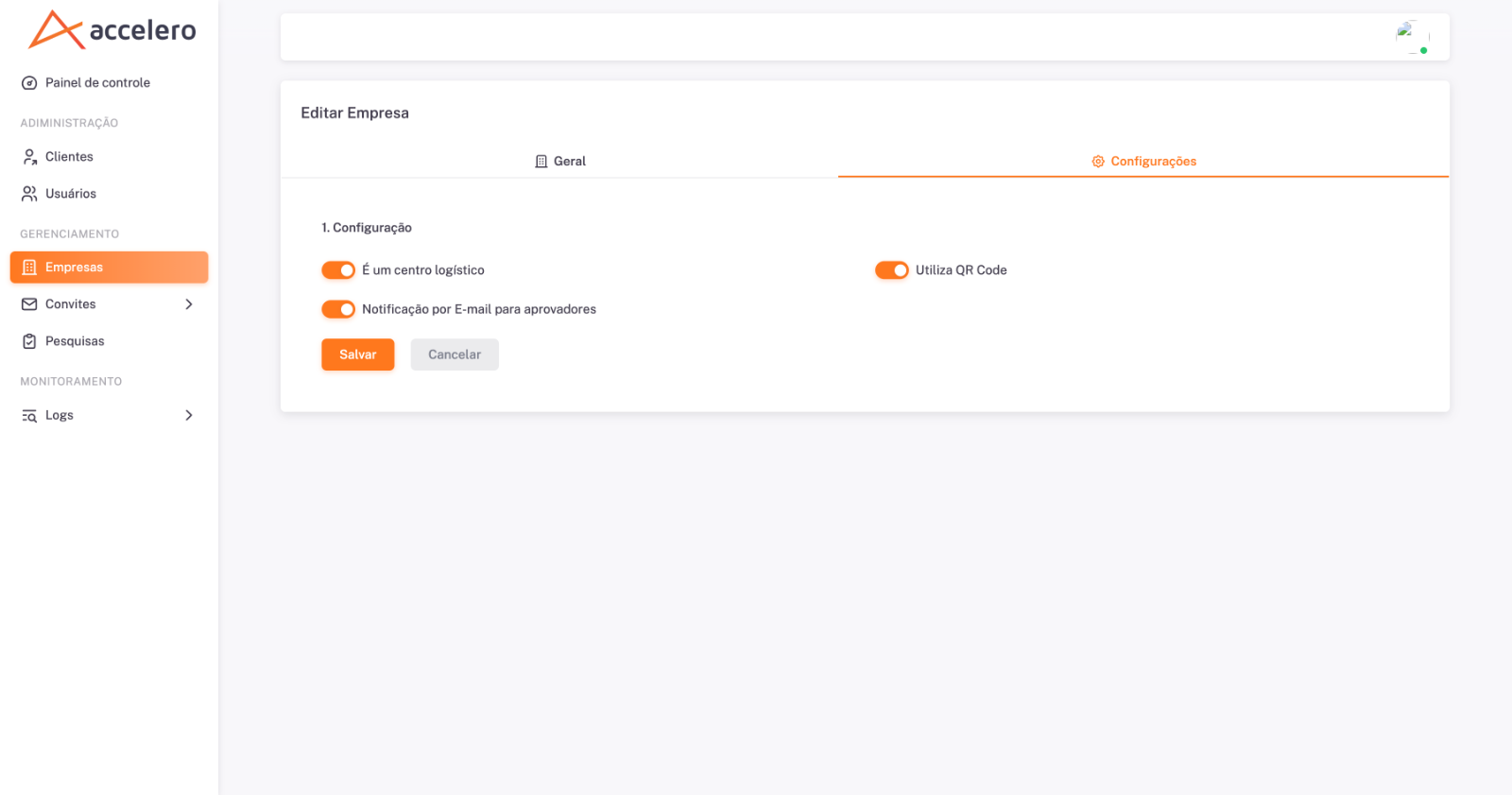
Actions on both tabs: Save and Cancel.
Business rules
- The slug defines the public URL through which visitors access the company flow; it must be unique, lowercase and with hyphens.
- Latitude/Longitude + Allowed radius govern the proximity rule: the visit is only approved if the requester is within the radius (in meters) of the site.
- The Integration data fields (Accelero URL and token) link the company to the Accelero system — they are a prerequisite for synchronizing units/departments.
- The switches in Settings change the behavior of the operation (logistics center, QR Code usage and email dispatch to approvers).
- Is a logistics center defines whether the visitor flow offers the Visit type choice (Car/On foot) and the vehicle step: on, the visitor can arrive by vehicle; off, every visit is assumed to be on foot and these steps are skipped.
What matters in the integration contract is in 2. Integration data — Accelero URL and Accelero token define how the panel talks to Accelero, and the Local token is the identifier generated on this side. Make sure these values are set before trying Synchronize with Accelero in Units; without them the unit/department synchronization does not work.
Related
- Units
- Approvers
- Clients
- Onboarding a new company
- Integration with Accelero
- Dashboard