Invitation (approval and QR Code)
Overview
The "Authorization" step after the entry is registered. The company host is notified about the visitor's arrival and must authorize the visit. The screen shows the status (pending or approved) and, once approved, displays the access Locator and QR Code.
What you see
Screen "Authorization" (pending):
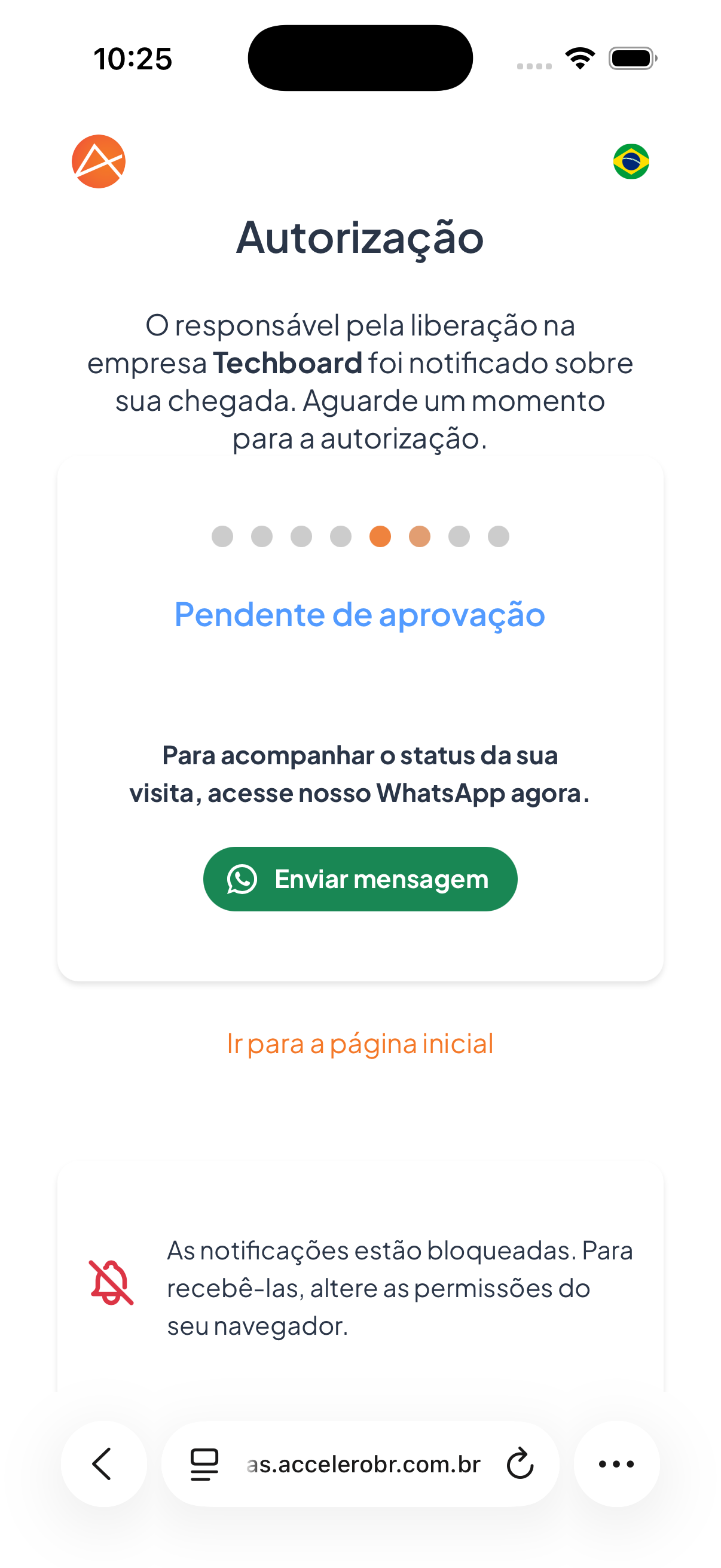
- Title "Authorization".
- Text: "The person responsible for clearance at the company [Company] has been notified about your arrival. Please wait a moment for the authorization."
- Status "Pending approval" with a progress indicator.
- Text "To follow the status of your visit, go to our WhatsApp now." and button Send message.
- Link Go to the home page.
- Notice when browser notifications are blocked: "Notifications are blocked. To receive them, change your browser permissions."
Screen "Authorization" (approved):
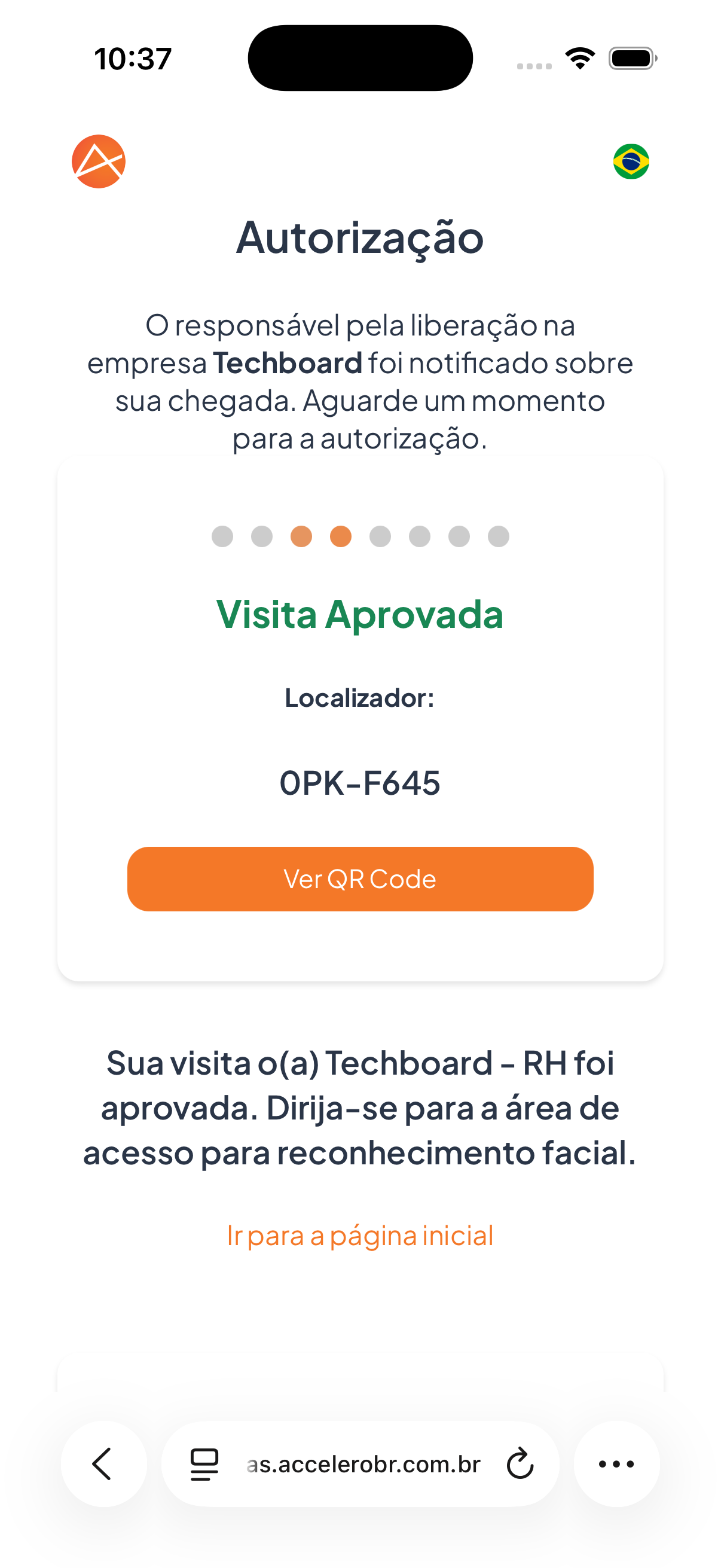
- Status "Visit Approved".
- Locator: visit code (e.g., 0PK-F645).
- Button View QR Code.
- Text "Your visit to [Company] has been approved. Go to the access area for facial recognition."
- Link Go to the home page.
Box "QR Code":
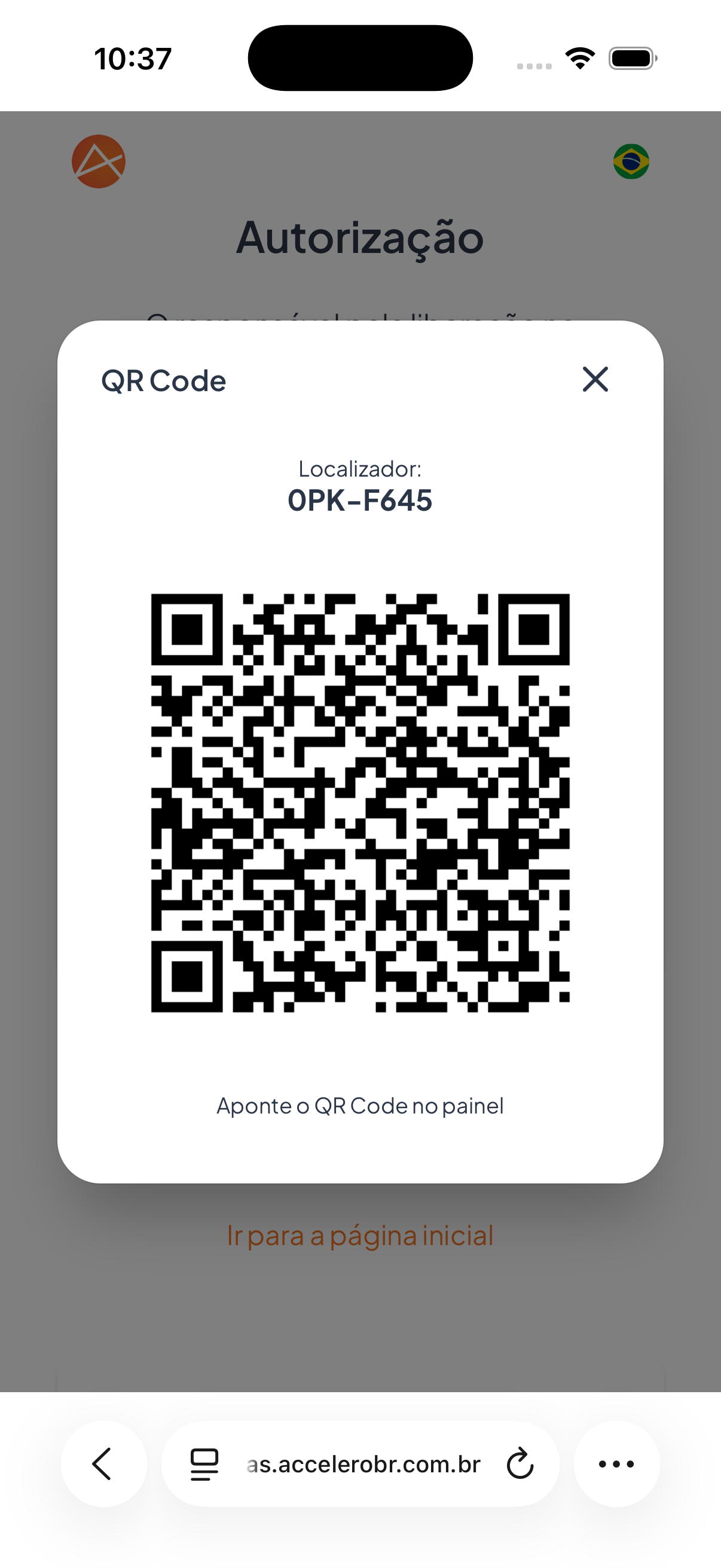
- Locator repeated.
- QR Code image.
- Instruction "Point the QR Code at the panel".
- Button X to close.
States
- Pending approval: the host has been notified and the visit awaits authorization; follow it on WhatsApp.
- Visit Approved: entry has been cleared; a Locator and the QR Code become available.
- Notifications blocked: if the browser is blocking notifications, a notice appears asking you to allow the permissions.
Step by step
- After confirming the entry, wait on the Authorization screen.
- Tap Send message to follow the status on WhatsApp, if you want.
- When the status changes to Visit Approved, tap View QR Code.
- At the access area, point the QR Code at the panel and complete the facial recognition.
For you
After registering your entry, your visit stays pending until the host authorizes it — you can follow it on WhatsApp. Once it is approved, note the Locator and use View QR Code: at the entrance, point the QR Code at the panel and complete the facial recognition. If your browser blocks notifications, allow the permissions to be notified.